# Step-By-Step: Manually Removing A Domain Controller Server

[https://techcommunity.microsoft.com/t5/itops-talk-blog/step-by-step-manually-removing-a-domain-controller-server/ba-p/280564](https://techcommunity.microsoft.com/t5/itops-talk-blog/step-by-step-manually-removing-a-domain-controller-server/ba-p/280564)

Use of DCPROMO is still the proper way to remove a DC server in an Active Directory infrastructure. Certain situations, such as server crash or failure of the DCPROMO option, require manual removal of the DC from the system by cleaning up the server's metadata. The following detailed steps will help you accomplish this:

# **Step 1: Removing metadata via Active Directory Users and Computers**

1. Log in to DC server as Domain/Enterprise administrator and navigate to **Server Manager &gt; Tools &gt; Active Directory Users and Computers**
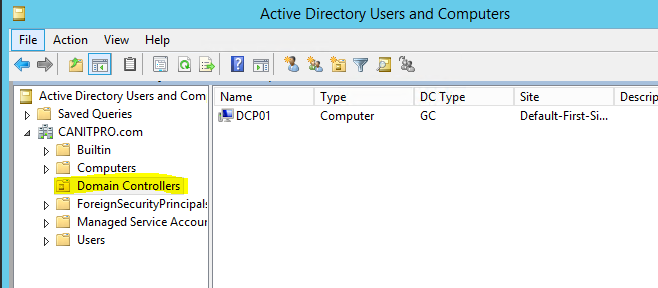
2. Expand the **Domain &gt; Domain Controllers**   
      
    [![meta1](http://www.rebeladmin.com/wp-content/uploads/2016/01/meta1.png)](http://www.rebeladmin.com/wp-content/uploads/2016/01/meta1.png)
3. Right click on the Domain Controller you need to manually remove and click **Delete  
       
    <span class="lia-inline-image-display-wrapper lia-image-align-center"><span class="lia-message-image-wrapper">![thumbnail image 1 of blog post titled 


    							Step-By-Step: Manually Removing A Domain Controller Server


    ](https://techcommunity.microsoft.com/t5/image/serverpage/image-id/58795i4F97EA6E54386773/image-size/large?v=v2&px=999)</span></span>**
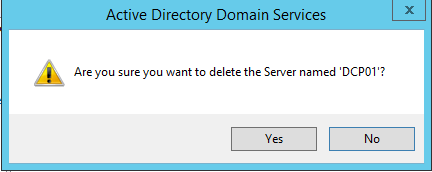
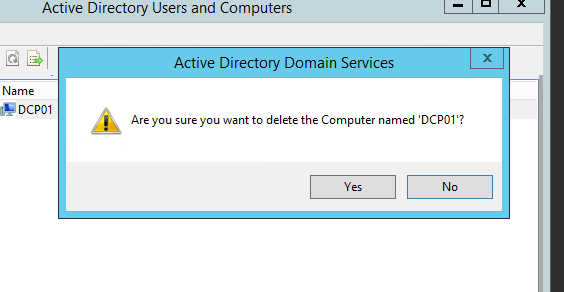
4. Click **Yes** to confirm within the Active Directory Domain Services dialog box  
       
    <span class="lia-inline-image-display-wrapper lia-image-align-center"><span class="lia-message-image-wrapper">![thumbnail image 2 of blog post titled 


    							Step-By-Step: Manually Removing A Domain Controller Server


    ](https://techcommunity.microsoft.com/t5/image/serverpage/image-id/58796i8F50A3456B14F82F/image-size/large?v=v2&px=999)</span></span>
5. In next dialog box, select **This Domain Controller is permanently offline and can no longer be demoted using the Active Directory Domain Services Installation Wizard (DCPROMO)** and click **Delete   
       
    <span class="lia-inline-image-display-wrapper lia-image-align-center"><span class="lia-message-image-wrapper">![thumbnail image 3 of blog post titled 


    							Step-By-Step: Manually Removing A Domain Controller Server


    ](https://techcommunity.microsoft.com/t5/image/serverpage/image-id/58797iE22F9E3C045E3531/image-size/large?v=v2&px=999)</span></span>**
6. If the domain controller is global catalog server, in next window click **Yes** to continue with deletion
7. If the domain controller holds any FSMO roles in next window, click **Ok** to move them to the domain controller which is available

# **Step 2: Removing the DC server instance from the Active Directory Sites and Services**

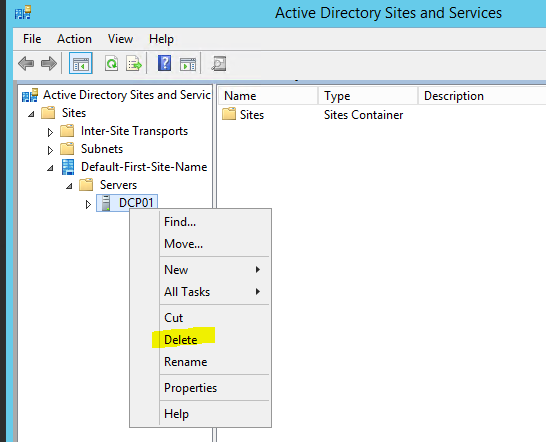
1. Go to **Server manager &gt; Tools &gt; Active Directory Sites and Services**
2. Expand the Sites and go to the server which need to remove
3. Right click on the server you which to remove and click **Delete   
       
    <span class="lia-inline-image-display-wrapper lia-image-align-center"><span class="lia-message-image-wrapper">![thumbnail image 4 of blog post titled 


    							Step-By-Step: Manually Removing A Domain Controller Server


    ](https://techcommunity.microsoft.com/t5/image/serverpage/image-id/58798i2E502DC00CAB07D9/image-size/large?v=v2&px=999)</span></span>**
4. Click **Yes** to confirm  
      
    <span class="lia-inline-image-display-wrapper lia-image-align-center"><span class="lia-message-image-wrapper">![thumbnail image 5 of blog post titled 


    							Step-By-Step: Manually Removing A Domain Controller Server


    ](https://techcommunity.microsoft.com/t5/image/serverpage/image-id/58799i231E5FA5B874BC6B/image-size/large?v=v2&px=999)</span></span>

# **Step 3: Remove metadata via ntdsutil** 

1. Right Click on Start &gt; Command Prompt (admin)
2. Type **ntdsutil** and enter   
       
    <span class="lia-inline-image-display-wrapper lia-image-align-center"><span class="lia-message-image-wrapper">![thumbnail image 6 of blog post titled 


    							Step-By-Step: Manually Removing A Domain Controller Server


    ](https://techcommunity.microsoft.com/t5/image/serverpage/image-id/58800iC8BD362A1AFC3DC7/image-size/large?v=v2&px=999)</span></span>
3. You are then presented with the **metadata cleanup** prompt  
     [![meta8](http://www.rebeladmin.com/wp-content/uploads/2016/01/meta8.png)](http://www.rebeladmin.com/wp-content/uploads/2016/01/meta8.png)
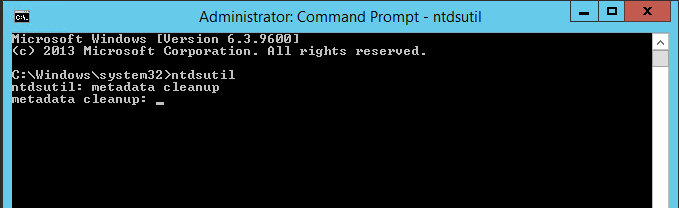
4. Next type **remove selected server &lt;servername&gt;**  
    **NOTE:** Replace &lt;servername&gt; with domain Controller server you wish to remove  
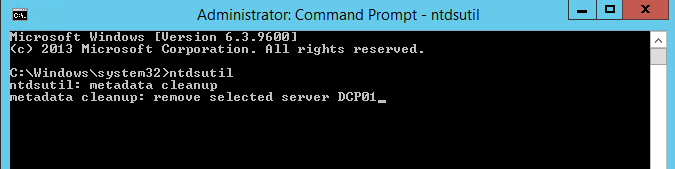
       
    <span class="lia-inline-image-display-wrapper lia-image-align-center"><span class="lia-message-image-wrapper">![thumbnail image 7 of blog post titled 


    							Step-By-Step: Manually Removing A Domain Controller Server


    ](https://techcommunity.microsoft.com/t5/image/serverpage/image-id/58804i8AA8F1248028C58C/image-size/large?v=v2&px=999)</span></span>
5. Click **Yes** to proceed when presented with the warning window
6. Execute the **quit** command twice to exit out of the console