# Securing Local Administrator Accounts with the new Windows LAPS - Active Directory - 2023-04-12
This article is divided into three parts:
1. What is Windows LAPS and what are the key differences between the legacy LAPS and the new version
2. How to deploy Windows LAPS
3. How to migrate from legacy LAPS to Windows LAPS
## What is Windows LAPS
Windows LAPS (Local Administration Password Solution) is a Windows feature that enables automatic management and backup of the password of a local administrator account on Azure Active Directory-joined or Windows Server Active Directory-joined devices.
The announcement post is [https://techcommunity.microsoft.com/t5/windows-it-pro-blog/by-popular-demand-windows-laps-available-now/ba-p/3788747](https://techcommunity.microsoft.com/t5/windows-it-pro-blog/by-popular-demand-windows-laps-available-now/ba-p/3788747)
It also facilitates automatic management and backup of the Directory Services Restore Mode (DSRM) account password on Windows Server Active Directory domain controllers. An authorized administrator can retrieve and utilize the DSRM password.
As you can see in this article, you don't need to install any PowerShell/.exe/.dll. Everything is now integrated in Windows.
## Windows LAPS supported platforms and Azure AD LAPS preview
The Azure Active Directory LAPS scenario remains in private preview and is closed to new customers. The Azure Active Directory LAPS scenario is scheduled to enter public preview in Q2 2023.
Windows LAPS is now available and fully supported on the following OS platforms with the specified update or later installed:
- [Windows 11 22H2 - April 11 2023 Update](https://support.microsoft.com/help/5025239)
- [Windows 11 21H2 - April 11 2023 Update](https://support.microsoft.com/help/5025224)
- [Windows 10 - April 11 2023 Update](https://support.microsoft.com/help/5025221)
- [Windows Server 2022 - April 11 2023 Update](https://support.microsoft.com/help/5025230)
- [Windows Server 2019 - April 11 2023 Update](https://support.microsoft.com/help/5025229)
The April 11, 2023 update has two potential regressions related to interoperability with legacy LAPS scenarios. Please read the following to understand the scenario parameters plus possible workarounds.
Issue #1: If you install the legacy LAPS CSE on a device patched with the April 11, 2023 security update and an applied legacy LAPS policy, both Windows LAPS and legacy LAPS will enter a broken state where neither feature will update the password for the managed account. Symptoms include Windows LAPS event log IDs 10031 and 10033, as well as legacy LAPS event ID 6. Microsoft is working on a fix for this issue.
Two primary workarounds exist for the above issue:
a. Uninstall the legacy LAPS CSE (result: Windows LAPS will take over management of the managed account)
b. Disable legacy LAPS emulation mode (result: legacy LAPS will take over management of the managed account)
Issue #2: If you apply a legacy LAPS policy to a device patched with the April 11, 2023 update, Windows LAPS will immediately enforce\honor the legacy LAPS policy, which may be disruptive (for example if done during OS deployment workflow). Disable legacy LAPS emulation mode may also be used to prevent those issues.
## Windows LAPS Architecture
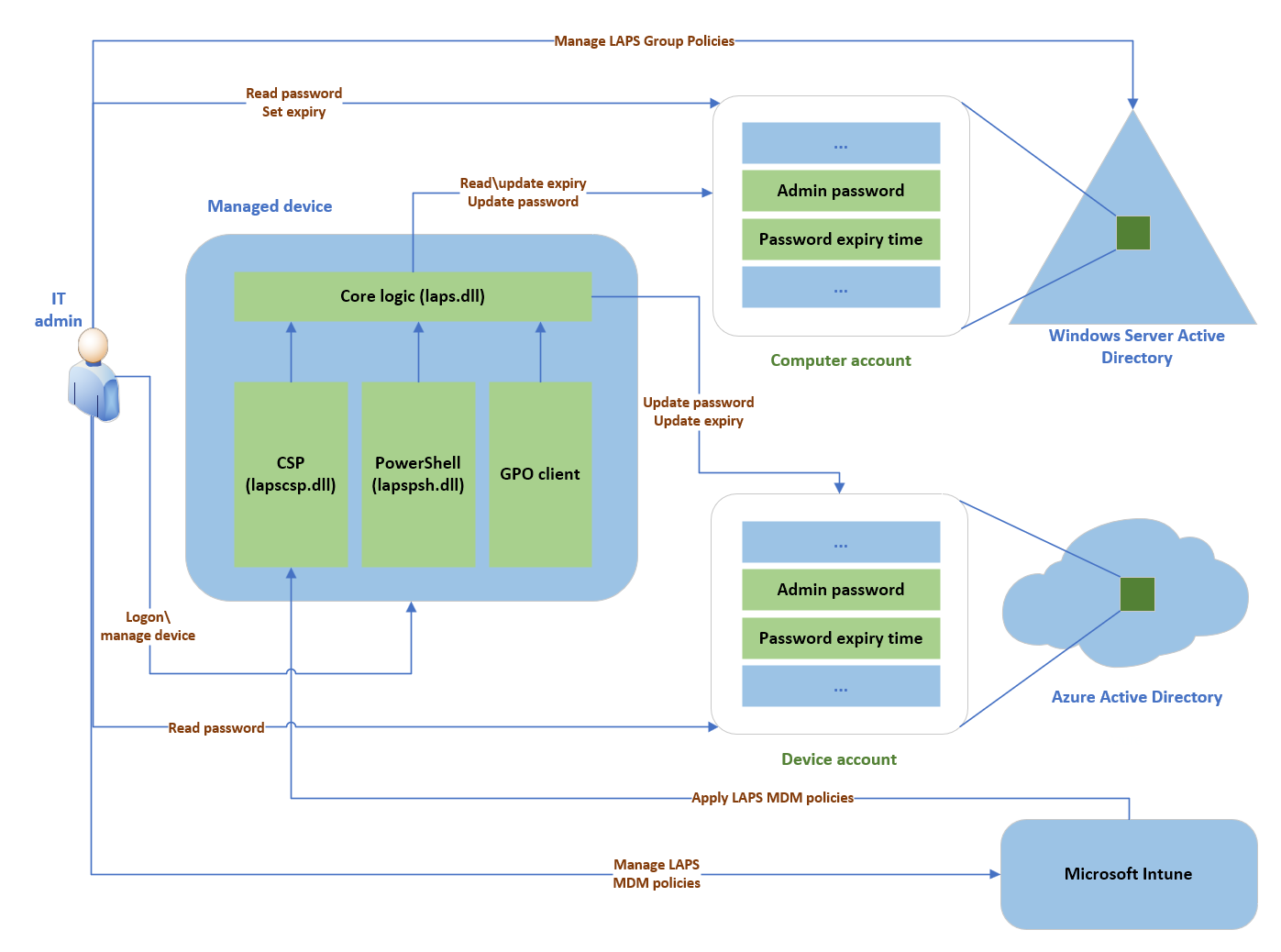LAPS architectureThe Windows LAPS architecture diagram has several key components:
- IT admin: Represents collectively the various IT admin roles that might be involved in a Windows LAPS deployment. The IT admin roles are involved with policy configuration, expiration or retrieval of stored passwords, and interacting with managed devices.
- Managed device: Represents an Azure Active Directory-joined or Windows Server Active Directory-joined device on which you want to manage a local administrator account. The feature is composed of a few key binaries:
- *laps.dll* for core logic
- *lapscsp.dll* for configuration service provider (CSP) logic
- *lapspsh.dll* for PowerShell cmdlet logic. You also can configure Windows LAPS by using Group Policy. Windows LAPS responds to Group Policy Object (GPO) change notifications. The managed device can be a Windows Server Active Directory domain controller and be configured to back up Directory Services Repair Mode (DSRM) account passwords.
- Windows Server Active Directory: An on-premises Windows Server Active Directory deployment.
- Azure Active Directory: An Azure Active Directory deployment running in the cloud.
- Microsoft Intune The preferred Microsoft device policy management solution, also running in the cloud.
## PowerShell module
A new module is installed and you can get the CMDlets with:
```powershell
Get-Command -Module LAPS
```
Use to query Azure Active Directory for Windows LAPS passwords.
Get-LapsDiagnostics
Use to collect diagnostic information for investigating issues.
Find-LapsADExtendedRights
Use to discover which identities have been granted permissions for an Organization Unit (OU) in Windows Server Active Directory.
Get-LapsADPassword
Use to query Windows Server Active Directory for Windows LAPS passwords.
Invoke-LapsPolicyProcessing
Use to initiate a policy processing cycle.
Reset-LapsPassword
Use to initiate an immediate password rotation. Use when backing up the password to either Azure Active Directory or Windows Server Active Directory.
Set-LapsADAuditing
Use to configure Windows LAPS-related auditing on OUs in Windows Server Active Directory.
Set-LapsADComputerSelfPermission
Use to configure an OU in Windows Server Active Directory to allow computer objects to update their Windows LAPS passwords.
Set-LapsADPasswordExpirationTime
Use to update a computer's Windows LAPS password expiration time in Windows Server Active Directory.
Set-LapsADReadPasswordPermission
Use to grant permission to read the Windows LAPS password information in Windows Server Active Directory.
Set-LapsADResetPasswordPermission
Use to grant permission to update the Windows LAPS password expiration time in Windows Server Active Directory.
Update-LapsADSchema
Use to extend the Windows Server Active Directory schema with the Windows LAPS schema attributes.
## Windows LAPS PowerShell vs. legacy Microsoft LAPS PowerShell
Legacy Microsoft LAPS included a PowerShell module `AdmPwd.PS`.
This table presents a comparison between the old (ADMPwd.PS) and new (LAPS) modules, highlighting their similarities and differences.
Windows LAPS cmdlet
Legacy Microsoft LAPS cmdlet
Get-LapsAADPassword
Doesn't apply
Get-LapsDiagnostics
Doesn't apply
Find-LapsADExtendedRights
Find-AdmPwdExtendedRights
Get-LapsADPassword
Get-AdmPwdPassword
Invoke-LapsPolicyProcessing
Doesn't apply
Reset-LapsPassword
Doesn't apply
Set-LapsADAuditing
Set-AdmPwdAuditing
Set-LapsADComputerSelfPermission
Set-AdmPwdComputerSelfPermission
Set-LapsADPasswordExpirationTime
Reset-AdmPwdPassword
Set-LapsADReadPasswordPermission
Set-AdmPwdReadPasswordPermission
Set-LapsADResetPasswordPermission
Set-AdmPwdResetPasswordPermission
Update-LapsADSchema
Update-AdmPwdADSchema
## Background policy processing cycle
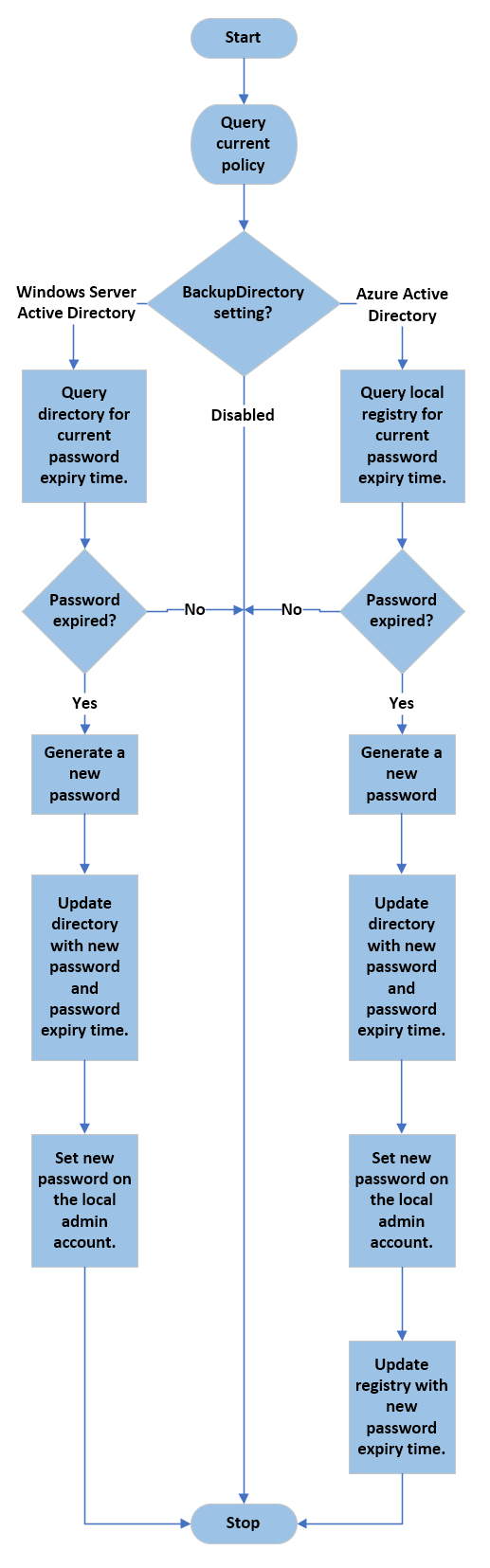Background policy## How to deploy Windows LAPS
### Extend AD schema
You need to be part of the Schema Admins group to modify the Active Directory schema.
The Active Directory schema must be updated prior to using Windows LAPS.
This action is performed by using the following cmdlet.
```powershell
Update-LapsADSchema
```
The schema is forest-wide, so you only need to perform this action once for your entire forest.
`Update-LapsADSchema` adds the following attributes to the directory and to the `mayContain` list on the computer schema class.ms-LAPS-Password
- ms-LAPS-PasswordExpirationTime
- ms-LAPS-EncryptedPassword
- ms-LAPS-EncryptedPasswordHistory
- ms-LAPS-EncryptedDSRMPassword
- ms-LAPS-EncryptedDSRMPasswordHistory
- ms-LAPS-Encrypted-Password-Attributes
### Grant the managed device permission to update its password
It is highly recommended to have a full understanding of this command before running it.
Do NOT RUN this command if you don't understand.
The managed device needs to be granted permission to update its password. This action is performed by setting inheritable permissions on the Organizational Unit (OU) the device is in.
The `Set-LapsADComputerSelfPermission` is used for this purpose, for example:
```powershell
Set-LapsADComputerSelfPermission -Identity OUName
```
### Remove Extended Rights permissions
It is highly recommended to have a full understanding of this command before running it.
Do NOT RUN this command if you don't understand.
Some users or groups might already be granted `Extended Rights` permission on the managed device's OU.
Granting this permission can be problematic because it provides access to read confidential attributes, including all of the Windows LAPS password attributes that are marked as confidential.
To identify who has been granted these permissions, one option is to use the following method:
```powershell
Find-LapsADExtendedRights -Identity OUName
```
The ouput is:
```powershell
ObjectDN ExtendedRightHolders
-------- --------------------
OU=OUName,DC=lab,DC=com {NT AUTHORITY\SYSTEM, LAB\Domain Admins}
```
In this example, only trusted entities (SYSTEM and Domain Admins) have the privilege. No other action is required.
### Deploy ADMX/ADML files
The ADMX and ADML files are deployed in `%windir%\policydefinitions`by default after the update.
To configure the GPO from all your domain controllers, you must copy `LAPS.admx` and `LAPS.adml` (in en-us by default) to your central store (if any).
Please note you need to install the update on the domain controller if you want to manage DSRM accounts.
### Configure GPO for Windows LAPS
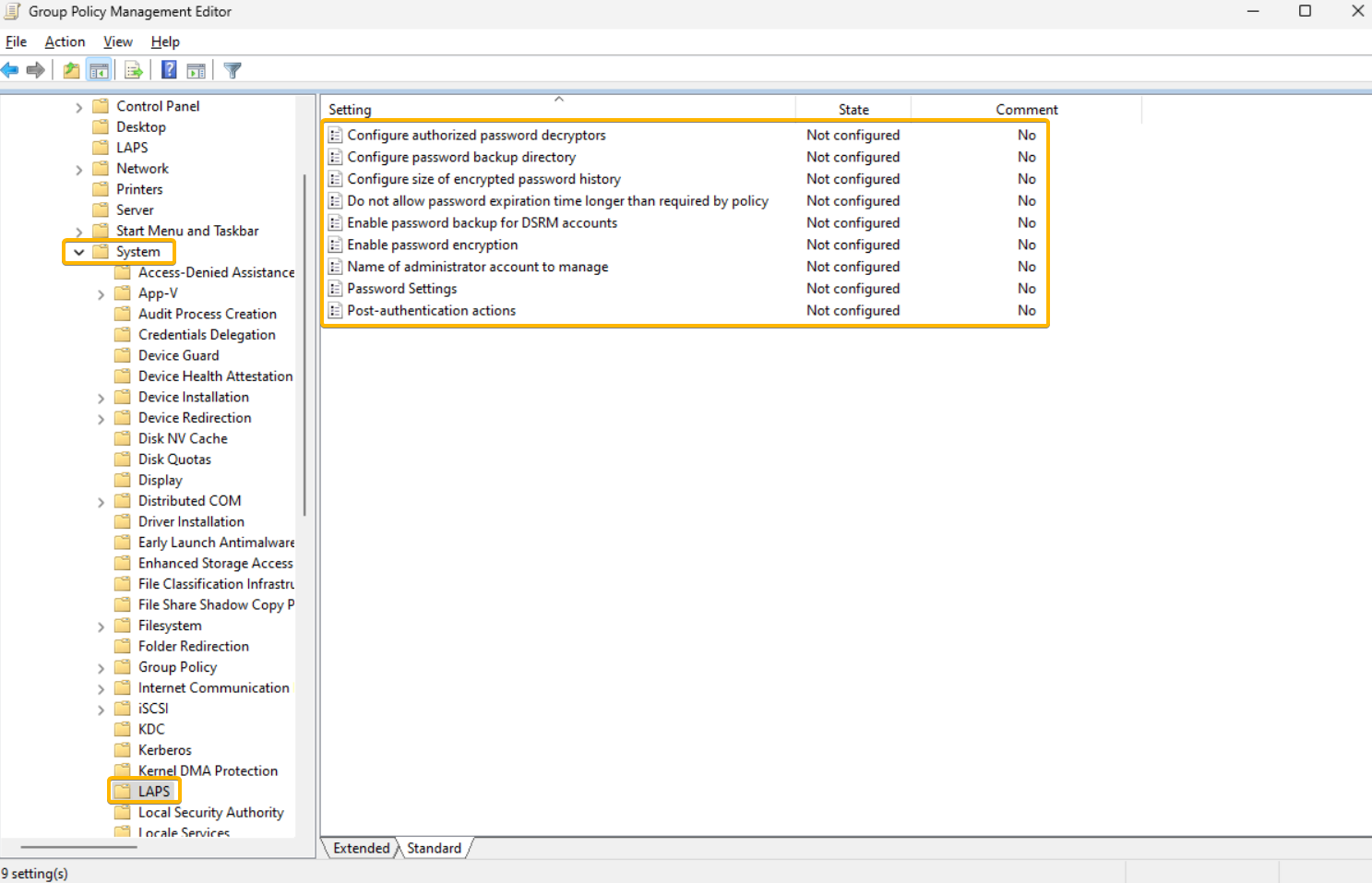
A new Group Policy Object is available with Windows LAPS, which enables administrators to manage policy settings on Active Directory domain-joined devices.
In the Group Policy Management console, you'll find the new settings in **Computer Configuration** > **Administrative Templates** > **System** > **LAPS**
## How to migrate from legacy LAPS to Windows LAPS
### Coexistence
In case you miss the info at the beginning of this post:
There is a legacy LAPS interop bug in the above April 11, 2023 update. Please see the message in the *Windows LAPS supported platforms and Azure AD LAPS preview* part.
You can work around this issue by either:
- uninstalling legacy LAPS
- or deleting all registry values under the `HKLM\Software\Microsoft\Windows\CurrentVersion\LAPS\State` registry key.
### Migrate
For now, Microsoft doesn't release the documentation.
But a comment [from Microsoft Jay Simmons on this page](https://techcommunity.microsoft.com/t5/windows-it-pro-blog/by-popular-demand-windows-laps-available-now/ba-p/3788747) provides a high level steps. As usual, adapt them for your environment:
1\) Extend your AD schema with the new Windows LAPS attributes
2\) Add a new local admin account to your managed devices (call it "LapsAdmin2")
3\) Enable the new Windows LAPS policies to target LapsAdmin2.
4\) Run Windows LAPS and legacy LAPS side-by-side for as long as needed to gain confidence in the solution (and also update IT worker\\helpdesk procedures, monitoring software, etc). Note you will have two (2) separately managed local managed accounts that you may choose to use during this time.
5\) Once happy, remove the legacy LAPS CSE from your managed devices.
6\) Delete the original LapsAdmin account.
7\) (Optionally), purge the now defunct legacy LAPS policy registry entries.