# PowerShell: Get, Modify, Create, and Remove Registry Keys or Parameters

[https://woshub.com/how-to-access-and-manage-windows-registry-with-powershell/#:~:text=You%20can%20browse%20the%20registry,access%20a%20specific%20registry%20hive.&amp;text=Those%2C%20you%20can%20access%20the,to%20manage%20files%20and%20folders.](https://woshub.com/how-to-access-and-manage-windows-registry-with-powershell/#:~:text=You%20can%20browse%20the%20registry,access%20a%20specific%20registry%20hive.&text=Those%2C%20you%20can%20access%20the,to%20manage%20files%20and%20folders.)

The Registry Editor (`regedit.exe`) and the `reg.exe` command-line utility aren’t the only tools to access and manage the registry in Windows. PowerShell provides a large number of tools for the administrator to interact with the registry. Using PowerShell, you can create, modify, or delete a registry key/parameters, search for the value, and connect to the registry on a remote computer.

<div id="bkmrk-">  
</div><div class="content-text" id="bkmrk-contents%3A-navigate-t"><div id="bkmrk-contents%3A">Contents:</div>- [Navigate the Windows Registry Like a File System with PowerShell](https://woshub.com/how-to-access-and-manage-windows-registry-with-powershell/#h2_1)
- [Get a Registry Parameter Value via PowerShell](https://woshub.com/how-to-access-and-manage-windows-registry-with-powershell/#h2_2)
- [Changing Registry Value with PowerShell](https://woshub.com/how-to-access-and-manage-windows-registry-with-powershell/#h2_3)
- [How to Create a New Register Key or Parameter with PowerShell?](https://woshub.com/how-to-access-and-manage-windows-registry-with-powershell/#h2_4)
- [Deleting a Registry Key or Parameter](https://woshub.com/how-to-access-and-manage-windows-registry-with-powershell/#h2_5)
- [How to Rename a Registry Key or a Parameter?](https://woshub.com/how-to-access-and-manage-windows-registry-with-powershell/#h2_6)
- [Search Registry for Keyword Using PowerShell](https://woshub.com/how-to-access-and-manage-windows-registry-with-powershell/#h2_7)
- [Setting Registry Key Permissions with PowerShell](https://woshub.com/how-to-access-and-manage-windows-registry-with-powershell/#h2_8)
- [Getting a Registry Value from a Remote Computer via PowerShell](https://woshub.com/how-to-access-and-manage-windows-registry-with-powershell/#h2_9)

</div>## Navigate the Windows Registry Like a File System with PowerShell

Working with the registry in PowerShell is similar to working with common files on a local disk. The main difference is that in this concept the registry keys are analogous to files, and the registry parameters are the properties of these files.

Display the list of available drives on your computer:

`get-psdrive`

[![get-psdrive](https://woshub.com/wp-content/uploads/2017/06/get-psdrive.jpg)](https://woshub.com/wp-content/uploads/2017/06/get-psdrive.jpg)

<div id="bkmrk--2">  
</div>Note that among the drives (with [drive letters assigned](https://woshub.com/windows-doesnt-assign-letters-to-external-and-usb-flash-drives/)) there are special devices available through the **Registry provider** – HKCU (HKEY\_CURRENT\_USER) and HKLM (HKEY\_LOCAL\_MACHINE). You can browse the registry tree the same way you navigate your drives. **HKLM:\\** and **HKCU:\\** are used to access a specific registry hive.

`cd HKLM:\Dir -ErrorAction SilentlyContinue`

[![browse windows registry with powershell](https://woshub.com/wp-content/uploads/2017/06/browse_windows_registry_powershell.jpg)](https://woshub.com/wp-content/uploads/2017/06/browse_windows_registry_powershell.jpg)

Those, you can access the registry key and their parameters using the same PowerShell cmdlets that you use to manage files and folders.

To refer to registry keys, use cmdlets with **xxx-Item**:

- `Get-Item` – get a registry key
- `New-Item` — create a new registry key
- `Remove-Item` – delete a registry key

Registry parameters should be considered as properties of the registry key (similar to file/folder properties). The **xxx-ItemProperty** cmdlets are used to manage registry parameters:

- `Get-ItemProperty` – get the value of a registry parameter
- `Set-ItemProperty` – change the value of a registry parameter
- `New-ItemProperty` – create registry parameter
- `Rename-ItemProperty` – rename parameter
- `Remove-ItemProperty` — remove registry parameter

You can navigate to the specific registry key (for example, to the one responsible for the [settings of automatic driver updates](https://woshub.com/how-to-turn-off-automatic-driver-updates-in-windows-10/#h2_3)) using one of two commands:

<div id="bkmrk--4">  
</div>`cd HKLM:\SOFTWARE\Microsoft\Windows\CurrentVersion\DriverSearching`  
or  
`Set-Location -Path HKLM:\SOFTWARE\Microsoft\Windows\CurrentVersion\DriverSearching`

## Get a Registry Parameter Value via PowerShell

Please note that the parameters stored in the registry key are not nested objects, but a property of a specific registry key. Those any registry key can have any number of parameters.

List the contents of the current registry key using the command:

`dir`

Or

`Get-ChildItem`

The command has displayed information about the nested registry keys and their properties. But didn’t display information about the SearchOrderConfig parameter, which is a property of the current key.

<div id="bkmrk--5">  
</div>Use the *Get-Item* cmdlet to get the parameters of the registry key:

`Get-Item .`  
Or  
`Get-Item –Path HKLM:\SOFTWARE\Microsoft\Windows\CurrentVersion\DriverSearching`

As you can see, DriverSearching key has only one parameter – SearchOrderConfig with a value of 1.

[![getting registry key properties powershell](https://woshub.com/wp-content/uploads/2017/06/get-registry-key-powershell.jpg)](https://woshub.com/wp-content/uploads/2017/06/get-registry-key-powershell.jpg)

To get the value of a registry key parameter, use the Get-ItemProperty cmdlet.

`$DriverUpdate = Get-ItemProperty –Path ‘HKLM:\SOFTWARE\Microsoft\Windows\CurrentVersion\DriverSearching’$DriverUpdate.SearchOrderConfig`

[![Get-ItemProperty](https://woshub.com/wp-content/uploads/2017/06/Get-ItemProperty.jpg)](https://woshub.com/wp-content/uploads/2017/06/Get-ItemProperty.jpg)

<div adsbygoogle="" async="" data-ad-client="ca-pub-4401267224177329" data-ad-slot="2154127897" data-full-width-responsive="true" data-wpmeteor-after="REORDER" false="" id="bkmrk--8" src="https:></script>%20%20<ins%20class=" type="javascript/blocked">  
</div>We got that the value of the SearchOrderConfig parameter is 1.

## Changing Registry Value with PowerShell

To change the value of the SearchOrderConfig reg parameter, use the Set-ItemProperty cmdlet:

`Set-ItemProperty -Path 'HKLM:\SOFTWARE\Microsoft\Windows\CurrentVersion\DriverSearching' -Name SearchOrderConfig -Value 0`

Make sure that the parameter value has changed:

`Get-ItemProperty -Path 'HKLM:\SOFTWARE\Microsoft\Windows\CurrentVersion\DriverSearching' -Name SearchOrderConfig`

[![Set-ItemProperty](https://woshub.com/wp-content/uploads/2017/06/Set-ItemProperty.jpg)](https://woshub.com/wp-content/uploads/2017/06/Set-ItemProperty.jpg)

## How to Create a New Register Key or Parameter with PowerShell?

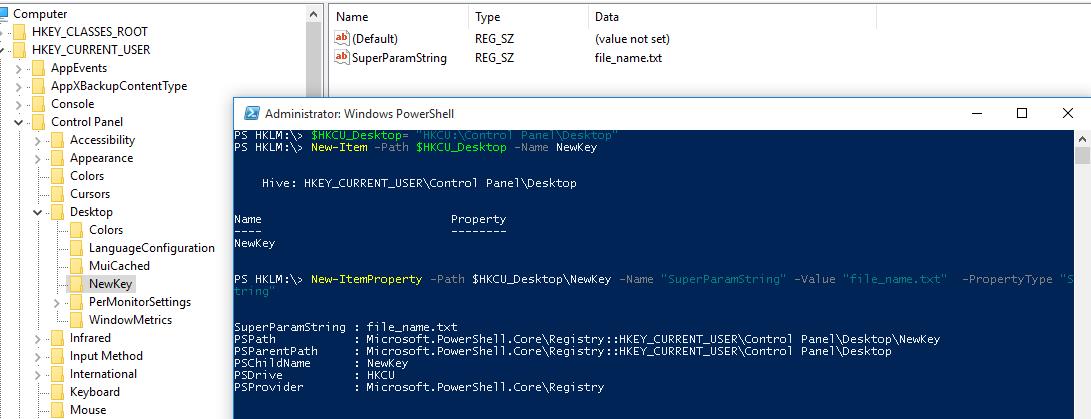
To create a new registry key, use the New-Item command. Let’s create a new key with the name *NewKey*:

`$HKCU_Desktop= "HKCU:\Control Panel\Desktop"New-Item –Path $HKCU_Desktop –Name NewKey`

Now let’s create a new parameter in a new registry key. Suppose we need to create a new string parameter of type REG\_SZ named *SuperParamString* and value filetmp1.txt:

`New-ItemProperty -Path $HKCU_Desktop\NewKey -Name "SuperParamString" -Value ”filetmp1.txt”  -PropertyType "String"`

<div class="info_box" id="bkmrk-you-can-use-the-foll">You can use the following data types for registry parameters:</div><div class="info_box" id="bkmrk-string-%28reg_sz%29-expa">- String (REG\_SZ)
- ExpandString (REG\_EXPAND\_SZ)
- MultiString (REG\_MULTI\_SZ)
- Binary (REG\_BINARY)
- DWord (REG\_DWORD)
- Qword (REG\_QWORD)
- Unknown (unsupported registry data type)

</div>Make sure that the new key and parameter have appeared in the registry.

[![powershell create registry parameter](https://woshub.com/wp-content/uploads/2017/06/powershell-create-registry-parameter.jpg)](https://woshub.com/wp-content/uploads/2017/06/powershell-create-registry-parameter.jpg)
**How to check if a registry key exists?**

If you need to check if a specific registry key exists, use the **Test-Path** cmdlet:

`Test-Path 'HKCU:\Control Panel\Desktop\NewKey'`

The following PowerShell script will check if a specific registry value exists, and if not, create it.

`regkey='HKCU:\Control Panel\Desktop\NewKey'$regparam='testparameter'if (Get-ItemProperty -Path $regkey -Name $regparam -ErrorAction Ignore){ write-host 'The registry entry already exist' }else{ New-ItemProperty -Path $regkey -Name $regparam -Value ”woshub_test”  -PropertyType "String"  }`

Using the **Copy-Item** cmdlet, you can copy entries from one registry key to another:

`$source='HKLM:\SOFTWARE\7-zip\'$dest = 'HKLM:\SOFTWARE\backup'Copy-Item -Path $source -Destination $dest -Recurse`

If you want to copy everything, including subkeys, add the *–Recurse* switch.

## Deleting a Registry Key or Parameter

The **Remove-ItemProperty** command is used to remove a parameter in the registry key. Let’s remove the parameter SuperParamString created earlier:

`$HKCU_Desktop= "HKCU:\Control Panel\Desktop"Remove-ItemProperty –Path $HKCU_Desktop\NewKey –Name "SuperParamString"`

You can delete the entire registry key with all its contents:

`Remove-Item –Path $HKCU_Desktop\NewKey –Recurse`

<div class="info_box" id="bkmrk-note.%C2%A0%E2%80%93recurse-switc">**Note.** –Recurse switch indicates that all subkeys have to be removed recursively.</div>To remove all items in the reg key (but not the key itself):

`Remove-Item –Path $HKCU_Desktop\NewKey\* –Recurse`

## How to Rename a Registry Key or a Parameter?

You can rename the registry parameter with the command:

`Rename-ItemProperty –path ‘HKCU:\Control Panel\Desktop\NewKey’ –name "SuperParamString" –newname “OldParamString”`

In the same way, you can rename the registry key:

`Rename-Item -path 'HKCU:\Control Panel\Desktop\NewKey' OldKey`

## Search Registry for Keyword Using PowerShell

PowerShell allows you to search the registry. The next following searches the HKCU:\\Control Panel\\Desktop for parameters, whose names contain the \**dpi*\* key.

`$Path = (Get-ItemProperty ‘HKCU:\Control Panel\Desktop’)$Path.PSObject.Properties | ForEach-Object {If($_.Name -like '*dpi*'){Write-Host $_.Name ' = ' $_.Value}}`

To find a registry key with a specific name:

`Get-ChildItem -path HKLM:\ -recurse -ErrorAction SilentlyContinue | Where-Object {$_.Name -like "*woshub*"}`

## Setting Registry Key Permissions with PowerShell

You can get the current registry key permissions using the Get-ACL cmdlet (the [Get-ACL cmdlet also allows you to manage NTFS permissions on files and folders](https://woshub.com/manage-ntfs-permissions-powershell/)).

`$rights = Get-Acl -Path 'HKCU:\Control Panel\Desktop\NewKey'$rights.Access.IdentityReference`

[![get registry key permissions with powershell](https://woshub.com/wp-content/uploads/2017/06/get-registry-key-permissions-with-powershell.jpg)](https://woshub.com/wp-content/uploads/2017/06/get-registry-key-permissions-with-powershell.jpg)
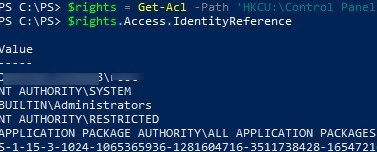
In the following example, we will modify the ACL in this registry key to grant write access to the built-in Users group.

Get current permissions:

`$rights = Get-Acl -Path 'HKCU:\Control Panel\Desktop\NewKey'`

Specify the user or group you want to grant access to:

`$idRef = [System.Security.Principal.NTAccount]"BuiltIn\Users"`

Select access level:

`$regRights = [System.Security.AccessControl.RegistryRights]::WriteKey`  
Set permissions inheritance settings :

`$inhFlags = [System.Security.AccessControl.InheritanceFlags]::None$prFlags = [System.Security.AccessControl.PropagationFlags]::None`

Access type (Allow/Deny):

`$acType = [System.Security.AccessControl.AccessControlType]::Allow`  
Create an access rule:

`$rule = New-Object System.Security.AccessControl.RegistryAccessRule ($idRef, $regRights, $inhFlags, $prFlags, $acType)`

Add a new rule to the current ACL:

`$rights.AddAccessRule($rule)`

Apply new permissions to the registry key:

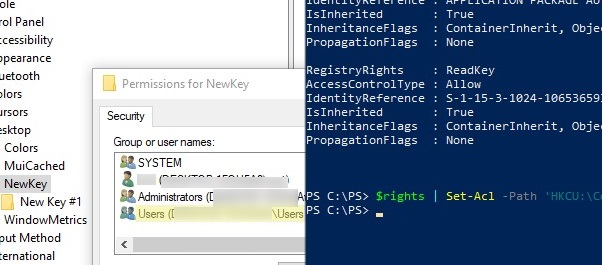
`$rights | Set-Acl -Path 'HKCU:\Control Panel\Desktop\NewKey'`

Make sure the new group appears in the ACL of the registry key.

[![change registry key permissions with powershell](https://woshub.com/wp-content/uploads/2017/06/set-registry-ermissions-powershell.jpg)](https://woshub.com/wp-content/uploads/2017/06/set-registry-ermissions-powershell.jpg)
## Getting a Registry Value from a Remote Computer via PowerShell

PowerShell allows you to access the registry of a remote computer. You can connect to a remote computer either using WinRM ([Invoke-Command](https://woshub.com/invoke-command-run-powershell-scripts-remotely/) or [Enter-PSSession](https://woshub.com/enter-pssession-remote-command-shell/)). To get the value of a registry parameter from a remote computer:

`Invoke-Command –ComputerName srv-fs1 –ScriptBlock {Get-ItemProperty -Path 'HKLM:\System\Setup' -Name WorkingDirectory}`

Or using a remote registry connection (the RemoteRegistry service must be enabled)

`$Server = "lon-fs1"$Reg = [Microsoft.Win32.RegistryKey]::OpenRemoteBaseKey('LocalMachine', $Server)$RegKey= $Reg.OpenSubKey("System\Setup")$RegValue = $RegKey.GetValue("WorkingDirectory")`