# How to Remove (Demote) a Domain Controller in Active Directory

[https://woshub.com/remove-domain-controller-active-directory/](https://woshub.com/remove-domain-controller-active-directory/)

## Removing an Active Directory Domain Controller and ADDS Role (Step-by-Step)

If you are going to decommission one of your AD domain controllers (common DC or [read-only domain controller – RODC](https://woshub.com/deploying-read-domain-controller-windows-server-2016/)), you have to take some preparatory steps before demoting your domain controller to a member server and removing the Active Directory Domain Services (ADDS) role.

<div class="post-entry blockquote-style-1" id="bkmrk-check-the-state-of-y"><div class="inner-post-entry">1. Check the state of your domain controller, Active Directory, and replication. There is a separate article on how to [check a domain controller’s health and replication in AD](https://woshub.com/check-active-directory-health-and-replication/) using `dcdiag`, `repadmin`, and PowerShell scripts. Fix the issues if found. To display a list of errors on a specific domain controller, run the following command: `dcdiag.exe /s:mun-dc03 /q`
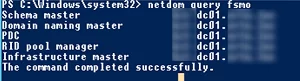
2. Make sure that the AD FSMO roles are not running on the domain controller: `netdom query fsmo` ![check fsmo role owners in actove directory](https://woshub.com/wp-content/uploads/2022/08/check-fsmo-role-owners-in-actove-directory.png.webp) If needed, [move the FSMO roles to another DC](https://woshub.com/transfer-seize-fsmo-roles-in-active-directory/).
3. Make sure that the DHCP server role is not running on the domain controller. If it is, migrate it to another server;
4. Change DNS settings for the DHCP scopes that are assigning IP addresses to the clients. Change the configuration of the DHCP scopes so that they assign a different DNS server address (wait for the IP lease time to expire so that all clients get new DNS server settings). You can display a list of DNS servers set for all zones (*DNS Servers Option 006*) on a server using the following PowerShell command (learn more about [how to manage DHCP in Windows Server using PowerShell](https://woshub.com/how-to-configure-dhcp-server-using-powershell/)): `Get-DhcpServerv4Scope -ComputerName mun-dhcp.woshub.com| Get-DhcpServerv4OptionValue | Where-Object {$_.OptionID -like 6} | FT Value`
5. Some clients may be manually set to use a DNS server on the DC (network devices, servers, printers, scanners, etc.). You need to find such devices and reconfigure them to another DNS server. It is easier to find such devices accessing your DNS server by its logs. Here is a detailed article: [How to Audit Client DNS Queries in Windows Server](https://woshub.com/enable-dns-query-logging-parse-logfile/);
6. If a Certificate Authority role is running on the domain controller, migrate it to another server;
7. If other services (like a [KMS server](https://woshub.com/ms-kms-activation-faq/), Radius/NPS, [WSUS](https://woshub.com/installing-configuring-wsus-on-windows-server-2012/), etc.) are running on the domain controller, decide whether you want to move them to other hosts;
8. Use the `Test-ADDSDomainControllerUninstallation` cmdlet to make sure if there are any dependencies or issues you may come across when removing a DC. If the cmdlet returns *Success*, you may move on. ![Test-ADDSDomainControllerUninstallation ](https://woshub.com/wp-content/uploads/2022/08/test-addsdomaincontrolleruninstallation.png.webp)

</div></div>You are now ready to demote the domain controller to a member server. Prior to Windows Server 201, the **dcpromo** command was used for this. In modern Windows Server editions, this tool is deprecated and is not recommended to be used.

You can demote your domain controller using the **Server Manager**. Open Server Manager -&gt; Remote Roles and Features -&gt; uncheck **Active Directory Domain Services** in the Server Roles section.

![Removing Active Directory Domain Services using Server Manager](https://woshub.com/wp-content/uploads/2022/08/removing-active-directory-domain-services-using-se.png.webp)

Click **Demote this domain controller**.

![Demote this domain controller](https://woshub.com/wp-content/uploads/2022/08/demote-this-domain-controller.png.webp)

The Active Directory Domain Services Configuration Wizard appears. **Force the removal of this domain controller** option is used to remove the last domain controller in adomain. **Do not** use it. Later we will delete all DC metadata manually.

In the next screen, check the **Proceed with removal** option.

![Force the removal of the Active Directory domain controller](https://woshub.com/wp-content/uploads/2022/08/force-the-removal-of-the-active-directory-domain-c.png.webp)

Then set the local server administrator password.

![Set local admin password on a demoted DC](https://woshub.com/wp-content/uploads/2022/08/set-local-admin-password-on-a-demoted-dc.png.webp)

Then you just need to click **Demote**.

![uninstall domain controller role on windows server](https://woshub.com/wp-content/uploads/2022/08/uninstall-domain-controller-role-on-windows-server.png.webp)

Wait till the domain controller demotion is over. The following message will appear: **Successfully demoted the Active Directory Domain Controller**.

![Successfully demoted the Active Directory Domain Controller](https://woshub.com/wp-content/uploads/2022/08/successfully-demoted-the-active-directory-domain-c.png.webp)

Restart your Windows Server host. Open the Server Manager again to remove the Active Directory Domain Services role.

![](https://woshub.com/wp-content/uploads/2022/08/word-image.png.webp)

When removing the ADDS role, the following components will be removed by default:

<div class="post-entry blockquote-style-1" id="bkmrk-active-directory-mod"><div class="inner-post-entry">- [Active Directory Module for Windows PowerShell](https://woshub.com/powershell-active-directory-module/)
- AD DS and AD LDS Tools feature
- Active Directory Administrative Center
- AD DS Snap-ins and Command-line Tools
- DNS Server
- [Group Policy Management Console](https://woshub.com/group-policy-active-directory/) (`gpmc.msc`)

</div></div>Run the [Active Directory Users and Computers console (dsa.msc)](https://woshub.com/install-active-directory-users-computers-aduc-console/) and make sure that the domain controller computer account has been removed from the Domain Controllers OU.

You can also uninstall a domain controller using the `Uninstall-ADDSDomainController` PowerShell cmdlet. The command will prompt you to set a local administrator password and confirm the DC demotion.

After the restart, you will just [remove the ADDS role using PowerShell](https://woshub.com/install-remove-windows-server-roles-features-powershell/):

`Uninstall-WindowsFeature AD-Domain-Services -IncludeManagementTools`

Then open the Active Directory Sites and Services (`dssite.msc`) console, find the domain controller site, and its account in the Servers section. Expand the DC, right-click the NTDS Settings, and select **Delete**.

![Delete domain controller account in Active Directory Sites and Services snap-in](https://woshub.com/wp-content/uploads/2022/08/delete-domain-controller-account-in-active-directo.png.webp)

Confirm the DC removal by checking **Delete This Domain controller anyway. It is permanently offline and can no longer be removed using the removal wizard**.

![Delete This Domain controller anyway. It is permanently offline and can no longer be removed using the removal wizard](https://woshub.com/wp-content/uploads/2022/08/delete-this-domain-controller-anyway-it-is-perman.png.webp)

Then delete the server account.

Wait till the AD replication is over and check the domain state using `dcdiag` and `repadmin` commands (described above).

## How to Remove a Failed Domain Controller in Active Directory?

If your domain controller has failed (physical server or virtual DC files on storage) and you are not going to [restore the DC](https://woshub.com/restore-active-directory-dc-from-backup/) from the [domain controller backup](https://woshub.com/backup-active-directory-domain-controller/) created earlier, you can force delete it.

<div class="post-entry blockquote-style-1" id="bkmrk-important.-a-domain-"><div class="inner-post-entry"><div class="info_box">**Important**. A domain controller removed in this way should never be brought online.</div></div></div>In Windows Server 2008 R2 or earlier, the `ntdsutil` tool was used to remove a failed domain controller and clear its metadata from AD. In the current Windows Server 2022/2019/2016/2012, you can delete the failed DC and clear its metadata correctly using graphic AD management MMC snap-ins.

Open the ADUC console (`dsa.msc`) and navigate to the **Domain Controllers**. Find your DC account and delete it.

![delete domain controller computer account manually](https://woshub.com/wp-content/uploads/2022/08/delete-domain-controller-computer-account-manually.png.webp)

A window to confirm deleting the domain controller appears. Check **Delete this Domain Controller anyway**. Click **Delete**.

![confirm domain controller account removal](https://woshub.com/wp-content/uploads/2022/08/confirm-domain-controller-account-removal.png.webp)

Active Directory will automatically clear the metadata of the removed DC from the ntds.dit database.

Then delete the domain controller in the AD Sites and Services console as shown above.

And the last step is to remove the domain controller records from the DNS. Open the DNS Manager (`dnsmgmt.msc`).

Remove the server from the Name Servers list in the zone settings.

![Removing domain controller records in DNS](https://woshub.com/wp-content/uploads/2022/08/removing-domain-controller-records-in-dns.png.webp)

Remove static Name Servers (NS) records related to the deleted DC in your DNS zone and `_msdcs`, `_sites`, `_tcp`, `_udp` sections, as well as PTR records in the reverse lookup zone.

![Delete Name Server (NS) records of a domain controller](https://woshub.com/wp-content/uploads/2022/08/delete-name-server-ns-records-of-a-domain-contro.png.webp)

Or use [PowerShell to find and remove records in DNS](https://woshub.com/create-manage-dns-zones-records-powershell/).

Here is a step-by-step guide showing how to uninstall a domain controller or delete a failed DC from Active Directory.