Windows Server
- Active Windows Server EVAL
- Creating a File Share
- DFS Replication
- DFS Size
- DFSR Error 4012
- Encrypted SMB
- How to force an authoritative and non-authoritative synchronization for DFSR-replicated SYSVOL (like "D4/D2" for FRS)
- How to: Configure Windows Server to query an external NTP Server
- Migrate DHCP from one Server to Another
- NTP Server Commands
- RADIUS
- Windows server 2016 Activation stuck at 10% for over 12 hours
- WMI Filters for GPO
- Adding DNS Alias | Replacing File Server
- Add IIS APPPOOL to SQL Database
Active Windows Server EVAL
DISM /Online /Set-Edition:ServerStandard /ProductKey:xxxxx-xxxxx-xxxxxx-xxxxxx /AcceptEula
Creating a File Share
To create a new file share on a Windows Server using Sever Manager.
- First, Create a Group to Assign Permissions to Access Files following the guide for creating Security Groups for creating file access.
- Next Open Windows Server Manager.
- Navigate to the File and Storage Services > Shares tab
- Right click and select New Share
- Select the share profile from the options. Select the SMB Quick option to create the share, then edit the necessary properties at a later time.
- Select the server the share will live on, as well as the volume. It is best practice to create new shares on something other than the C drive
- Change the local path to the shares if needed
- Name the share and include a description
- Enable options as needed.
- Share based enumeration is recommended for sensitive files and folders
- Also recommended to encrypt the data. Data encryption is not the default option.
- Change NTFS permissions as necessary.
- Always set the Share Permissions to be Everyone full control. The file level permissions will handle access control, no need to complicate things.
DFS Replication
Possible method of correcting DFS if problem is that it is only working one way.
DFS Size
(Get-ChildItem "D:\DFS Root" -recurse | Sort-Object length -descending | select-object -first 32 | measure-object -property length -sum).sum /1gb
For the initial replication of existing data on the primary member, the staging folder quota must be large enough so that replication can continue even if multiple large files remain in the staging folder because partners cannot promptly download the files.
To properly size the staging folder for initial replication, you must take into account the size of the files to be replicated. At a minimum, the staging folder quota should be at least the size of the 32 largest files in the replicated folder, or the 16 largest files for read-only replicated folders. To improve performance, set the size of the staging folder quota as close as possible to the size of the replicated folder.
To determine the size of the largest files in a replicated folder using Windows Explorer, sort by size and add the 32 largest file sizes (16 if it’s a read-only replicated folder) to get the minimum staging folder size. To get the recommended minimum staging folder size (in gigabytes) from a Windows PowerShell® command prompt, use this Windows PowerShell command where <replicatedfolderpath> is the path to the replicated folder (change 32 to 16 for read-only replicated folders):
(Get-ChildItem <replicatedfolderpath> -recurse | Sort-Object length -descending | select-object -first 32 | measure-object -property length -sum).sum /1gb
http://technet.microsoft.com/library/cc754229.aspx#bkmk_optimize
DFSR Error 4012
https://support.microsoft.com/en-us/kb/2218556
How to perform an authoritative synchronization of DFSR-replicated SYSVOL (like "D4" for FRS)
In the ADSIEDIT.MSC tool, modify the following DN and two attributes on the domain controller you want to make authoritative (preferrably the PDC Emulator, which is usually the most up to date for SYSVOL contents):
CN=SYSVOL Subscription,CN=Domain System Volume,CN=DFSR-LocalSettings,CN=<the server name>,OU=Domain Controllers,DC=<domain>
msDFSR-Enabled=FALSE
msDFSR-options=1
Modify the following DN and single attribute on all other domain controllers in that domain:
CN=SYSVOL Subscription,CN=Domain System Volume,CN=DFSR-LocalSettings,CN=<each other server name>,OU=Domain Controllers,DC=<domain>
msDFSR-Enabled=FALSE
Force Active Directory replication throughout the domain and validate its success on all DCs.
Start the DFSR service set as authoritative:
You will see Event ID 4114 in the DFSR event log indicating SYSVOL is no longer being replicated.
On the same DN from Step 1, set:
msDFSR-Enabled=TRUE
Force Active Directory replication throughout the domain and validate its success on all DCs.
Run the following command from an elevated command prompt on the same server that you set as authoritative:
DFSRDIAG POLLAD
You will see Event ID 4602 in the DFSR event log indicating SYSVOL has been initialized. That domain controller has now done a “D4” of SYSVOL.
Start the DFSR service on the other non-authoritative DCs. You will see Event ID 4114 in the DFSR event log indicating SYSVOL is no longer being replicated on each of them.
Modify the following DN and single attribute on all other domain controllers in that domain:
CN=SYSVOL Subscription,CN=Domain System Volume,CN=DFSR-LocalSettings,CN=<each other server name>,OU=Domain Controllers,DC=<domain>
msDFSR-Enabled=TRUE
Run the following command from an elevated command prompt on all non-authoritative DCs (i.e. all but the formerly authoritative one):
DFSRDIAG POLLAD
Encrypted SMB
SMB security enhancements
Applies to: Windows Server 2022, Windows Server 2019, Windows Server 2016, Windows Server 2012 R2, Windows Server 2012, Azure Stack HCI version 21H2, Windows 11, Windows 10
This article explains the SMB security enhancements in Windows Server and Windows.
SMB Encryption
SMB Encryption provides SMB data end-to-end encryption and protects data from eavesdropping occurrences on untrusted networks. You can deploy SMB Encryption with minimal effort, but it might require other costs for specialized hardware or software. It has no requirements for Internet Protocol security (IPsec) or WAN accelerators. SMB Encryption can be configured on a per share basis, for the entire file server, or when mapping drives.
Note
SMB Encryption does not cover security at rest, which is typically handled by BitLocker Drive Encryption.
You can consider SMB Encryption for any scenario in which sensitive data needs to be protected from interception attacks. Possible scenarios include:
- You move an information worker’s sensitive data by using the SMB protocol. SMB Encryption offers an end-to-end privacy and integrity assurance between the file server and the client. It provides this security regardless of the networks traversed, such as wide area network (WAN) connections maintained by non-Microsoft providers.
- SMB 3.0 enables file servers to provide continuously available storage for server applications, such as SQL Server or Hyper-V. Enabling SMB Encryption provides an opportunity to protect that information from snooping attacks. SMB Encryption is simpler to use than the dedicated hardware solutions that are required for most storage area networks (SANs).
Windows Server 2022 and Windows 11 introduce AES-256-GCM and AES-256-CCM cryptographic suites for SMB 3.1.1 encryption. Windows automatically negotiates this more advanced cipher method when connecting to another computer that supports it. You can also mandate this method through Group Policy. Windows still supports AES-128-GCM and AES-128-CCM. By default, AES-128-GCM is negotiated with SMB 3.1.1, bringing the best balance of security and performance.
Windows Server 2022 and Windows 11 SMB Direct now support encryption. Previously, enabling SMB encryption disabled direct data placement, making RDMA performance as slow as TCP. Now data is encrypted before placement, leading to relatively minor performance degradation while adding AES-128 and AES-256 protected packet privacy. You can enable encryption using Windows Admin Center, Set-SmbServerConfiguration, or UNC Hardening group policy.
Furthermore, Windows Server failover clusters now support granular control of encrypting intra-node storage communications for Cluster Shared Volumes (CSV) and the storage bus layer (SBL). This support means that when using Storage Spaces Direct and SMB Direct, you can encrypt east-west communications within the cluster itself for higher security.
Important
There is a notable performance operating cost with any end-to-end encryption protection when compared to non-encrypted.
Enable SMB Encryption
You can enable SMB Encryption for the entire file server or only for specific file shares. Use one of the following procedures to enable SMB Encryption.
Enable SMB Encryption with Windows Admin Center
- Download and install Windows Admin Center.
- Connect to the file server.
- Select Files & file sharing.
- Select the File shares tab.
- To require encryption on a share, select the share name and choose Enable SMB encryption.
- To require encryption on the server, select File server settings.
- Under SMB 3 encryption, select Required from all clients (others are rejected), and then choose Save.
Enable SMB Encryption with UNC Hardening
UNC Hardening lets you configure SMB clients to require encryption regardless of server encryption settings. This feature helps prevent interception attacks. To configure UNC Hardening, see MS15-011: Vulnerability in Group Policy could allow remote code execution. For more information on interception attack defenses, see How to Defend Users from Interception Attacks via SMB Client Defense.
Enable SMB Encryption with Windows PowerShell
-
Sign into your server and run PowerShell on your computer in an elevated session.
-
To enable SMB Encryption for an individual file share, run the following command.
PowerShellSet-SmbShare –Name <sharename> -EncryptData $true -
To enable SMB Encryption for the entire file server, run the following command.
PowerShellSet-SmbServerConfiguration –EncryptData $true -
To create a new SMB file share with SMB Encryption enabled, run the following command.
PowerShellNew-SmbShare –Name <sharename> -Path <pathname> –EncryptData $true
Map drives with encryption
-
To enable SMB Encryption when mapping a drive using PowerShell, run the following command.
PowerShellNew-SMBMapping -LocalPath <drive letter> -RemotePath <UNC path> -RequirePrivacy $TRUE -
To enable SMB Encryption when mapping a drive using CMD, run the following command.
Windows Command PromptNET USE <drive letter> <UNC path> /REQUIREPRIVACY
Considerations for deploying SMB Encryption
By default, when SMB Encryption is enabled for a file share or server, only SMB 3.0, 3.02, and 3.1.1 clients are allowed to access the specified file shares. This limit enforces the administrator's intent of safeguarding the data for all clients that access the shares.
However, in some circumstances, an administrator might want to allow unencrypted access for clients that don't support SMB 3.x. This situation could occur during a transition period when mixed client operating system versions are being used. To allow unencrypted access for clients that don't support SMB 3.x, enter the following script in Windows PowerShell:
Set-SmbServerConfiguration –RejectUnencryptedAccess $false
Note
We do not recommend allowing unencrypted access when you have deployed encryption. Update the clients to support encryption instead.
The preauthentication integrity capability described in the next section prevents an interception attack from downgrading a connection from SMB 3.1.1 to SMB 2.x (which would use unencrypted access). However, it doesn't prevent a downgrade to SMB 1.0, which would also result in unencrypted access.
To guarantee that SMB 3.1.1 clients always use SMB Encryption to access encrypted shares, you must disable the SMB 1.0 server. For instructions, connect to the server with Windows Admin Center and open the Files & File Sharing extension, and then select the File shares tab to be prompted to uninstall. For more information, see How to detect, enable and disable SMBv1, SMBv2, and SMBv3 in Windows.
If the –RejectUnencryptedAccess setting is left at its default setting of $true, only encryption-capable SMB 3.x clients are allowed to access the file shares (SMB 1.0 clients are also rejected).
Consider the following issues as you deploy SMB Encryption:
- SMB Encryption uses the Advanced Encryption Standard (AES)-GCM and CCM algorithm to encrypt and decrypt the data. AES-CMAC and AES-GMAC also provide data integrity validation (signing) for encrypted file shares, regardless of the SMB signing settings. If you want to enable SMB signing without encryption, you can continue to do so. For more information, see Configure SMB Signing with Confidence.
- You might encounter issues when you attempt to access the file share or server if your organization uses wide area network (WAN) acceleration appliances.
- With a default configuration (where there's no unencrypted access allowed to encrypted file shares), if clients that don't support SMB 3.x attempt to access an encrypted file share, Event ID 1003 is logged to the Microsoft-Windows-SmbServer/Operational event log, and the client receives an Access denied error message.
- SMB Encryption and the Encrypting File System (EFS) in the NTFS file system are unrelated, and SMB Encryption doesn't require or depend on using EFS.
- SMB Encryption and the BitLocker Drive Encryption are unrelated, and SMB Encryption doesn't require or depend on using BitLocker Drive Encryption.
Preauthentication integrity
SMB 3.1.1 is capable of detecting interception attacks that attempt to downgrade the protocol or the capabilities that the client and server negotiate by use of preauthentication integrity. Preauthentication integrity is a mandatory feature in SMB 3.1.1. It protects against any tampering with Negotiate and Session Setup messages by using cryptographic hashing. The resulting hash is used as input to derive the session’s cryptographic keys, including its signing key. This process enables the client and server to mutually trust the connection and session properties. When the client or the server detects such an attack, the connection is disconnected, and event ID 1005 is logged in the Microsoft-Windows-SmbServer/Operational event log.
Because of this protection, and to take advantage of the full capabilities of SMB Encryption, we strongly recommend that you disable the SMB 1.0 server. For instructions, connect to the server with Windows Admin Center and open the Files & File Sharing extension, and then select the File shares tab to be prompted to uninstall. For more information, see How to detect, enable and disable SMBv1, SMBv2, and SMBv3 in Windows.
New signing algorithm
SMB 3.0 and 3.02 use a more recent encryption algorithm for signing: Advanced Encryption Standard (AES)-cipher-based message authentication code (CMAC). SMB 2.0 used the older HMAC-SHA256 encryption algorithm. AES-CMAC and AES-CCM can significantly accelerate data encryption on most modern CPUs that have AES instruction support.
Windows Server 2022 and Windows 11 introduce AES-128-GMAC for SMB 3.1.1 signing. Windows automatically negotiates this better-performing cipher method when connecting to another computer that supports it. Windows still supports AES-128-CMAC. For more information, see Configure SMB Signing with Confidence.
Disabling SMB 1.0
SMB 1.0 isn't installed by default starting in Windows Server version 1709 and Windows 10 version 1709. For instructions on removing SMB1, connect to the server with Windows Admin Center, open the Files & File Sharing extension, and then select the File shares tab to be prompted to uninstall. For more information, see How to detect, enable and disable SMBv1, SMBv2, and SMBv3 in Windows.
If it's still installed, you should disable SMB1 immediately. For more information on detecting and disabling SMB 1.0 usage, see Stop using SMB1. For a clearinghouse of software that previously or currently requires SMB 1.0, see SMB1 Product Clearinghouse.
Related links
- Overview of file sharing using the SMB 3 protocol in Windows Server
- Windows Server Storage documentation
- Scale-Out File Server for application data overview
How to force an authoritative and non-authoritative synchronization for DFSR-replicated SYSVOL (like "D4/D2" for FRS)
*****Important to note: This should only be done by a competent tech that understands the steps they are performing. If done wrong these steps can have critical irreversible effects on a domain. AKA: Don't do this if you do not understand it because it can really jack stuff up!!!*****
***********************
#DomainBackup
#Backup Domain Level files
SET FILEROOTA="C:\Windows\SYSVOL\domain"
SET FILEENDA="C:\Accent\DomainBackup"
ROBOCOPY %FILEROOTA% %FILEENDA% /MIR /R:2 /W:2 /MT:6
***********************
Update-DfsrConfigurationFromAD
repadmin /syncall FS3 /APeD
Pause
Invoke-Command -ComputerName DC1, DC2 -ScriptBlock {Restart-Service DFSR}
or
Invoke-Command -ComputerName DC1, DC2 -ScriptBlock {Stop-Service DFSR}
Invoke-Command -ComputerName DC1, DC2 -ScriptBlock {Start-Service DFSR}
-
Non-authoritative restore is useful when a NON-PDC domain controller is not replicating the sysvol folder. This is done on the NON-PDC domain controller. It marks its data as non-authoritative and pulls in new sysvol data from the PDC.
-
An authoritative restore is useful when the non-authoritative does not work. This is done primarily on the PDC but you also have to complete steps on the NON-PDC domain controllers. This marks the data on the PDC as authoritative and pushes it to all other DCs. I believe this can be done on a non PDC domain controller if the non-PDC holds the good sysvol data but this needs to be verified.
-
Important to note: this is for servers that use DFSR to replicate SYSVOL, so Server 2008 and newer. Older servers have a different process. On older servers look at D2 and D4.
-
Below is three links. One is the Microsoft link with a step-by-step for both processes and the other two are step-by-step that include a more non-formal and understandable format.
-
In the Microsoft steps below (and in the first link) there is a More Info section that provides some scenario based information that is helpful.
-
Also the Microsoft steps are pasted below.
Microsoft links to both authoritative and non-authoritative steps.
Authoritative step-by-step that is easier to understand.
Non-authoritative step-by-step that is easier to understand.
__________________________________________________________________________________________________
Microsoft steps:
Consider the following scenario:
You want to force the non-authoritative synchronization of SYSVOL on a domain controller. In the File Replication Service (FRS), this was controlled through theD2 and D4 data values for the Burflags registry values, but these values do not exist for the Distributed File System Replication (DFSR) service. You cannot use the DFS Management snap-in (Dfsmgmt.msc) or the Dfsradmin.exe command-line tool to achieve this. Unlike custom DFSR replicated folders, SYSVOL is intentionally protected from any editing through its management interfaces to prevent accidents.
How to perform a non-authoritative synchronization of DFSR-replicated SYSVOL (like "D2" for FRS)
-
In the ADSIEDIT.MSC tool modify the following distinguished name (DN) value and attribute on each of the domain controllers that you want to make non-authoritative:
CN=SYSVOL Subscription,CN=Domain System Volume,CN=DFSR-LocalSettings,CN=<the server name>,OU=Domain Controllers,DC=<domain>
msDFSR-Enabled=FALSE -
Force Active Directory replication throughout the domain.
-
Run the following command from an elevated command prompt on the same servers that you set as non-authoritative:
DFSRDIAG POLLAD -
You will see Event ID 4114 in the DFSR event log indicating SYSVOL is no longer being replicated.
-
On the same DN from Step 1, set:
msDFSR-Enabled=TRUE -
Force Active Directory replication throughout the domain.
-
Run the following command from an elevated command prompt on the same servers that you set as non-authoritative:
DFSRDIAG POLLAD -
You will see Event ID 4614 and 4604 in the DFSR event log indicating SYSVOL has been initialized. That domain controller has now done a “D2” of SYSVOL.
How to perform an authoritative synchronization of DFSR-replicated SYSVOL (like "D4" for FRS)
-
Stop DFSR Service
-
-
In the ADSIEDIT.MSC tool, modify the following DN and two attributes on the domain controller you want to make authoritative (preferably the PDC Emulator, which is usually the most up to date for SYSVOL contents):
CN=SYSVOL Subscription,CN=Domain System Volume,CN=DFSR-LocalSettings,CN=<the server name>,OU=Domain Controllers,DC=<domain>
msDFSR-Enabled=FALSE
msDFSR-options=1 -
Modify the following DN and single attribute on all other domain controllers in that domain:
CN=SYSVOL Subscription,CN=Domain System Volume,CN=DFSR-LocalSettings,CN=<each other server name>,OU=Domain Controllers,DC=<domain>
msDFSR-Enabled=FALSE -
Force Active Directory replication throughout the domain and validate its success on all DCs.
-
Start the DFSR service set as authoritative:
-
You will see Event ID 4114 in the DFSR event log indicating SYSVOL is no longer being replicated.
-
On the same DN from Step 1, set:
msDFSR-Enabled=TRUE -
Force Active Directory replication throughout the domain and validate its success on all DCs.
-
Run the following command from an elevated command prompt on the same server that you set as authoritative:
DFSRDIAG POLLAD -
You will see Event ID 4602 in the DFSR event log indicating SYSVOL has been initialized. That domain controller has now done a “D4” of SYSVOL.
-
Start the DFSR service on the other non-authoritative DCs. You will see Event ID 4114 in the DFSR event log indicating SYSVOL is no longer being replicated on each of them.
-
Modify the following DN and single attribute on all other domain controllers in that domain:
CN=SYSVOL Subscription,CN=Domain System Volume,CN=DFSR-LocalSettings,CN=<each other server name>,OU=Domain Controllers,DC=<domain>
msDFSR-Enabled=TRUE -
Run the following command from an elevated command prompt on all non-authoritative DCs (i.e. all but the formerly authoritative one):
DFSRDIAG POLLAD
More Information
If setting the authoritative flag on one DC, you must non-authoritatively synchronize all other DCs in the domain. Otherwise you will see conflicts on DCs, originating from any DCs where you did not set auth/non-auth and restarted the DFSR service. For example, if all logon scripts were accidentally deleted and a manual copy of them was placed back on the PDC Emulator role holder, making that server authoritative and all other servers non-authoritative would guarantee success and prevent conflicts.
If making any DC authoritative, the PDC Emulator as authoritative is preferable, since its SYSVOL contents are usually most up to date.
The use of the authoritative flag is only necessary if you need to force synchronization of all DCs. If only repairing one DC, simply make it non-authoritative and do not touch other servers.
This article is designed with a 2-DC environment in mind, for simplicity of description. If you had more than one affected DC, expand the steps to include ALL of those as well. It also assumes you have the ability to restore data that was deleted, overwritten, damaged, etc. previously if this is a disaster recovery scenario on all DCs in the domain.
Note This is a "FAST PUBLISH" article created directly from within the Microsoft support organization. The information contained herein is provided as-is in response to emerging issues. As a result of the speed in making it available, the materials may include typographical errors and may be revised at any time without notice. See Terms of Use for other considerations.
From <https://support.microsoft.com/en-us/kb/2218556>
If SYSVOL will not replicate, adjust the following registry key from "0" to "1"
HKEY_LOCAL_MACHINE\SYSTEM\CurrentControlSet\Services\Netlogon\Parameters\SysvolReady
Net stop netlogon
Net start netlogon
Repadmin /syncall /AeDqP
Dfsrdiag pollad
How to: Configure Windows Server to query an external NTP Server
Step 1: Info
This is generally performed on DCs in an Active Directory domain. Then all workstations use AD to get time from the DCs. This could also be used on a non-DC windows machine to be your NTP server for your network that you point to for all of your switches/routers and various other devices.
Again, it doesn't have to be a DC, but it makes sense for it to be, as it's not very resource intensive.
Step 2: Elevated prompt
Open the command prompt as administrator.
You could also use a PowerShell prompt instead of command prompt if you want.
Step 3: Stop the time service
net stop w32time
Step 4: Set the manual peer list external servers
w32tm /config /syncfromflags:manual /manualpeerlist:0.us.pool.ntp.org,1.us.pool.ntp.org,2.us.pool.ntp.org,3.us.pool.ntp.org
Step 5: Set the connection as reliable
w32tm /config /reliable:yes
Step 6: Start the time service back up
net start w32time
Step 7: Test the configururation

w32tm /query /configuration
and
w32tm /query /status
Migrate DHCP from one Server to Another
netsh dhcp server export C:\Accent\dhcpdata.dat all
netsh dhcp server import C:\Accent\dhcpdata.dat all
-
Log into old server and run these commands:
-
C:\> netsh
-
netsh> dhcp
-
netsh dhcp> server
-
netsh dhcp server> export C:\Accent\dhcpdata.dat all
-
-
Make sure DHCP is installed and authorized on new server.
-
Copy dhcpdata.dat to new server
-
Disable DHCP service on old server
-
Log into new server and run these commands:
-
C:\> netsh
-
netsh> dhcp
-
netsh dhcp> server
-
netsh dhcp server> import C:\Accent\dhcpdata.dat all
-
-
Validate and test by renewing an IP on a PC.
That is all folks!
NTP Server Commands
set server: w32tm /config /manualpeerlist:time.windows.com
RADIUS
Well, good 'ol Microsoft strikes again. Jacob (from Wintek) was able to isolate our NPS/RADIUS authentication problem to Windows Firewall. Even though the 1812 port exceptions were properly in place, Windows was dropping the traffic anyway. Evidently many other sys admins were having the same problem, and Microsoft's own documents finally revealed the issue and answer to me:
With Server 2019 this firewall exception requires a modification to the service account security identifier to effectively detect and allow RADIUS traffic. If this security identifier change is not executed, the firewall will drop RADIUS traffic. From an elevated command prompt, run sc sidtype IAS unrestricted. This command changes the IAS (RADIUS) service to use a unique SID instead of sharing with other NETWORK SERVICE services.
Once I issued that command and rebooted the system, the new server can now perform RADIUS authentication. Both the Cisco WLC and Cisco Firewall have been updated to use the new server now. I would say we're finally ready to switch over the remaining roles.
Wishing both of you a great weekend,
Tix: 358981
Windows server 2016 Activation stuck at 10% for over 12 hours
The problem each time was that the Windows License Manager Service was not running. By default the service is set to Startup Type: Manual (Trigger Start). I believe dism.exe is failing to trigger the service to start, thus halting the process. Simply starting this service, while dism.exe was stuck at 10%, resolved the issue 100% of the time.
I started another thread and got an answer that helped in my case:
I needed to press enter a couple of times in the cmd window to wake the process back up.
I did this after starting the services again and it then proceeded to completion!
WMI Filters for GPO
To make sure that each GPO associated with a group can only be applied to computers running the correct version of Windows, use the Group Policy Management MMC snap-in to create and assign WMI filters to the GPO. Although you can create a separate membership group for each GPO, you would then have to manage the memberships of the different groups. Instead, use only a single membership group, and let WMI filters automatically ensure the correct GPO is applied to each computer.
Administrative credentials
To complete these procedures, you must be a member of the Domain Administrators group, or otherwise be delegated permissions to modify the GPOs.
First, create the WMI filter and configure it to look for a specified version (or versions) of the Windows operating system.
To create a WMI filter that queries for a specified version of Windows
-
On a computer that has the Group Policy Management feature installed, click Start, click Administrative Tools, and then click Group Policy Management.
-
In the navigation pane, expand Forest: YourForestName, expand Domains, expand YourDomainName, and then click WMI Filters.
-
Click Action, and then click New.
-
In the Name text box, type the name of the WMI filter.
|
Note |
|
Be sure to use a name that clearly indicates the purpose of the filter. Check to see if your organization has a naming convention. |
-
In the Description text box, type a description for the WMI filter. For example, if the filter excludes domain controllers, you might consider stating that in the description.
-
Click Add.
-
Leave the Namespace value set to root\CIMv2.
-
In the Query text box, type:
Copy
select * from Win32_OperatingSystem where Version like "6.%"
This query will return true for computers running Windows 8, Windows 7, Windows Vista, Windows Server 2012, Windows Server 2008, and Windows Server 2008 R2. To set a filter for just Windows 8 and Windows Server 2012, use "6.2%". To specify multiple versions, combine them with or, as shown in the following:
Copy
... where Version like "6.1%" or Version like "6.2%"
To restrict the query to only clients or only servers, add a clause that includes the ProductType parameter. To filter for client operating systems only, such as Windows 8 or Windows 7, use only ProductType="1". For server operating systems that are not domain controllers, use ProductType="3". For domain controllers only, use ProductType="2". This is a useful distinction, because you often want to prevent your GPOs from being applied to the domain controllers on your network.
The following clause returns true for all computers that are not domain controllers:
Copy
... where ProductType="1" or ProductType="3"
The following complete query returns true for all computers running Windows 8, and returns false for any server operating system or any other client operating system.
Copy
select * from Win32_OperatingSystem where Version like "6.2%" and ProductType="1"
The following query returns true for any computer running Windows Server 2012, except domain controllers:
Copy
select * from Win32_OperatingSystem where Version like "6.2%" and ProductType="3"
-
Click OK to save the query to the filter.
-
Click Save to save your completed filter.
After you have created a filter with the correct query, link the filter to the GPO. Filters can be reused with many GPOs simultaneously; you do not have to create a new one for each GPO if an existing one meets your needs.
-
On a computer that has the Group Policy Management feature installed, click Start, click Administrative Tools, and then click Group Policy Management.
-
In the navigation pane, find and then click the GPO that you want to modify.
-
Under WMI Filtering, select the correct WMI filter from the list.
-
Click Yes to accept the filter.
Adding DNS Alias | Replacing File Server
https://www.edwardsd.co.uk/work/2020/04/adding-dns-alias-replacing-file-server/
When replacing a file server with new server and new name you probably want to keep the old name and add a redirect. Originally, I thought this was a simple “change the DNS IP” and job done but there’s a little bit more to it than just that!
1) Locate OLDSERVER entry in DNS and delete it.
2) If the OLDSERVER server AD object still exists, you need to delete it. Failing to remove the old computer object will result in this error:
Unable to add NEWSERVER.
as an alternate name for the computer.
The error is: Cannot create a file when that file already exists.
The command failed to complete successfully.
3) Run this command to add the server alias:
netdom computername NEWSERVER /add:OLDSERVER |
Note: if you have subdomains in use (sub.domain.com) then you need to specifically define this overwise the object will add “oldserver.domain.com” rather than “oldserver.sub.domain.com”
4) Register the machine in DNS
IPConfig /RegisterDNS |
5) Run this command to check the aliases are shown on the machine
netdom computername NEWSERVER /enum |
6) Final check to show what SPF entries have been created:
setspn -l NEWSERVER |
Add IIS APPPOOL to SQL Database
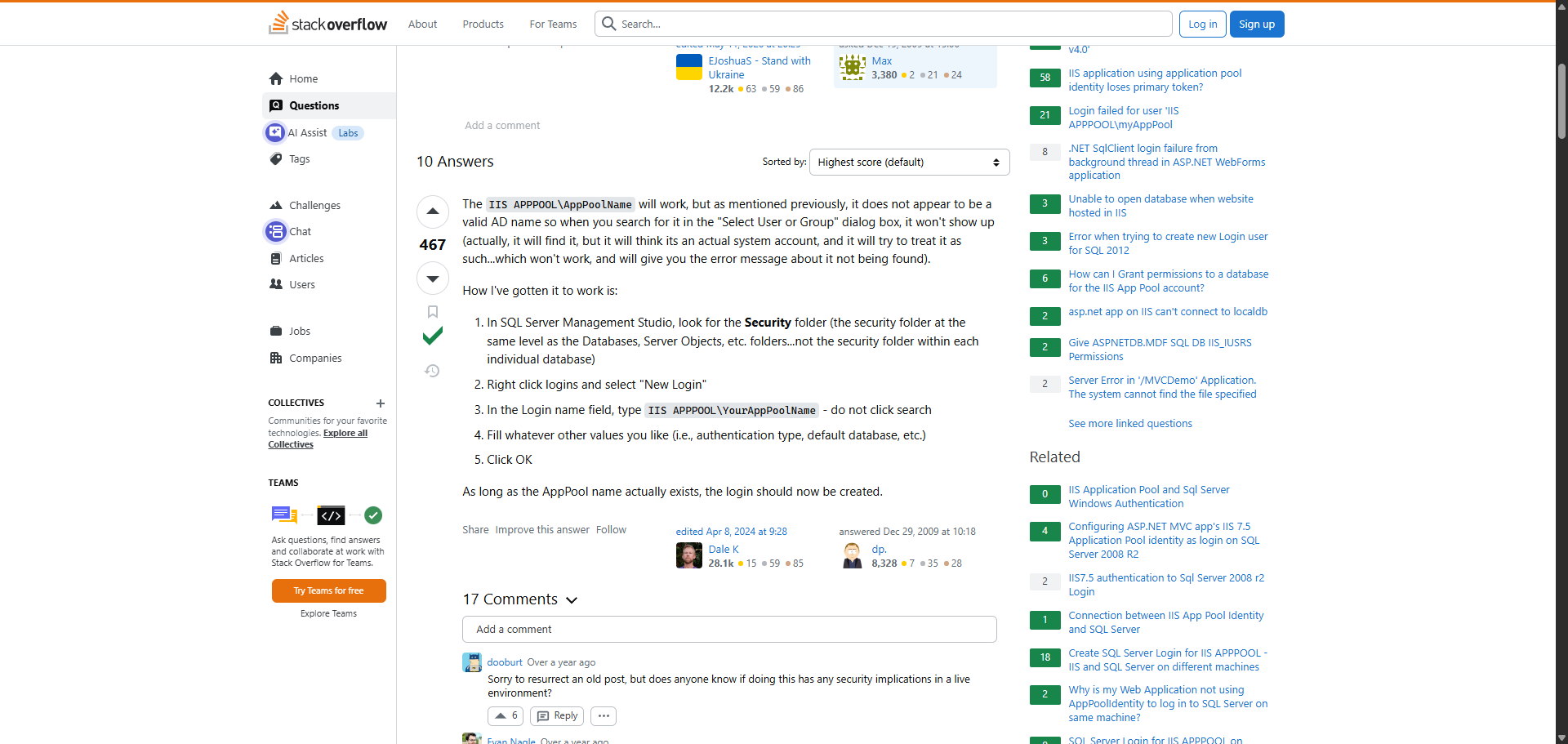
The IIS APPPOOL\AppPoolName will work, but as mentioned previously, it does not appear to be a valid AD name so when you search for it in the "Select User or Group" dialog box, it won't show up (actually, it will find it, but it will think its an actual system account, and it will try to treat it as such...which won't work, and will give you the error message about it not being found).
How I've gotten it to work is:
- In SQL Server Management Studio, look for the Security folder (the security folder at the same level as the Databases, Server Objects, etc. folders...not the security folder within each individual database)
- Right click logins and select "New Login"
- In the Login name field, type
IIS APPPOOL\YourAppPoolName- do not click search - Fill whatever other values you like (i.e., authentication type, default database, etc.)
- Click OK
As long as the AppPool name actually exists, the login should now be created.