LAPS
- Configure policy settings for Windows LAPS
- Get started with Windows LAPS and Windows Server Active Directory
- Securing Local Administrator Accounts with the new Windows LAPS - Active Directory - 2023-04-12
- Set-LapsADReadPasswordPermission
Configure policy settings for Windows LAPS
Supported policy roots
Although we don't recommend it, you can administer a device by using multiple policy management mechanisms. To support this scenario in an understandable and predictable way, each Windows LAPS policy mechanism is assigned a distinct registry root key:
| Policy name | Policy registry key root |
|---|---|
| LAPS CSP | HKLM\Software\Microsoft\Policies\LAPS |
| LAPS Group Policy | HKLM\Software\Microsoft\Windows\CurrentVersion\Policies\LAPS |
| LAPS Local Configuration | HKLM\Software\Microsoft\Windows\CurrentVersion\LAPS\Config |
| Legacy Microsoft LAPS | HKLM\Software\Policies\Microsoft Services\AdmPwd |
Windows LAPS queries all known registry key policy roots, starting at the top and moving down. If no settings are found under a root, that root is skipped and the query proceeds to the next root. When a root that has at least one explicitly defined setting is found, that root is used as the active policy. If the chosen root is missing any settings, the settings are assigned their default values.
Policy settings are never shared or inherited across policy key roots.
Tip
The LAPS Local Configuration key is included in the preceding table for completeness. You can use this key if necessary, but the key primarily is intended to be used for testing and development. No management tools or policy mechanisms target this key.
Supported policy settings by BackupDirectory
Windows LAPS supports multiple policy settings that you can administer via various policy management solutions, or even directly via the registry. Some of these settings only apply when backing up passwords to Active Directory, and some settings are common to both the AD and Microsoft Entra scenarios.
The following table specifies which settings apply to devices that have the specified BackupDirectory setting:
| Setting name | Applicable when BackupDirectory=Microsoft Entra ID? | Applicable when BackupDirectory=AD? |
|---|---|---|
| AdministratorAccountName | Yes | Yes |
| PasswordAgeDays | Yes | Yes |
| PasswordLength | Yes | Yes |
| PassphraseLength | Yes | Yes |
| PasswordComplexity | Yes | Yes |
| PostAuthenticationResetDelay | Yes | Yes |
| PostAuthenticationActions | Yes | Yes |
| ADPasswordEncryptionEnabled | No | Yes |
| ADPasswordEncryptionPrincipal | No | Yes |
| ADEncryptedPasswordHistorySize | No | Yes |
| ADBackupDSRMPassword | No | Yes |
| PasswordExpirationProtectionEnabled | No | Yes |
| AutomaticAccountManagementEnabled | Yes | Yes |
| AutomaticAccountManagementTarget | Yes | Yes |
| AutomaticAccountManagementNameOrPrefix | Yes | Yes |
| AutomaticAccountManagementEnableAccount | Yes | Yes |
| AutomaticAccountManagementRandomizeName | Yes | Yes |
If BackupDirectory is set to Disabled, all other settings are ignored.
You can administer almost all settings by using any policy management mechanism. The Windows LAPS configuration service provider (CSP) has two exceptions to this rule. The Windows LAPS CSP supports two settings that aren't in the preceding table: ResetPassword and ResetPasswordStatus. Also, Windows LAPS CSP doesn't support the ADBackupDSRMPassword setting (domain controllers are never managed via CSP). For more information, see the LAPS CSP documentation.
Windows LAPS Group Policy
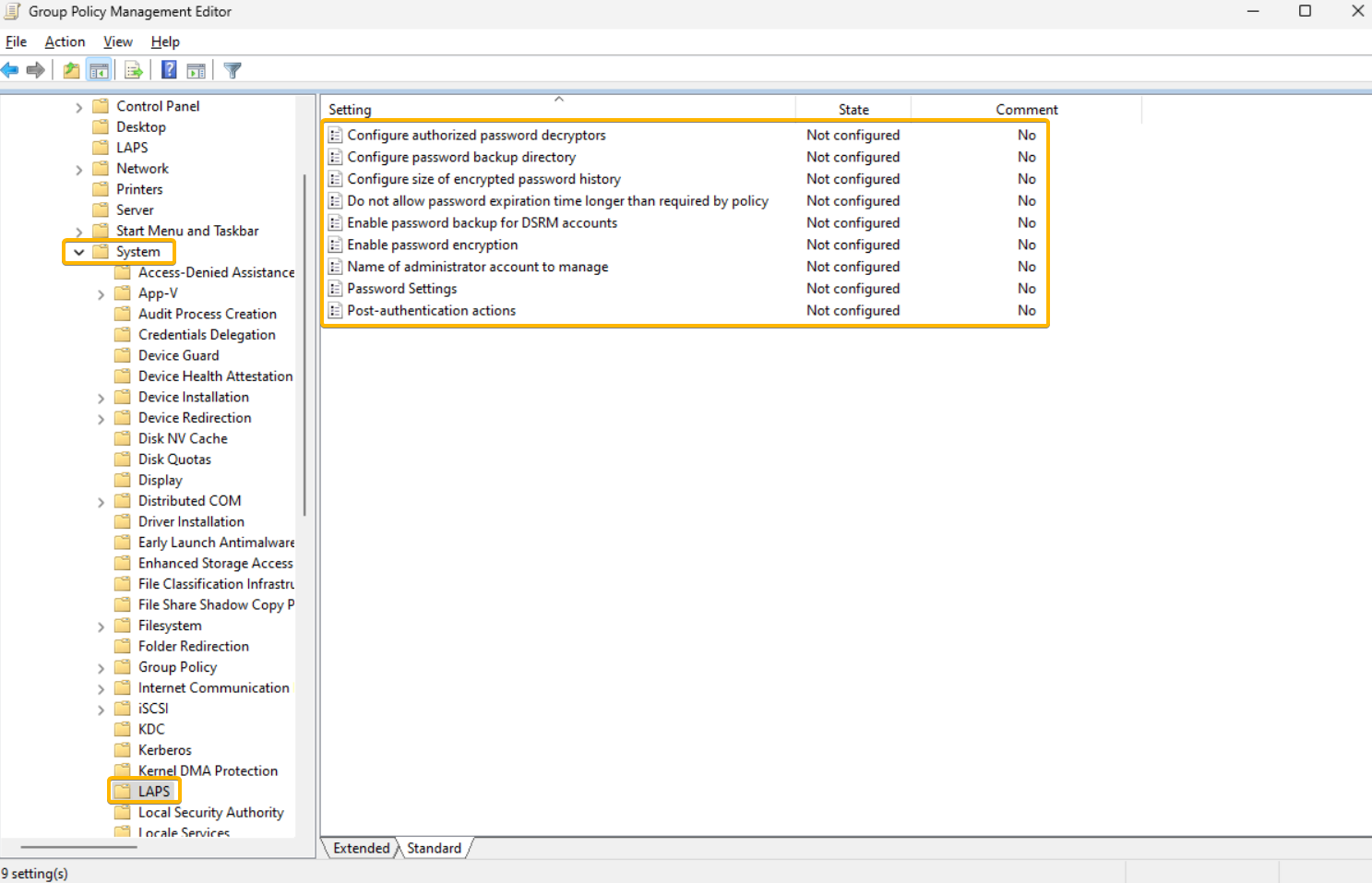
Windows LAPS includes a new Group Policy Object that you can use to administer policy settings on Active Directory domain-joined devices. To access the Windows LAPS Group Policy, in Group Policy Management Editor, go to Computer Configuration > Administrative Templates > System > LAPS. The following figure shows an example:
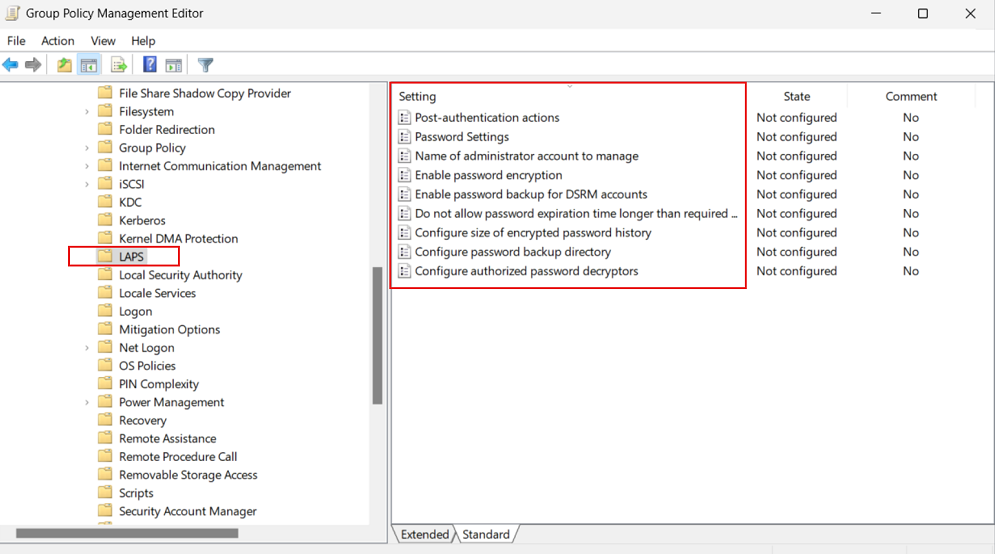
The template for this new Group Policy object is installed as part of Windows at %windir%\PolicyDefinitions\LAPS.admx.
Group Policy Object Central Store
Important
The Windows LAPS GPO template files are NOT automatically copied to your GPO central store as part of a Windows Update patching operation, assuming you have chosen to implement that approach. Instead you must manually copy the LAPS.admx to the GPO central store location. See Create and Manage Central Store.
Windows LAPS CSP
Windows LAPS includes a specific CSP that you can use to administer policy settings on Microsoft Entra joined devices. Manage the Windows LAPS CSP by using Microsoft Intune.
Apply policy settings
The following sections describe how to use and apply various policy settings for Windows LAPS.
BackupDirectory
Use this setting to control which directory the password for the managed account is backed up to.
| Value | Description of setting |
|---|---|
| 0 | Disabled (password isn't backed up) |
| 1 | Back up the password to Microsoft Entra-only |
| 2 | Back up the password to Windows Server Active Directory only |
If not specified, this setting defaults to 0 (Disabled).
AdministratorAccountName
Use this setting to configure the name of the managed local administrator account.
If not specified, this setting defaults to managing the built-in local administrator account.
Important
Don't specify this setting unless you want to manage an account other than the built-in local administrator account. The local administrator account is automatically identified by its well-known relative identifier (RID).
Important
You can configure the specified account (built-in or custom) as either enabled or disabled. Windows LAPS will manage that account's password in either state. If left in a disabled state however, the account must obviously first be enabled in order to be actually used.
Important
If you configure Windows LAPS to manage a custom local administrator account, you must ensure that the account is created. Windows LAPS doesn't create the account.
Important
This setting is ignored when AutomaticAccountManagementEnabled is enabled.
PasswordAgeDays
This setting controls the maximum password age of the managed local administrator account. Supported values are:
- Minimum: 1 day (When the backup directory is configured to be Microsoft Entra ID, the minimum is 7 days.)
- Maximum: 365 days
If not specified, this setting defaults to 30 days.
Important
Changes to the PasswordAgeDays policy setting have no effect on the expiration time of the current password. Similarly, changes to the PasswordAgeDays policy setting won't cause the managed device to initiate a password rotation.
PasswordLength
Use this setting to configure the length of the password of the managed local administrator account. Supported values are:
- Minimum: 8 characters
- Maximum: 64 characters
If not specified, this setting defaults to 14 characters.
Important
Do not configure PasswordLength to a value that is incompatible with the managed device's local password policy. This will result in Windows LAPS failing to create a new compatible password (look for a 10027 event in the Windows LAP event log).
The PasswordLength setting is ignored unless PasswordComplexity is configured to one of the password options.
PassphraseLength
Use this setting to configure the number of words in the passphrase of the managed local administrator account. Supported values are:
- Minimum: 3 words
- Maximum: 10 words
If not specified, this setting defaults to 6 words.
The PassphraseLength setting is ignored unless PasswordComplexity is configured to one of the passphrase options.
PasswordComplexity
Use this setting to configure the required password complexity of the managed local administrator account, or to specify that a passphrase is created.
| Value | Description of setting |
|---|---|
| 1 | Large letters |
| 2 | Large letters + small letters |
| 3 | Large letters + small letters + numbers |
| 4 | Large letters + small letters + numbers + special characters |
| 5 | Large letters + small letters + numbers + special characters (improved readability) |
| 6 | Passphrase (long words) |
| 7 | Passphrase (short words) |
| 8 | Passphrase (short words with unique prefixes) |
If not specified, this setting defaults to 4.
Important
Windows supports the lower password complexity settings (1, 2, and 3) only for backward compatibility with legacy Microsoft LAPS. We recommend that you always configure this setting to 4.
Important
Do not configure PasswordComplexity to a setting that is incompatible with the managed device's local password policy. This will result in Windows LAPS failing to create a new compatible password (look for a 10027 event in the Windows LAPS event log).
PasswordExpirationProtectionEnabled
Use this setting to configure enforcement of maximum password age for the managed local administrator account.
Supported values are either 1 (True) or 0 (False).
If not specified, this setting defaults to 1 (True).
Tip
In legacy Microsoft LAPS mode, this setting defaults to False for backward compatibility.
ADPasswordEncryptionEnabled
Use this setting to enable encryption of passwords in Active Directory.
Supported values are either 1 (True) or 0 (False).
Important
Enabling this setting requires that your Active Directory domain is running at Domain Functional Level 2016 or later.
ADPasswordEncryptionPrincipal
Use this setting to configure the name or security identifier (SID) of a user or group that can decrypt the password stored in Active Directory.
This setting is ignored if the password currently is stored in Azure.
If not specified, only members of the Domain Admins group in the device's domain can decrypt the password.
If specified, the specified user or group can decrypt the password stored in Active Directory.
Important
The string that's stored in this setting is either an SID in string form or the fully qualified name of a user or group. Valid examples include:
S-1-5-21-2127521184-1604012920-1887927527-35197contoso\LAPSAdminslapsadmins@contoso.com
The principal identified (either by SID or by user or group name) must exist and is resolvable by the device.
NOTE: the data specified in this setting is entered as-is; for example, do not add enclosing quotes or parentheses.
This setting is ignored unless ADPasswordEncryptionEnabled is configured to True and all other prerequisites are met.
This setting is ignored when Directory Services Repair Mode (DSRM) account passwords are backed up on a domain controller. In that scenario, this setting always defaults to the Domain Admins group of the domain controller's domain.
ADEncryptedPasswordHistorySize
Use this setting to configure how many previous encrypted passwords are remembered in Active Directory. Supported values are:
- Minimum : 0 passwords
- Maximum: 12 passwords
If not specified, this setting defaults to 0 passwords (disabled).
Important
This setting is ignored unless ADPasswordEncryptionEnabled is configured to True and all other prerequisites are met.
This setting also takes effect on domain controllers that back up their DSRM passwords.
ADBackupDSRMPassword
Use this setting to enable backup of the DSRM account password on Windows Server Active Directory domain controllers.
Supported values are either 1 (True) or 0 (False).
This setting defaults to 0 (False).
Important
This setting is ignored unless ADPasswordEncryptionEnabled is configured to True and all other prerequisites are met.
PostAuthenticationResetDelay
Use this setting to specify the amount of time (in hours) to wait after an authentication before executing the specified post-authentication actions (see PostAuthenticationActions). Supported values are:
- Minimum : 0 hours (setting this value to 0 disables all post-authentication actions)
- Maximum: 24 hours
If not specified, this setting defaults to 24 hours.
PostAuthenticationActions
Use this setting to specify the actions to take upon expiration of the configured grace period (see PostAuthenticationResetDelay).
This setting can have one of the following values:
| Value | Name | Actions taken when the grace period expires | Comments |
|---|---|---|---|
| 1 | Reset password | The managed account password is reset. | |
| 3 | Reset password and sign out | The managed account password is reset, interactive sign-in sessions using the managed account are terminated, and SMB sessions using the managed account are deleted. | Interactive sign-in sessions receive a nonconfigurable two-minute warning to save their work and sign out. |
| 5 | Reset password and reboot | The managed account password is reset and the managed device is restarted. | The managed device is restarted after a nonconfigurable one-minute delay. |
| 11 | Reset password and sign out | The managed account password is reset, interactive sign-in sessions using the managed account are terminated, SMB sessions using the managed account are deleted, and any remaining processes running under the managed account identity are terminated. | Interactive sign-in sessions receive a nonconfigurable two-minute warning to save their work and sign out. |
If not specified, this setting defaults to 3.
Important
The allowed post-authentication actions are intended to help limit the amount of time a Windows LAPS password can be used before it's reset. Signing out of the managed account or restarting the device are options that help ensure the time is limited. Abruptly terminating signed-in sessions or restarting the device might result in data loss.
From a security perspective, a malicious user who acquires administrative privileges on a device using a valid Windows LAPS password does have the ultimate ability to prevent or circumvent these mechanisms.
AutomaticAccountManagementEnabled
Use this setting to enable automatic account management.
Supported values are either 1 (True) or 0 (False).
This setting defaults to 0 (False).
AutomaticAccountManagementTarget
Use this setting to specify whether the built-in Administrator account is automatically managed, or a new custom account.
| Value | Description of setting |
|---|---|
| 0 | Automatically manage the built-in Administrator account |
| 1 | Automatically manage a new custom account |
This setting defaults to 1.
This setting is ignored unless AutomaticAccountManagementEnabled is enabled.
AutomaticAccountManagementNameOrPrefix
Use this setting to specify the name or the name prefix of the automatically managed account.
This setting defaults to "WLapsAdmin".
This setting is ignored unless AutomaticAccountManagementEnabled is enabled.
AutomaticAccountManagementEnableAccount
Use this setting to enable or disable the automatically managed account.
| Value | Description of setting |
|---|---|
| 0 | Disable the automatically managed account |
| 1 | Enable the automatically managed account |
This setting defaults to 0.
This setting is ignored unless AutomaticAccountManagementEnabled is enabled.
AutomaticAccountManagementRandomizeName
Use this setting to enable randomization of the name of the automatically managed account.
When this setting is enabled, the name of the managed account (determined by the AutomaticAccountManagementNameOrPrefix setting) is suffixed with a random six-digit suffix every time the password is rotated.
Windows local account names have a maximum length of 20 characters, which means the name component must be 14 characters long at most to have sufficient space for the random suffix. Account names specified by AutomaticAccountManagementNameOrPrefix that are longer than 14 characters are truncated.
| Value | Description of setting |
|---|---|
| 0 | Don't randomize the name of the automatically managed account |
| 1 | Randomize the name of the automatically managed account |
This setting defaults to 0.
This setting is ignored unless AutomaticAccountManagementEnabled is enabled.
See also
Next steps
- Use event logs for Windows LAPS
- Use Windows LAPS PowerShell cmdlet
- Windows LAPS schema extensions reference
Get started with Windows LAPS and Windows Server Active Directory
Domain functional level and domain controller OS version requirements
If your domain is configured below 2016 Domain Functional Level (DFL), you can't enable Windows LAPS password encryption period. Without password encryption, clients can only be configured to store passwords in clear-text (secured by Active Directory ACLs) and DCs can't be configured to manage their local DSRM account.
Once your domain reaches 2016 DFL, you can enable Windows LAPS password encryption. However if you're still running any WS2016 DCs, those WS2016 DCs don't support Windows LAPS and therefore can't use the DSRM account management feature.
It's fine to use supported operating systems older than WS2016 on your domain controllers as long as you're aware of these limitations.
The following table summarizes the various supported-or-not scenarios:
| Domain details | Clear-text password storage supported | Encrypted password storage supported (for domain-joined clients) | DSRM account management supported (for DCs) |
|---|---|---|---|
| Below 2016 DFL | Yes | No | No |
| 2016 DFL with one or more WS2016 DCs | Yes | Yes | Yes but only for WS2019 and later DCs |
| 2016 DFL with only WS2019 and later DCs | Yes | Yes | Yes |
Microsoft strongly recommends customer upgrade to the latest available operating system on clients, servers, and domain controllers in order to take advantage of latest features and security improvements.
Update the Windows Server Active Directory schema
The Windows Server Active Directory schema must be updated prior to using Windows LAPS. This action is performed by using the Update-LapsADSchema cmdlet. It's a one-time operation for the entire forest. This operation can be performed on a Windows Server 2022 or Windows Server 2019 domain controller updated with Windows LAPS, but can also be performed on a non-domain-controller as long as it supports the Windows LAPS PowerShell module.
PS C:\> Update-LapsADSchema
Tip
Pass the -Verbose parameter to see detailed info on what the Update-LapsADSchema cmdlet (or any other cmdlet in the LAPS PowerShell module) is doing.
Grant the managed device permission to update its password
The managed device needs to be granted permission to update its password. This action is performed by setting inheritable permissions on the Organizational Unit (OU) the device is in. The Set-LapsADComputerSelfPermission is used for this purpose, for example:
PS C:\> Set-LapsADComputerSelfPermission -Identity NewLaps
Name    DistinguishedName
----    -----------------
NewLAPS OU=NewLAPS,DC=laps,DC=com
Tip
If you prefer to set the inheritable permissions on the root of the domain, this is possible by specifying the entire domain root using DN syntax. For example, specify 'DC=laps,DC=com' for the -Identity parameter.
Remove Extended Rights permissions
Some users or groups might already be granted Extended Rights permission on the managed device's OU. This permission is problematic because it grants the ability to read confidential attributes (all of the Windows LAPS password attributes are marked as confidential). One way to check to see who is granted these permissions is by using the Find-LapsADExtendedRights cmdlet. For example:
PS C:\> Find-LapsADExtendedRights -Identity newlaps
ObjectDN                  ExtendedRightHolders
--------                  --------------------
OU=NewLAPS,DC=laps,DC=com {NT AUTHORITY\SYSTEM, LAPS\Domain Admins}
In the output in this example, only trusted entities (SYSTEM and Domain Admins) have the privilege. No other action is required.
Configure device policy
Complete a few steps to configure the device policy.
Choose a policy deployment mechanism
The first step is to choose how to apply policy to your devices.
Most environments use Windows LAPS Group Policy to deploy the required settings to their Windows Server Active Directory-domain-joined devices.
If your devices are also hybrid-joined to Microsoft Entra ID, you can deploy policy by using Microsoft Intune with the Windows LAPS configuration service provider (CSP).
Configure specific policies
At a minimum, you must configure the BackupDirectory setting to the value 2 (backup passwords to Windows Server Active Directory).
If you don't configure the AdministratorAccountName setting, Windows LAPS defaults to managing the default built-in local administrator account. This built-in account is automatically identified using its well-known relative identifier (RID) and should never be identified using its name. The name of the built-in local administrator account varies depending on the default locale of the device.
If you want to configure a custom local administrator account, you should configure the AdministratorAccountName setting with the name of that account.
Important
If you configure Windows LAPS to manage a custom local administrator account, you must ensure that the account is created. Windows LAPS doesn't create the account. We recommend that you use the RestrictedGroups CSP to create the account.
You can configure other settings, like PasswordLength, as needed for your organization.
When you don't configure a given setting, the default value is applied - be sure to understand those defaults. For example if you enable password encryption but don't configure the ADPasswordEncryptionPrincipal setting, the password is encrypted so that only Domain Admins can decrypt it. You can configure ADPasswordEncryptionPrincipal with a different setting if you want non-Domain Admins to be able to decrypt.
Update a password in Windows Server Active Directory
Windows LAPS processes the currently active policy on a periodic basis (every hour) and responds to Group Policy change notifications. It responds based on the policy and change notifications.
To verify that the password was successfully updated in Windows Server Active Directory, look in the event log for the 10018 event:
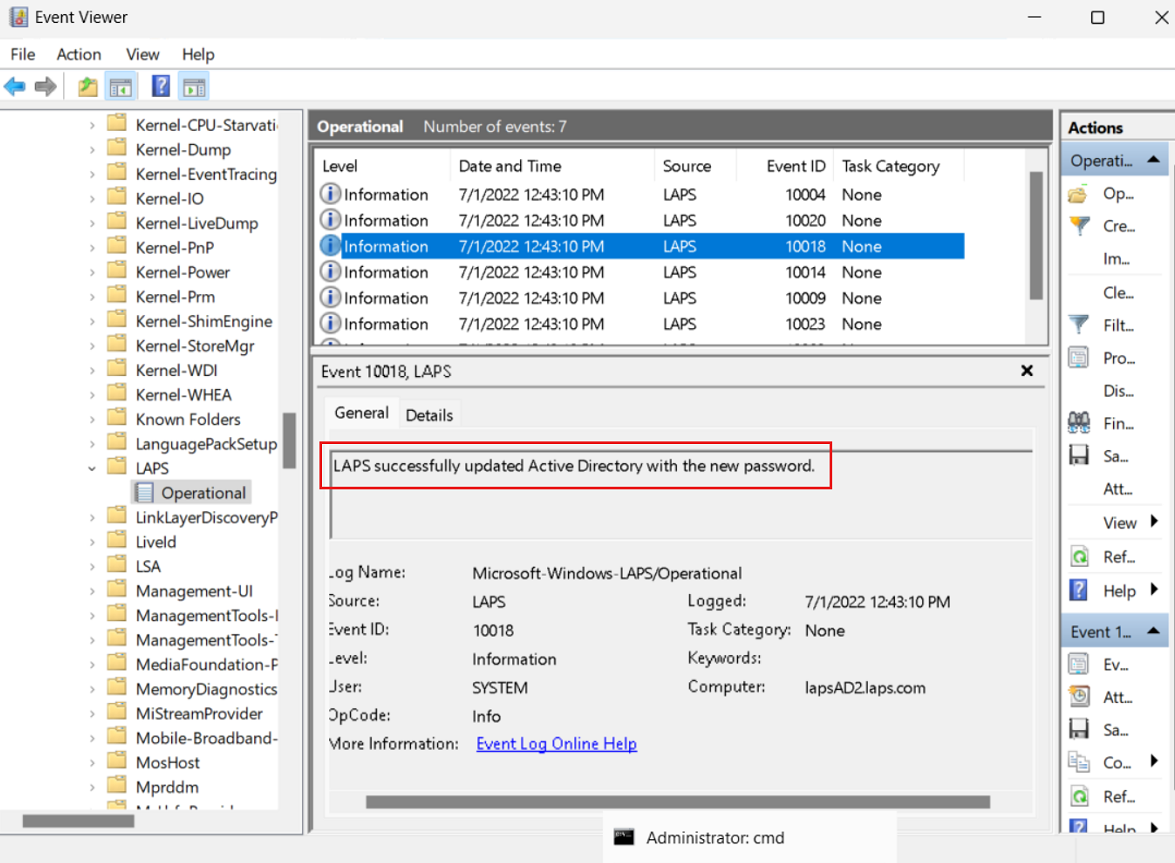
To avoid waiting after you apply the policy, you can run the Invoke-LapsPolicyProcessing PowerShell cmdlet.
Retrieve a password from Windows Server Active Directory
Use the Get-LapsADPassword cmdlet to retrieve passwords from Windows Server Active Directory. For example:
PS C:\> Get-LapsADPassword -Identity lapsAD2 -AsPlainText
ComputerName        : LAPSAD2
DistinguishedName   : CN=LAPSAD2,OU=NewLAPS,DC=laps,DC=com
Account             : Administrator
Password            : Zlh+lzC[0e0/VU
PasswordUpdateTime  : 7/1/2022 1:23:19 PM
ExpirationTimestamp : 7/31/2022 1:23:19 PM
Source              : EncryptedPassword
DecryptionStatus    : Success
AuthorizedDecryptor : LAPS\Domain Admins
This output result indicates that password encryption is enabled (see Source). Password encryption requires that your domain is configured for Windows Server 2016 Domain Functional Level or later.
Rotate the password
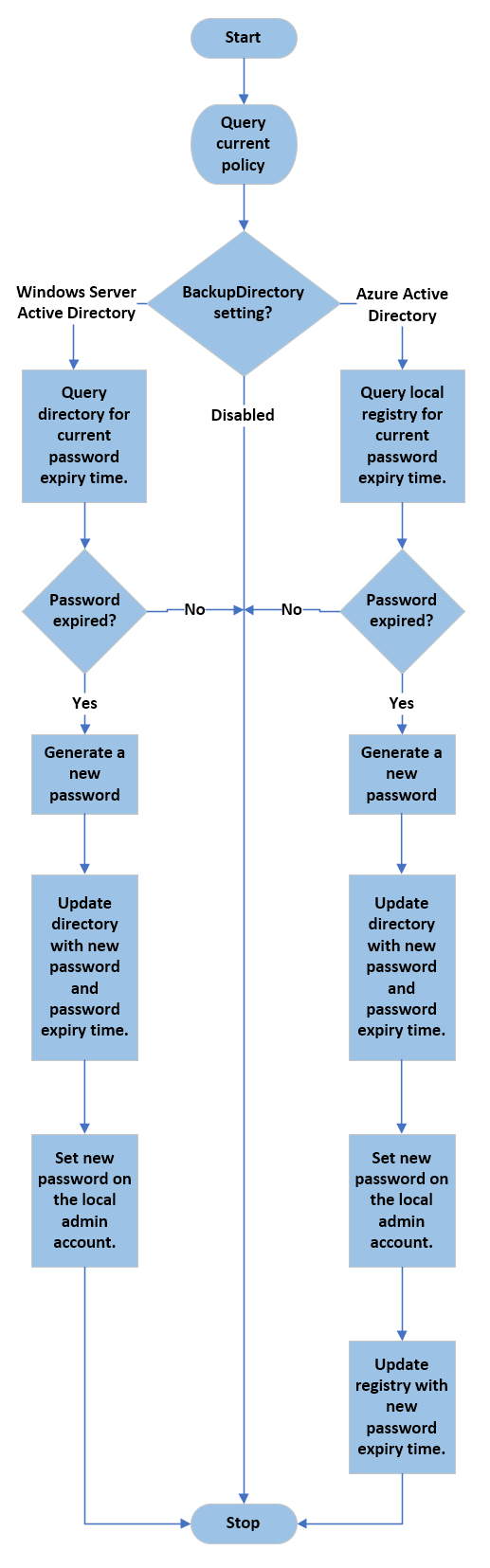
Windows LAPS reads the password expiration time from Windows Server Active Directory during each policy processing cycle. If the password is expired, a new password is generated and stored immediately.
In some situations (for example, after a security breach or for ad-hoc testing), you might want to rotate the password early. To manually force a password rotation, you can use the Reset-LapsPassword cmdlet.
You can use the Set-LapsADPasswordExpirationTime cmdlet to set the scheduled password expiration time as stored in Windows Server Active Directory. For example:
PS C:\> Set-LapsADPasswordExpirationTime -Identity lapsAD2
DistinguishedName                           Status
-----------------                           ------
CN=LAPSAD2,OU=NewLAPS,DC=laps,DC=com PasswordReset
The next time Windows LAPS wakes up to process the current policy, it sees the modified password expiration time and rotates the password. If you don't want to wait, you can run the Invoke-LapsPolicyProcessing cmdlet.
You can use the Reset-LapsPassword cmdlet to locally force an immediate rotation of the password.
See also
- Introducing Windows Local Administrator Password Solution with Microsoft Entra ID
- Windows Local Administrator Password Solution in Microsoft Entra ID (preview)
- RestrictedGroups CSP
- Microsoft Intune
- Microsoft Intune support for Windows LAPS
- Windows LAPS CSP
- Windows LAPS Troubleshooting Guidance
Next steps
- Configure Windows LAPS policy settings
- Use Windows LAPS event logs
- Use Windows LAPS PowerShell cmdlets
- Key concepts in Windows LAPS
Securing Local Administrator Accounts with the new Windows LAPS - Active Directory - 2023-04-12
This article is divided into three parts:
- What is Windows LAPS and what are the key differences between the legacy LAPS and the new version
- How to deploy Windows LAPS
- How to migrate from legacy LAPS to Windows LAPS
What is Windows LAPS
Windows LAPS (Local Administration Password Solution) is a Windows feature that enables automatic management and backup of the password of a local administrator account on Azure Active Directory-joined or Windows Server Active Directory-joined devices.
The announcement post is https://techcommunity.microsoft.com/t5/windows-it-pro-blog/by-popular-demand-windows-laps-available-now/ba-p/3788747
It also facilitates automatic management and backup of the Directory Services Restore Mode (DSRM) account password on Windows Server Active Directory domain controllers. An authorized administrator can retrieve and utilize the DSRM password.
Windows LAPS supported platforms and Azure AD LAPS preview
Windows LAPS is now available and fully supported on the following OS platforms with the specified update or later installed:
- Windows 11 22H2 - April 11 2023 Update
- Windows 11 21H2 - April 11 2023 Update
- Windows 10 - April 11 2023 Update
- Windows Server 2022 - April 11 2023 Update
- Windows Server 2019 - April 11 2023 Update
Issue #1: If you install the legacy LAPS CSE on a device patched with the April 11, 2023 security update and an applied legacy LAPS policy, both Windows LAPS and legacy LAPS will enter a broken state where neither feature will update the password for the managed account. Symptoms include Windows LAPS event log IDs 10031 and 10033, as well as legacy LAPS event ID 6. Microsoft is working on a fix for this issue.
Two primary workarounds exist for the above issue:
a. Uninstall the legacy LAPS CSE (result: Windows LAPS will take over management of the managed account)
b. Disable legacy LAPS emulation mode (result: legacy LAPS will take over management of the managed account)
Issue #2: If you apply a legacy LAPS policy to a device patched with the April 11, 2023 update, Windows LAPS will immediately enforce\honor the legacy LAPS policy, which may be disruptive (for example if done during OS deployment workflow). Disable legacy LAPS emulation mode may also be used to prevent those issues.
Windows LAPS Architecture
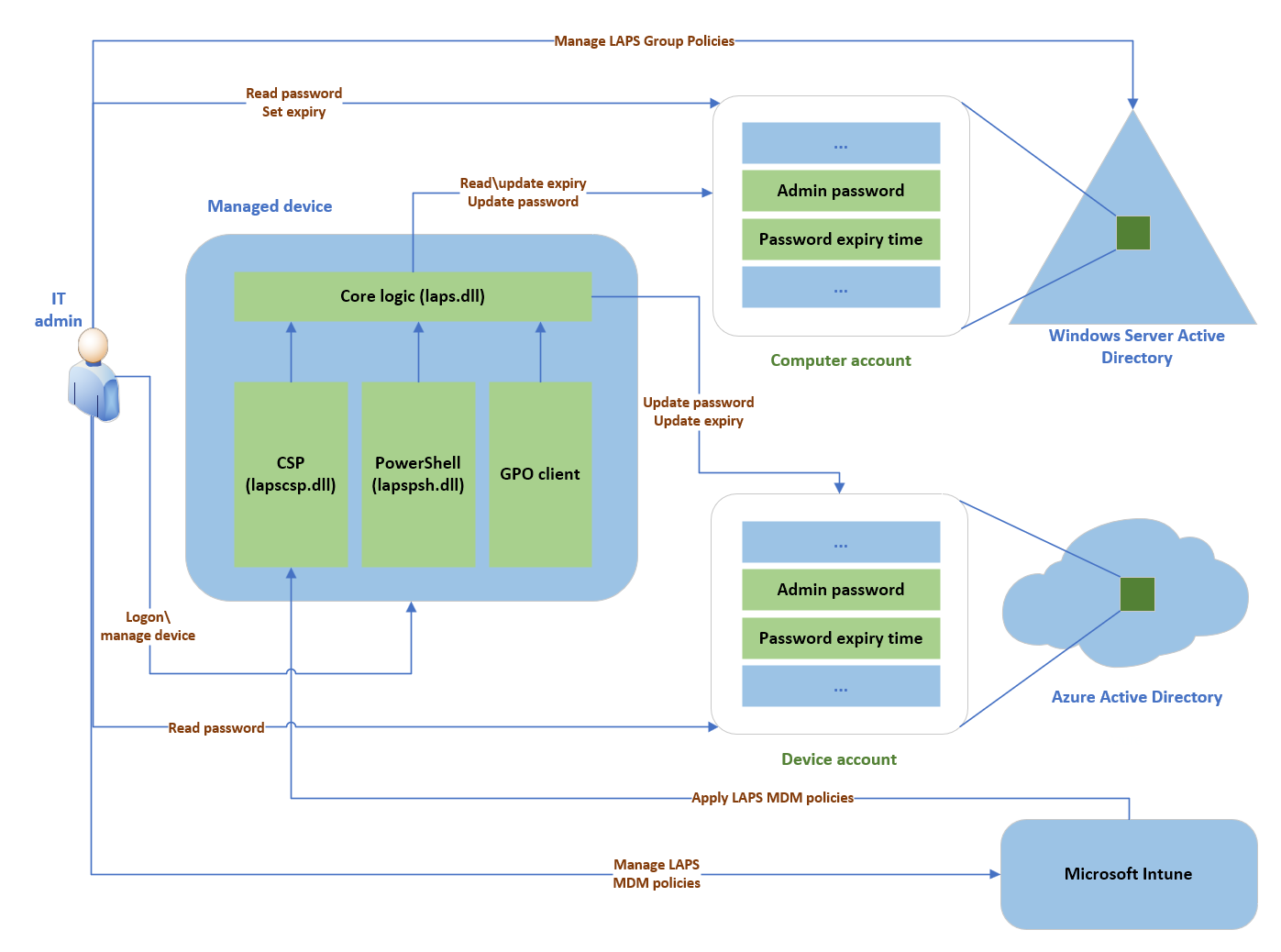
The Windows LAPS architecture diagram has several key components:
- IT admin: Represents collectively the various IT admin roles that might be involved in a Windows LAPS deployment. The IT admin roles are involved with policy configuration, expiration or retrieval of stored passwords, and interacting with managed devices.
- Managed device: Represents an Azure Active Directory-joined or Windows Server Active Directory-joined device on which you want to manage a local administrator account. The feature is composed of a few key binaries:
- laps.dll for core logic
- lapscsp.dll for configuration service provider (CSP) logic
- lapspsh.dll for PowerShell cmdlet logic. You also can configure Windows LAPS by using Group Policy. Windows LAPS responds to Group Policy Object (GPO) change notifications. The managed device can be a Windows Server Active Directory domain controller and be configured to back up Directory Services Repair Mode (DSRM) account passwords.
- Windows Server Active Directory: An on-premises Windows Server Active Directory deployment.
- Azure Active Directory: An Azure Active Directory deployment running in the cloud.
- Microsoft Intune The preferred Microsoft device policy management solution, also running in the cloud.
PowerShell module
A new module is installed and you can get the CMDlets with:
Get-Command -Module LAPS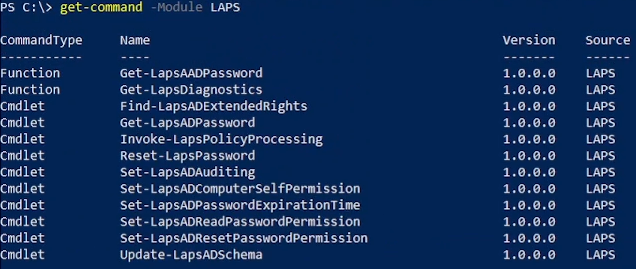
| Cmdlet | Description |
|---|---|
| Get-LapsAADPassword | Use to query Azure Active Directory for Windows LAPS passwords. |
| Get-LapsDiagnostics | Use to collect diagnostic information for investigating issues. |
| Find-LapsADExtendedRights | Use to discover which identities have been granted permissions for an Organization Unit (OU) in Windows Server Active Directory. |
| Get-LapsADPassword | Use to query Windows Server Active Directory for Windows LAPS passwords. |
| Invoke-LapsPolicyProcessing | Use to initiate a policy processing cycle. |
| Reset-LapsPassword | Use to initiate an immediate password rotation. Use when backing up the password to either Azure Active Directory or Windows Server Active Directory. |
| Set-LapsADAuditing | Use to configure Windows LAPS-related auditing on OUs in Windows Server Active Directory. |
| Set-LapsADComputerSelfPermission | Use to configure an OU in Windows Server Active Directory to allow computer objects to update their Windows LAPS passwords. |
| Set-LapsADPasswordExpirationTime | Use to update a computer's Windows LAPS password expiration time in Windows Server Active Directory. |
| Set-LapsADReadPasswordPermission | Use to grant permission to read the Windows LAPS password information in Windows Server Active Directory. |
| Set-LapsADResetPasswordPermission | Use to grant permission to update the Windows LAPS password expiration time in Windows Server Active Directory. |
| Update-LapsADSchema | Use to extend the Windows Server Active Directory schema with the Windows LAPS schema attributes. |
Windows LAPS PowerShell vs. legacy Microsoft LAPS PowerShell
Legacy Microsoft LAPS included a PowerShell module AdmPwd.PS.
This table presents a comparison between the old (ADMPwd.PS) and new (LAPS) modules, highlighting their similarities and differences.
| Windows LAPS cmdlet | Legacy Microsoft LAPS cmdlet |
|---|---|
| Get-LapsAADPassword | Doesn't apply |
| Get-LapsDiagnostics | Doesn't apply |
| Find-LapsADExtendedRights | Find-AdmPwdExtendedRights |
| Get-LapsADPassword | Get-AdmPwdPassword |
| Invoke-LapsPolicyProcessing | Doesn't apply |
| Reset-LapsPassword | Doesn't apply |
| Set-LapsADAuditing | Set-AdmPwdAuditing |
| Set-LapsADComputerSelfPermission | Set-AdmPwdComputerSelfPermission |
| Set-LapsADPasswordExpirationTime | Reset-AdmPwdPassword |
| Set-LapsADReadPasswordPermission | Set-AdmPwdReadPasswordPermission |
| Set-LapsADResetPasswordPermission | Set-AdmPwdResetPasswordPermission |
| Update-LapsADSchema | Update-AdmPwdADSchema |
Background policy processing cycle
How to deploy Windows LAPS
Extend AD schema
The Active Directory schema must be updated prior to using Windows LAPS.
This action is performed by using the following cmdlet.
Update-LapsADSchemaThe schema is forest-wide, so you only need to perform this action once for your entire forest.
Update-LapsADSchema adds the following attributes to the directory and to the mayContain list on the computer schema class.ms-LAPS-Password
- ms-LAPS-PasswordExpirationTime
- ms-LAPS-EncryptedPassword
- ms-LAPS-EncryptedPasswordHistory
- ms-LAPS-EncryptedDSRMPassword
- ms-LAPS-EncryptedDSRMPasswordHistory
- ms-LAPS-Encrypted-Password-Attributes
Grant the managed device permission to update its password
Do NOT RUN this command if you don't understand.
The managed device needs to be granted permission to update its password. This action is performed by setting inheritable permissions on the Organizational Unit (OU) the device is in.
The Set-LapsADComputerSelfPermission is used for this purpose, for example:
Set-LapsADComputerSelfPermission -Identity OUNameRemove Extended Rights permissions
Do NOT RUN this command if you don't understand.
Some users or groups might already be granted Extended Rights permission on the managed device's OU.
Granting this permission can be problematic because it provides access to read confidential attributes, including all of the Windows LAPS password attributes that are marked as confidential.
To identify who has been granted these permissions, one option is to use the following method:
Find-LapsADExtendedRights -Identity OUNameThe ouput is:
ObjectDN                  ExtendedRightHolders
--------                  --------------------
OU=OUName,DC=lab,DC=com {NT AUTHORITY\SYSTEM, LAB\Domain Admins}In this example, only trusted entities (SYSTEM and Domain Admins) have the privilege. No other action is required.
Deploy ADMX/ADML files
The ADMX and ADML files are deployed in %windir%\policydefinitionsby default after the update.
To configure the GPO from all your domain controllers, you must copy LAPS.admx and LAPS.adml (in en-us by default) to your central store (if any).
Please note you need to install the update on the domain controller if you want to manage DSRM accounts.
Configure GPO for Windows LAPS
A new Group Policy Object is available with Windows LAPS, which enables administrators to manage policy settings on Active Directory domain-joined devices.
In the Group Policy Management console, you'll find the new settings in Computer Configuration > Administrative Templates > System > LAPS
How to migrate from legacy LAPS to Windows LAPS
Coexistence
In case you miss the info at the beginning of this post:
There is a legacy LAPS interop bug in the above April 11, 2023 update. Please see the message in the Windows LAPS supported platforms and Azure AD LAPS preview part.
You can work around this issue by either:
- uninstalling legacy LAPS
- or deleting all registry values under the
HKLM\Software\Microsoft\Windows\CurrentVersion\LAPS\Stateregistry key.
Migrate
For now, Microsoft doesn't release the documentation.
But a comment from Microsoft Jay Simmons on this page provides a high level steps. As usual, adapt them for your environment:
1) Extend your AD schema with the new Windows LAPS attributes
2) Add a new local admin account to your managed devices (call it "LapsAdmin2")
3) Enable the new Windows LAPS policies to target LapsAdmin2.
4) Run Windows LAPS and legacy LAPS side-by-side for as long as needed to gain confidence in the solution (and also update IT worker\helpdesk procedures, monitoring software, etc). Note you will have two (2) separately managed local managed accounts that you may choose to use during this time.
5) Once happy, remove the legacy LAPS CSE from your managed devices.
6) Delete the original LapsAdmin account.
7) (Optionally), purge the now defunct legacy LAPS policy registry entries.
Set-LapsADReadPasswordPermission
Syntax
Set-LapsADReadPasswordPermission
   [-Credential <PSCredential>]
   -Identity <String[]>
   -AllowedPrincipals <String[]>
   [-Domain <String>]
   [-DomainController <String>]
   [-WhatIf]
   [-Confirm]
   [<CommonParameters>]
Description
The Set-LapsADReadPasswordPermission cmdlet is used by administrators to configure security permissions on an OU to allow specific users or groups to query LAPS passwords on computers in that OU. Users and groups must be fully qualified with both domain and user name components. The only exception to this is when the specified name resolves to a built-in principal, such as Domain Admins.
Examples
Example 1
Set-LapsADReadPasswordPermission -Identity LapsTestOU -AllowedPrincipals "Domain Admins"

Name       DistinguishedName
----       -----------------
LapsTestOU OU=LapsTestOU,DC=laps,DC=com
This example shows how to run the cmdlet with an isolated name that successfully maps to a well-known user or group.
Example 2
Set-LapsADReadPasswordPermission -Identity LapsTestOU -AllowedPrincipals @("S-1-5-21-2889755270-1324585639-743026605-1215")

Name       DistinguishedName
----       -----------------
LapsTestOU OU=LapsTestOU,DC=laps,DC=com
This example shows how to run the cmdlet specifying a user SID as input.
Example 3
Set-LapsADReadPasswordPermission -Identity 'OU=LapsTestOU,DC=laps,DC=com' -AllowedPrincipals @("laps.com\LapsAdmin1", "LapsAdmin2@laps.com")

Name       DistinguishedName
----       -----------------
LapsTestOU OU=LapsTestOU,DC=laps,DC=com
This example shows how to run the cmdlet specifying two fully qualified user names in different formats.
Example 4
Set-LapsADReadPasswordPermission -Identity LapsTestOU -AllowedPrincipals @("LapsAdministratorsGroup")

Set-LapsADReadPasswordPermission : The 'LapsAdministratorsGroup' account appears to be an isolated
name but is not a well-known name. Please use a fully qualified name instead, such as
"LAPSAdmins@contoso.com" or "contoso\LAPSAdmins"
At line:1 char:1
+ Set-LapsADReadPasswordPermission -Identity LapsTestOU -AllowedPrincip ...
+ ~~~~~~~~~~~~~~~~~~~~~~~~~~~~~~~~~~~~~~~~~~~~~~~~~~~~~~~~~~~~~~~~~~~~~
    + CategoryInfo          : InvalidArgument: (:) [Set-LapsADReadPasswordPermission], LapsPowershellException
    + FullyQualifiedErrorId : Invalid principal specified,Microsoft.Windows.LAPS.SetLapsADReadPasswordPermission
This example shows a failure caused by specifying an isolated name that didn't resolve to a well-known or built-in account. The fix for this error would be to add a domain name qualifier to the input name, for example LapsAdministratorsGroup@laps.com.
Parameters
-AllowedPrincipals
Specifies the name of the users or groups should be granted the permissions. Users or groups may be specified in either name or SID format. If specified in name format, the name must always include the identifying domain name portion unless the name maps to a well-known or built-in account.
| Type: | String[] |
| Position: | Named |
| Default value: | None |
| Required: | True |
| Accept pipeline input: | False |
| Accept wildcard characters: | False |
-Confirm
Prompts you for confirmation before running the cmdlet.
| Type: | SwitchParameter |
| Aliases: | cf |
| Position: | Named |
| Default value: | None |
| Required: | False |
| Accept pipeline input: | False |
| Accept wildcard characters: | False |
-Credential
Specifies the credentials to use when updating AD. If not specified, the current user's credentials are used.
| Type: | PSCredential |
| Position: | Named |
| Default value: | None |
| Required: | False |
| Accept pipeline input: | False |
| Accept wildcard characters: | False |
-Domain
Specifies the name of the domain to connect to.
| Type: | String |
| Position: | Named |
| Default value: | None |
| Required: | False |
| Accept pipeline input: | False |
| Accept wildcard characters: | False |
-DomainController
Specifies the name of the domain controller to connect to.
| Type: | String |
| Position: | Named |
| Default value: | None |
| Required: | False |
| Accept pipeline input: | False |
| Accept wildcard characters: | False |
-Identity
Specifies the name of the OU to update.
This parameter accepts several different name formats that influence the criteria used in the resultant AD search. The supported name formats are as follows:
- distinguishedName (begins with a
CN=) - name (for all other inputs)
Setting permissions on the domain root is only supported using the distinguishedName input format, for example 'DC=laps,DC=com'.
| Type: | String[] |
| Position: | Named |
| Default value: | None |
| Required: | True |
| Accept pipeline input: | True |
| Accept wildcard characters: | False |
-WhatIf
Shows what would happen if the cmdlet runs. The cmdlet isn't run.
| Type: | SwitchParameter |
| Aliases: | wi |
| Position: | Named |
| Default value: | None |
| Required: | False |
| Accept pipeline input: | False |
| Accept wildcard characters: | False |
Inputs
String[]