CMD Line
- 7zip Command Line
- Add user to Administrators Group
- Choice Command
- CMD Line Admin
- CMD Line Registry Delete
- Configure TCP/IP from the Command Prompt
- DNS Change Via CMD Line
- Enable Remote Desktop Via Command Line
- Hyper-V
- Invalid H:\ Drive
- Network Share Folder
- Remote GPResult
- Run Commands
- Test if Computer is Azure Joined
- Windows Activation Post Azurre Migration
- Windows S.M.A.R.T Check
- Check Installed Drive Type
- Check type of computer
- Change power settings
- Uninstall Programs from Command Line
7zip Command Line
Archive
7za a -tzip C:\Accent\temp2\archive2.zip H:\Downloads\SUU_14.12.200.69.iso -v10m
7za - executable for 7Zip
a - archive
Tzip - to zip
C:\Accent\temp2 archive2.zip - file to create
H:\Downloads\SUU_14.12.200.69.iso - file creating from
-v - This tells 7zip to break the file up into multiple pieces
10m - it will break it up into 10MB files
Extract
7za e archive2.zip.001 C:\Accent\temp
7za - executable for 7Zip
E - extract
Archive2.zip.001 - first file to start the extraction with
C:\Accent\temp - location to extract.
WHCC
7za a -tzip d:\DiskShadow\20150204\V2 -v20m
Add user to Administrators Group
net localgroup administrators [username] /add
From <http://superuser.com/questions/515175/create-admin-user-from-command-line>
LT has auto function that will make an account a domain admin. This was tested and verified on a workgroup agent.
Remove local admin and give C:\UPS necessary permissions from CMD:
Choice Command
By Greg Shultz
October 20, 2011, 8:29 AM PDT
Takeaway: Use the batch-file command Choice to make your batch files interactive. Greg Shultz shows how it can come in handy even in Windows 7.
Back in the old days of computing, I became very adept at creating batch files. It was almost a necessity to be able to automate tasks that would otherwise require a lot of typing at the Command prompt. Of course, I now do most of my task automation using Windows Scripting Host with VBScript and Windows PowerShell. However, there are times when a good old-fashioned batch file comes in really handy. That’s why I was glad to see that Microsoft brought back the Choice command in Vista and kept it there in Windows 7.
As you may know, a lot of batch files just simply run a series of commands from start to finish. However, sometimes it is nice to be able to prompt a user to make a choice in order to determine which direction the batch file should take. That’s why when Microsoft introduced DOS 6.0 in the early 1990s, they included a new batch-file command called Choice, which was designed to give you the ability to make your batch files interactive.
As the Windows operating system evolved to Windows 95 and then Windows 98, the Choice command came along for the ride. But when Windows 2000 came on the scene, the Choice command was absent. It wasn’t included in Windows XP either. While you could download the Choice command and add it to Windows 2000 or Windows XP, it just wasn’t the same as having it available as a native command - especially when you were sharing your batch files with other folks.
In this edition of the Windows Desktop Report, I’ll examine the Choice command. As I do, I’ll show you an example situation where it can come in handy.
Looking at the Choice command
As I mentioned, the power of the Choice command is that it allows you to make your batch files interactive. To see how the Choice command works, let’s consider this basic Choice command:
Choice /M "Do you want to continue"
If you type this in a Command Prompt window and press [Enter], you’ll see the following prompt
Do you want to continue [Y,N]?
As you can see, the text that follows the /M parameter becomes the message, or prompt, that the Choice command displays. The [Y,N]? is added by the Choice command and is the default list of choices. If you press Y, the Choice command returns a value of 1. If you press N, the Choice command returns a value of 2. These values are assigned to an environment variable named Errorlevel.
With this basic explanation in mind, let’s take a look at a more complete example.
Choice /M "Do you want to continue"
If Errorlevel 2 Goto No
If Errorlevel 1 Goto Yes
Goto End
:No
Echo You selected No
Goto End
:Yes
Echo You selected Yes
:End
In this example, I’ve used the If Errorlevel structure to determine the value assigned to the environment variable, the Goto structure to redirect the batch file execution to the specified label, and the Echo command to display an appropriate results message. You’ll also note that when you use the If Errorlevel structure in a batch program, you have to list the numbers in decreasing order.
Parameters
In a nutshell, that’s how the Choice command works. Using the additional parameters allows you to create more elaborate Choice commands. Microsoft describes the Choice parameters as follows:
CHOICE [/C choices] [/N] [/CS] [/T timeout /D choice] [/M text]
|
Parameter |
Description |
|
/C choices |
Specifies the list of choices to be created. Valid choices include a-z, A-Z, 0-9, and extended ASCII characters (128-254). The default list is “YN.” |
|
/N |
Hides the list of choices in the prompt. The message before the prompt is displayed and the choices are still enabled. |
|
/CS |
Enables case-sensitive choices to be selected. By default, the utility is case-insensitive. |
|
/T timeout |
The number of seconds to pause before a default choice is made. Acceptable values are from 0 to 9999. If 0 is specified, there will be no pause and the default choice is selected. |
|
/D choice |
Specifies the default choice after nnnn seconds. Character must be in the set of choices specified by /C option and must also specify nnnn with /T. |
|
/M text |
Specifies the message to be displayed before the prompt. If not specified, the utility displays only a prompt. |
A real-world example
Now that you have a good idea of how the Choice command works, let’s take a look at a real-world example of where the Choice command can simplify the use of a command-line tool in a batch file.
As you know, troubleshooting and diagnosing TCP/IP problems on a Windows network can be a tough job. However, the task can be easier if you use the IP Configuration (IPConfig) command, which is designed to provide you with detailed information on a Windows system’s TCP/IP network configuration. This information can be used to help verify network connections and settings and, along with other TCP/IP tools, can assist you in solving TCP/IP problems on a Windows network.
Unfortunately, there are numerous IPConfig command parameters, and many of them are quite long, so remembering them, much less typing them accurately, can be a bear of a job in and of itself. To make using the IPConfig command a bit easier, I’ve created the batch file shown in Figure A. (You can download the batch file if you prefer.) The strange-looking characters that you see are actually special characters that I copied from Character Map and are configured in such a way as to create a nice window — like a border, as you’ll see.
Figure A

The IPC.bat file with the Choice command makes using the IPConfig command’s lengthy parameters easy to access.
When you run it by opening a Command Prompt window and typing IPC, this batch file displays a nice menu, as shown in Figure B, and then using the Choice command allows you to easily select and run the most common IPConfig command lines. You just type a number, and the command runs.
Figure B

What’s your take?
Do you create and use batch files on a regular basis? Now that the Choice command is back, will you make use of it? Will you download and use the IPC.bat file? As always, if you have comments or information to share about this topic, please take a moment to drop by the TechRepublic Community Forums and let us hear from you.
Pasted from <http://www.techrepublic.com/blog/window-on-windows/make-the-choice-command-work-for-you-even-in-windows-7/5234?tag=nl.e064>
CMD Line Admin
CMD Line as ADMINISTRATOR
runas /user:%computername%\administrator cmd
device manager
start devmgmt.msc /b
MSCONFIG
Start msconfig
Administrative CMD prompt with VISTA
- click start
- type: cmd
- press the right-ctrl, right-shift, and enter at the same time
This will do the same thing as right-click cmd.exe and clicking run as
administrator. It will work for any exe that you type into the start search
bar.
Pasted from <http://forums.techarena.in/vista-security/617133.htm>
CMD Line Registry Delete
September 14, 1999 05:14 PM
How can I delete a registry value/key from the command line?

Rating:

(6)
Windows IT Pro
InstantDoc ID #14741
A. A. Using the Windows NT Resource Kit Supplement 2 utility REG.EXE you can delete a registry value from the command line or batch file, e.g.
reg delete HKLM\Software\test
Would delete the HKEY_LOCAL_MACHINE\Software\test value. When you enter the command you will be prompted if you really want to delete, enter Y. To avoid the confirmation add /force to the command, e.g.
reg delete HKLM\Software\test /force
A full list of the codes to be used with REG DELETE are as follows:
|
HKCR |
HKEY_CLASSES_ROOT |
|
HKCU |
HKEY_CURRENT_USER |
|
HKLM |
HKEY_LOCAL_MACHINE |
|
HKU |
HKEY_USERS |
|
HKCC |
HKEY_CURRENT_CONFIG |
To delete a entry on a remote machine add the name of the machine, \\<machine name>, e.g.
reg delete HKLM\Software\test \\johnpc
Inserted from <http://www.windowsitpro.com/article/registry2/how-can-i-delete-a-registry-value-key-from-the-command-line-.aspx>
~~~~~~~~~~~~~~~~~~~~~~~~~~~~~~~~~~~~~~~~~~~~~~~~~~~~~~~~~~~~~~~~~~~~~~~~~~~~~~~~~~~~~~~~~~~~~~~~~~~~~~~~~~~~~~~~
Deleting Registry Keys from the Command Line
There are two ways to delete a key from the Registry from the Command line. At the Windows Command line:
RegEdit /l location of System.dat /R location of User.dat /D Registry key to delete
You cannot be in Windows at the time you use this switch.
Or you can create a reg file as such:
REGEDIT4
[-HKEY_LOCAL_MACHINE\the key you want to delete]
Note the negative sign just behind the[
Then at the Command line type:
1. RegEdit C:\Windows\(name of the regfile).
Pasted from <http://www.easydesksoftware.com/regtrick.htm>
Configure TCP/IP from the Command Prompt
Save current settings
netsh -c interface dump > c:'location1.txt
When you reach location #2, do the same thing, only keep the new settings to a different file:
Set to DHCP (check name and make sure it is exact)
netsh interface ip set address "Local Area Connection" dhcp
Would you like to configure DNS and WINS addresses from the Command Prompt? You can. See this example for DNS:
Import settings saved beforehand
Now, whenever you need to quickly import your IP settings and change them between location #1 and location #2, just enter the following command in a Command Prompt window (CMD.EXE):
netsh -f c:'location1.txt
************************************************************************************
Configure TCP/IP from the Command Prompt
by Daniel Petri - January 7, 2009
In order to configure TCP/IP settings such as the IP address, Subnet Mask, Default Gateway, DNS and WINS addresses and many other options you can use Netsh.exe.
Netsh.exe is a command-line scripting utility that allows you to, either locally or remotely, display or modify the network configuration of a computer that is currently running. Netsh.exe also provides a scripting feature that allows you to run a group of commands in batch mode against a specified computer. Netsh.exe can also save a configuration script in a text file for archival purposes or to help you configure other servers.
Netsh.exe is available on Windows 2000, Windows XP and Windows Server 2003.
You can use the Netsh.exe tool to perform the following tasks:
-
Configure interfaces
-
Configure routing protocols
-
Configure filters
-
Configure routes
-
Configure remote access behavior for Windows-based remote access routers that are running the Routing and Remote Access Server (RRAS) Service
-
Display the configuration of a currently running router on any computer
-
Use the scripting feature to run a collection of commands in batch mode against a specified router.
What can we do with Netsh.exe?
With Netsh.exe you can easily view your TCP/IP settings. Type the following command in a Command Prompt window (CMD.EXE):
netsh interface ip show config
With Netsh.exe, you can easily configure your computer's IP address and other TCP/IP related settings. For example:
The following command configures the interface named Local Area Connection with the static IP address 192.168.0.100, the subnet mask of 255.255.255.0, and a default gateway of 192.168.0.1:
netsh interface ip set address name="Local Area Connection" static 192.168.0.100 255.255.255.0 192.168.0.1 1
(The above line is one long line, copy paste it as one line)
Netsh.exe can be also useful in certain scenarios such as when you have a portable computer that needs to be relocated between 2 or more office locations, while still maintaining a specific and static IP address configuration. With Netsh.exe, you can easily save and restore the appropriate network configuration.
First, connect your portable computer to location #1, and then manually configure the required settings (such as the IP address, Subnet Mask, Default Gateway, DNS and WINS addresses).
Now, you need to export your current IP settings to a text file. Use the following command:
netsh -c interface dump > c:'location1.txt
When you reach location #2, do the same thing, only keep the new settings to a different file:
netsh -c interface dump > c:'location2.txt
You can go on with any other location you may need, but we'll keep it simple and only use 2 examples.
Now, whenever you need to quickly import your IP settings and change them between location #1 and location #2, just enter the following command in a Command Prompt window (CMD.EXE):
netsh -f c:'location1.txt
or
netsh -f c:'location2.txt
and so on.
You can also use the global EXEC switch instead of -F:
netsh exec c:'location2.txt
Netsh.exe can also be used to configure your NIC to automatically obtain an IP address from a DHCP server:
netsh interface ip set address "Local Area Connection" dhcp
Would you like to configure DNS and WINS addresses from the Command Prompt? You can. See this example for DNS:
netsh interface ip set dns "Local Area Connection" static 192.168.0.200
and this one for WINS:
netsh interface ip set wins "Local Area Connection" static 192.168.0.200
Or, if you want, you can configure your NIC to dynamically obtain it's DNS settings:
netsh interface ip set dns "Local Area Connection" dhcp
BTW, if you want to set a primary and secondary DNS address, add index=1 and index=2 respectively to the lines of Netsh command.
As you now see, Netsh.exe has many features you might find useful, and that goes beyond saying even without looking into the other valuable options that exist in the command.
Links
How to Use the Netsh.exe Tool and Command-Line Switches - 242468
How to Use the NETSH Command to Change from Static IP Address to DHCP in Windows 2000 - 257748
Sign Up For the Petri IT Knowledgebase Weekly Digest!
E-mail Address:
Search Site
Sponsors
AWS Privacy Policy | Site Info | Contact | Advertise ©2010 Blue Whale Web Inc.
Inserted from <http://www.petri.co.il/configure_tcp_ip_from_cmd.htm>
DNS Change Via CMD Line
First find the network name by using:
netsh interface show interface
You should see something like "Local Area Connection"
To add a DNS server:
netsh interface ipv4 add dnsserver "Ethernet" address=192.168.x.x index=1
To delete DNS:
netsh interface ipv4 delete dnsserver "Local Area Connection 3" address=192.168.10.20
netsh interface ipv4 delete dnsserver "Local Area Connection" address=192.168.10.11
netsh interface ipv4 delete dnsserver "Local Area Connection" address=192.168.10.11
netsh interface show interface
Local Area Connection 3
netsh interface ipv4 add dnsserver "Local Area Connection 3" address=192.168.10.10 index=1
netsh interface ipv4 delete dnsserver "Ethernet" address=192.168.10.20
netsh interface ipv4 add dnsserver "Ethernet" address=192.168.202.10 index=1
Ethernet
Set to DHCP
netsh interface ip set address "Local Area Connection" dhcp
netsh interface ip set dns "Local Area Connection" dhcp
Enable Remote Desktop Via Command Line
netsh advfirewall firewall set rule group="Network Discovery" new enable=yes
netsh advfirewall firewall set rule group="Remote Desktop" new enable=yes
Hyper-V
netsh firewall set opmode disable
Pasted from <http://www.wantmoore.com/archives/2007/02/20/disable-windows-firewall-via-command-line/>
-
netsh advfirewall set allprofiles state off
Pasted from <http://technet.microsoft.com/en-us/library/dd772588(v=ws.10).aspx>
Invalid H:\ Drive

You receive an "Error " error message when you try to install or remove a Microsoft program
When you try to install or remove any one of the products listed in the "Applies To" section, you may receive an error message that resembles the following:
Error 1606: Could Not Access Network Location

Back to the top | Give Feedback

This issue may occur if there is an incorrect setting in one of the following registry subkeys:
-
HKEY_CURRENT_USER\Software\Microsoft\Windows\CurrentVersion\Explorer\User Shell Folders
-
HKEY_LOCAL_MACHINE\Software\Microsoft\Windows\CurrentVersion\Explorer\User Shell Folders
To have us fix this problem for you, go to the "Fix it for me" section. To fix this problem yourself, go to the "Let me fix it myself" section.
Note This Fix it package can automatically recover all the registry entries that are listed in the following tables.

Back to the top | Give Feedback

Method 1
Fix it for me
Let me fix it myself
Important This section, method, or task contains steps that tell you how to modify the registry. However, serious problems might occur if you modify the registry incorrectly. Therefore, make sure that you follow these steps carefully. For added protection, back up the registry before you modify it. Then, you can restore the registry if a problem occurs. For more information about how to back up and restore the registry, click the following article number to view the article in the Microsoft Knowledge Base:
How to back up and restore the registry in Windows
To resolve this issue yourself, follow these steps:
-
Click Start, click Run, type Regedit.exe, and then click OK.
-
Locate and then click the following registry subkey:
HKEY_CURRENT_USER\Software\Microsoft\Windows\CurrentVersion\Explorer\User Shell Folders -
In the right pane, verify that the values are the same as the values in the following table. If each value matches the table, go to step 7.
For Windows Vista, Windows 7 and Windows Server 2008
|
Value name |
Type |
Value data |
|
{374DE290-123F-4565-9164-39C4925E467B} |
REG_EXPAND_SZ |
%USERPROFILE%\Downloads |
|
AppData |
REG_EXPAND_SZ |
%USERPROFILE%\AppData\Roaming |
|
Cache |
REG_EXPAND_SZ |
%USERPROFILE%\AppData\Local\Microsoft\Windows\Temporary Internet Files |
|
Cookies |
REG_EXPAND_SZ |
%USERPROFILE%\AppData\Roaming\Microsoft\Windows\Cookies |
|
Desktop |
REG_EXPAND_SZ |
%USERPROFILE%\Desktop |
|
Favorites |
REG_EXPAND_SZ |
%USERPROFILE%\Favorites |
|
History |
REG_EXPAND_SZ |
%USERPROFILE%\AppData\Local\Microsoft\Windows\History |
|
LocalAppData |
REG_EXPAND_SZ |
%USERPROFILE%\AppData\Local |
|
My Pictures |
REG_EXPAND_SZ |
%USERPROFILE%\Pictures |
|
My Music |
REG_EXPAND_SZ |
%USERPROFILE%\Music |
|
My Video |
REG_EXPAND_SZ |
%USERPROFILE%\Videos |
|
NetHood |
REG_EXPAND_SZ |
%USERPROFILE%\AppData\Roaming\Microsoft\Windows\Network Shortcuts |
|
Personal |
REG_EXPAND_SZ |
%USERPROFILE%\Documents |
|
PrintHood |
REG_EXPAND_SZ |
%USERPROFILE%\AppData\Roaming\Microsoft\Windows\Printer Shortcuts |
|
Programs |
REG_EXPAND_SZ |
%USERPROFILE%\AppData\Roaming\Microsoft\Windows\Start Menu\Programs |
|
Recent |
REG_EXPAND_SZ |
%USERPROFILE%\AppData\Roaming\Microsoft\Windows\Recent |
|
SendTo |
REG_EXPAND_SZ |
%USERPROFILE%\AppData\Roaming\Microsoft\Windows\SendTo |
|
Start Menu |
REG_EXPAND_SZ |
%USERPROFILE%\AppData\Roaming\Microsoft\Windows\Start Menu |
|
Startup |
REG_EXPAND_SZ |
%USERPROFILE%\AppData\Roaming\Microsoft\Windows\Start Menu\Programs\Startup |
|
Templates |
REG_EXPAND_SZ |
%USERPROFILE%\AppData\Roaming\Microsoft\Windows\Templates |
For Windows XP and for Windows Server 2003
|
Value name |
Type |
Value data |
|
AppData |
REG_EXPAND_SZ |
%USERPROFILE%\Application Data |
|
Cache |
REG_EXPAND_SZ |
%USERPROFILE%\Local Settings\Temporary Internet Files |
|
Cookies |
REG_EXPAND_SZ |
%USERPROFILE%\Cookies |
|
Desktop |
REG_EXPAND_SZ |
%USERPROFILE%\Desktop |
|
Favorites |
REG_EXPAND_SZ |
%USERPROFILE%\Favorites |
|
History |
REG_EXPAND_SZ |
%USERPROFILE%\Local Settings\History |
|
Local AppData |
REG_EXPAND_SZ |
%USERPROFILE%\Local Settings\Application Data |
|
Local Settings |
REG_EXPAND_SZ |
%USERPROFILE%\Local Settings |
|
My Pictures |
REG_EXPAND_SZ |
%USERPROFILE%\My Documents\My Pictures |
|
NetHood |
REG_EXPAND_SZ |
%USERPROFILE%\NetHood |
|
Personal |
REG_EXPAND_SZ |
%USERPROFILE%\My Documents |
|
PrintHood |
REG_EXPAND_SZ |
%USERPROFILE%\PrintHood |
|
Programs |
REG_EXPAND_SZ |
%USERPROFILE%\Start Menu\Programs |
|
Recent |
REG_EXPAND_SZ |
%USERPROFILE%\Recent |
|
SendTo |
REG_EXPAND_SZ |
%USERPROFILE%\SendTo |
|
Start Menu |
REG_EXPAND_SZ |
%USERPROFILE%\Start Menu |
|
Startup |
REG_EXPAND_SZ |
%USERPROFILE%\Start Menu\programs\Startup |
|
Templates |
REG_EXPAND_SZ |
%USERPROFILE%\Templates |
-
-
If any Name, Type, or Value does not match the table in step 3, right-click the Value name, and then click Delete.
-
In the left pane, right-click User Shell Folders, point to New, click Expandable String Value, type the Name value that you want from the table in step 3, and then press ENTER.
-
Right-click the value that you created in step 5, click Modify, type the value in the Value data box for the Value name, and then click OK.
-
Locate and then click the following registry subkey:
HKEY_LOCAL_MACHINE\Software\Microsoft\Windows\CurrentVersion\Explorer\User Shell Folders -
In the right pane, verify that the values are the same as the values in the following table. If each value matches the table, go to step 12.
For Windows Vista, Windows 7 and Windows Server 2008
|
Value name |
Type |
Value data |
|
{3D644C9B-1FB8-4f30-9B45-F670235F79C0} |
REG_EXPAND_SZ |
%PUBLIC%\Downloads |
|
Common AppData |
REG_EXPAND_SZ |
%ProgramData% |
|
Common Desktop |
REG_EXPAND_SZ |
%PUBLIC%\Desktop |
|
Common Documents |
REG_EXPAND_SZ |
%PUBLIC%\Documents |
|
Common Programs |
REG_EXPAND_SZ |
%ProgramData%\Microsoft\Windows\Start Menu\Programs |
|
Common Start Menu |
REG_EXPAND_SZ |
%ProgramData%\Microsoft\Windows\Start Menu |
|
Common Startup |
REG_EXPAND_SZ |
%ProgramData%\Microsoft\Windows\Start Menu\Programs\Startup |
|
Common templates |
REG_EXPAND_SZ |
%ProgramData%\Microsoft\Windows\Templates |
|
CommonMusic |
REG_EXPAND_SZ |
%PUBLIC%\Music |
|
CommonPictures |
REG_EXPAND_SZ |
%PUBLIC%\Pictures |
|
CommonVideo |
REG_EXPAND_SZ |
%PUBLIC%\Videos |
For Windows XP and for Windows Server 2003
|
Value name |
Type |
Value data |
|
Common AppData |
REG_EXPAND_SZ |
%ALLUSERSPROFILE%\Application Data |
|
Common Desktop |
REG_EXPAND_SZ |
%ALLUSERSPROFILE%\Desktop |
|
Common Documents |
REG_EXPAND_SZ |
%ALLUSERSPROFILE%\Documents |
|
Common Favorites |
REG_EXPAND_SZ |
%ALLUSERSPROFILE%\Favorites |
|
Common Programs |
REG_EXPAND_SZ |
%ALLUSERSPROFILE%\Start Menu\Programs |
|
Common Start Menu |
REG_EXPAND_SZ |
%ALLUSERSPROFILE%\Start menu |
|
Common Startup |
REG_EXPAND_SZ |
%ALLUSERSPROFILE%\Start Menu\Programs\Startup |
|
Common templates |
REG_EXPAND_SZ |
%ALLUSERSPROFILE%\Templates |
-
If any Name, Type, or Value does not match the table in step 8, right-click the Value name, and then click Delete.
-
In the left pane, right-click User Shell Folders, point to New, click Expandable String Value, type the Name value that you want from the table in step 8, and then press ENTER.
-
Right-click the value that you created in step 10, click Modify, type the value in the Value data box for the Value name, and then click OK.
-
Exit Registry Editor, and then restart the computer.
Method 2
If the issue still occurs, find registry keys.
Below is a registry key reference of how the key is displayed for Microsoft Office in the registry:
|
The Version of Microsoft Office |
Displayed in Registry |
|
Office 2010 |
14.0 |
|
Office 2007 |
12.0 |
|
Office 2003 |
11.0 |
|
Office XP |
10.0 |
|
Office 2000 |
9.0 |
|
Office 97 |
8.0 |
To do this, follow the steps below:
-
Click Start, click Run, type Regedit.exe, and then click OK.
-
Locate and then click the following registry subkey:
HKEY_LOCAL_MACHINE\Software\Microsoft\Office -
In the left pane,there any old Microsoft Office register keys that do not have any product associated with them.
Note The picture below is an example for deleting an Office 2007 registery key. -
In the left pane, right click the folder that you located and then click Delete.
-
Exit Registry Editor, and then restart the computer.
Note For those who failed to delete the register keys, try to right-click the key and click Permission. Make sure your user group (or you) have Full Control. It could be administrator or another account that has administrative privileges.
Back to the top | Give Feedback
Pasted from <http://support.microsoft.com/kb/886549>
REG QUERY "HKCU\Software\Microsoft\Windows\CurrentVersion\Explorer\User Shell Folders"
REG QUERY "HKLM\Software\Microsoft\Windows\CurrentVersion\Explorer\User Shell Folders"
REG ADD "HKCU\Software\Microsoft\Windows\CurrentVersion\Explorer\User Shell Folders" /v AppData /t REG_EXPAND_SZ /d %USERPROFILE%\AppData\Roaming /f
REG ADD "HKCU\Software\Microsoft\Windows\CurrentVersion\Explorer\User Shell Folders" /v Favorites /t REG_EXPAND_SZ /d %USERPROFILE%\Favorites /f
Migrated to Passportal
https://us-clover.passportalmsp.com/digidocs/digidoc/app/4337118/339108#/view
Network Share Folder
From <http://www.windows-commandline.com/list-create-delete-network-shares/>
Remote GPResult
Cmd line that can be ran remotely.
gpresult /scope computer /v /user FKC\mpeak > %systemdrive%\Accent\gpresult.log
gpresult /scope computer /v /user wilson.local\sshanley > %systemdrive%\Accent\gpresult.log
gpresult /scope computer /v /user WEIDomain.local\mhill > %systemdrive%\Accent\gpresult.log
gpresult /scope computer /v /user RHSC.local\cheri.streitmatter > %systemdrive%\Accent\gpresult.log
Run Commands
In case you wanted to get a command line thrill today....
Accessibility Controls - access.cpl
Add Hardware Wizard - hdwwiz.cpl
Add/Remove Programs - appwiz.cpl
Administrative Tools - control admintools
Automatic Updates - wuaucpl.cpl
Bluetooth Transfer Wizard - fsquirt
Certificate Manager - certmgr.msc
Computer Management - compmgmt.msc
Date and Time Properties - timedate.cpl
Direct X Control Panel (If Installed)* - directx.cpl
Direct X Troubleshooter - dxdiag
Disk Cleanup Utility - cleanmgr
Disk Management - diskmgmt.msc
Disk Partition Manager - diskpart
Display Properties - control desktop
Display Properties (w/Appearance Tab Preselected) - control color
Dr. Watson System Troubleshooting Utility - drwtsn32
Driver Verifier Utility - verifier
File Signature Verification Tool - sigverif
Folders Properties - control folders
Free Cell Card Game - freecell
Group Policy Editor (XP Prof) - gpedit.msc
Internet Properties - inetcpl.cpl
IP Configuration (Display Connection Configuration) - ipconfig /all
IP Configuration (Display DNS Cache Contents) - ipconfig /displaydns
IP Configuration (Delete DNS Cache Contents) - ipconfig /flushdns
IP Configuration (Release All Connections) - ipconfig /release
IP Configuration (Renew All Connections) - ipconfig /renew
IP Configuration (Refreshes DHCP & Re - Registers DNS) -
IP Configuration (Display DHCP Class ID) - ipconfig /showclassid
IP Configuration (Modifies DHCP Class ID) - ipconfig /setclassid
Java Control Panel (If Installed) - jpicpl32.cpl
Java Control Panel (If Installed) - javaws
Keyboard Properties - control keyboard
Local Security Settings - secpol.msc
Local Users and Groups - lusrmgr.msc
Logs You Out Of Windows - logoff
Mouse Properties - control mouse
Network Connections - control netconnections
Network Connections - ncpa.cpl
Network Setup Wizard - netsetup.cpl
Nview Desktop Manager (If Installed) - nvtuicpl.cpl
ODBC Data Source Administrator - odbccp32.cpl
Opens AC3 Filter (If Installed) - ac3filter.cpl
Password Properties - password.cpl
Performance Monitor - perfmon.msc
Phone and Modem Options - telephon.cpl
Power Configuration - powercfg.cpl
Printers and Faxes - control printers
Private Character Editor - eudcedit
Quicktime (If Installed) - QuickTime.cpl
Removable Storage - ntmsmgr.msc
Removable Storage Operator Requests - ntmsoprq.msc
Resultant Set of Policy (XP Prof) - rsop.msc
Scanners and Cameras - sticpl.cpl
Scheduled Tasks - control schedtasks
Spider Solitare Card Game - spider
SQL Client Configuration - cliconfg
System Configuration Editor - sysedit
System Configuration Utility - msconfig
System File Checker Utility (Scan Immediately) - sfc /scannow
System File Checker Utility (Scan Once At Next Boot) - sfc /scanonce
System File Checker Utility (Scan On Every Boot) - sfc /scanboot
System File Checker Utility (Return to Default Setting) - sfc /revert
System File Checker Utility (Purge File Cache) - sfc /purgecache
System File Checker Utility (Set Cache Size to size x) -
User Account Management - nusrmgr.cpl
Windows Firewall - firewall.cpl
Windows Management Infrastructure - wmimgmt.msc
Windows System Security Tool - syskey
Windows Update Launches - wupdmgr
Windows XP Tour Wizard - tourstart
Test if Computer is Azure Joined
dsregcmd /status
Windows Activation Post Azurre Migration
From CMD Prompt
slmgr /upk
slmgr /cpky
slmgr /ckms
slmgr /ckhc
slmgr /ipk <License Key>
slmgr /ato
Windows S.M.A.R.T Check
Open a command prompt as Admin
wmic diskdrive get status
Check Installed Drive Type
wmic diskdrive get model,name,sizeCheck type of computer
Get-WmiObject -Class Win32_ComputerSystemProduct | Select-Object -ExpandProperty Name
This will tell you make and model of computer, only works OEM machines
Change power settings
Powercfg /Change monitor-timeout-ac 60
Powercfg /Change monitor-timeout-dc 0
Powercfg /Change standby-timeout-ac 0
Powercfg /Change standby-timeout-dc 0
standby = sleep
AC is plugged in
DC is battery power
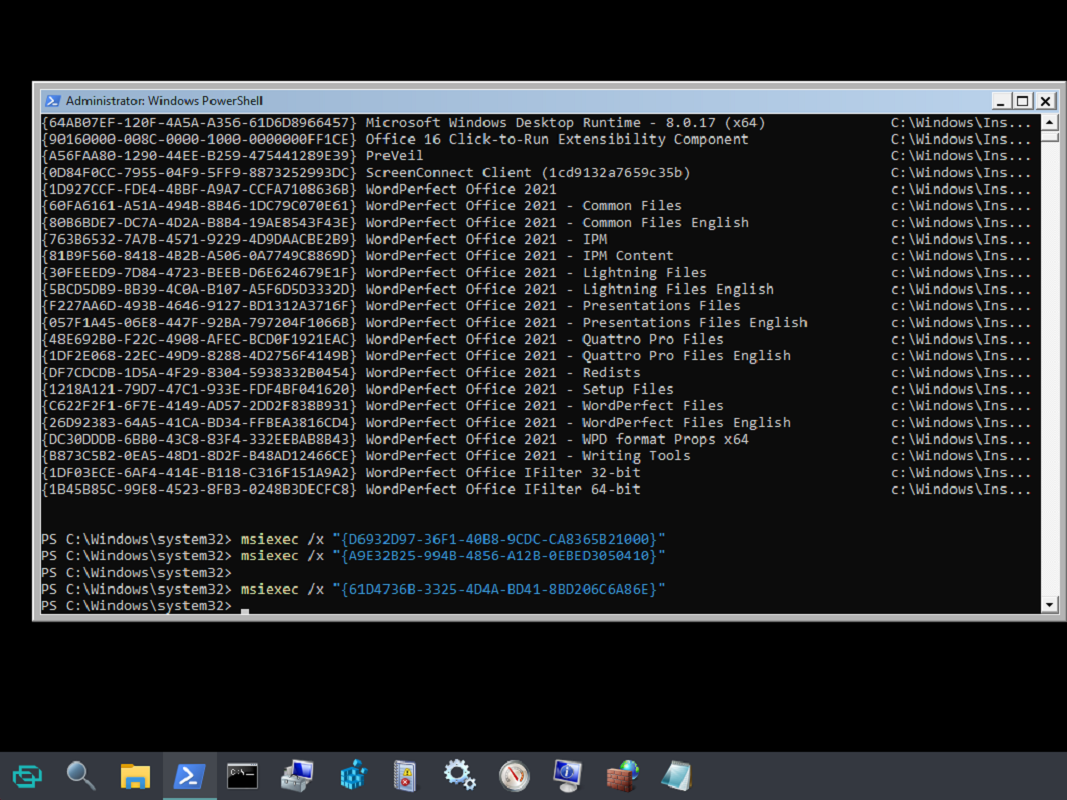
Uninstall Programs from Command Line
Use this command to get a list of all installed applications
get-wmiobject Win32_Product | Sort-Object -Property Name |Format-Table IdentifyingNumber, Name, LocalPackage -AutoSize
Use this command to delete software
msiexec /x "{GUID}"