# Replacing Failed Disks
This process is for a failed disk. For replacing a disk that has not failed see here [Replacing a Drive Prior to Failure](https://docs.coltscomputer.services/books/truenas/page/replacing-a-drive-prior-to-failure "Replacing a Drive Prior to Failure")
## Replacing a Disk
Another disk of the same or greater capacity is required to replace a failed disk. This disk must be installed in the TrueNAS system, not part of an existing storage pool, and available to use as a replacement. The replacement process wipes any data on the replacement disk.
Can I replace a disk in a GELI-encrypted (Legacy) pool?The TrueNAS **Pool** widget on the main **Dashboard** shows when a disk failure degrades a pool.
[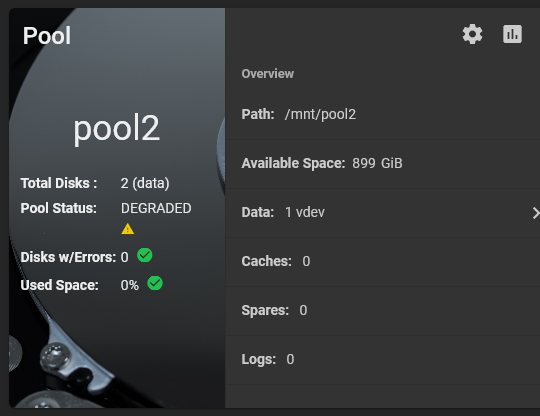](https://www.truenas.com/docs/images/CORE/Dashboard/DashboardPoolDegraded.png)[Figure 1: Degraded pool on dashboard widget](https://www.truenas.com/docs/core/coretutorials/storage/disks/diskreplace/#figure-1)
Click the *settings* on the pool card to go to the **Storage > Pools > Pool Status** screen to locate the failed disk.
To replace a disk:
1. Take the disk offline.
2. Remove, or replace the disk.
3. Refresh the screen.
4. Bring the disk online.
### Taking a Failed Disk Offline
Clicking *more\_vert* for the failed disk to show the disk options.
[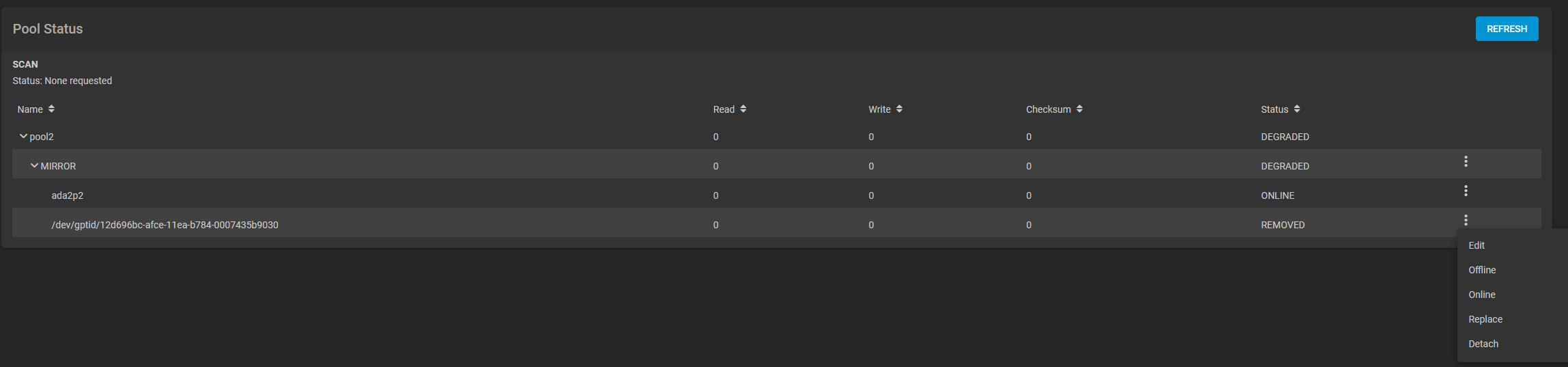](https://www.truenas.com/docs/images/CORE/Storage/StoragePoolsStatusDiskFailedOptions.png)[Figure 2: Pool Status disk options](https://www.truenas.com/docs/core/coretutorials/storage/disks/diskreplace/#figure-2)
We recommend you take the disk offline before starting the replacement. This removes the device from the pool and can prevent swap issues. To offline a disk:
Go to **Storage > Pools** screen, click on the *settings* settings icon, and then select **Status** to Open the **Pool Status** screen and display the disks in the pools.
Click the *more\_vert* icon for the disk you plan to remove, and then click **Offline**.
Select **Confirm**, then click **OFFLINE**. The disk should now be offline.
Can I use a disk that is failing but still active?The offline failed?When the disk status shows as **Offline**, physically remove the disk from the system.
[](https://www.truenas.com/docs/images/CORE/Storage/StoragePoolsStatusOffline.png)[Figure 3: Pool Status disk offline](https://www.truenas.com/docs/core/coretutorials/storage/disks/diskreplace/#figure-3)
### Replacing a Disk
If the replacement disk is not already physically added to the system, add it now.
If replacing a failed disk with an available disk in the system, click **Replace**, select an available disk from the dropdown list, then click **Replace**.
To update the **Pool Status** screen and show the new disk, click **Refresh**.
In the **Pool Status**, open the options for the offline disk and click **Replace**
[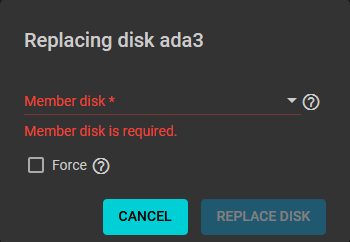](https://www.truenas.com/docs/images/CORE/Storage/StoragePoolsStatusDiskReplace.png)[Figure 4: Replacing disk screen](https://www.truenas.com/docs/core/coretutorials/storage/disks/diskreplace/#figure-4)
Select a new member disk and click **Replace Disk**. The new disk must have the same or greater capacity as the disk you are replacing. The replacement fails when the chosen disk has partitions or data present. To destroy any data on the replacement disk and allow the replacement to continue, set the **Force** option.
When the disk wipe completes and TrueNAS starts replacing the failed disk, the **Pool Status** changes to show the in-progress replacement.
[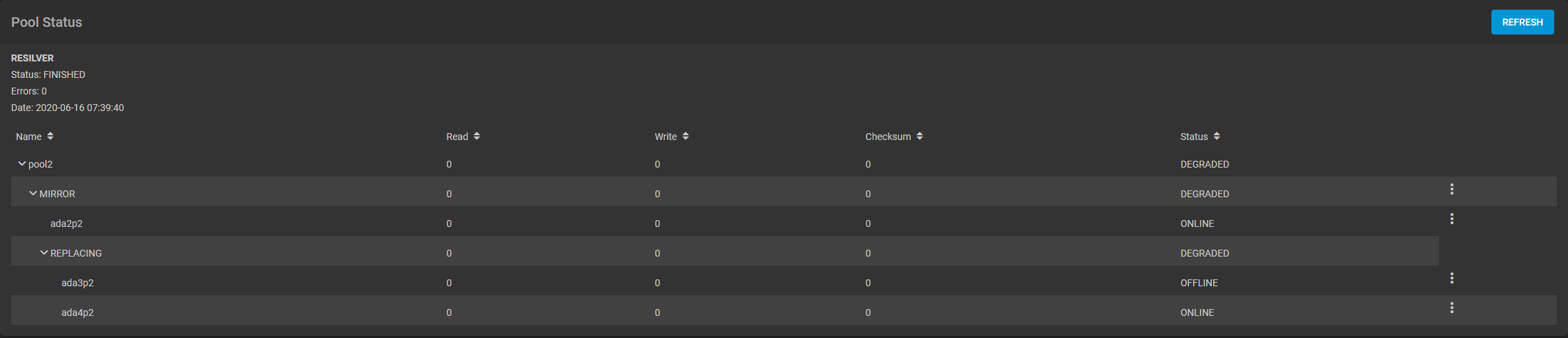](https://www.truenas.com/docs/images/CORE/Storage/StoragePoolsStatusReplaceStart.png)[Figure 5: Pool Status replacing disk](https://www.truenas.com/docs/core/coretutorials/storage/disks/diskreplace/#figure-5)
TrueNAS resilvers the pool during the replacement process. For pools with large amounts of data, resilvering can take a long time.
### Bringing a New Disk Online
When the resilver completes, the pool status screen updates to show the new disk, and the pool status returns to **Online**.
[](https://www.truenas.com/docs/images/CORE/Storage/StoragePoolsStatusReplaceComplete.png)[Figure 6: Pool Status disk replacement complete](https://www.truenas.com/docs/core/coretutorials/storage/disks/diskreplace/#figure-6)
During the failed disk replacement process, take these actions after removing and replacing the physical disk to make that replacement disk available:
1. Go to **Disks** and locate the offline disk
2. Click the *more\_vert* icon for the offline disk
3. Click **Online**.