Todyl
- Microsoft Office 365 Log Ingestion
- Configure Fortigate SIEM Integration
- Uninstall Todyl from MacOS Devices
- Change License Group
Microsoft Office 365 Log Ingestion
https://support.todyl.com/hc/en-us/articles/4413461476883-Microsoft-Office-365-Log-Ingestion
Prerequisites
- Verify that you are a global admin and that your tenant license includes Standard Auditing.
- Ensure Global Audit logging is enabled (see steps below).
For GCC High or other GCC environments:
- GCC Government, GCC High Government (GCCH), and DoD Government environments are now supported on Cloud to Cloud based deployments. Select the appropriate type under Subscription Plan on the Configure Microsoft Office 365 window.
Requirements:
- Global Admin Account
- Tenant License including Standard Auditing:
- The following link shows users and their assigned licenses:
- The following link shows paid licenses and counts:
- Global Audit Logging enabled
Configure Office 365 API Access
Step 1
- Login to https://portal.azure.com with your Office 365 global admin account and search for Microsoft Entra ID
- Click Microsoft Entra ID
Step 2
- Click App registrations on the left navigation menu
- Click New Registration
Step 3
- Enter an easily recognizable name for the integration, such as SGN Log Ingestion
- Select Accounts in this organizational directory only (YourTenant only - Single Tenant)
- Click Register
Step 4
- Copy the Application (client) ID displayed to a safe location. You will need this value in the Todyl Portal. (Todyl Portal Configuration Section Application ID Field)
- Copy the Directory (tenant) ID displayed to a safe location. You will also need this value in the Todyl Portal. (Todyl Portal Configuration Section Tenant ID Field)
Step 5
- Click API permissions in the left navigation menu
- Click + Add a permission
- Select Office 365 Management APIs from the blade that opens.
Step 6
- Select the Application permissions tab
- Select all the {name}.Read permissions from the list below.
* Depending on your Active Directory setup, you may have more options than shown in the screenshot above. While the above example only shows ActivityFeed and ServiceHealth, you may have others, including Activity Reports, Threat Intelligence, and more. Please select all .read options, then click Add Permissions.
Step 7
- Stay on the API Permissions page.
- Click +Add a permission a second time.
- Select Microsoft Graph.
Step 8
- Select the Application permissions tab.
- Select the Directory.Read.All permission from the list.
Step 9
- Take note of the Status here, as if permission is not granted, you'll need to do so.
- Click Grant admin consent for {YourTenant}
Step 10
- Click Certificates & secrets from the left navigation menu
- Click + New client secret
- From the blade that opens, enter a recognizable name such as SGN Log Ingestion
- Select an Expiration time
Click Add to close the blade and continue.
Step 11
- Copy the Value of the newly created secret. It will not be displayed again, so save it to a secure location as you will need to enter this in your Todyl Portal. (Todyl Portal Configuration Section Client Secret Value)
Step 12
Enable Global Audit Logging:
Todyl Portal Configuration Steps
In your Todyl Portal, under the Office365 Log Ingestion Configuration, enter the following:
- Tenant ID: Copied from Step 4
- Application ID: Copied from Step 4
- Client Secret Value: Copied from Step 11
- Subscription Plan: Select based on your O365 Environment. Enterprise is the default if you are not using a Government Cloud Version.
Troubleshooting and Error handling (C2C)
Awaiting Data from Microsoft
This is an initial status you may see when you first set up a C2C O365 integration if the tenant was created less than 24 hours ago or if you just enabled Global Audit Logging.
To verify that this is the case, you can double check that Global Audit Logging is enabled by following the steps below and ensuring that you are seeing audit logs within your Microsoft Audit Environment. If that is the case, there is nothing else that you need to do at this time, and this error should self-resolve within 24 hours.
For more information or to ensure that Global Audit Logging is enabled please go to: https://docs.microsoft.com/en-us/microsoft-365/compliance/turn-audit-log-search-on-or-off?view=o365-worldwide.
Integration Failed
Something has failed with your O365 Integration, please ensure that Global Audit Logging is enabled and delete and re-add your integration making sure to double check your configurations by following the steps outlined in the Setting up O365 with Cloud-to-Cloud section above for more information and screenshots.
For more information or to ensure that Global Audit Logging is enabled please go to: https://docs.microsoft.com/en-us/microsoft-365/compliance/turn-audit-log-search-on-or-off?view=o365-worldwide.
Invalid Credential
The client secret associated with this integration is invalid or expired. To address this
1. Log into your MS admin portal.
2. Search for App Registrations.
3. Click the appropriate App.
4. Click Certificates & secrets from the left navigation menu.
5. Click + New client secret.
6. Generate a new secret.
7. Insert the new key into your Todyl O365 configuration.
For more information and screenshots please see Steps 10 and 11 in the Setting up O365 with Cloud-to-Cloud section above for more information and screenshots.
Expired Credential
The secret key associated with this configuration has expired. Please follow the steps under the Invalid Credential section of this article above to regenerate a new key and insert it into your Todyl O365 configuration.
Insufficient Permissions
Your Integration does not have sufficient permissions. Please go to the API permissions page in your O365 environment and ensure you have provided the appropriate application permissions and admin consent for your instance. See Steps 5-7 in the Setting up O365 with Cloud-to-Cloud section above for more information and screenshots.
Configure Fortigate SIEM Integration
Section 1: Create a Firewall Rule on your Utility Agent
- From the Utility Host – open the Run command and enter the following command wf.msc or open the control panel and navigate to the firewall settings page
Linux can be used as a utility agent, Ubunut 20.04 and 22.04 are the currently supported versions. - Select Inbound Rules on the right side
- Right-click and select New Rule
- Select Custom
- Click Next
- Select All Programs
- Click Next
- Use the following settings:
- Protocol Type: UDP
- Local Port: 514
- Click Next
- Under the "Which remote IP addresses does this rule apply to?" section, select These IP Addresses
- Click Add
- If the utility agent resides on the same LAN as the Firewall, enter the LAN IP of the Fortinet device. If the utility agent is on a different subnet than the Firewall, enter the Public IP of the Fortinet device that is sending logs under the This IP address or subnet field.
- You'll be brought back to the Scope screen, click Next
- On the Action screen, select Allow the connection, then click Next
- On the Profile screen, ensure Domain, Private, and Guest are selected, then click Next
- Give the Firewall rule a name and description, then click Finish
Section 2a (Legacy): Configure Fortinet to Forward Logs
- Log in to the Fortinet console
- Select Log & Report Menu Option on the left
- Select Log Settings
- Enable Send logs to syslog
- Enter the LAN IP of the Utility Agent
- Save your configuration
Section 2b (FortiOS v5.x+): Configure Fortinet to Forward Logs
- Open the CLI
- Find a syslogd setting that is not in use:
config log {syslogd | syslogd2 | syslogd3 | syslogd4} settingNote: One of the options within the brackets should be selected and entered without the brackets.
show
end - Configure the desired syslogd setting:
config log syslogd setting
Note: Change syslogd to the one you determined to use in step 2. -
set mode udp
set server "LAN IP of Utility Agent"
set port 514
set facility user
set source-ip "LAN IP of FW"
set format default
set priority default
set max-log-rate 0
set interface-select-method auto
- use command
config log syslogd filterand thenset severity <severity level>to change the severity level of the logs being ingested. Setting to level Warning and above is probably best. Fortinet article that shows the logging levels. - Confirm settings:
show full
end
Section 3: Todyl Portal
Configure the integration within the Todyl Portal with the following settings:
- UDP Host: 0.0.0.0
- UDP Port: 514
Uninstall Todyl from MacOS Devices
sudo curl -s https://portal.todyl.com/tools/MacUninstall.sh | sudo bash -s -- -fChange License Group
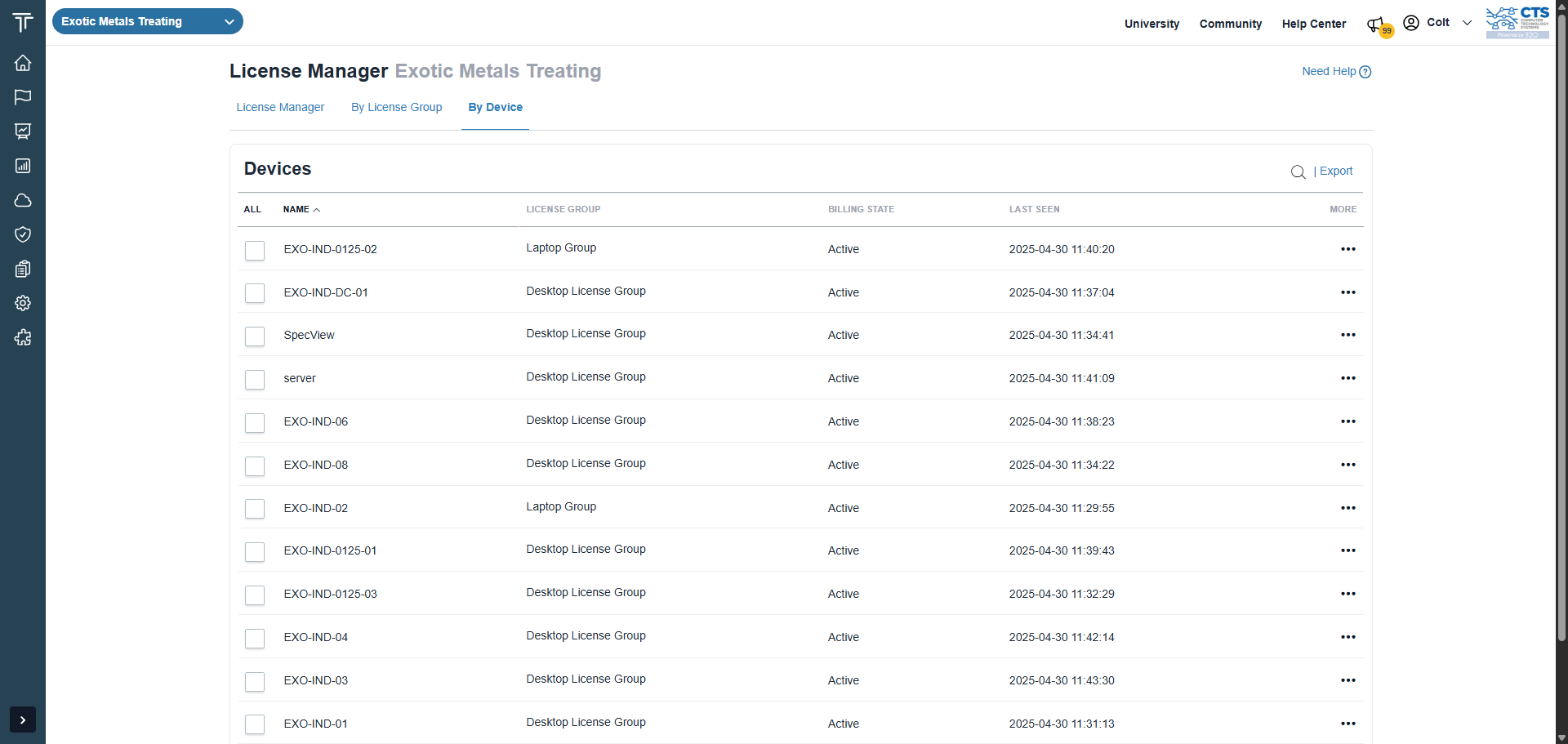
Select the device, then chose "Change License Group"