Sharepoint
- Adding user to Folders in Sharepoint
- Removing a Deleted site in SharePoint
- Sharepoint Sync to File Explorer
- Show all sites user has access to
Adding user to Folders in Sharepoint
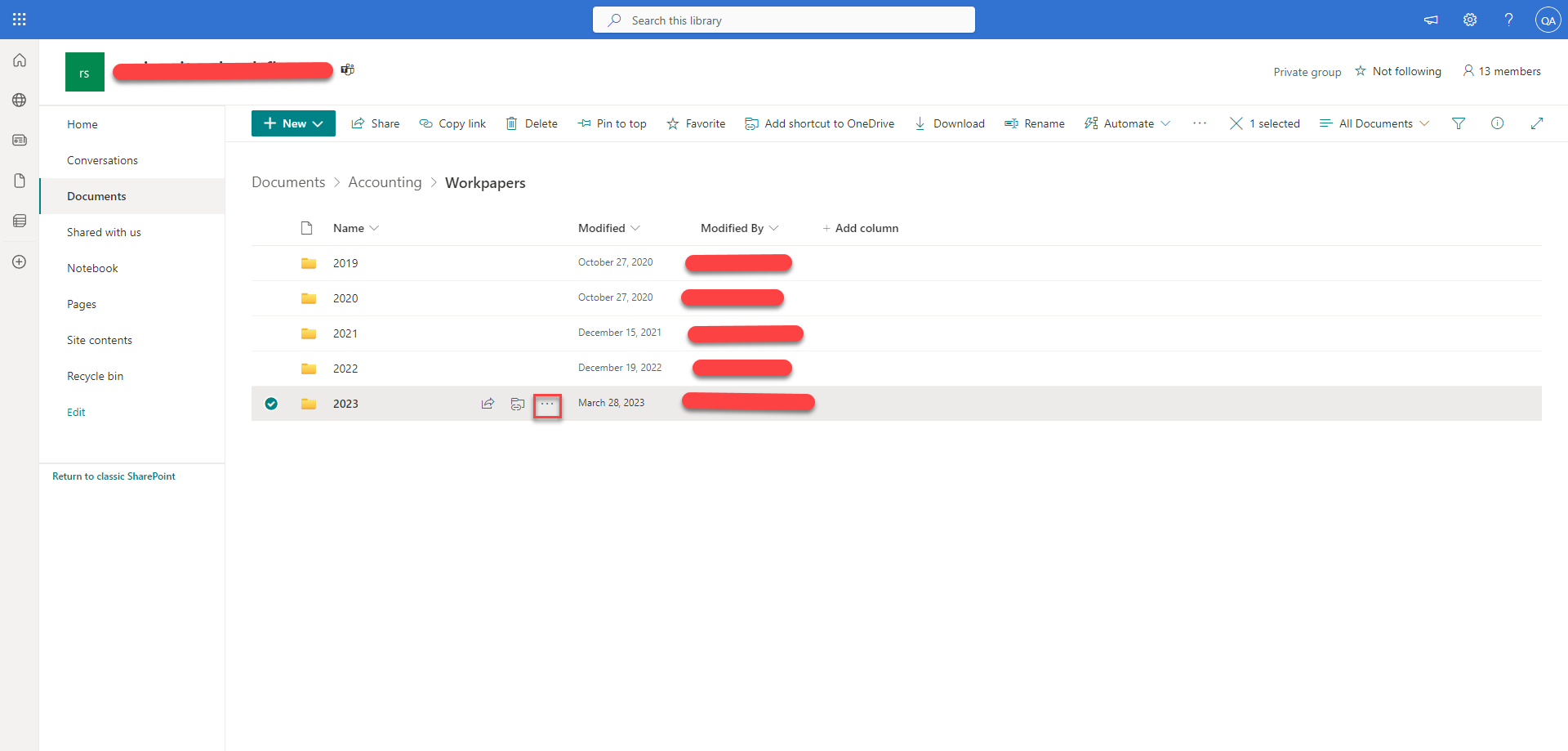
- Navigate to the required location in Sharepoint

- Select the folder and choose the three dots
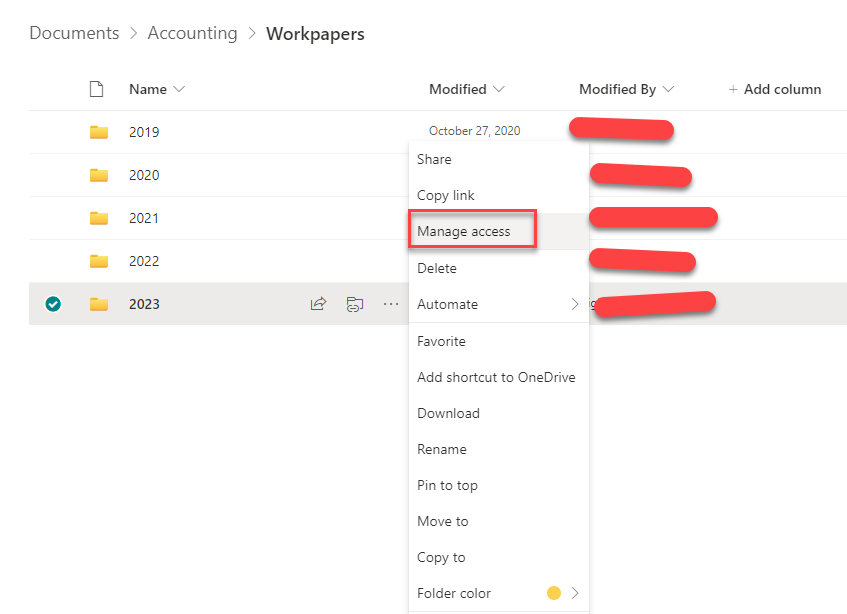
- Choose the "Manage Access button"

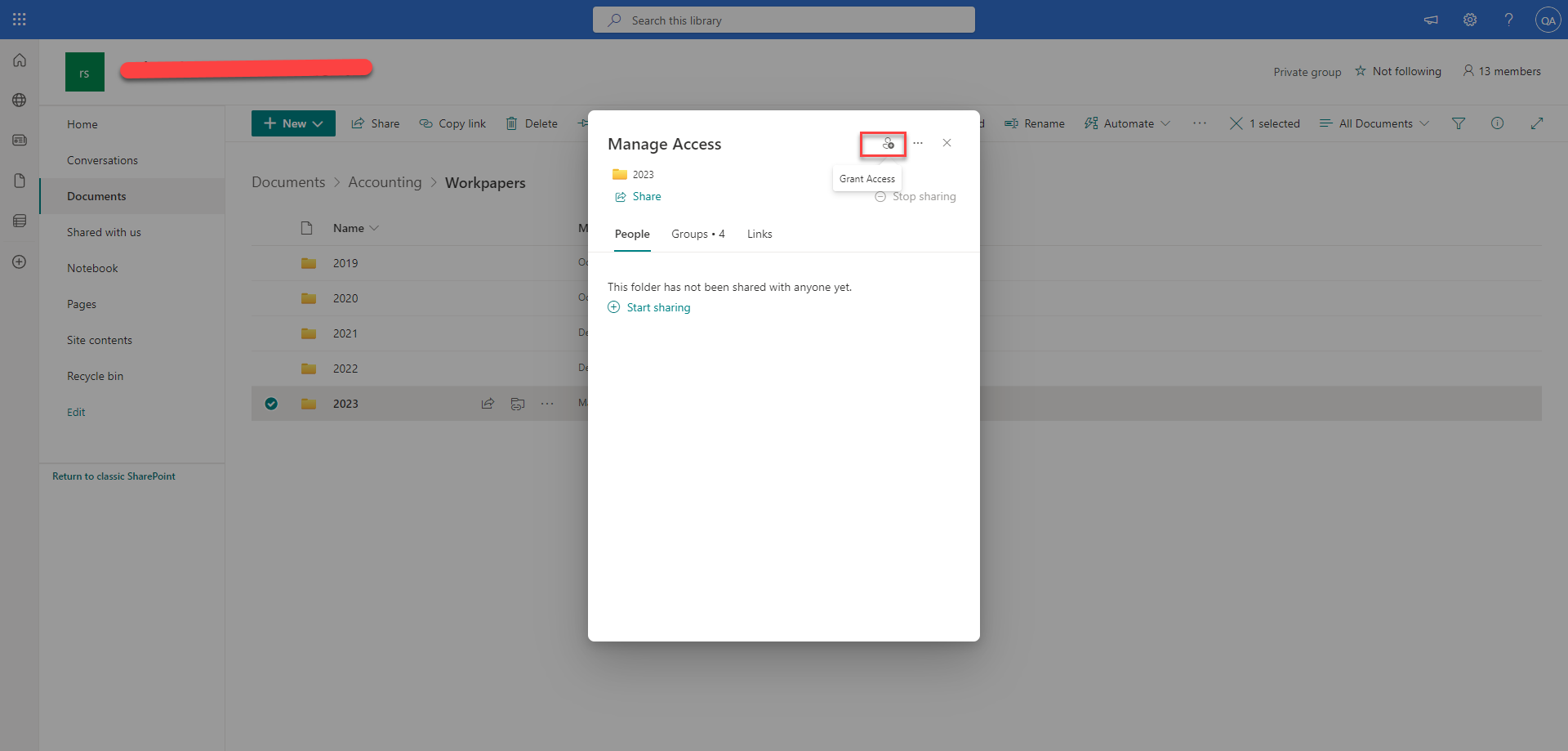
- Select the Grant Access option

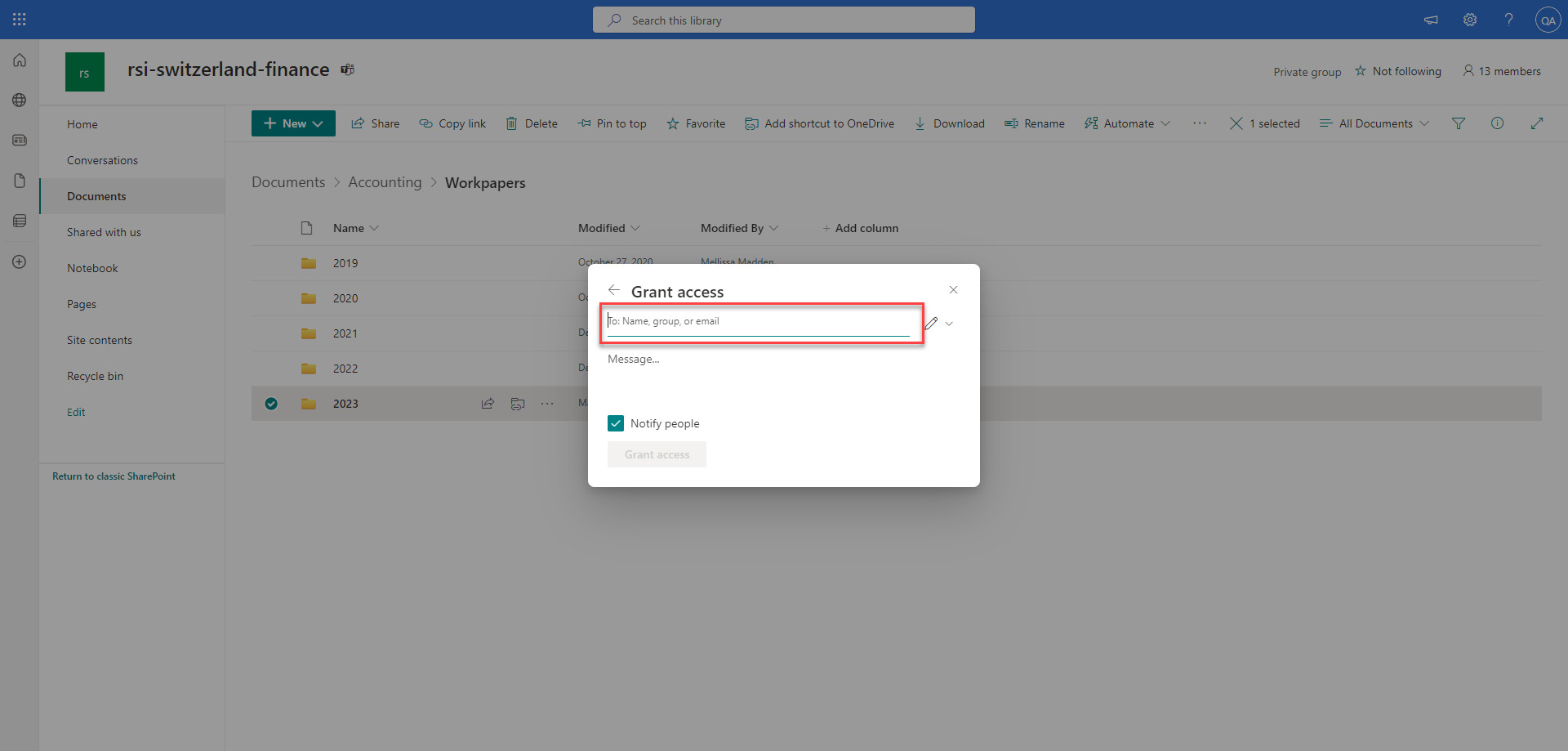
- Type the email address of the person you wish to share with in the box

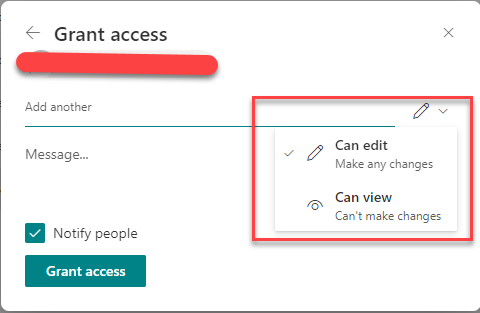
- Click the icon to the right of the name to change permissions for the user.

- Finally select the Grant access button at the bottom.
Removing a Deleted site in SharePoint
Deleting a Site in SharePoint does not fully delete it. Here I will explain how to fully delete a site.
Sharepoint Sync to File Explorer
Instructions for Sharepoint sync
- Navigate to https://portal.office.com in your web browser
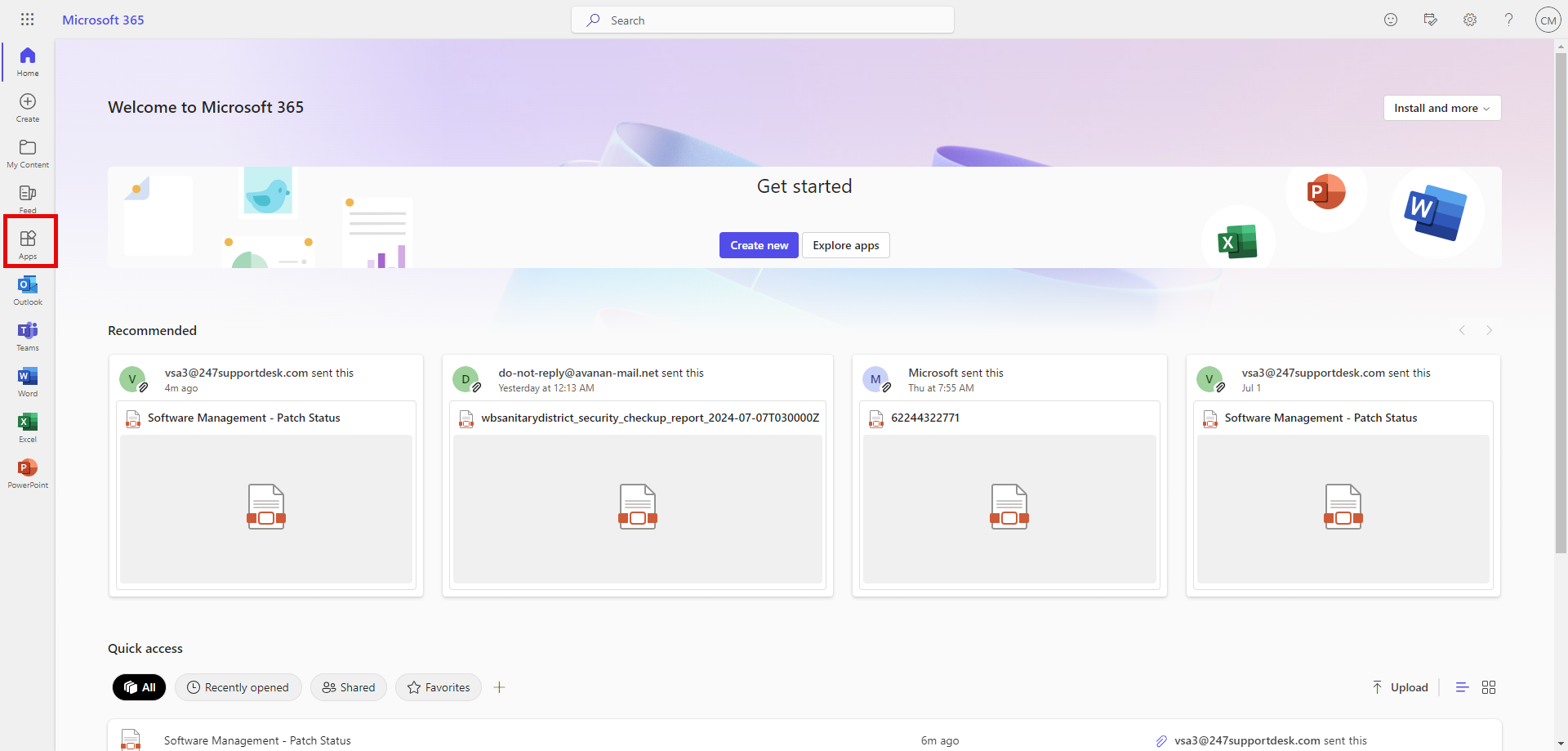
- Navigate to the Apps section on the left
-
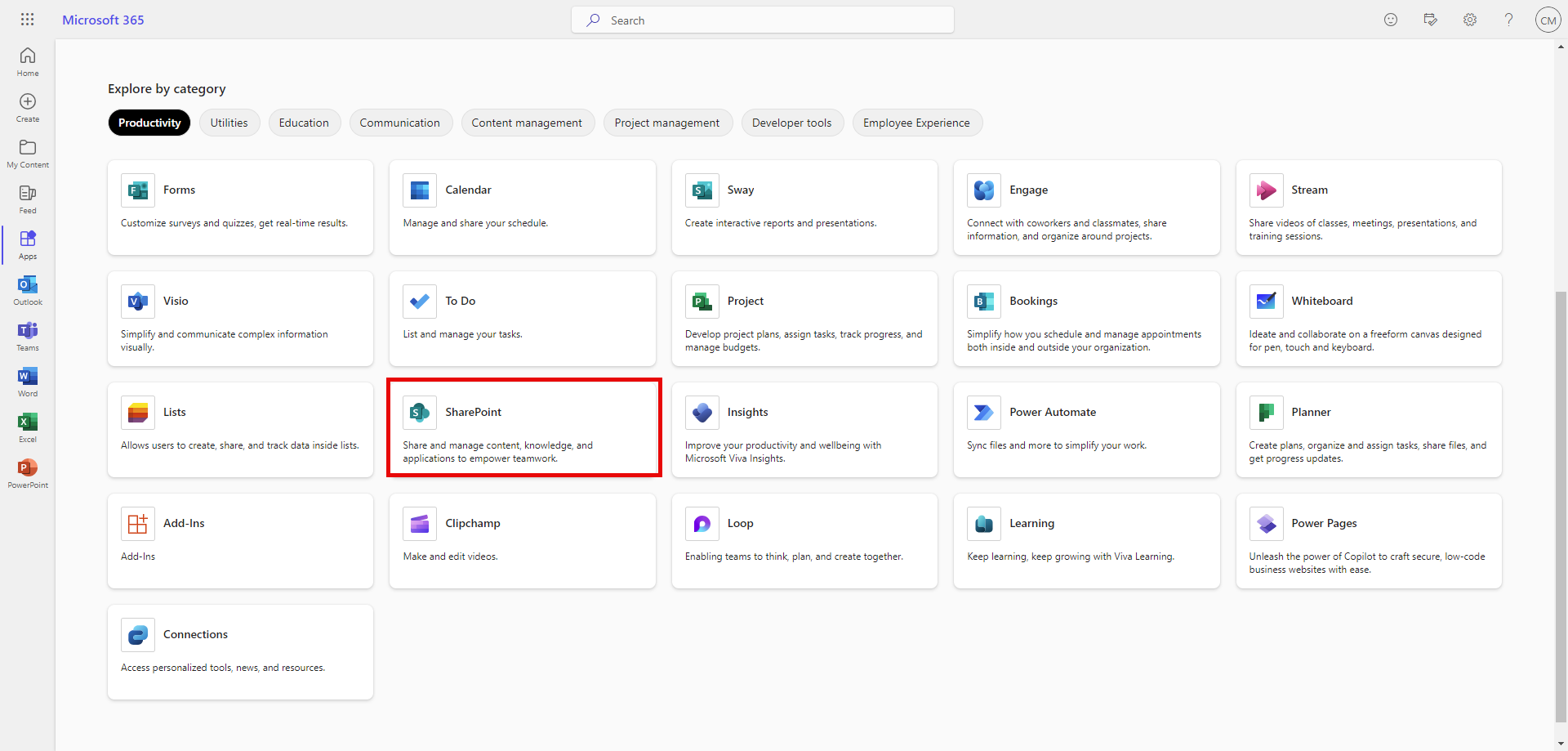
- Find Sharepoint in the apps section
-
- In sharepoint search type "contentclass:sts_site"
-
- Find the sharepoint site you need in the list
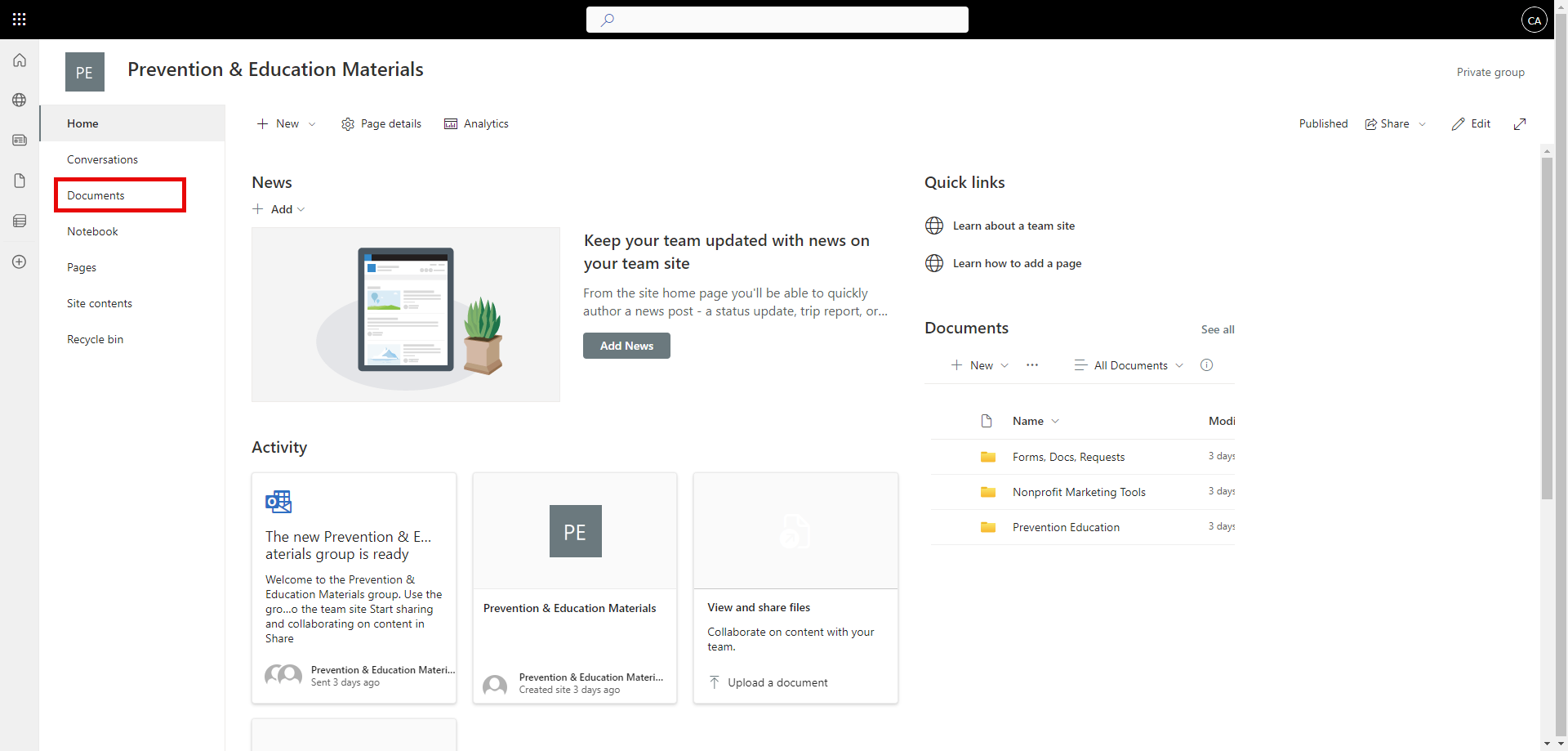
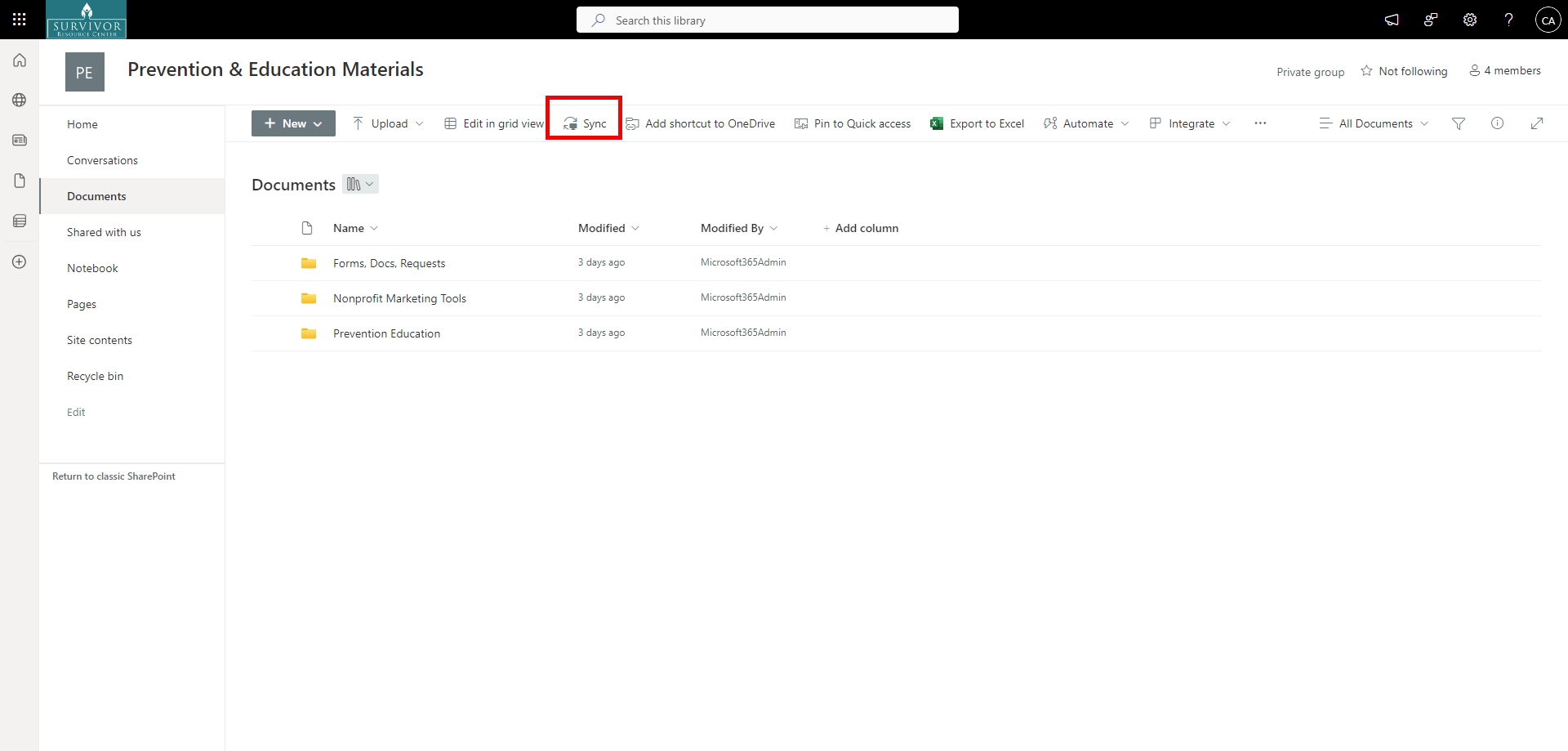
- on the sharepoint site home page you will select documents tab
-
- at the top select the Sync option
-
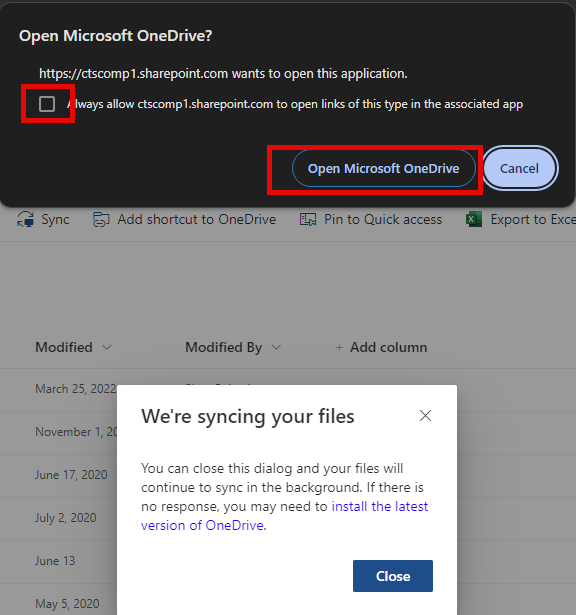
- allow open in sharepoint
-

- Check the box that says "allways allow"
-
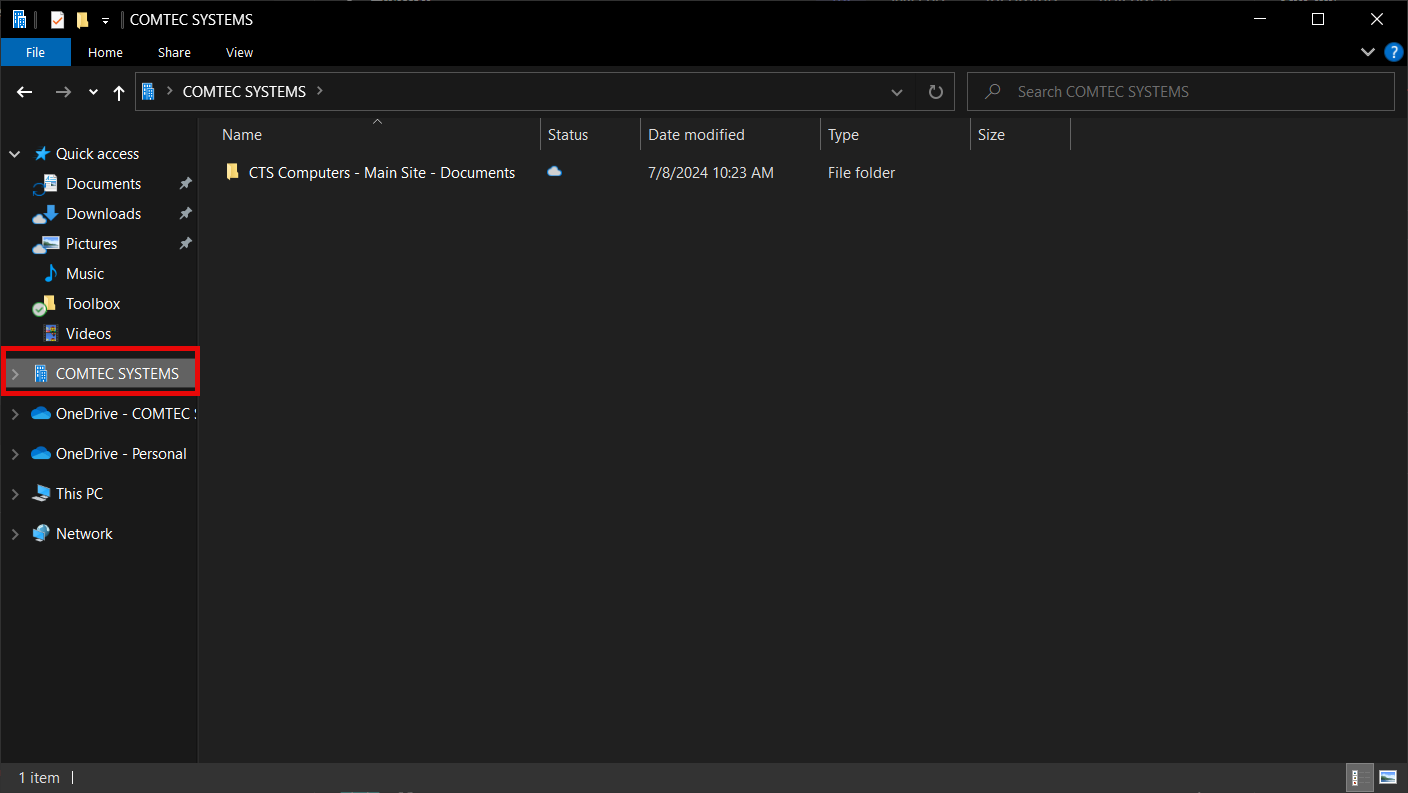
- In your file explorer you will find an organization tab
-

- this folder will contain all your files.
-
- For information on what the icons mean look here https://support.microsoft.com/en-us/office/what-do-the-onedrive-icons-mean-11143026-8000-44f8-aaa9-67c985aa49b3

Show all sites user has access to
contentclass:STS_Site in the search bar