Sage Accounting
Sage 50
The file you are trying to access is currently in use
Restarting the server will probably clear this up. If that isn't practical, you can try restarting the Actian Zen service on the server.
When the Services window opens, right click on Actian Zen Workgroup Engine and choose Restart.
Move Sage 50 to New Server - Workstations
Moving Sage 50 to a new server can be difficult because the sage 50 server file path is hardcoded into an INI file at time of isntall. You can change this file path by editing the INI file located at C:\ProgramData\Sage\Peachtree\peachtreeXXX.ini
The Sage50 documentation on this is out of date and lists the wrong file path
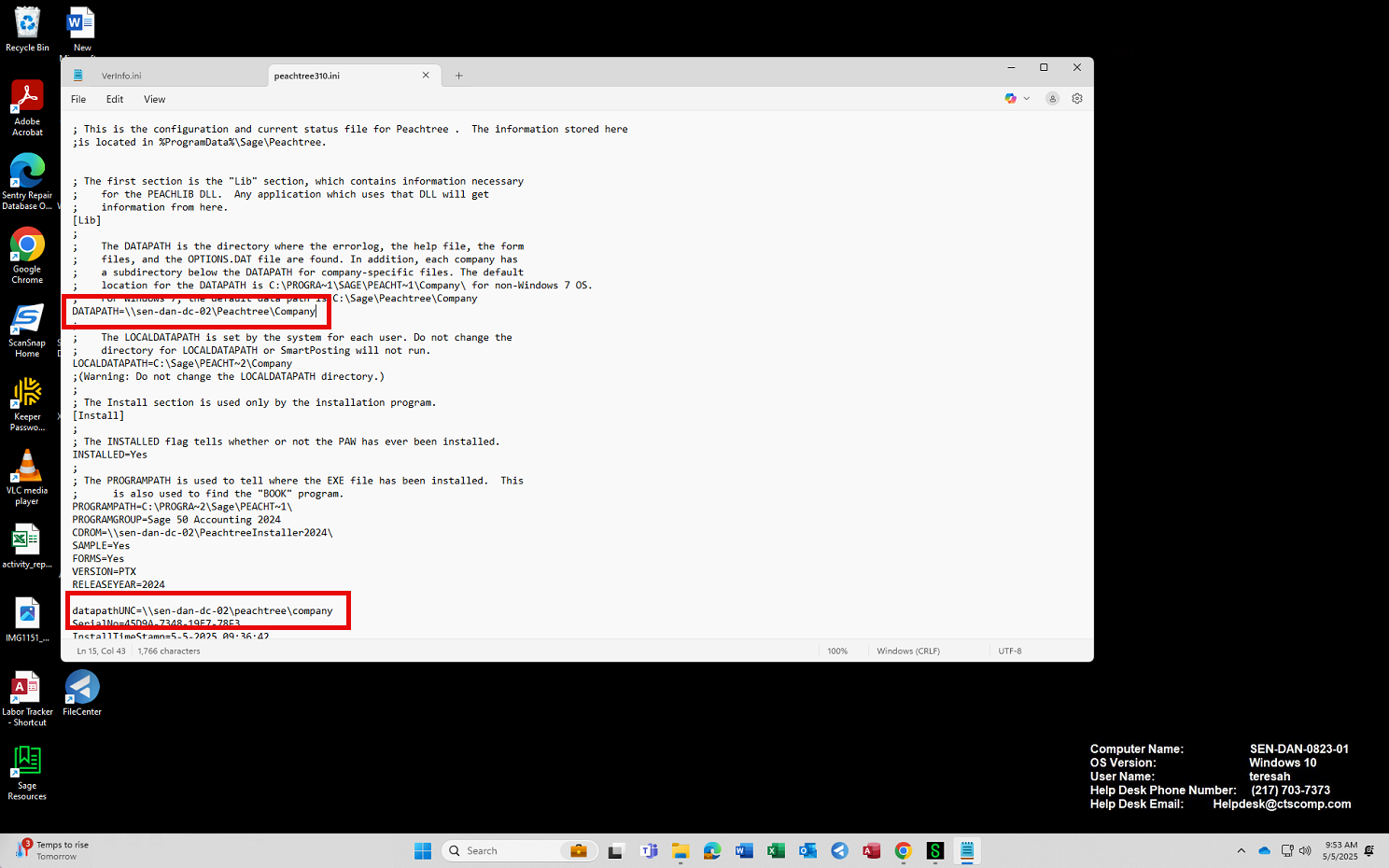
Ensure both highlighted sections contain the full UNC path to the company file share
Install Sage 50
The only way to move Sage 50 to a new server is to reinstall it.
- Remove the old Sage 50 desktop software install.
- Navigate to \\SageServer\PeachtreeInstallerXXXX
- When you isntall Sage onto the server it will create this folder, simply navigate to it and run the setup directly from the server, do not copy it to the local computer
- Use the following settings
- The serial number can usually be found by logging into an active Sage company file and going to the "about sage" section of the help menu
- Select an available drive letter and map the company folder. It will be something like \\SageServer\peachtree\company
- After this is completed just next your way through the rest of the installer.
- Once installer is complete open the C:\ProgramData\Sage folder path
- open the following file
- Ensure the highlighted sections both contain the full UNC path to the company folder on the file share
- To open a company file simply launch the Sage50 software, select "Open an Existing Company" and then select the browse option in the popup.


Sage 50 Cannot be Started
On the Sage server allow the peachw.exe file through in Program Files (x86)/Sage directory as well as the Actian Zen.exe in the Actian directory also in (x86)