# Authenticating from Active Directory using RADIUS/NPS

[https://docs.netgate.com/pfsense/en/latest/recipes/radius-windows.html](https://docs.netgate.com/pfsense/en/latest/recipes/radius-windows.html)

Windows Servers can be configured as a RADIUS server using the Microsoft Network Policy Server (NPS). This allows a Windows Server to handle authentication for OpenVPN, Captive Portal, the PPPoE server, or even the firewall GUI itself. NPS can authenticate based on Windows Server local user accounts or Active Directory.

Note

While support for NPS has been present since Windows Server 2008, this document focuses on current versions of Windows Server software.

The options may vary slightly depending on the version of Windows Server software.

## Choosing a server for NPS

NPS requires a minimal amount of resources and is suitable for addition to an existing Windows Server in most environments. Microsoft recommends installing it on an Active Directory domain controller to improve performance in environments where NPS is authenticating against Active Directory.

Tip

NPS can also be installed on a member server, which may be desirable in some environments to reduce the attack footprint of domain controllers. Each network-accessible service provides another potential avenue for compromising a server. NPS has a solid security record, especially compared to other services that must be running on domain controllers for Active Directory to function, so this isn’t much of a concern in most network environments.

Most environments install NPS on one of their domain controllers. Microsoft recommends running it on each domain controller in the forest and using NPS proxies to share the load for a busy environment.

<div class="document" id="bkmrk-" itemscope="itemscope" itemtype="http://schema.org/Article" role="main"><div itemprop="articleBody"><div class="section"><div class="section" id="bkmrk--1"></div><div class="section">  
</div></div></div></div>## Installing NPS

<div class="document" id="bkmrk-open-the-server-mana" itemscope="itemscope" itemtype="http://schema.org/Article" role="main"><div itemprop="articleBody"><div class="section"><div class="section" id="bkmrk-open-the-server-mana-1">- Open the Server Manager Dashboard
- Click **Add Roles and Features**
    
    This may be on the main screen or under the **Manage** menu.
- Click **Next** until the wizard displays the server selection screen
- Select this server from the list
- Click **Next** again
- Check **Network Policy and Access Services** on the list of roles
- Click **Add Features** if it appears
- Click **Next** on each screen until the end of the wizard
- Click **Finish** or **Install**, depending on the windows server version
- Click **Close** once the installation completes

</div><div class="section">  
</div></div></div></div>## Configuring NPS

To configure NPS, bring up the Server Manager and select the new role. The name varies on different versions of Windows Server but may be NPAS (2022), NAP (2012), Network Policy and Access Services, or a similar name.

First configure a RADIUS client for the firewall, then setup remote access policies.

### Adding a RADIUS Client

<div class="document" id="bkmrk-open-the%C2%A0server-mana" itemscope="itemscope" itemtype="http://schema.org/Article" role="main"><div itemprop="articleBody"><div class="section"><div class="section"><div class="section">- Open the **Server Manager** dashboard
- Click **NPAS** or its equivalent name (**NAP**, etc)
- Right click on this server in the server list
- Click **Network Policy Server**
- Expand **RADIUS Clients and Server**
- Click **RADIUS Clients**

<div class="align-center figure align-default"><span id="bkmrk--2"></span>![../_images/nps-new-radius-client.png](https://docs.netgate.com/pfsense/en/latest/_images/nps-new-radius-client.png)</div></div></div></div></div></div><span class="caption-text">Add New RADIUS Client</span>

<div class="document" id="bkmrk--3" itemscope="itemscope" itemtype="http://schema.org/Article" role="main"><div itemprop="articleBody"><div class="section"><div class="section"><div class="section"><div class="align-center figure align-default" id="bkmrk--4"></div></div></div></div></div></div>Add the new RADIUS client:

<div class="document" id="bkmrk-right-click-on%C2%A0radiu" itemscope="itemscope" itemtype="http://schema.org/Article" role="main"><div itemprop="articleBody"><div class="section"><div class="section"><div class="section">- Right click on **RADIUS Clients**
- Click **New**, as shown in Figure [<span class="std std-ref">Add New RADIUS Client</span>](https://docs.netgate.com/pfsense/en/latest/recipes/radius-windows.html#figure-add-new-radius-client)
- Enter a **Friendly name** for the firewall, as shown in Figure [<span class="std std-ref">Add New RADIUS Client Address</span>](https://docs.netgate.com/pfsense/en/latest/recipes/radius-windows.html#figure-add-new-radius-client-address).
    
    This can be the hostname or an FQDN.
- Enter the **Address (IP or DNS)** for the firewall.
    
    This must be the IP address from which the firewall will initiate RADIUS requests or an FQDN which resolves to that IP address.
    
    Note
    
    This is the IP address of the firewall interface closest to the RADIUS server. If the RADIUS server is reachable via the firewall LAN interface, this will be the LAN IP address of the firewall. In deployments where the firewall is not the perimeter firewall, and the WAN interface resides on the internal network where the RADIUS server resides, the WAN IP address would be the correct address.
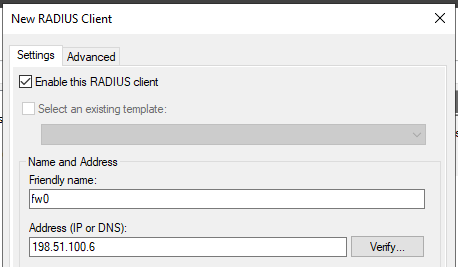
<div class="align-center figure align-default"><span id="bkmrk--5"></span>![../_images/nps-new-radius-client-name-address.png](https://docs.netgate.com/pfsense/en/latest/_images/nps-new-radius-client-name-address.png)</div></div></div></div></div></div><span class="caption-text">Add New RADIUS Client Address</span>

<div class="document" id="bkmrk-enter-a%C2%A0shared-secre" itemscope="itemscope" itemtype="http://schema.org/Article" role="main"><div itemprop="articleBody"><div class="section"><div class="section"><div class="section"><div class="align-center figure align-default" id="bkmrk--6"></div>- Enter a **Shared secret**, as shown in Figure [<span class="std std-ref">Add New RADIUS Client Shared Secret</span>](https://docs.netgate.com/pfsense/en/latest/recipes/radius-windows.html#figure-add-new-radius-client-shared-secret).
    
    This shared secret is used by the firewall to authenticate itself when making RADIUS access requests.
    
    Windows can automatically create a shared secret using the **Generate** option.
- Click OK.

<div class="align-center figure align-default"><span id="bkmrk--7"></span>![../_images/nps-new-radius-client-shared-secret.png](https://docs.netgate.com/pfsense/en/latest/_images/nps-new-radius-client-shared-secret.png)</div></div></div></div></div></div><span class="caption-text">Add New RADIUS Client Shared Secret</span>

<div class="document" id="bkmrk--8" itemscope="itemscope" itemtype="http://schema.org/Article" role="main"><div itemprop="articleBody"><div class="section"><div class="section"><div class="section"><div class="align-center figure align-default" id="bkmrk--9"></div></div></div></div></div></div>The NPS configuration for the RADIUS client is now complete. The RADIUS Client is visible as in Figure [<span class="std std-ref">Listing of the RADIUS Client</span>](https://docs.netgate.com/pfsense/en/latest/recipes/radius-windows.html#figure-listing-of-the-radius-client).

<div class="document" id="bkmrk--10" itemscope="itemscope" itemtype="http://schema.org/Article" role="main"><div itemprop="articleBody"><div class="section"><div class="section"><div class="section"><div class="align-center figure align-default"><span id="bkmrk--11"></span>![../_images/nps-radius-client-listing.png](https://docs.netgate.com/pfsense/en/latest/_images/nps-radius-client-listing.png)</div></div></div></div></div></div><span class="caption-text">Listing of the RADIUS Client</span>

<div class="document" id="bkmrk--12" itemscope="itemscope" itemtype="http://schema.org/Article" role="main"><div itemprop="articleBody"><div class="section"><div class="section"><div class="section"><div class="align-center figure align-default" id="bkmrk--13"></div></div></div></div></div></div>Refer to other sections in this documentation describing the service to be used with RADIUS for more guidance on how to utilize the service. The [<span class="doc">User Manager</span>](https://docs.netgate.com/pfsense/en/latest/usermanager/index.html) can use NPS as an authentication server which also enables RADIUS for IPsec, OpenVPN, and [<span class="std std-ref">Captive Portal</span>](https://docs.netgate.com/pfsense/en/latest/captiveportal/common-scenarios.html#captiveportal-radius). Other services such as the [<span class="doc">PPPoE server</span>](https://docs.netgate.com/pfsense/en/latest/services/pppoe-server.html) can use it directly as well.

<div class="document" id="bkmrk--14" itemscope="itemscope" itemtype="http://schema.org/Article" role="main"><div itemprop="articleBody"><div class="section"><div class="section"><div class="section" id="bkmrk--15"></div><div class="section">  
</div></div></div></div></div>### Configuring Users and Network Policies

**Network Policies** control whether or not a user can authenticate via RADIUS. Using Network Policies, an administrator can place a user in a specific Active Directory group to allow VPN access and also offer more advanced capabilities such as time of day restrictions.

More information on remote access policies can be found in Microsoft’s documentation at [http://technet.microsoft.com/en-us/library/cc785236%28WS.10%29.aspx](http://technet.microsoft.com/en-us/library/cc785236%28WS.10%29.aspx).

<div class="document" id="bkmrk--16" itemscope="itemscope" itemtype="http://schema.org/Article" role="main"><div itemprop="articleBody"><div class="section"><div class="section"><div class="section"><div class="section"><span id="bkmrk--17"></span></div></div></div></div></div></div>#### Adding a Network Policy

<div class="document" id="bkmrk-open-the%C2%A0server-mana-1" itemscope="itemscope" itemtype="http://schema.org/Article" role="main"><div itemprop="articleBody"><div class="section"><div class="section"><div class="section"><div class="section" id="bkmrk-open-the%C2%A0server-mana-2">- Open the **Server Manager** dashboard
- Click **NPAS** or its equivalent name (**NAP**, etc)
- Right click on this server in the server list
- Click **Network Policy Server**
- Expand **NPS (Local)**, **Policies**, then **Network Policies**
- Right click on **Network Policies**
- Click **New**
- Enter `<span class="pre">Allow</span> <span class="pre">from</span> <span class="pre">Firewall</span>` in the **Policy name**
- Leave the **Type of network access server** set to *Unspecified*
- Click **Next**
- Click **Add** in the Specify Conditions window
- Select **Windows Groups**
- Click **Add**
- Enter or select the name of the user group which contains VPN users, e.g. `<span class="pre">VPNUsers</span>`
- Click **OK**
- Click **Next**
- Choose **Access granted**
- Click **Next**
- Add **EAP Types** / **Authentication Methods** as needed:
    
    
    - Leave existing authentication methods selected
    - Add or Select **Microsoft: Secured Password (EAP-MSCHAP v2)** if the firewall will use this policy for IPsec IKEv2 EAP-RADIUS authentication
    - Select **Encrypted Authentication (CHAP)**
    - Select **Unencrypted Authentication (PAP, SPAP)**
- Click **Next**
- Click **No** or **Decline** if the wizard prompts to view a help topic about security
- Configure any additional access constraints, if necessary
- Click **Next** on the remaining screens until the final screen is reached
- Click **Finish**

</div><div class="section"><span id="bkmrk--18"></span></div></div></div></div></div></div>#### Editing an Existing Network Policy

Existing policies can be altered to change their constraints or other properties. For example, to edit an older policy to enable it for use by IPsec for IKEv2 EAP-RADIUS:

<div class="document" id="bkmrk-open-the%C2%A0server-mana-3" itemscope="itemscope" itemtype="http://schema.org/Article" role="main"><div itemprop="articleBody"><div class="section"><div class="section" id="bkmrk-open-the%C2%A0server-mana-4"><div class="section" id="bkmrk-open-the%C2%A0server-mana-5"><div class="section" id="bkmrk-open-the%C2%A0server-mana-6">- Open the **Server Manager** dashboard
- Click **NPAS** or its equivalent name (**NAP**, etc)
- Right click on this server in the server list
- Click **Network Policy Server**
- Expand **NPS (Local)**, **Policies**, then **Network Policies**
- Edit the policy currently in use (e.g. right click, click **Properties**)
- Click the **Constraints** tab
- Click **Authentication Methods**
- Click **Add**
- Select **Microsoft: Secured Password (EAP-MSCHAP v2)**
- Click **OK**
- Click **Apply** to restart NPS
- Click **OK**

</div></div></div><div class="section">  
</div></div></div></div>## Check Users and Groups

These steps are only necessary if the use case for this setup requires group authentication on the firewall.

Before proceeding, ensure any users who must authenticate using NPS are members of the correct groups (e.g. `<span class="pre">VPNUsers</span>`).

Create a matching group with a remote scope on the firewall ([<span class="doc">Manage Local Groups</span>](https://docs.netgate.com/pfsense/en/latest/usermanager/groups.html)).

Edit the NPS policy on the Windows server so it returns the group name:

<div class="document" id="bkmrk-open-the%C2%A0server-mana-7" itemscope="itemscope" itemtype="http://schema.org/Article" role="main"><div itemprop="articleBody"><div class="section"><div class="section" id="bkmrk-open-the%C2%A0server-mana-8">- Open the **Server Manager** dashboard
- Click **NPAS** or its equivalent name (**NAP**, etc)
- Right click on this server in the server list
- Click **Network Policy Server**
- Expand **NPS (Local)**, **Policies**, then **Network Policies**
- Edit the policy currently in use (e.g. right click, click **Properties**)
- Click the **Settings** tab
- Click **Standard** under **RADIUS Attributes**
- Select **Class** from the list
- Click **Add**
- Select **String** for the attribute value type
- Enter a group name which matches a group on the firewall (e.g. `<span class="pre">VPNUsers</span>`)
- Click **OK**
- Click **Close**
- Click **Apply** to restart NPS
- Click **OK**

</div><div class="section">  
</div></div></div></div>## Add Authentication Server

Now that NPS is ready to accept authentication requests, the next step is to add an authentication server entry on the firewall.

See also

[<span class="doc">RADIUS Authentication Servers</span>](https://docs.netgate.com/pfsense/en/latest/usermanager/radius.html)

<div class="document" id="bkmrk-open-the-firewall-gu" itemscope="itemscope" itemtype="http://schema.org/Article" role="main"><div itemprop="articleBody"><div class="section"><div class="section" id="bkmrk-open-the-firewall-gu-1"><div class="admonition seealso">  
</div>- Open the firewall GUI
- Navigate to **System &gt; User Manager**, **Authentication Servers** tab
- Click ![fa-plus](https://docs.netgate.com/pfsense/en/latest/_images/fa-plus.png) **Add** to create a new entry
- Enter the following settings:
    
    <dl class="field-list simple"><dt class="field-odd">Descriptive name</dt><dd class="field-odd">`<span class="pre">Active</span> <span class="pre">Directory</span> <span class="pre">NPS</span>`
    
    </dd><dt class="field-even">Type</dt><dd class="field-even">*RADIUS*
    
    </dd><dt class="field-odd">Hostname or IP address</dt><dd class="field-odd">`<span class="pre">198.51.100.30</span>` – Replace this with the IP address of the Windows server
    
    </dd><dt class="field-even">Shared Secret</dt><dd class="field-even">The password added to the NAS entry in NPS
    
    </dd><dt class="field-odd">Services offered</dt><dd class="field-odd">*Authentication*
    
    </dd><dt class="field-even">Authentication port</dt><dd class="field-even">`<span class="pre">1812</span>`
    
    </dd></dl>
- Click **Save**

</div><div class="section">  
</div></div></div></div>## Test Authentication

On the firewall GUI, test the authentication:

<div class="document" id="bkmrk-navigate-to%C2%A0diagnost" itemscope="itemscope" itemtype="http://schema.org/Article" role="main"><div itemprop="articleBody"><div class="section"><div class="section">- Navigate to **Diagnostics &gt; Authentication**
- Set **Authentication Server** to the entry for NPS
- Enter a username and password for a user which should have access
- Click **Test**

</div></div></div></div>If that test succeeded, then configure other services such as IPsec or OpenVPN to use the new RADIUS server and attempt authentication there.

<div class="document" id="bkmrk--19" itemscope="itemscope" itemtype="http://schema.org/Article" role="main"><div itemprop="articleBody"><div class="section"><div class="section" id="bkmrk--20"></div><div class="section">  
</div></div></div></div>## Troubleshooting NPS

This section describes the most common problems users encounter with NPS.

### Verify port

First ensure NPS is using the default port `<span class="pre">1812</span>`. If the NPS server was already installed, it may have be using a non-standard port.

<div class="document" id="bkmrk-open-the%C2%A0server-mana-9" itemscope="itemscope" itemtype="http://schema.org/Article" role="main"><div itemprop="articleBody"><div class="section"><div class="section"><div class="section">- Open the **Server Manager** dashboard
- Click **NPAS** or its equivalent name (**NAP**, etc)
- Right click on this server in the server list
- Click **Network Policy Server**
- Right click on **NPS (Local)** at the top left of the console
- Click **Properties**
- Click the **Ports** tab
- Verify that the **Authentication** port set includes port `<span class="pre">1812</span>`
    
    NPS can use multiple ports separated with commas, as shown in figure [<span class="std std-ref">NPS Ports</span>](https://docs.netgate.com/pfsense/en/latest/recipes/radius-windows.html#figure-nps-ports).
- Verify the **Accounting** port set includes port `<span class="pre">1813</span>` (optional)
    
    This is only necessary if the use case requires RADIUS accounting.

<div class="align-center figure align-default"><span id="bkmrk--21"></span>![../_images/nps-ports.png](https://docs.netgate.com/pfsense/en/latest/_images/nps-ports.png)</div></div></div></div></div></div><span class="caption-text">NPS Ports</span>

<div class="document" id="bkmrk--22" itemscope="itemscope" itemtype="http://schema.org/Article" role="main"><div itemprop="articleBody"><div class="section"><div class="section"><div class="section" id="bkmrk--23"><div class="align-center figure align-default" id="bkmrk--24"></div></div><div class="section">  
</div></div></div></div></div>### Check Event Viewer

When NPS handles a RADIUS authentication request it creates a log entry in the Security log in Event Viewer with the result of the authentication request. If it denies access, it logs the reason in the event log.

These log entries can be viewed in one of two ways:

View the **Security** log. This method is easier to identify success vs failure but on a busy server it may be difficult to isolate entries specific to NPS.

<div class="document" id="bkmrk-open-event-viewer-on" itemscope="itemscope" itemtype="http://schema.org/Article" role="main"><div itemprop="articleBody"><div class="section"><div class="section"><div class="section">- Open Event Viewer on the Windows Server
- Expand **Windows Logs**
- Click **Security**
- Look for entries in the log which reference NPS

</div></div></div></div></div>Use the custom view which only displays NPS log entries:

<div class="document" id="bkmrk-open-event-viewer-on-1" itemscope="itemscope" itemtype="http://schema.org/Article" role="main"><div itemprop="articleBody"><div class="section"><div class="section"><div class="section">- Open Event Viewer on the Windows Server
- Expand **Custom Views**
- Expand **Server Roles**
- Click **Network Policy and Access Services**

</div></div></div></div></div>Similar messages are available in both locations thought their format may vary slightly.

The contents of the log message contain a **Reason:** line which explains why authentication failed. The common two failures are:

<div class="document" id="bkmrk-%E2%80%9Cauthentication-fail" itemscope="itemscope" itemtype="http://schema.org/Article" role="main"><div itemprop="articleBody"><div class="section"><div class="section"><div class="section">- “Authentication failed due to a user credentials mismatch”
    
    This indicates that the user supplied an invalid username or password.
- “The Network Access Permission setting in the dial-in properties of the user account in Active Directory is set to Deny access to the user.”
    
    Indicates that the user account is set to deny access or the network policies in NPS do not allow access for that user. For example, they may not be a member of the correct group.

</div></div></div></div></div>If NPS is logging that authentication was successful, but the client is receiving a bad username or password message, ensure that the RADIUS secret configured in NPS and on the firewall match.

<div class="document" id="bkmrk--25" itemscope="itemscope" itemtype="http://schema.org/Article" role="main"><div itemprop="articleBody"><div class="section" id="bkmrk--26"><div class="section" id="bkmrk--27"><div class="section" id="bkmrk--28"></div></div></div></div></div>