# How to Set Up IP Filtering and DNS Blackholing on pfSense Using pfBlockerNG
## What is pfBlockerNG?
pfBlockerNG has two core uses:
**Inbound & outbound traffic filtering**
pfBlockerNG can filter inbound and outbound traffic against IP lists and apply GeoIP restrictions by allowing or denying traffic to/from specific countries. The latter functionality can be very useful if you open ports on your WAN.
**Blocking ads and malicious sites through DNS blackholing**
pfBlockerNG can block ads and access to malicious sites through DNS filtering. Browsing the web, your DNS requests are checked against a blocklist. If there’s a match, the request is blocked. It’s a great way to block ads without using a proxy server.
We’re going to look at both use cases and will go into more detail as we tackle each one.
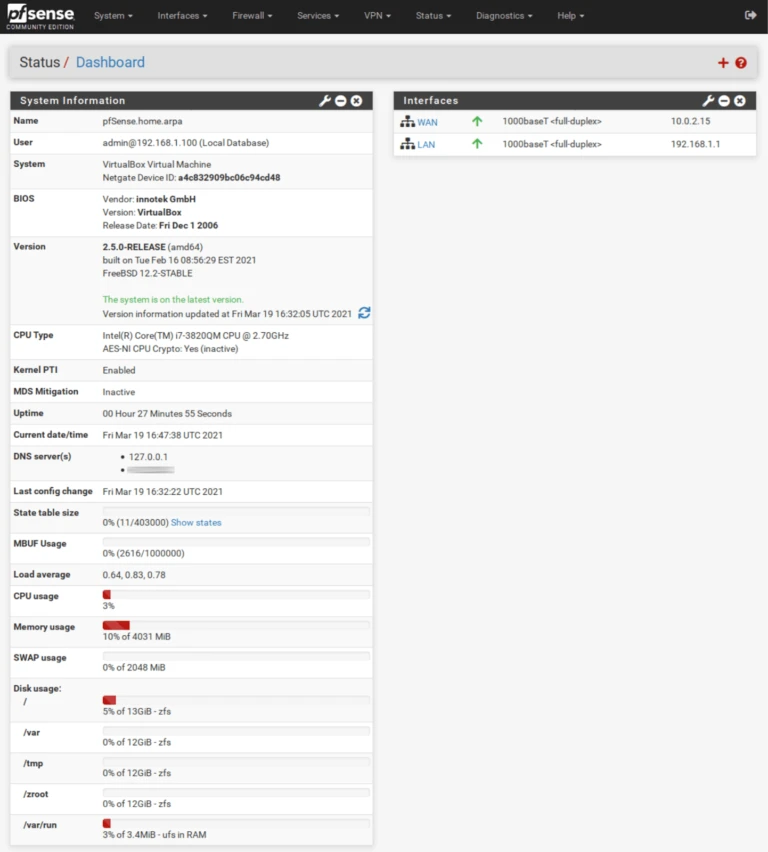
This guide assumes that you have already set up pfSense with functional WAN and LAN interfaces.
[](https://docs.coltscomputer.services/uploads/images/gallery/2024-01/51gqln3wlaxR3AOr-1-wan-lan-768x852.webp)
Let’s get started.
## Installing pfBlockerNG-devel
The first thing we need to do is install pfBlockerNG.
## Basic Setup
Now that **pfBlockerNG-devel** is installed, we need to configure our package. And we’re going to start with IP and GeoIP filtering.
We’ll be configuring **pfBlockerNG** section by section. Any settings that are not mentioned should be left at their default values.
### General / General Settings
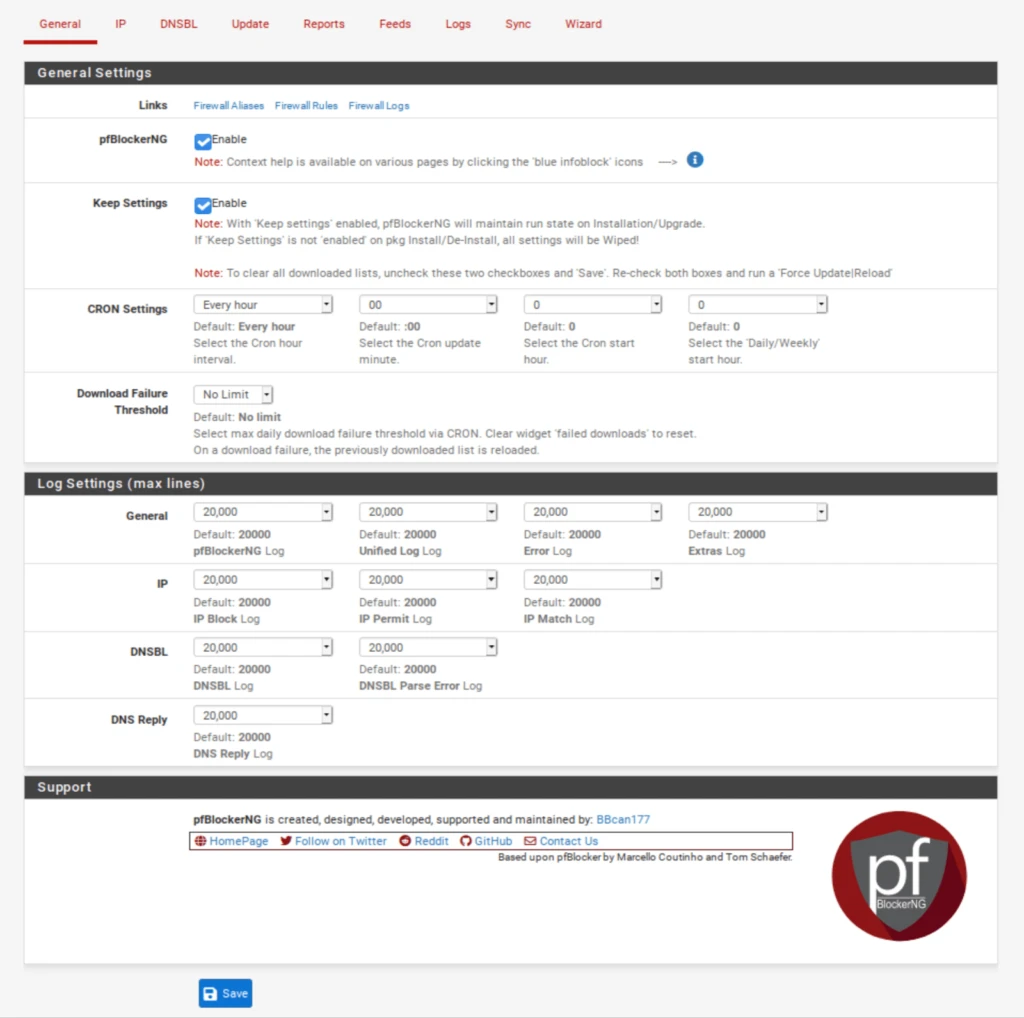
1. Check the **Enable** box displayed to the right of pfBlockerNG. This enables the service.
2. Click **Save** at the bottom of the page.
3. We will leave the other settings on this page at their default values.
[](https://docs.coltscomputer.services/uploads/images/gallery/2024-01/0ZEJni3vI4ArFa9g-enablepfblocker-1024x1018.webp)
## IPv4 Filtering
### IP / IP Configuration
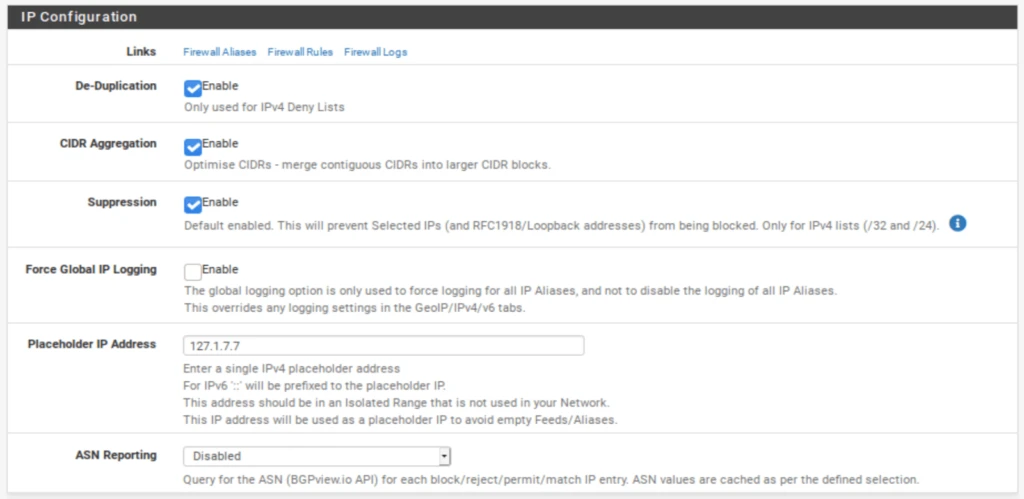
1. Select the **IP** tab to access the **IP** settings page. Don’t touch the sub-menus that appear below for now.
2. Enable **De-Duplication**. This will resorb duplicate entries if you are using multiple IP feeds.
3. Enable **CIDR Aggregation**.
4. Enable **Suppression**. Suppression makes sure that your local subnets are not blocked.
[](https://docs.coltscomputer.services/uploads/images/gallery/2024-01/JmcfIlJPjEkyUpa3-ipconfiguration-1024x499.webp)
### IP / MaxMind GeoIP configuration
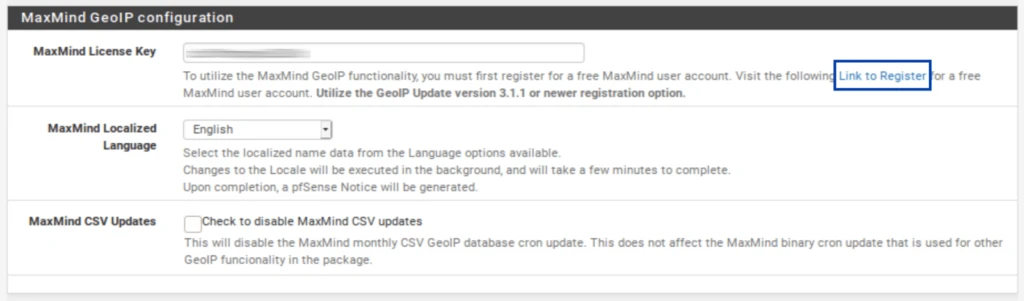
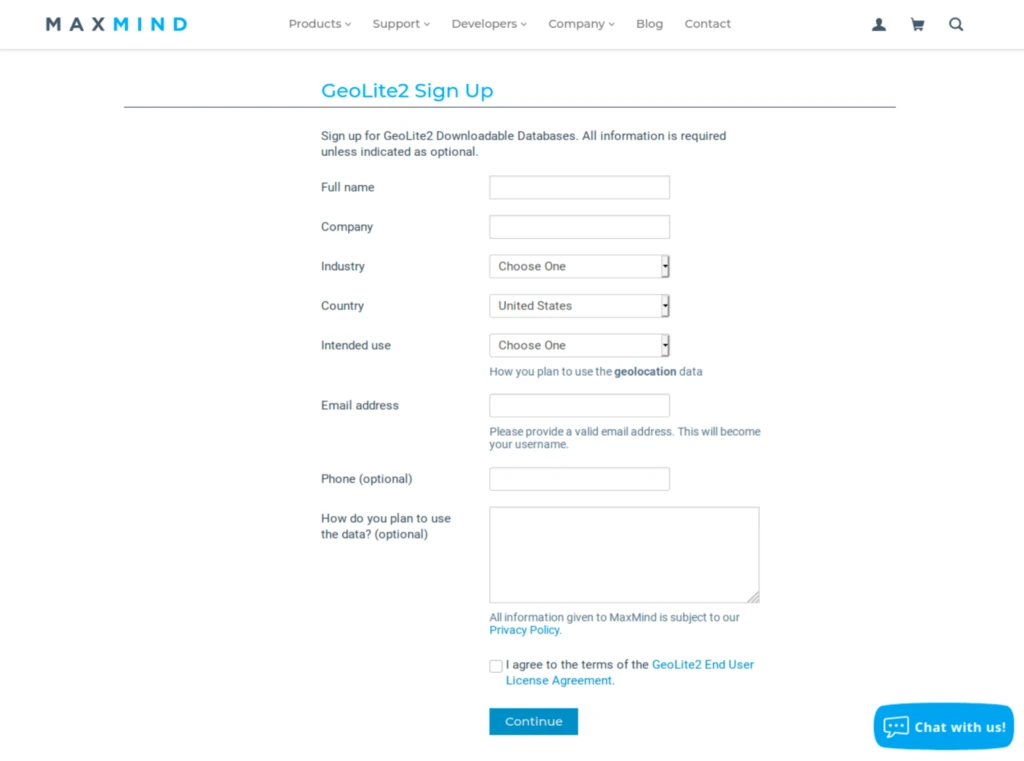
As I mentioned above, the GeoIP feature of pfBlockerNG enables you to filter traffic to and from entire countries or continents. To do this, pfBlocker uses the MaxMind GeoIP database, which requires a license key. A link in the MaxMind License Key field description takes you to the MaxMind registration page. The **MaxMind license key** is free.
Fill out the registration form to obtain your license key. Once you have your license key, insert it in the MaxMind License Key field.
[](https://docs.coltscomputer.services/uploads/images/gallery/2024-01/loHIKtTKDn1F2vPc-maxmindgeoipconfiguration-1024x301.webp)
And:
[](https://docs.coltscomputer.services/uploads/images/gallery/2024-01/kFNJco0EpdjRVv8B-maxmindregistration-1024x761.webp)
### IP / IP Interface/Rules Configuration
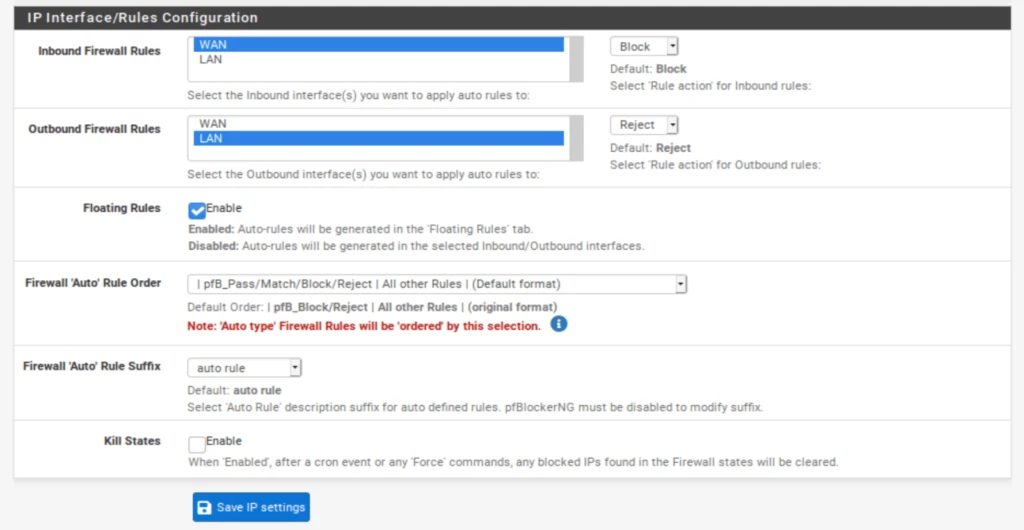
This section determines which inbound and outbound interface(s) pfBlockerNG’s IPv4, IPv6, and GeoIP filtering are applied.
1. Select **WAN** from the **Inbound Firewall Rules** field (and any other WAN interfaces you may have and want to filter).
2. Select **LAN** from the **Outbound Firewall Rules** field (and any other LAN-type interfaces you may have and want to filter).
3. Enable **Floating Rules**. Floating rules are special firewall rules applied before the regular firewall rules. This ensures that pfBlockerNG’s filtering happens as soon as the traffic hits the firewall. The other benefit is that pfBlockerNG will automatically create the floating rules for you.
4. Click **Save** at the bottom of the page.
[](https://docs.coltscomputer.services/uploads/images/gallery/2024-01/X7oT2TCKBlqki0jL-interfaceconfiguration-1024x530.webp)
### Adding IPv4 Feeds
It’s now time to add some blocklists to pfBlockerNG. While you’re free to add your custom feeds, pfBlockerNG has some built-in feeds we can enable (the terms list and feed are interchangeable in this context).
This is very practical because hunting down blocklists on the internet is time-consuming, and many do not work or are no longer maintained. The feeds within pfBlocker are live lists that are regularly updated, so we’re going to use those.
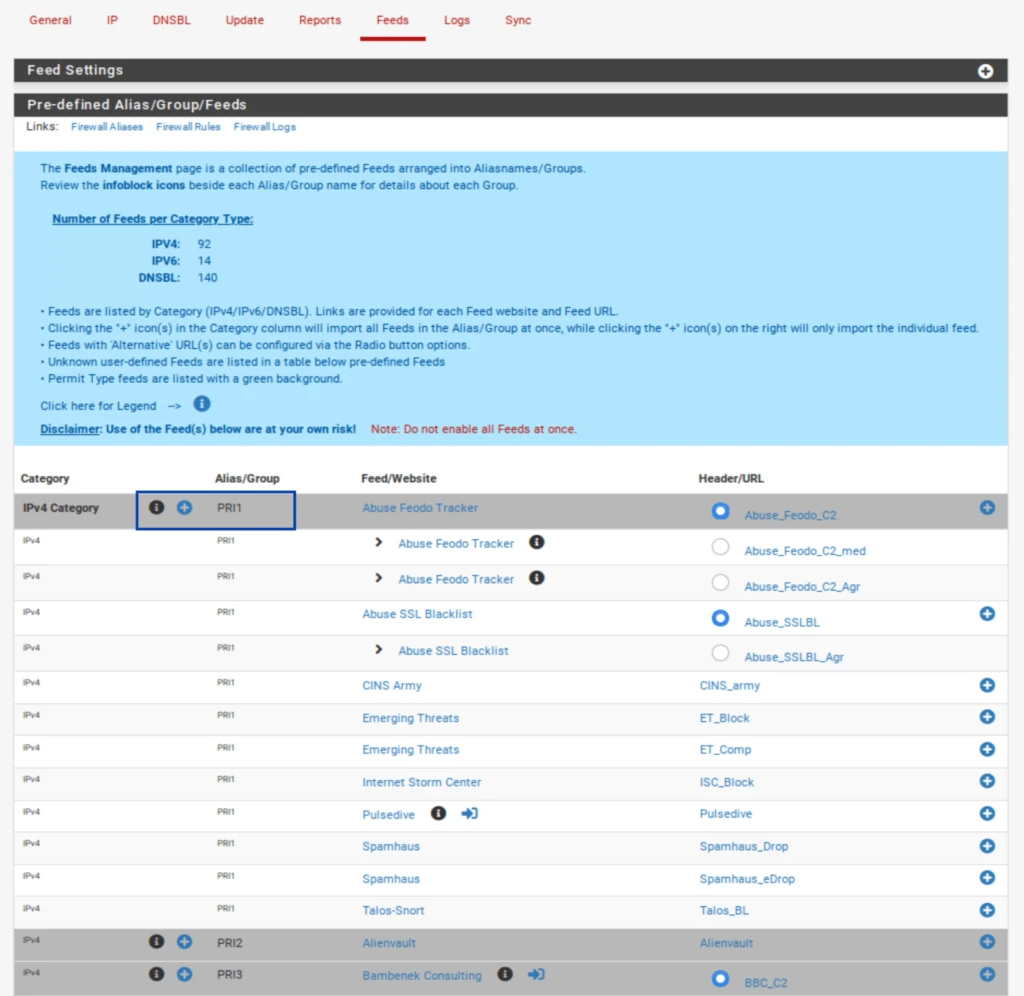
1. Select the **Feeds** tab.
2. Click the blue +, next to **PRI1**. It is the first listing. PRI1 is a collection of feeds, so it comprises several feeds, as we’ll see in a moment. Once you click the blue +, you’re taken to the **IP / IPv4** page, where your selected feeds are listed. And almost all of the relevant fields are automatically populated.
[](https://docs.coltscomputer.services/uploads/images/gallery/2024-01/QRVn3o0SknRETS3r-feedstab-1024x996.webp)
### IP / IPv4
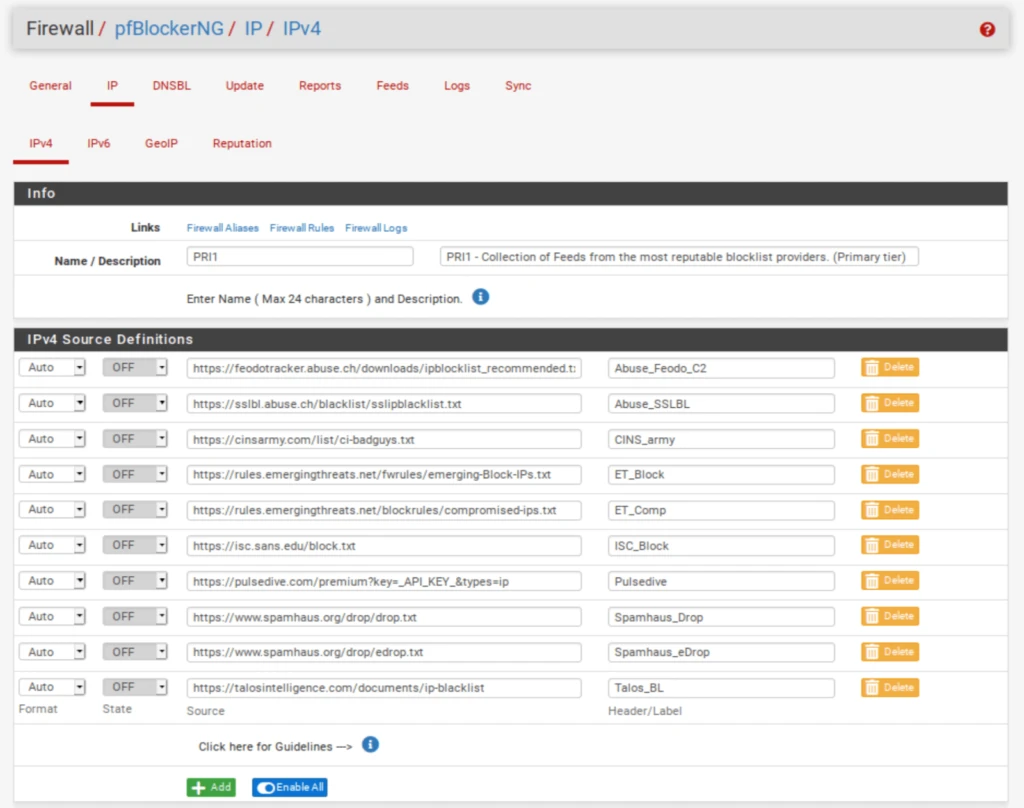
The name of the feed collection is populated along with its description. The feed URLs included in the collection and their associated descriptions are also populated. However, our feeds are set to **OFF** by default. We need to enable them.
[](https://docs.coltscomputer.services/uploads/images/gallery/2024-01/UE75LrLUFEmCib7J-ipv4lists-1024x808.webp)
But before doing that, we need to delete one of the feeds from the PRI1 collection. Pulsedive, the 7th feed from the top, is a premium list that requires a paid API key. We’re not going to get the API key for this tutorial. Click the **Delete** button.
[](https://docs.coltscomputer.services/uploads/images/gallery/2024-01/wXxYwXwFTP0q3Sn7-deletefeed-1024x37.webp)
1. Once you’ve deleted Pulsedive, set all of the feeds to **ON**. [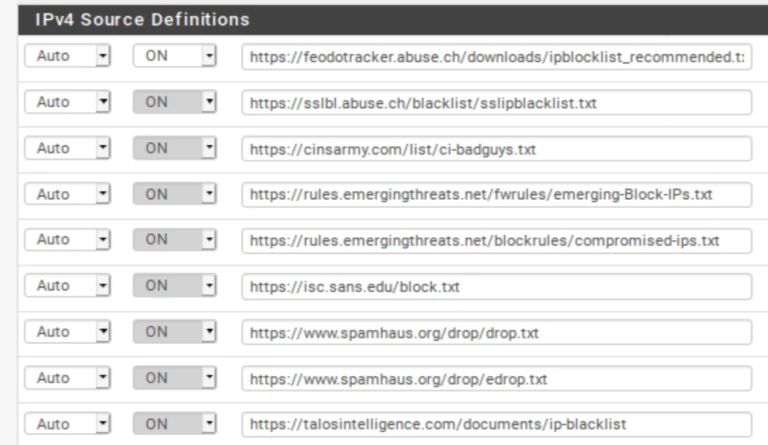](https://docs.coltscomputer.services/uploads/images/gallery/2024-01/cimiXJme8BlEqCq9-listson-768x445.webp)
2. Scroll down to the **Settings** section of the page.
3. From the Action drop-down menu, select **Deny Both**. This will block traffic to and from the IP addresses in the lists/feeds. You can choose only to deny inbound or outbound connections if you like. Just be warned that if you only deny inbound traffic and a host on your network initiates an outbound connection to one of those IPs, the inbound response from that IP will be allowed in. That may be fine depending on your environment – just be warned. For this example, I’m going to select **Deny Both**. [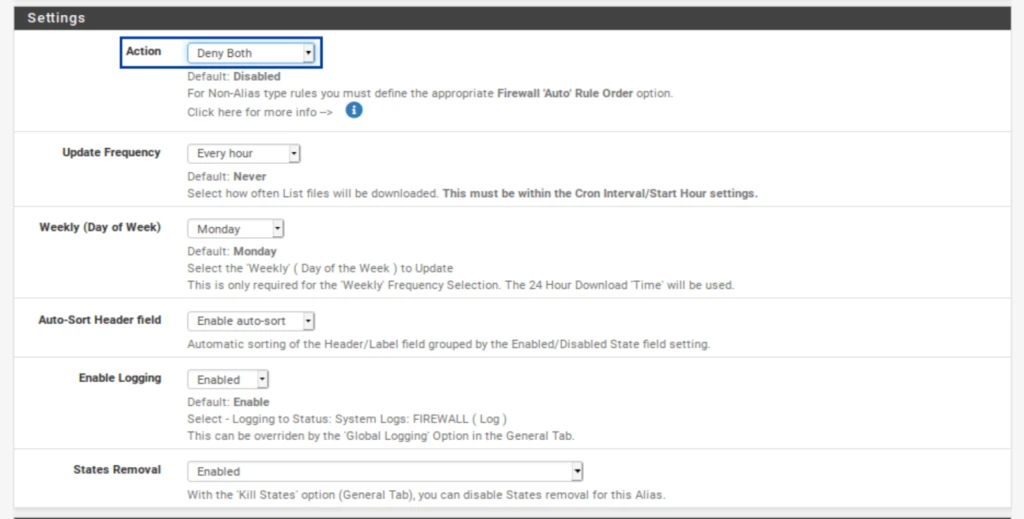](https://docs.coltscomputer.services/uploads/images/gallery/2024-01/ldIC4QwPJ1YPuZdu-ipdenyboth-1024x519.webp)
4. Click **Save IPv4 Settings** at the bottom of the page.
You can repeat the same steps for IPv6 if your ISP assigns an IPv4 and an IPv6 IP address to your WAN. Most of us are still on IPv4-only networks.
## GeoIP Filtering
Before configuring GeoIP filtering, we first need to force an update of pfBlockerNG. pfBlocker automatically updates itself at fixed intervals. But to configure GeoIP filtering, pfBlocker first needs to pull the MaxMind database, and a forced update will do just that.
1. Select the **Update** tab from the pfBlockerNG settings.
2. Click **Run**. The update starts. [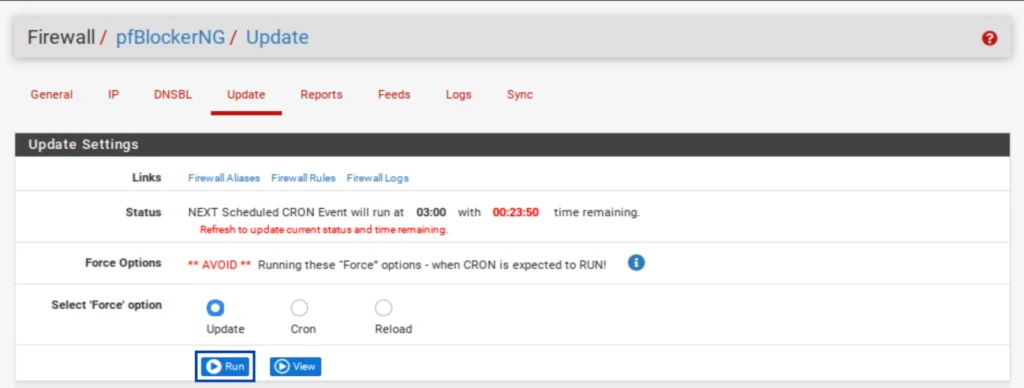](https://docs.coltscomputer.services/uploads/images/gallery/2024-01/F84nwWrf9og4B63F-updatesettings-1024x388.webp)
3. Once the update is complete, you should see **UPDATE PROCESS ENDED** at the bottom of the **Log** window below the **Update Settings**. [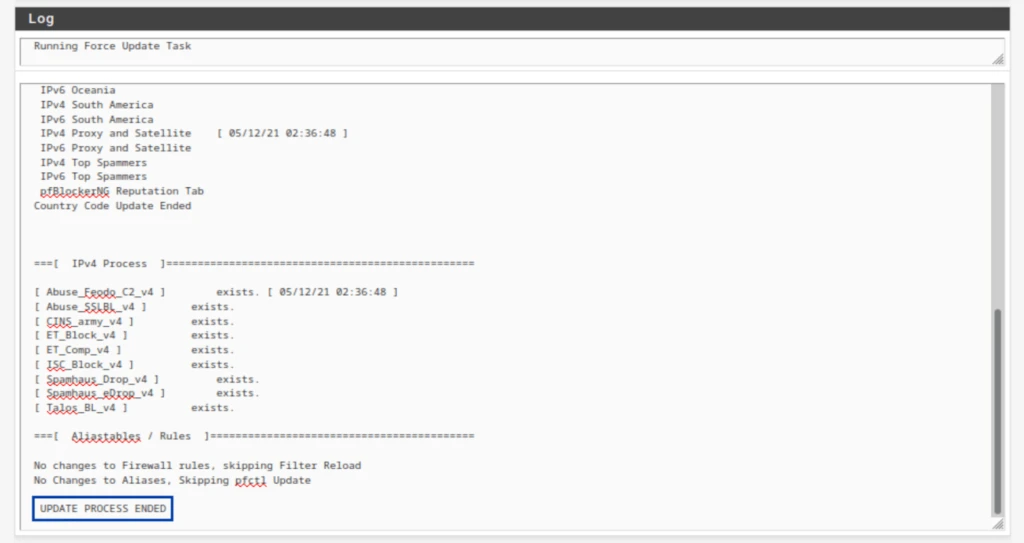](https://docs.coltscomputer.services/uploads/images/gallery/2024-01/nMGUvcW9jhswRj1S-updateprocessended-1024x543.webp)
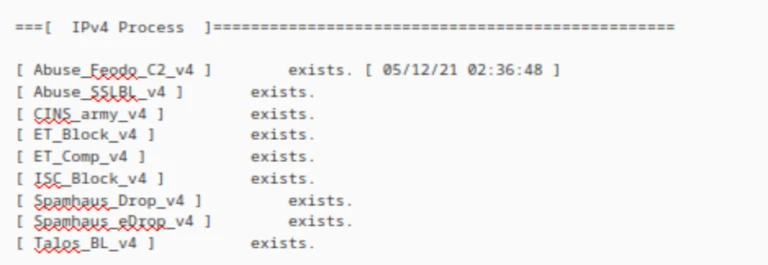
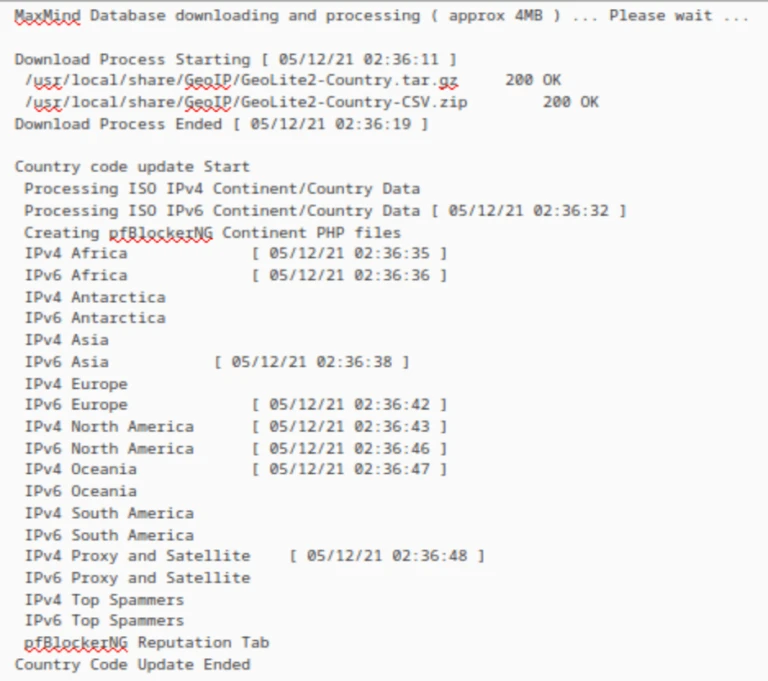
4. Looking through the Log window, we can see that both my IPv4 feeds and the GeoIP database were updated. **IPv4 logs**
[](https://docs.coltscomputer.services/uploads/images/gallery/2024-01/0VZXehzZtWO36Let-ipv4logs-768x265.webp)
**GeoIP logs**
[](https://docs.coltscomputer.services/uploads/images/gallery/2024-01/Jp0uu2asyekUENJ9-geoiplog-768x681.webp)
5. From the **IP** tab in the pfBlockerNG settings, select the **GeoIP** sub-menu. The GeoIP Summary is displayed. [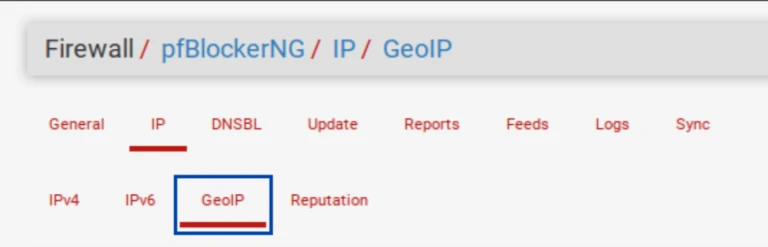](https://docs.coltscomputer.services/uploads/images/gallery/2024-01/ErV9OzKtYGnQ0OFP-geoipmenu-768x247.webp)
The GeoIP Summary consists of IP address feeds organized by continent, with two extra categories: **Top Spammers** and **Proxy and Satellite**. **Top Spammers** is a list of countries known to be a frequent source of online attacks. And **Proxy and Satellite** are known anonymous proxy and satellite providers.
You can filter traffic to/from an entire continent, or you can fine-tune the feed by selecting only the countries you want to filter.
### Customizing country lists
1. Click the **pencil icon** to the right of the feed you want to edit. [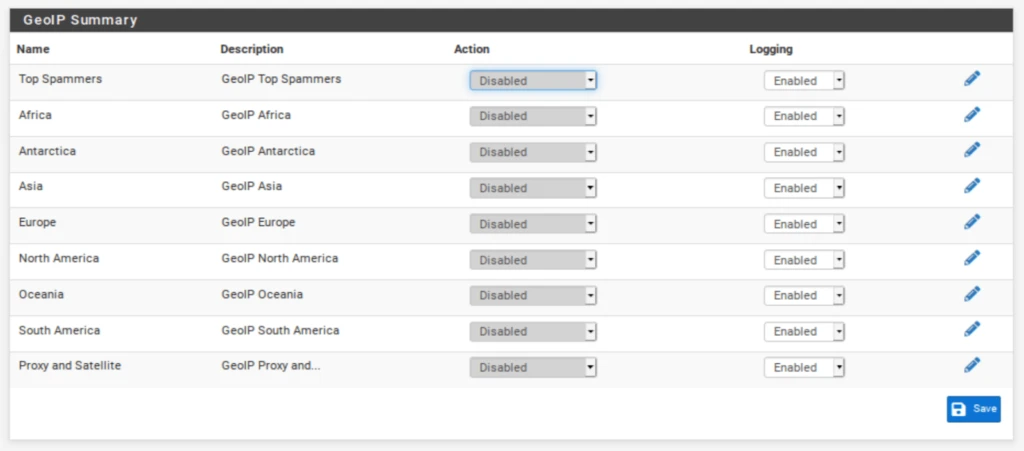](https://docs.coltscomputer.services/uploads/images/gallery/2024-01/mhYvlw7nNyOKNkpG-geoipsummary-1024x451.webp)
2. Select the countries you want pfBlockerNG to filter.
3. Click **Save** at the bottom of the page. [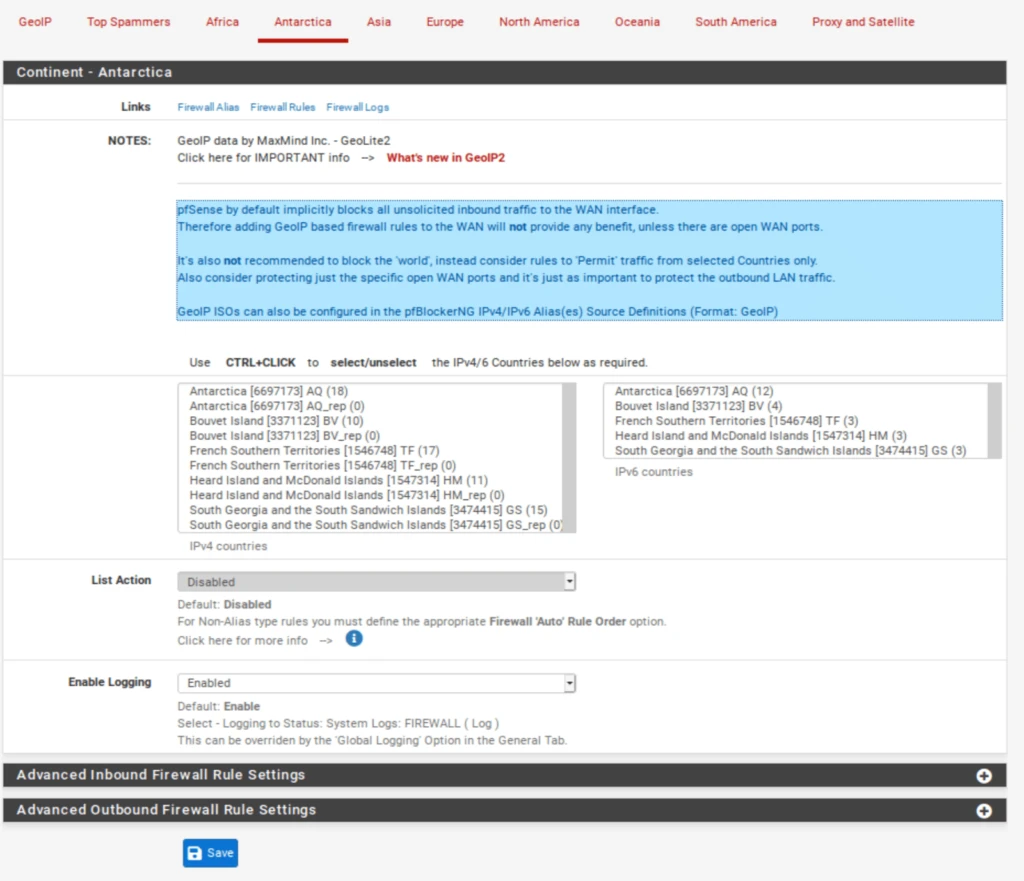](https://docs.coltscomputer.services/uploads/images/gallery/2024-01/jAWYnUPIujLGlP33-antarctica-1024x881.webp)
### Configuring country blocks
1. Go back to the **GeoIP menu** of the **pfBlocker settings**.
2. As we did with the **IPv4** lists, from the **Action** drop-down menu to the right of each field, select either **Block Inbound, Block Outbound**, or **Block Both**. [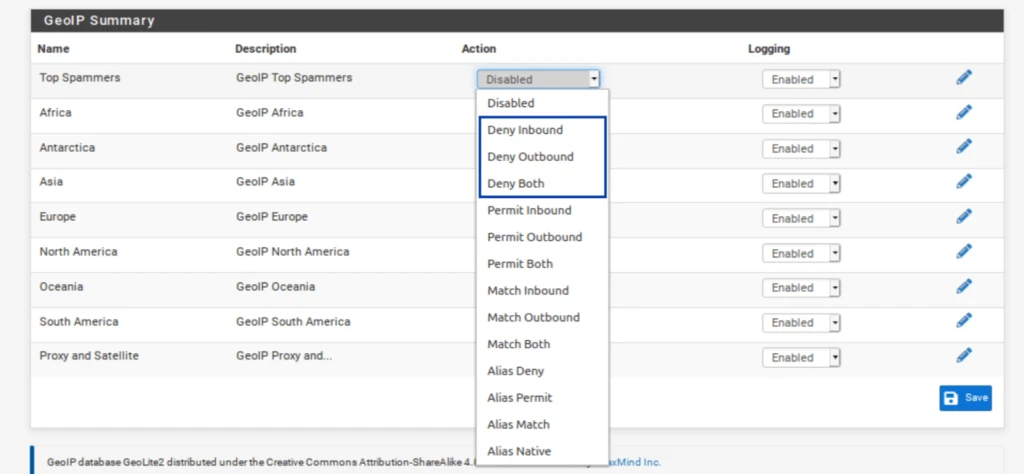](https://docs.coltscomputer.services/uploads/images/gallery/2024-01/hLx5eUsYKSsuhuO1-geoipaction-1024x474.webp)
Now, there are certain things to consider here. If you want to block outbound connections to a country or continent, go right ahead. However, if you’re thinking of blocking inbound links from a government or continent, consider that **pfSense blocks all unsolicited inbound traffic on the WAN by default**.
That means that unless you have open ports on your WAN, blocking countries or continents is useless and will only consume memory for nothing. If you have open ports on your WAN, make sure you don’t block connections from countries you want to allow to connect to your open port(s).
Aliases are IP address lists in themselves that are native to pfSense. Using aliases, you can allow only the specific countries you selected to access your open ports. However, there is a way to create custom aliases from the MaxMind GeoIP database within pfBlockerNG that can be used directly as the source in your port forwarding firewall rules.
### Creating a GeoIP alias in pfBlockerNG
Because pfSense automatically blocks any traffic that isn’t explicitly allowed in the firewall rules, we want to create an alias of the countries we will **allow** through the firewall. pfSense will block the rest by default.
1. Go to the **IPv4** sub-menu and click **Add**. [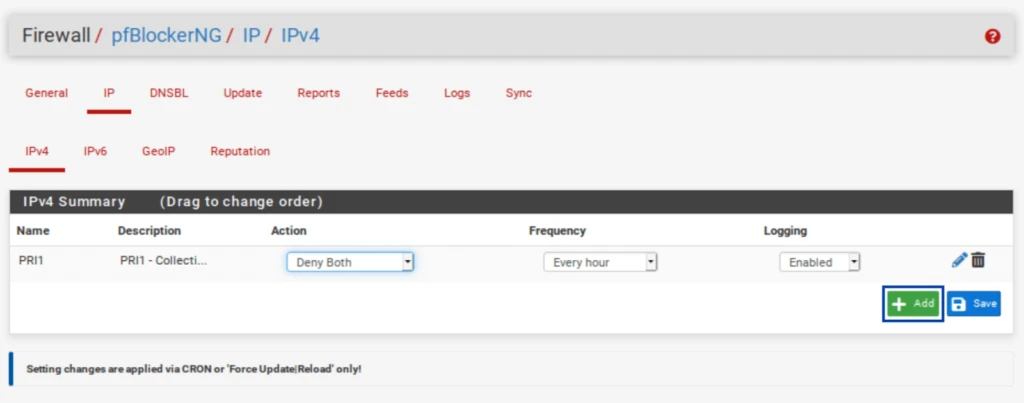](https://docs.coltscomputer.services/uploads/images/gallery/2024-01/G77S7X7IjmfTDTfx-addcustomalias-1024x403.webp)
2. Give your alias a name and a description.
3. Set the **Format** field to **GeoIP**.
4. Set the **State** field to **ON**.
Set the Action to Alias Native.
1. Type the first letters of the country you want to add to the alias. Select the countries you wish to add to the alias. The list of countries appears. [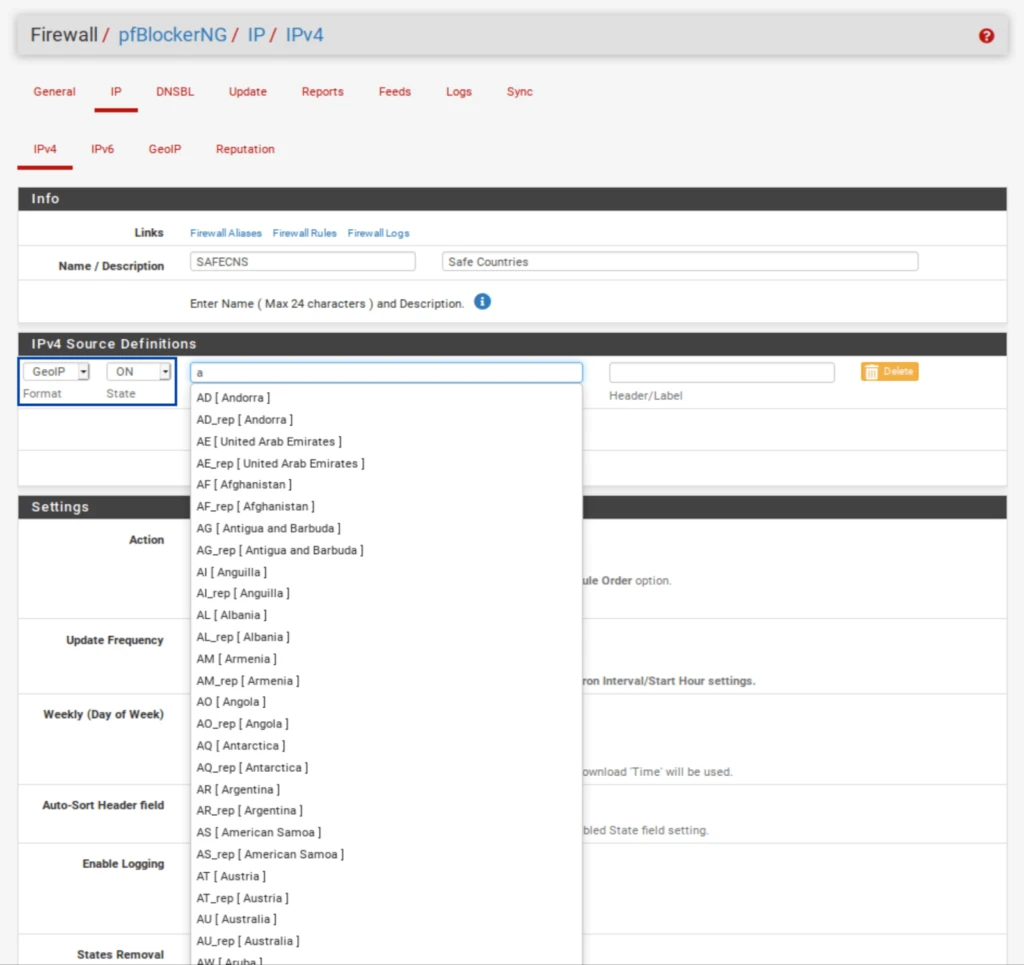](https://docs.coltscomputer.services/uploads/images/gallery/2024-01/oC5yiDlZnxnXnmVk-customaliasesstarttyping-1024x965.webp)
2. You can add more countries to your alias by clicking the green **Add** button. [](https://docs.coltscomputer.services/uploads/images/gallery/2024-01/JJM7PdlYdQ78B3nA-addcountries-1024x172.webp)
3. Set the **Update Frequency** to **Once a day**.
4. Click **Save IPv4 Settings** at the bottom of the page. Once you force an update of pfBlockerNG, your alias will be available for inclusion in your firewall rules. [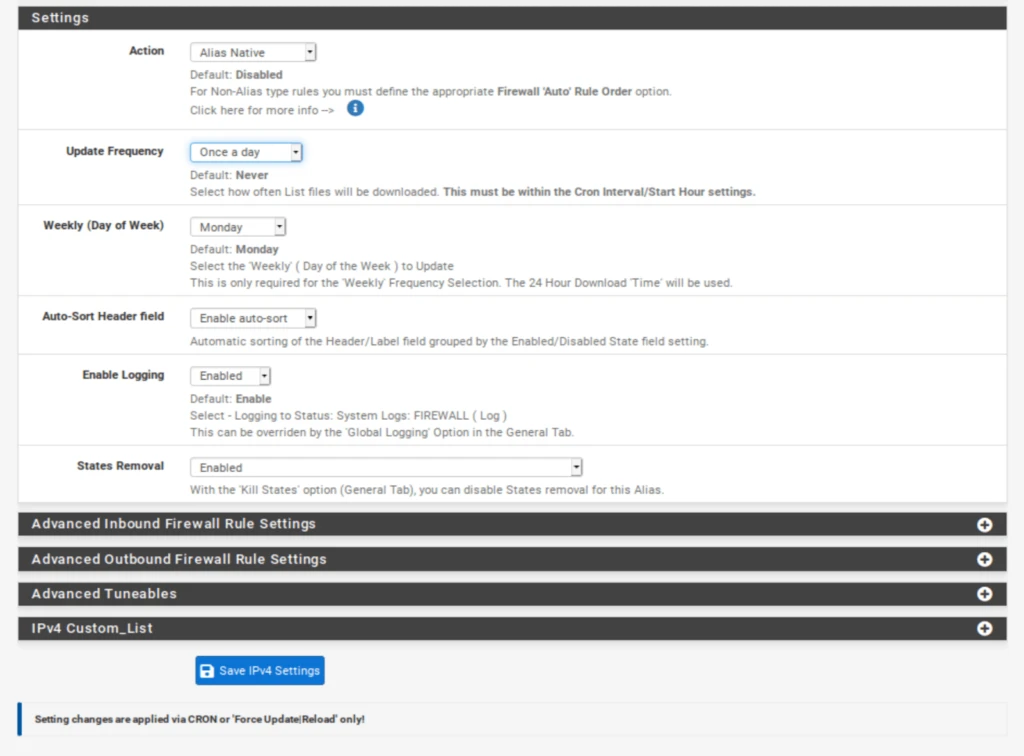](https://docs.coltscomputer.services/uploads/images/gallery/2024-01/kRMa4PRucS51kj9f-customaliassettings-1024x756.webp)
If you do have open ports but want to keep it simple, you can block inbound connections from **Top Spammers** and **Proxy and Satellite** without creating a custom alias. Remember that this is only useful **if you have open ports on your WAN**.
[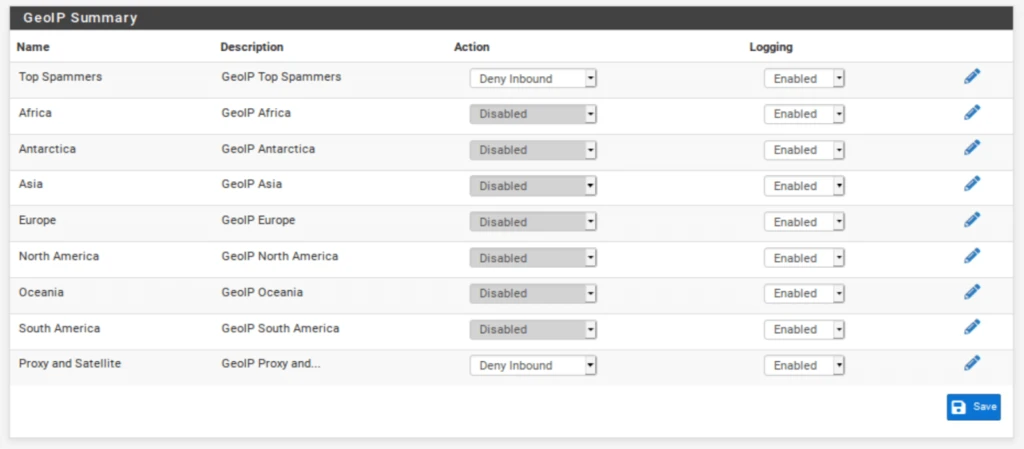](https://docs.coltscomputer.services/uploads/images/gallery/2024-01/H1uW0gzYf1IAX3K6-denyspammerssattelite-1024x449.webp)
If you do not have any open ports on your WAN, only block outbound traffic or leave GeoIP filtering disabled.
### Testing IPv4 filtering
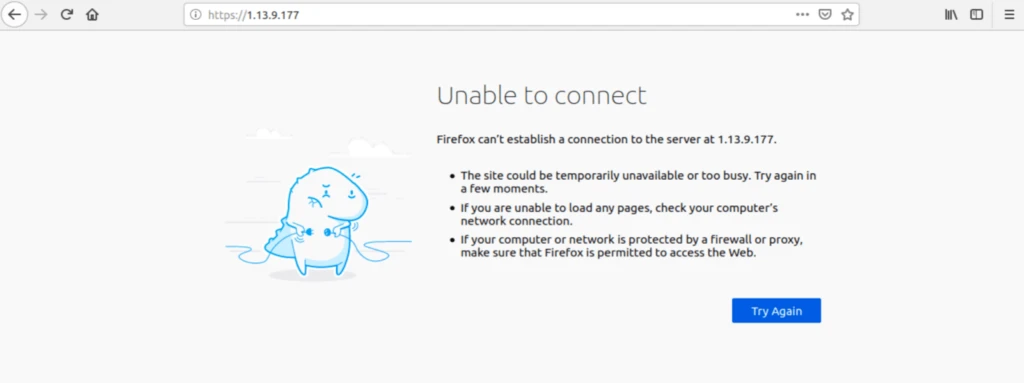
To make sure that our traffic is being filtered. We can try to connect to a known IP address in the blocklist. If I try to access 1.13.9.177 (an IP contained in my pfBlockerNG IPv4 feeds) in my browser, the IP address does not get translated to a domain name, and I cannot connect. That’s what we want.
[](https://docs.coltscomputer.services/uploads/images/gallery/2024-01/lRpTZGQ7TplTyyan-ipv4test-1024x383.webp)
Let’s move on to configuring pfBlocker’s DNSBL.
## DNSBL
Alright. We’ve configured IPv4 filtering and GeoIP filtering, and aliases. It’s now time to move on to using pfBlockerNG for ad-blocking. Ad-blocking in pfBlockerNG is achieved through DNS blackholing. This references your DNS requests against a list of known ad networks and trackers and blocks them at the DNS level whenever there’s a match, resulting in an ad-free internet. Hooray.
To use the DNSBL feature in pfBlockerNG, you must be using the **DNS Resolver** in pfSense for your DNS resolution. That means you can’t assign your hosts’ DNS via DHCP or use the DNS Forwarder (dnsmasq) if you want to use the DNSBL feature.
By default, pfSense uses the DNS Resolver on all interfaces. So if you didn’t make any changes to the DNS Resolver settings, you’re fine. If you made changes, configure the Resolver to bind to your LAN (outgoing) and your WAN (incoming). And select any other LAN-type (OPT interfaces) and WAN-type (multi-WAN setup, VPN gateways) interfaces you want the DNSBL to filter.
[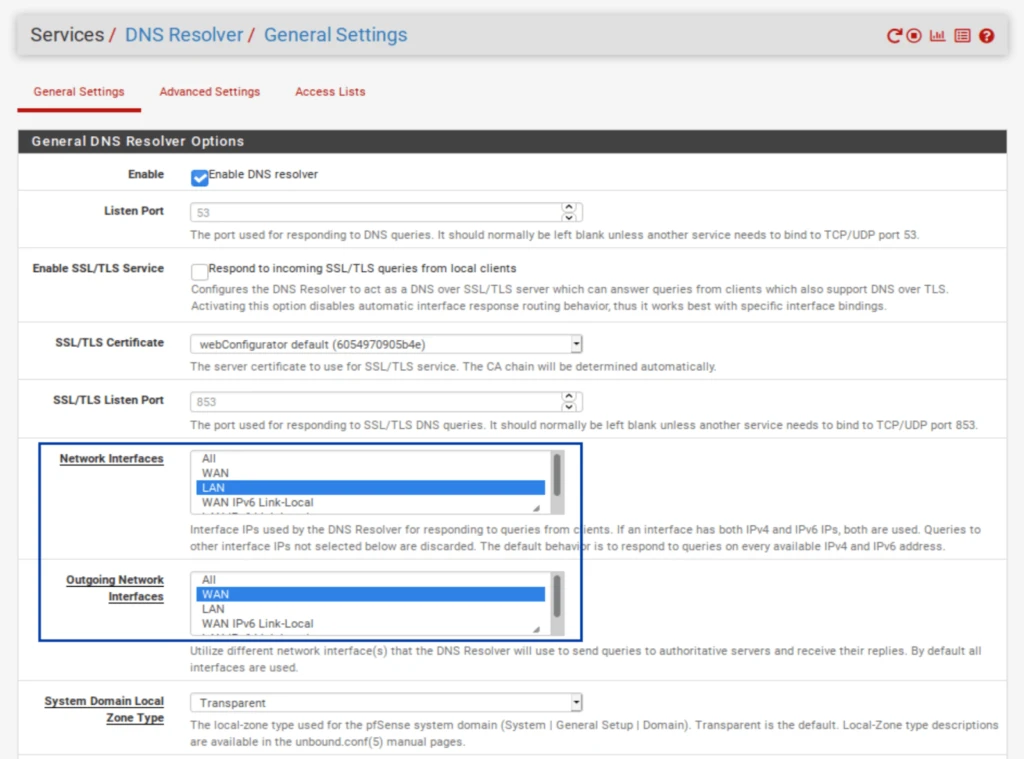](https://docs.coltscomputer.services/uploads/images/gallery/2024-01/JouMiKLsJxJEyt2l-dnsresolver-1024x759.webp)
### Configuring DNSBL
1. Select the **DNSBL tab**.
2. strong>Enable DNSBL.
3. Next to **DNSBL Mode**, select **Unbound Python mode**. [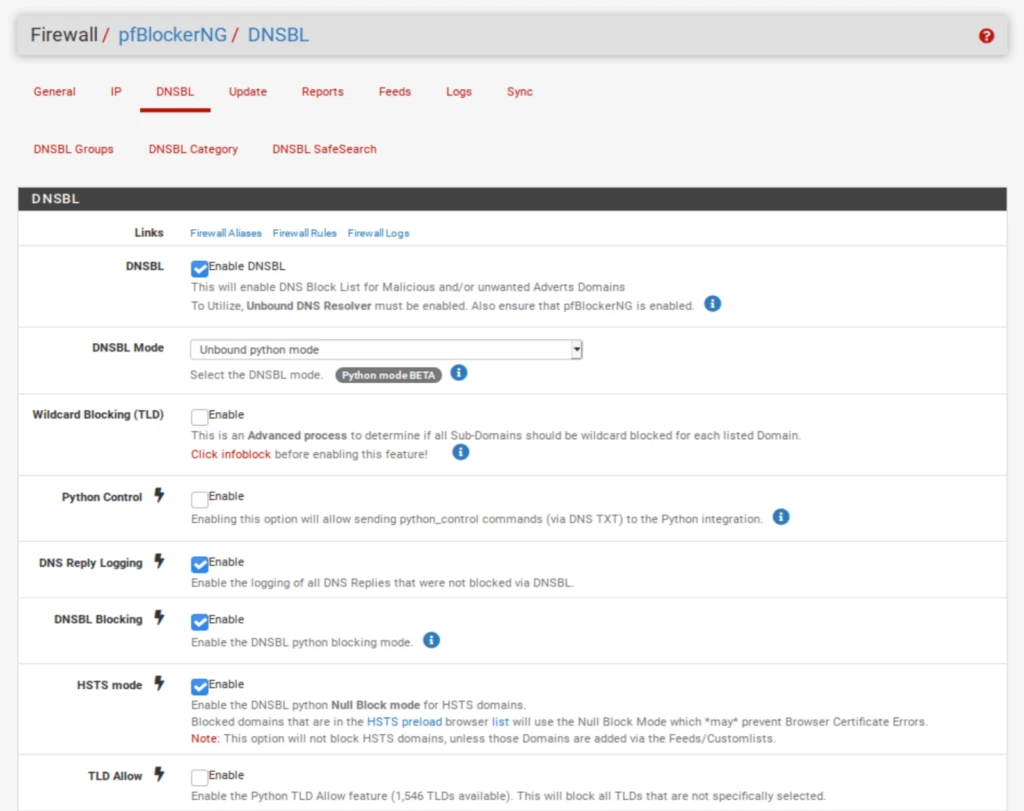](https://docs.coltscomputer.services/uploads/images/gallery/2024-01/TmtA5T2rezo4ybx2-dnsbl1-1024x811.webp)
4. Scroll down to the **DNSBL Configuration** section.
5. Enable **Permit Firewall Rules** and select your LAN and any other LAN-type interfaces you want to filter with DNSBL. This will automatically create floating firewall rules (as we did with IPv4 filtering) so that DNSBL filtering will happen as soon as traffic hits the firewall.
6. Click **Save DNSBL settings** at the bottom of the page. [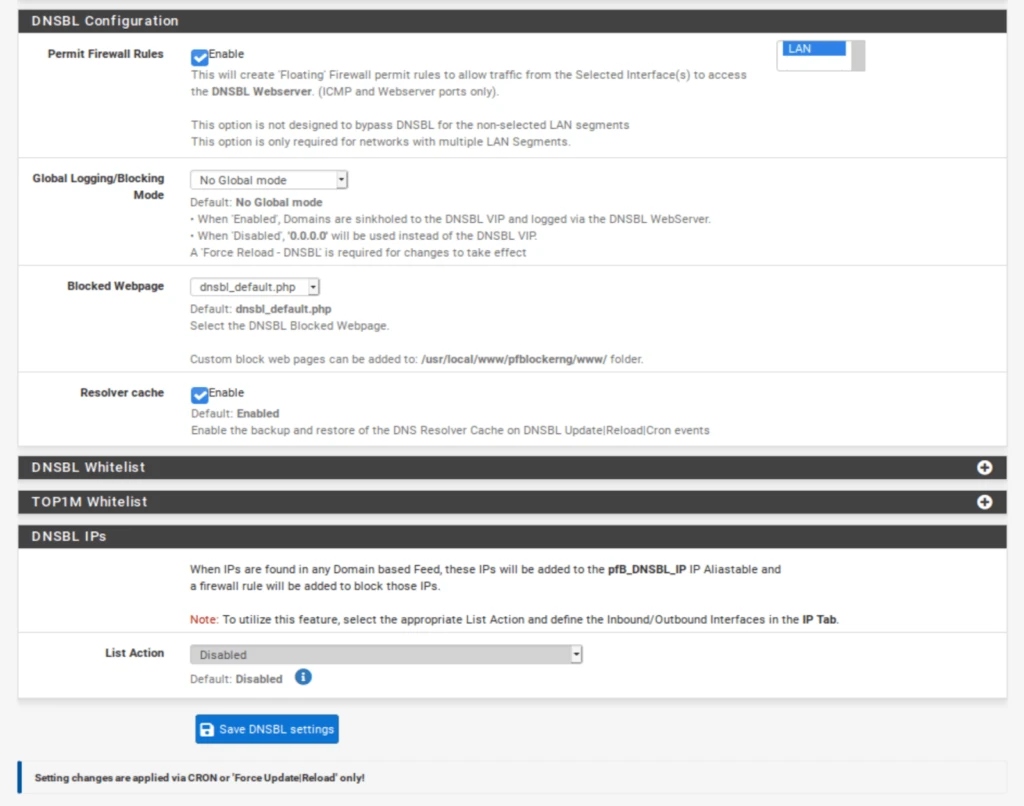](https://docs.coltscomputer.services/uploads/images/gallery/2024-01/QBzAx6sUiVafxE8B-dnsbl2-1024x806.webp)
We now need to add some DNSBL feeds.
### Adding DNSBL feeds
1. Select the **Feeds** tab.
2. Scroll down until you see **DNSBL Category** on the left. The first such entry is **EasyList**.
3. Click the blue + to the left of **EasyList**. You’re taken to the **DNSBL Groups** page, where your selected feeds are listed, as with IPv4 filtering. And almost all of the relevant fields are automatically populated. [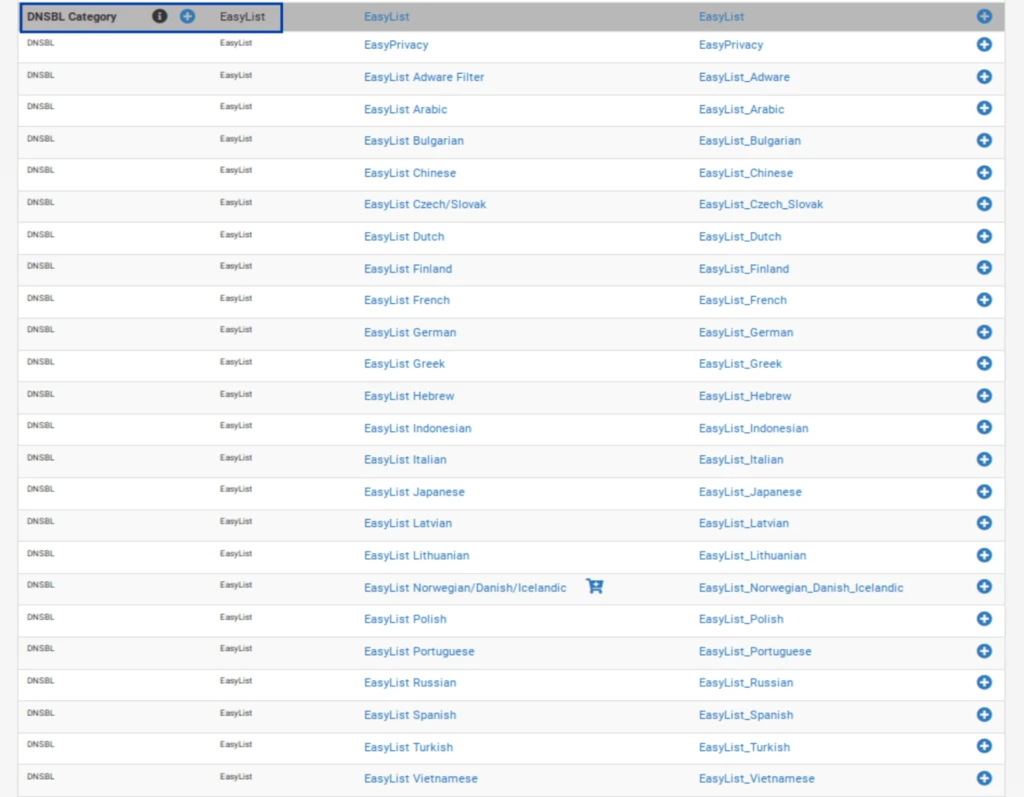](https://docs.coltscomputer.services/uploads/images/gallery/2024-01/5vMEkA1IIKphnjKb-dnsblfeeds-1024x797.webp)
4. Delete all of the feeds except the first and last one: **EasyList** and **EasyList Privacy**.
5. Set the remaining feeds to **ON**. [](https://docs.coltscomputer.services/uploads/images/gallery/2024-01/cH7kjOlNpq34fYWm-dnsbllistson-1024x116.webp)
6. Scroll down to the **Settings** section.
7. Set the **Action** to **Unbound**.
8. Click the + to the right of **DNSBL Custom\_List**. The **DNSBL Custom\_List** window is displayed.
9. Enter **vungle.com** in the **DNSBL Custom\_List** window. We’re adding this domain so we can make sure DNSBL filtering is working by trying to access a known blocked domain.
10. Click **Save DNSBL Settings** at the bottom of the page. [](https://docs.coltscomputer.services/uploads/images/gallery/2024-01/IS5sqvzybCKMdttg-dnsbllistson-1-1024x116.webp)
### Forcing an update of pfBlockerNG
We now need to force an update of pfBlockerNG, as we did above.
1. Select the Update tab. You’re taken to the pfBlockerNG update page.
2. Click **Run**. The update starts. [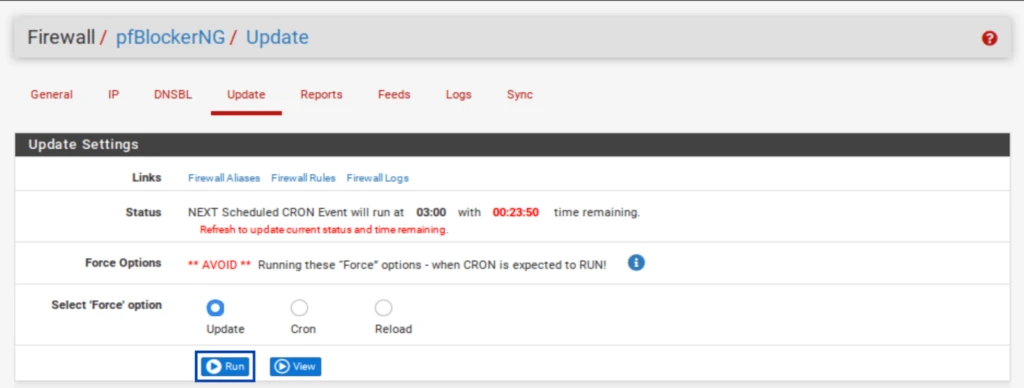](https://docs.coltscomputer.services/uploads/images/gallery/2024-01/xbab1naXJyJTuCe0-updatesettings1-1024x388.webp)
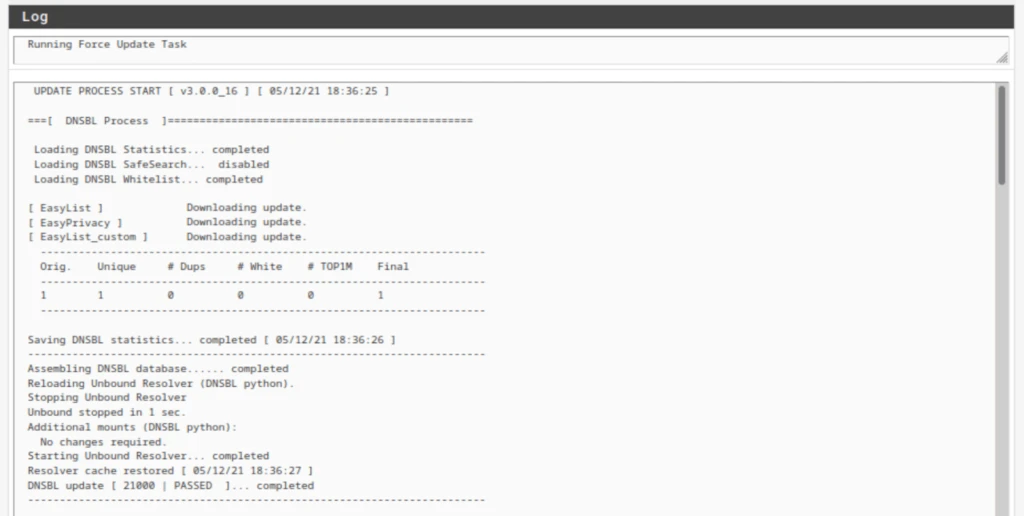
Once the update is complete, we can see that our DNSBL feeds have been updated.
[](https://docs.coltscomputer.services/uploads/images/gallery/2024-01/01v9TpgIJNkqy76J-dnsblupdatelog-1024x516.webp)
### Testing DNSBL
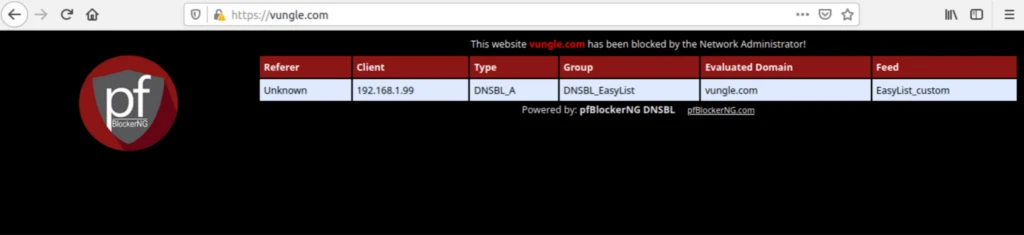
To ensure that DNSBL filtering is working, we will try to connect to the domain I added to **DNSBL Custom\_List: vungle.com**. If I try to access vungle.com in my browser, the DNSBL block page is displayed with some bits of helpful information.
**Note:** pfBlocker’s DNSBL includes a mini web server that can serve this block page. IPv4, IPv6, and GeoIP filtering extend the existing functionality of the pfSense firewall and block or allow IP addresses without displaying a block page.
[](https://docs.coltscomputer.services/uploads/images/gallery/2024-01/17nrqVH7jStJLWES-dnsbltest-1024x235.webp)
## Wrap-up
So there you have it. You’ve successfully installed and configured pfBlockerNG-devel in pfSense. We configured IPv4 filtering, GeoIP filtering, as well as DNSBL filtering. All three of these make your network more secure and private without slowing down your connection.
As your network grows, you may need to open certain ports on your WAN if you want to run a VPN server or if you want to host a web server that’s accessible from the internet. When you do that, pfBlockerNG will be a nice tool in your security toolkit to help you lock down your network and granularly control access from the outside.