# How to enable Swap on Linux

[https://azdigi.com/blog/en/linux-server-en/linux-fundementals/how-to-enable-swap-on-linux/](https://azdigi.com/blog/en/linux-server-en/linux-fundementals/how-to-enable-swap-on-linux/)

### <span class="penci-toc-section" id="bkmrk-step-1%3A-ssh-into-you-1">Step 1: SSH into your Linux system</span>

To create and enable **SWAP** on **Linux**, we first need **to SSH** or access your **VPS** or server with **root** privileges. If you don’t know how to **SSH** into your [**VPS/Server**](https://azdigi.com/pro-vps/), you can refer to the following tutorial:

- [How to login to Linux VPS with SSH protocol](https://azdigi.com/blog/en/azdigi-guide/vps-en/instructions-for-logging-into-linux-vps-with-ssh-protocol/).

After successfully **SSH,** we continue with step 2 to check **Swap** .

### <span class="penci-toc-section" id="bkmrk-step-2%3A-check-swap-1">Step 2: Check Swap</span>

Before proceeding to create the **Swap** file, we need to check if the current system has **Swap** enabled or not by running the following command:

<div class="terminal shadow" id="bkmrk-azdigi-tutorial" style="max-width: 815px;"><div class="top" style="max-width: 815px;"><div class="btns" style="max-width: 815px;">  
</div><div class="title" style="max-width: 815px;">AZDIGI Tutorial</div></div></div>```
swapon -s
    
```

If after running the command no information is displayed, it means that our server has not enabled **Swap**.
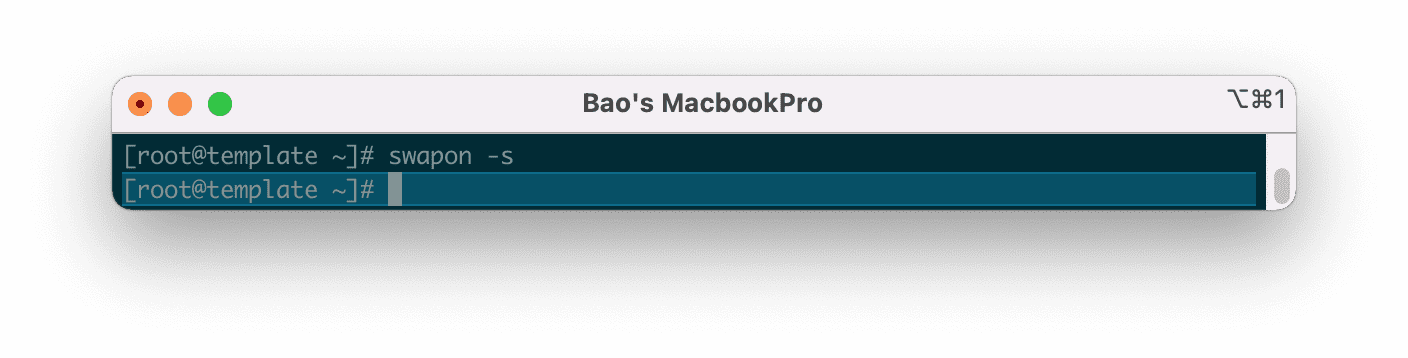
<div class="wp-block-image is-style-default" id="bkmrk-the-system-has-not-e" style="max-width: 815px;"><figure class="aligncenter size-full">![how-to-enable-swap-on-linux](https://azdigi.com/blog/wp-content/smush-webp/2020/12/image-114.png.webp)<figcaption class="wp-element-caption">*The system has not enabled **Swap**.*</figcaption></figure></div>### <span class="penci-toc-section" id="bkmrk-step-3%3A-check-the-fr-1">Step 3: Check the free disk space</span>

Check the free disk space so we can consider creating Swap file space in the next step. To check the free disk space, we use the following command:

<div class="terminal shadow" id="bkmrk-azdigi-tutorial-1" style="max-width: 815px;"><div class="top" style="max-width: 815px;"><div class="btns" style="max-width: 815px;">  
</div><div class="title" style="max-width: 815px;">AZDIGI Tutorial</div></div></div>```
df -h
    
```

My free space is up to **31GB**, so it’s quite comfortable to create **Swap**. Because after creating Swap, your server capacity will be lost corresponding to the amount you have allocated for **Swap**.
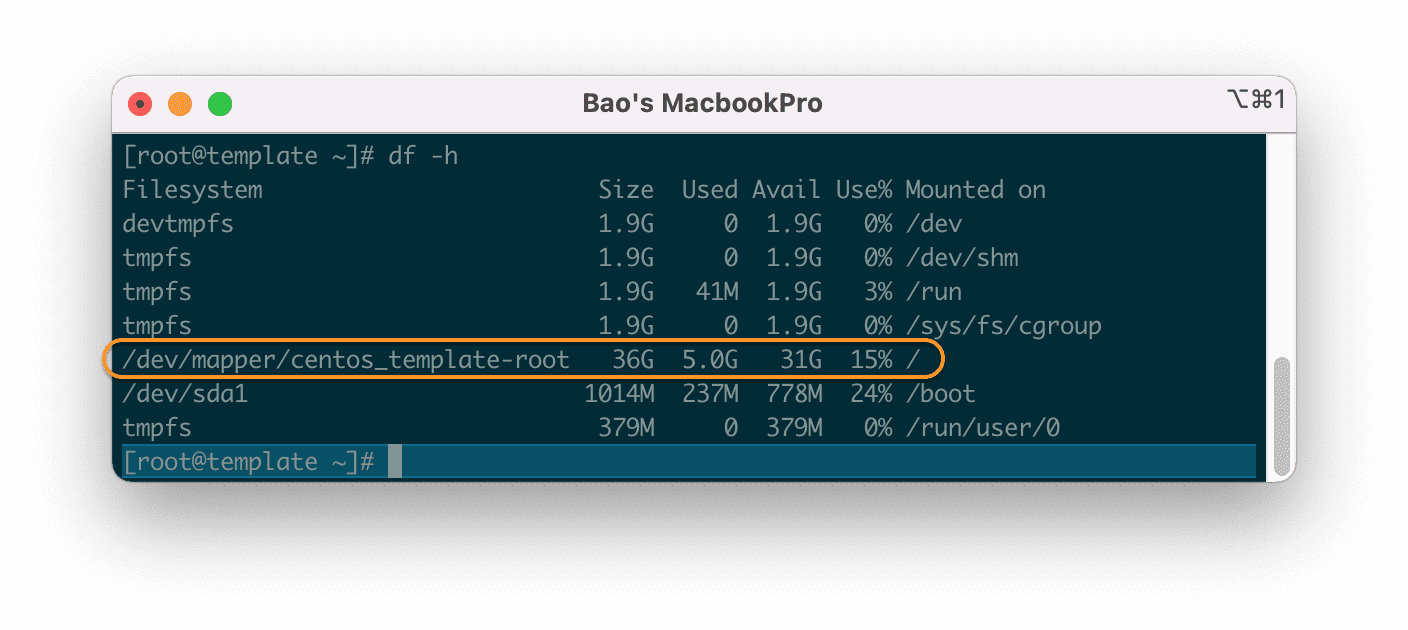
<div class="wp-block-image is-style-default" id="bkmrk-check-the-linux-serv" style="max-width: 815px;"><figure class="aligncenter size-full">![how-to-enable-swap-on-linux](https://azdigi.com/blog/wp-content/smush-webp/2020/12/image-116.png.webp)<figcaption class="wp-element-caption">*Check the Linux server capacity with the `<strong>df -h</strong>` command.*</figcaption></figure></div>### <span class="penci-toc-section" id="bkmrk-step-4%3A-create-the-s-1">Step 4: Create the Swap file</span>

For my server with only **4GB** **of RAM**, I will create a Swap partition from **1GB** to **2GB** is suitable.

Here I will use the `<strong>dd</strong>` command to create a **Swap** file with a capacity of **2GB**.

<div class="terminal shadow" id="bkmrk-azdigi-tutorial-2" style="max-width: 815px;"><div class="top" style="max-width: 815px;"><div class="btns" style="max-width: 815px;">  
</div><div class="title" style="max-width: 815px;">AZDIGI Tutorial</div></div></div>```
dd if=/dev/zero of=/mnt/swapfile bs=1024 count=2048k
    
```

The above command will create a **2GB** Swap file. You can change **`count=2048k`** to `<strong>count=1024k</strong>` … to create a **1GB** Swap. The maximum Swap capacity should only be twice the physical RAM.
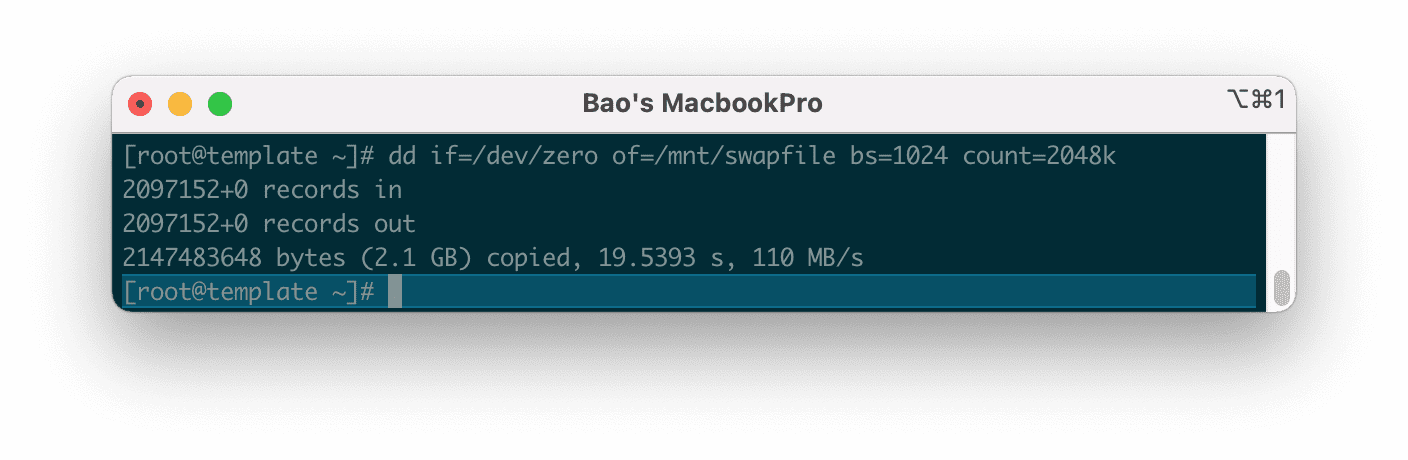
<div class="wp-block-image is-style-default" id="bkmrk-create-a-swap-file-w" style="max-width: 815px;"><figure class="aligncenter size-full">![how-to-enable-swap-on-linux](https://azdigi.com/blog/wp-content/smush-webp/2020/12/image-118.png.webp)<figcaption class="wp-element-caption">*Create a **Swap** file with a capacity of **2GB**.*</figcaption></figure></div>After we have created the Swap file, we need to create a partition for it in step 5.

### <span class="penci-toc-section" id="bkmrk-step-5%3A-create-swap--1">Step 5: Create Swap Partition and enable Swap on Linux</span>

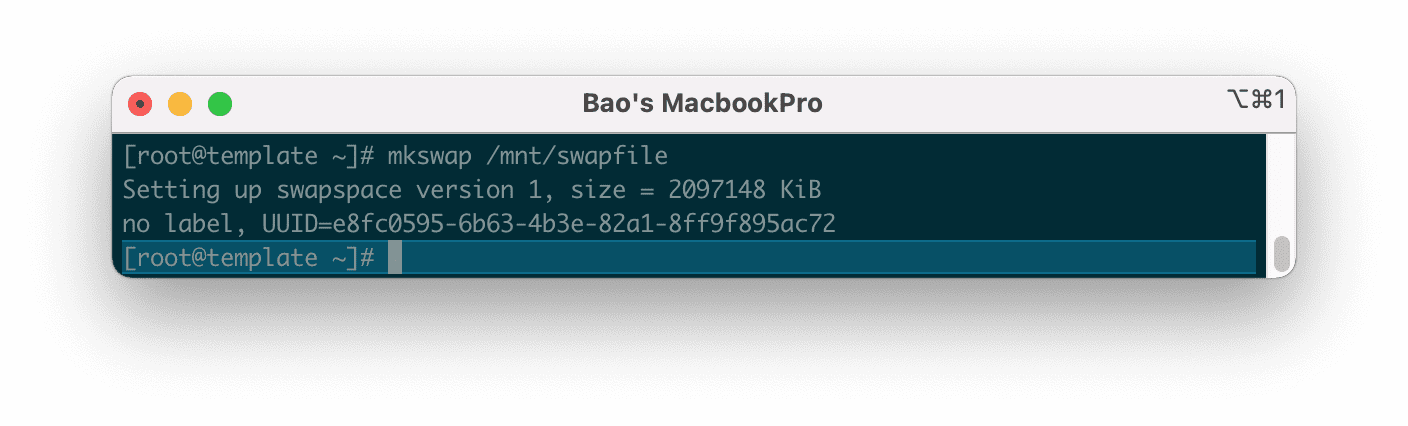
To create a Swap partition, run the following command:

<div class="terminal shadow" id="bkmrk-azdigi-tutorial-3" style="max-width: 815px;"><div class="top" style="max-width: 815px;"><div class="btns" style="max-width: 815px;">  
</div><div class="title" style="max-width: 815px;">AZDIGI Tutorial</div></div></div>```
mkswap /mnt/swapfile
    
```

<div class="wp-block-image is-style-default" id="bkmrk-create-a-swap-partit" style="max-width: 815px;"><figure class="aligncenter size-full">![how-to-enable-swap-on-linux](https://azdigi.com/blog/wp-content/smush-webp/2020/12/image-120.png.webp)<figcaption class="wp-element-caption">*Create a **Swap** partition on **Linux**.*</figcaption></figure></div>Then we continue to enable **Swap** on **Linux** with the command below:

<div class="terminal shadow" id="bkmrk-azdigi-tutorial-4" style="max-width: 815px;"><div class="top" style="max-width: 815px;"><div class="btns" style="max-width: 815px;">  
</div><div class="title" style="max-width: 815px;">AZDIGI Tutorial</div></div></div>```
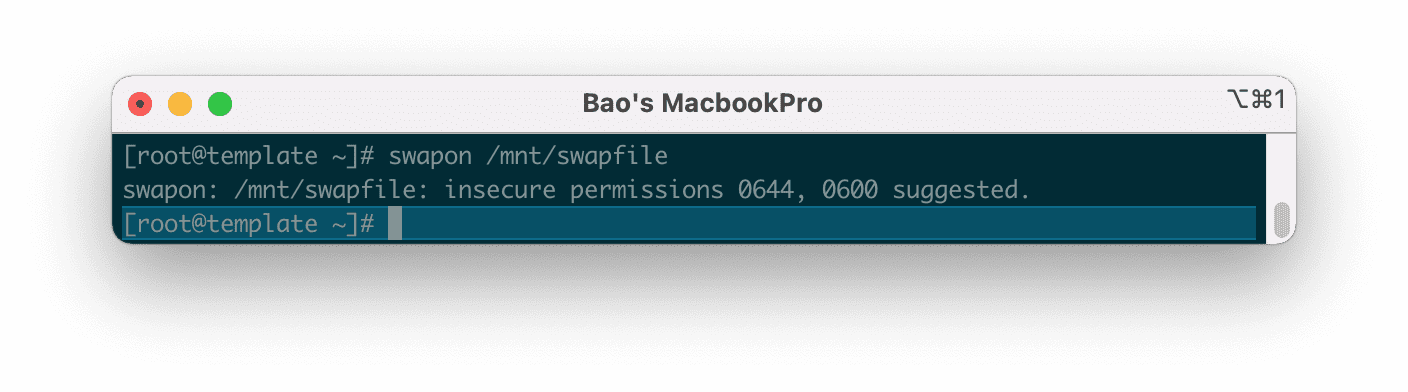
swapon /mnt/swapfile
    
```

You will get a warning that the permission should be`<strong>0600</strong>` to make this partition more secure because by default when initializing the directory, it will have permission `<strong>0644</strong>` . <span class="has-inline-color has-luminous-vivid-orange-color">Please ignore this because we will perform the decentralization in the next step.</span>

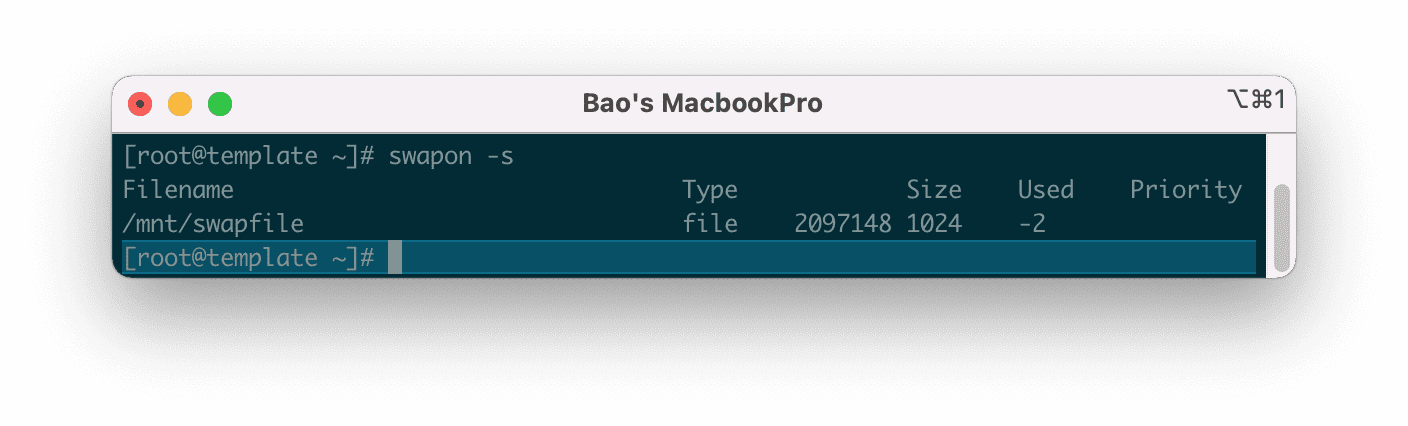
<div class="wp-block-image is-style-default" id="bkmrk-security-warning-whe" style="max-width: 815px;"><figure class="aligncenter size-full">![how-to-enable-swap-on-linux](https://azdigi.com/blog/wp-content/smush-webp/2020/12/image-122.png.webp)<figcaption class="wp-element-caption">*Security warning when activating **Swap** where the folder is in different permissions than `<strong>0600</strong>` .*</figcaption></figure></div>Check the **Swap** status again as in step 2, you will see that everything is different now.

<div class="terminal shadow" id="bkmrk-azdigi-tutorial-5" style="max-width: 815px;"><div class="top" style="max-width: 815px;"><div class="btns" style="max-width: 815px;">  
</div><div class="title" style="max-width: 815px;">AZDIGI Tutorial</div></div></div>```
swapon -s
    
```

<div class="wp-block-image is-style-default" id="bkmrk-enable-swap-on-linux" style="max-width: 815px;"><figure class="aligncenter size-full">![how-to-enable-swap-on-linux](https://azdigi.com/blog/wp-content/smush-webp/2020/12/image-124.png.webp)<figcaption class="wp-element-caption">*Enable **Swap** on **Linux** successfully.*</figcaption></figure></div>Next, we need to set up the **Swap** partition to automatically activate after rebooting the system.

<div class="terminal shadow" id="bkmrk-azdigi-tutorial-6" style="max-width: 815px;"><div class="top" style="max-width: 815px;"><div class="btns" style="max-width: 815px;">  
</div><div class="title" style="max-width: 815px;">AZDIGI Tutorial</div></div></div>```
echo /mnt/swapfile none swap defaults 0 0 >> /etc/fstab
    
```

Continue to perform security settings for the Swap partition with the following two commands:

<div class="terminal shadow" id="bkmrk-azdigi-tutorial-7" style="max-width: 815px;"><div class="top" style="max-width: 815px;"><div class="btns" style="max-width: 815px;">  
</div><div class="title" style="max-width: 815px;">AZDIGI Tutorial</div></div></div>```
chown root:root /mnt/swapfile 
chmod 0600 /mnt/swapfile
    
```

**Explanation of the two commands above:**

- **Command 1:** Delegation of group owner permissions belong to **root**.
- **Command 2:** Authorize only the **root** to access and read and write data.

So we have successfully enabled Swap on Linux. However, if you need to prioritize using **Swap** when the ram level reaches the limit, then follow the rest of the article.

## <span class="penci-toc-section" id="bkmrk-v.-configure-swappin-1">**V. Configure Swappiness**</span>

Swappness is the priority of using Swap of Linux system. When the amount of free RAM remaining equals the value of Swappiness (as a percentage), the Linux server will switch to use. For example, if your server has only 10% free RAM and Swappiness is set to 10, the server will switch to using Swap.

Because the speed of RAM is many times faster than the speed of the hard disk, when data is written/read from Swap, it will give a much slower speed when used on RAM. So you should consider tweaking the Swappiness range from **5** to **10** as appropriate.

<mark class="has-inline-color has-luminous-vivid-orange-color" style="background-color: rgba(0, 0, 0, 0);">**Note:** The higher the number, the more often the server uses Swap, which means that the hard disk will have to read and write more and degrade faster.</mark>

Swappiness will have a value between 0 – 100.

Here are some commonly used scenarios:

- swappiness = 0: swap is only used when RAM is used up.
- swappiness = 10: swap is used when 10% RAM is available.
- swappiness = 60: swap is used when the RAM is 60% free.
- swappiness = 100: swap takes precedence as RAM.

You can check the Swappiness parameter with the following command:

<div class="terminal shadow" id="bkmrk-azdigi-tutorial-8" style="max-width: 815px;"><div class="top" style="max-width: 815px;"><div class="btns" style="max-width: 815px;">  
</div><div class="title" style="max-width: 815px;">AZDIGI Tutorial</div></div></div>```
cat /proc/sys/vm/swappiness
    
```

Here are the results on my server.
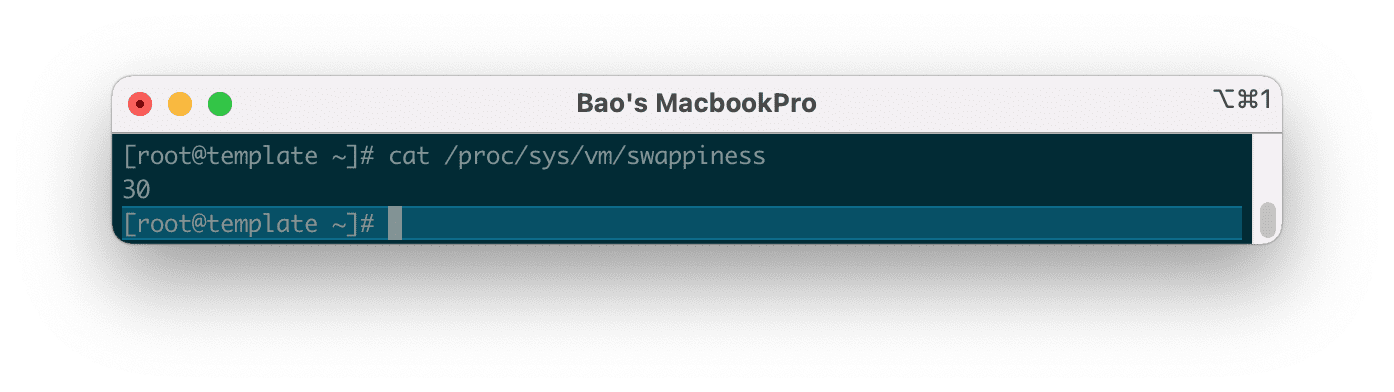
<div class="wp-block-image is-style-default" id="bkmrk-when-the-amount-of-p" style="max-width: 815px;"><figure class="aligncenter size-full">![how-to-enable-swap-on-linux](https://azdigi.com/blog/wp-content/smush-webp/2020/12/image-126.png.webp)<figcaption class="wp-element-caption">*When the amount of physical **RAM** reaches **70%**, Linux switches to using **Swap**.*</figcaption></figure></div>And to change this value to **10**, we use the following command:

<div class="terminal shadow" id="bkmrk-azdigi-tutorial-9" style="max-width: 815px;"><div class="top" style="max-width: 815px;"><div class="btns" style="max-width: 815px;">  
</div><div class="title" style="max-width: 815px;">AZDIGI Tutorial</div></div></div>```
sysctl vm.swappiness=10
    
```

Then check again with the test command you can see that the number Swappiness has been changed.
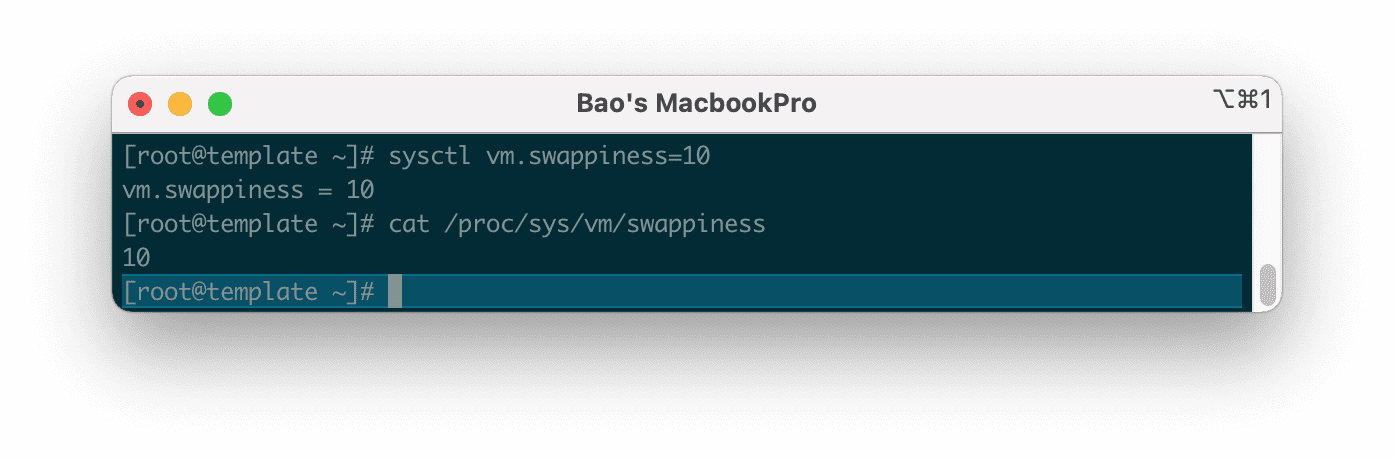
<div class="wp-block-image is-style-default" id="bkmrk-when-the-amount-of-p-1" style="max-width: 815px;"><figure class="aligncenter size-full">![how-to-enable-swap-on-linux](https://azdigi.com/blog/wp-content/smush-webp/2020/12/image-128.png.webp)<figcaption class="wp-element-caption">*When the amount of physical **RAM** reaches **70%**, Linux will switch to using **Swap**.*</figcaption></figure></div>However, using this command is only a temporary configuration. And after restarting the server the parameters will be back to default.

To make sure this parameter stays the same every time you restart the server, you need to adjust the parameter`<strong>vm.swappiness</strong>` at the end of the `<strong>/etc/sysctl.conf</strong>` file, in case your server does not have this line, please add it manually.

<div class="wp-block-image is-style-default" id="bkmrk-" style="max-width: 815px;"><figure class="aligncenter size-full">![how-to-enable-swap-on-linux](https://azdigi.com/blog/wp-content/smush-webp/2020/12/image-129.png.webp)</figure></div>Then save this file and restart your server to get the new parameters. Please wait a moment for the server to restart, you can check again with the following commands.

<div class="terminal shadow" id="bkmrk-azdigi-tutorial-10" style="max-width: 815px;"><div class="top" style="max-width: 815px;"><div class="btns" style="max-width: 815px;">  
</div><div class="title" style="max-width: 815px;">AZDIGI Tutorial</div></div></div>```
swapon -s
cat /proc/sys/vm/swappiness
    
```

Below is the result after I restart the server.

<div class="wp-block-image is-style-default" id="bkmrk--1" style="max-width: 815px;"><figure class="aligncenter size-full">![how-to-enable-swap-on-linux](https://azdigi.com/blog/wp-content/smush-webp/2020/12/image-132.png.webp)</figure></div>In some cases CentOS 7 server even if you change the parameters **`vm.swappiness`** at the end of the `<strong>/etc/sysctl.conf</strong>` file also doesn’t work after restarting the server, maybe that server has a **tune profile** that will automatically overwrite the parameters **`vm.swappiness`** every time it reboots.

To check which profile is overriding, use the following command:

<div class="terminal shadow" id="bkmrk-azdigi-tutorial-11" style="max-width: 815px;"><div class="top" style="max-width: 815px;"><div class="btns" style="max-width: 815px;">  
</div><div class="title" style="max-width: 815px;">AZDIGI Tutorial</div></div></div>```
grep vm.swappiness /usr/lib/tuned/*/tuned.conf
    
```

The results will be as follows:

<div class="wp-block-image is-style-default" id="bkmrk--2" style="max-width: 815px;"><figure class="aligncenter size-full">![how-to-enable-swap-on-linux](https://azdigi.com/blog/wp-content/smush-webp/2020/12/image-134.png.webp)</figure></div>According to the result, please edit the parameters`<strong>vm.swappiness</strong>` in the `<strong>/usr/lib/tuned/virtual-guest/tuned.conf</strong>` file to 10 at your disposal. And finally, restart the server.