# 5 Linux commands to check free disk space

## [Linux df command](https://opensource.com/article/21/7/check-disk-space-linux-df)

The `df` command stands for "disk-free," and shows available and used disk space on the Linux system.

`df -h` shows disk space in human-readable format

`df -a` shows the file system's complete disk usage even if the Available field is 0
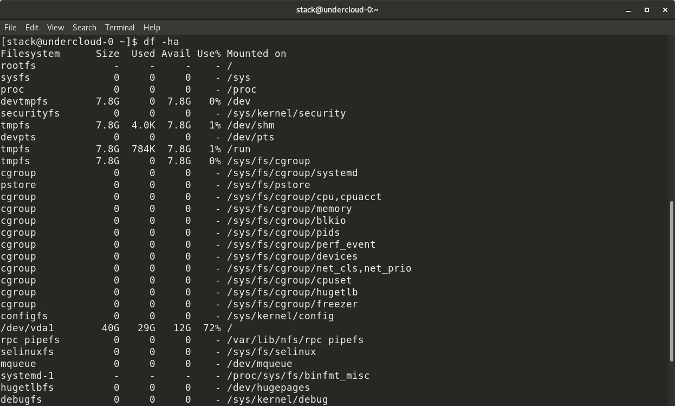
<article class="align-center media media--type-image media--view-mode-full" id="bkmrk-" title="df command"><div class="field field--name-field-media-image field--type-image field--label-hidden field__item">![df command](https://opensource.com/sites/default/files/uploads/df-ha.png "df command")</div></article>`df -T` shows the disk usage along with each block's filesystem type (e.g., xfs, ext2, ext3, btrfs, etc.)

`df -i` shows used and free inodes
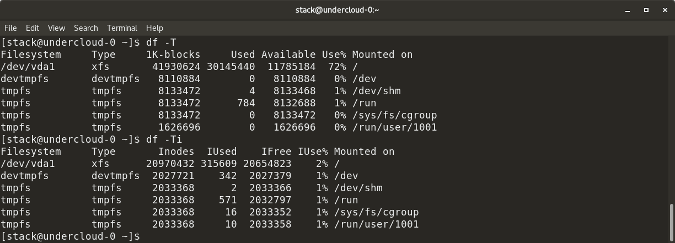
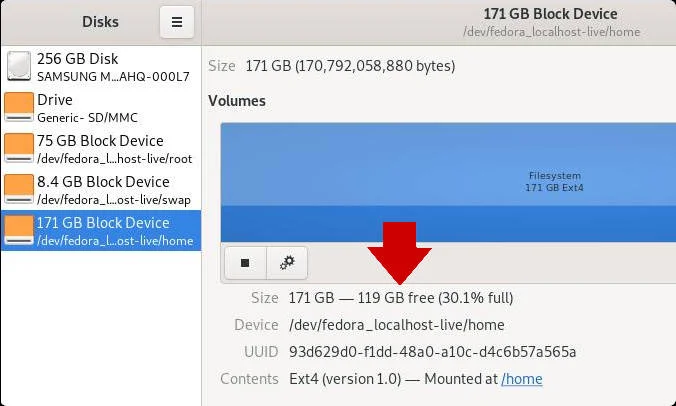
<article class="align-center media media--type-image media--view-mode-full" id="bkmrk--1" title="df command"><div class="field field--name-field-media-image field--type-image field--label-hidden field__item">![df command](https://opensource.com/sites/default/files/uploads/df-ti.png "df command")</div></article>You can get this information in a graphical view using the **Disks** (gnome-disk-utility) in the GNOME desktop. Launch it to see all disks detected by your computer, and click a partition to see details about it, including space used and space remaining.
<article class="media media--type-image media--view-mode-full" id="bkmrk-opensource.com" title="GNOME Disks"><div class="field field--name-field-media-image field--type-image field--label-hidden field__item">![GNOME Disks](https://opensource.com/sites/default/files/gnome-disks_space.jpg "GNOME Disks")</div>opensource.com

</article>## [Linux du command](https://opensource.com/article/21/7/check-disk-space-linux-du)

`du` shows the disk usage of files, folders, etc. in the default kilobyte size

`du -h` shows disk usage in human-readable format for all directories and subdirectories

`du -a` shows disk usage for all files

`du -s` provides total disk space used by a particular file or directory
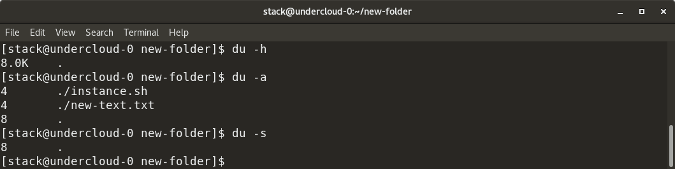
<article class="align-center media media--type-image media--view-mode-full" id="bkmrk--2" title="du command"><div class="field field--name-field-media-image field--type-image field--label-hidden field__item">![du command](https://opensource.com/sites/default/files/uploads/du-has.png "du command")</div></article>The following commands will check your total space and your utilized space.

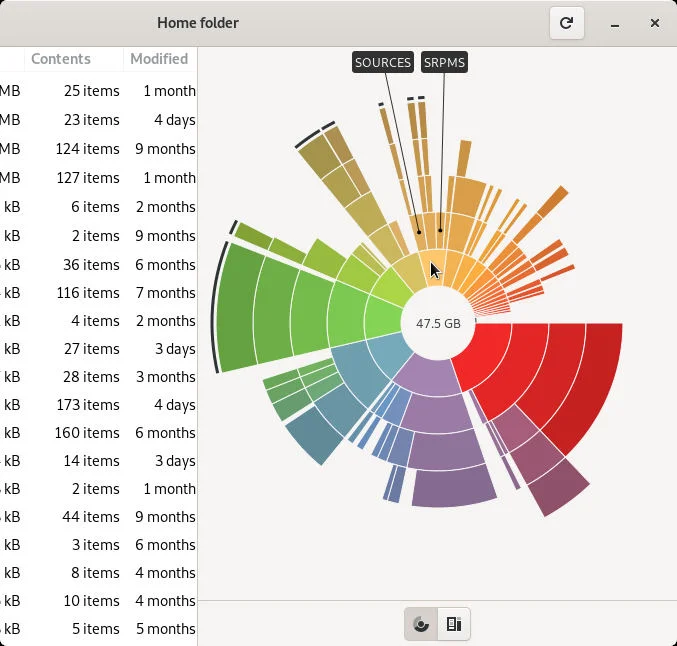
This information can be represented visually in GNOME with the **Disk Usage** application, or with **Filelight** in the KDE Plasma desktop. In both applications, disk usage is mapped to concentric circles, with the middle being the base folder (usually your **/home** directory, but it's up to you) with each outer ring representing one directory level deeper. Roll your mouse over any segment for detailed information about what's taking up space.
<article class="align-center media media--type-image media--view-mode-full" id="bkmrk-opensource.com-1" title="Disk usage"><div class="field field--name-field-media-image field--type-image field--label-hidden field__item">![Disk usage](https://opensource.com/sites/default/files/disk-space.jpg "Disk usage")</div>opensource.com

</article>## Linux ls -al command

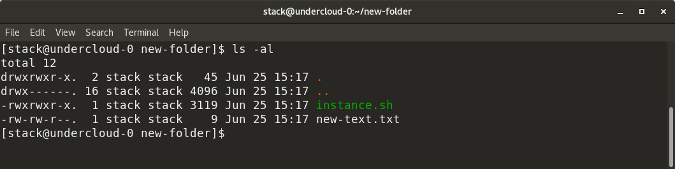
`ls -al` lists the entire contents, along with their size, of a particular directory
<article class="align-center media media--type-image media--view-mode-full" id="bkmrk--3" title="ls -al command"><div class="field field--name-field-media-image field--type-image field--label-hidden field__item">![ls -al command](https://opensource.com/sites/default/files/uploads/ls-al.png "ls -al command")</div></article>## Linux stat command

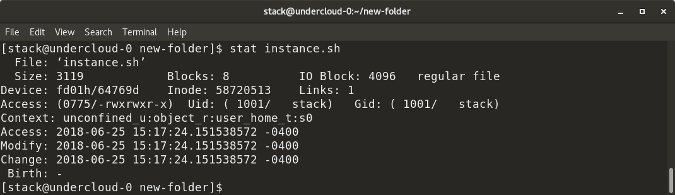
`stat <file/directory> `displays the size and other stats of a file/directory or a filesystem.
<article class="align-center media media--type-image media--view-mode-full" id="bkmrk--4" title="stat command"><div class="field field--name-field-media-image field--type-image field--label-hidden field__item">![stat command](https://opensource.com/sites/default/files/uploads/stat.png "stat command")</div></article>## Linux fdisk -l command

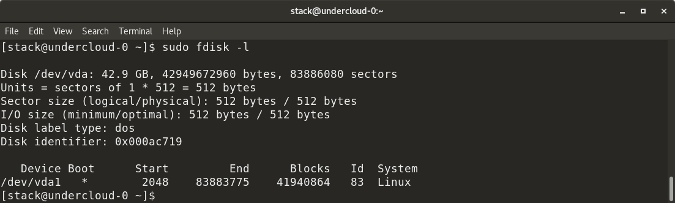
`fdisk -l` shows disk size along with disk partitioning information
<article class="align-center media media--type-image media--view-mode-full" id="bkmrk--5" title="fdisk - l command"><div class="field field--name-field-media-image field--type-image field--label-hidden field__item">![fdisk - l command](https://opensource.com/sites/default/files/uploads/fdisk.png "fdisk - l command")</div></article>