pFsense
- How to Set Up IP Filtering and DNS Blackholing on pfSense Using pfBlockerNG
- Limiters
- Kea DHCP Server not running
How to Set Up IP Filtering and DNS Blackholing on pfSense Using pfBlockerNG
What is pfBlockerNG?
pfBlockerNG has two core uses:
Inbound & outbound traffic filtering
pfBlockerNG can filter inbound and outbound traffic against IP lists and apply GeoIP restrictions by allowing or denying traffic to/from specific countries. The latter functionality can be very useful if you open ports on your WAN.
Blocking ads and malicious sites through DNS blackholing
pfBlockerNG can block ads and access to malicious sites through DNS filtering. Browsing the web, your DNS requests are checked against a blocklist. If there’s a match, the request is blocked. It’s a great way to block ads without using a proxy server.
We’re going to look at both use cases and will go into more detail as we tackle each one.
This guide assumes that you have already set up pfSense with functional WAN and LAN interfaces.
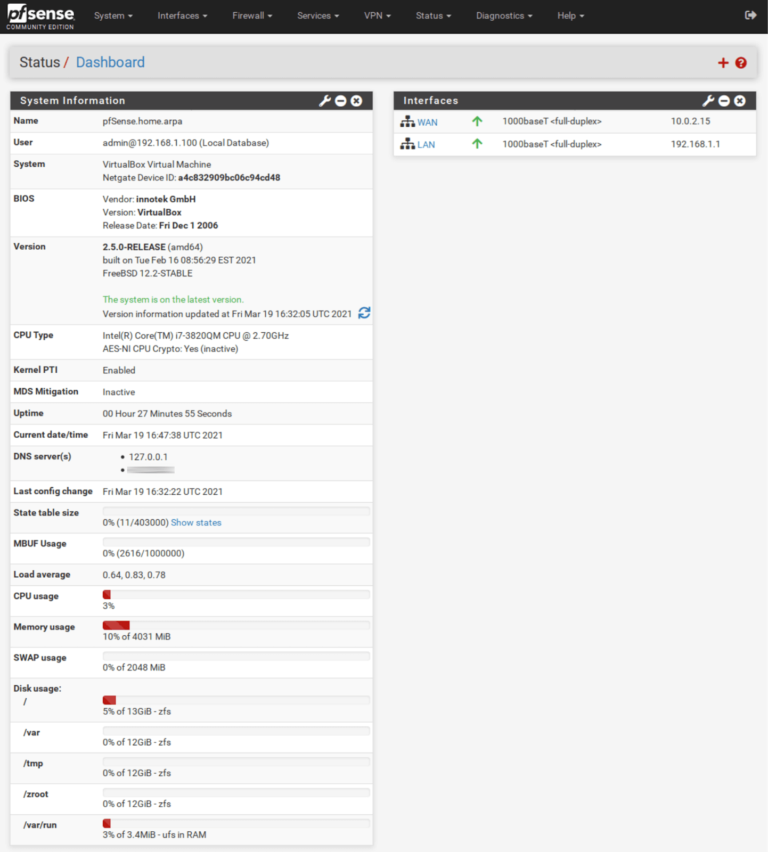
Let’s get started.
Installing pfBlockerNG-devel
The first thing we need to do is install pfBlockerNG.
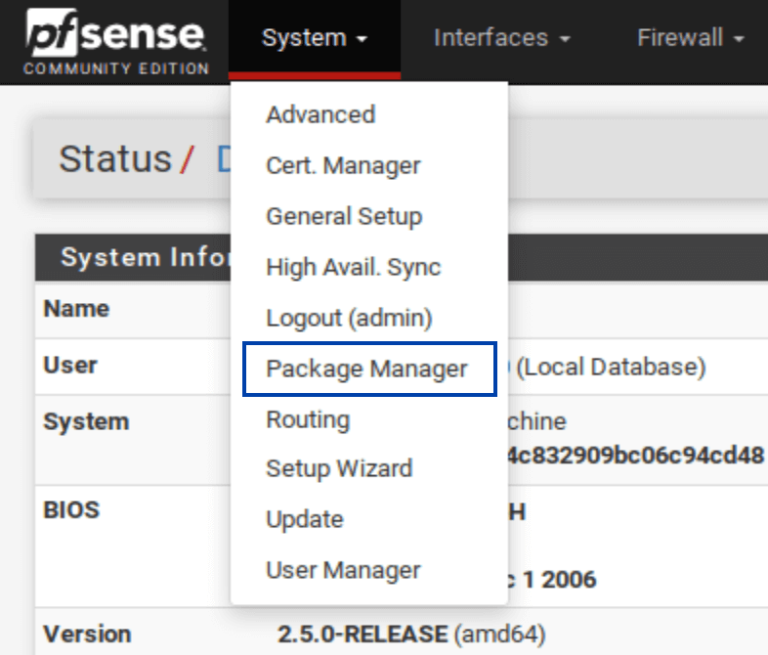
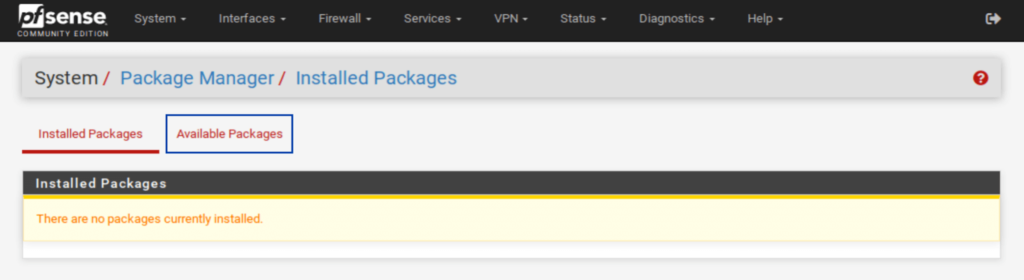
- From the top menu, select System > Package Manager. You’re taken to the Installed Packages tab of the Package Manager.

- Select Available Packages. The list of available packages is displayed.

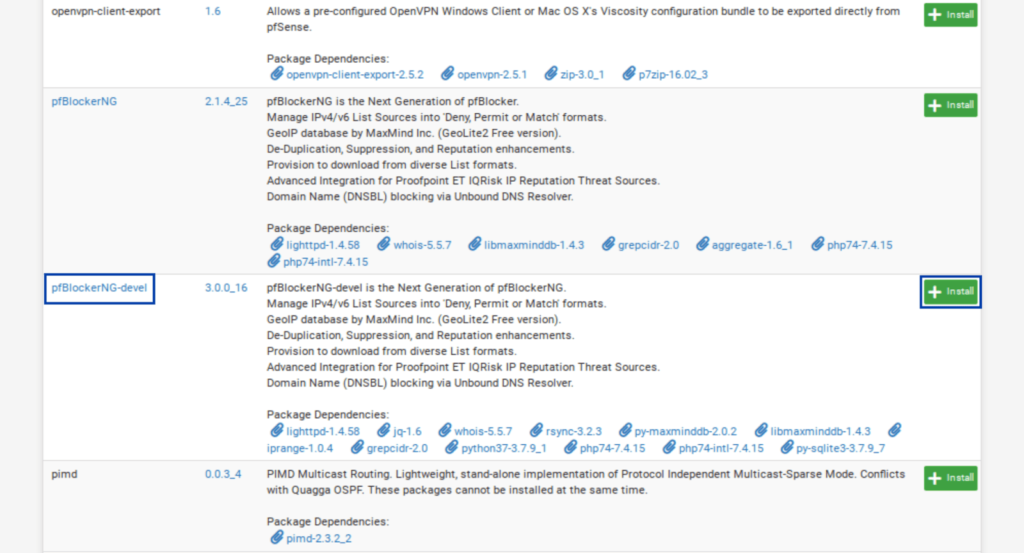
- Scroll down until you see pfBlockerNG. There are two entries for pfBlockerNG: pfBlockerNG and pfBlockerNG-devel. We’re going to install pfBlockerNG-devel. While the “devel” suffix stands for development version (i.e., beta software), it is fully functional and actively developed. It will be in perpetual beta as the package developer feels it’s safer to consider it beta software as he continually adds new functionality to the package.

- Click Install, next to pfBlockerNG-devel. The Package Installer window is displayed.
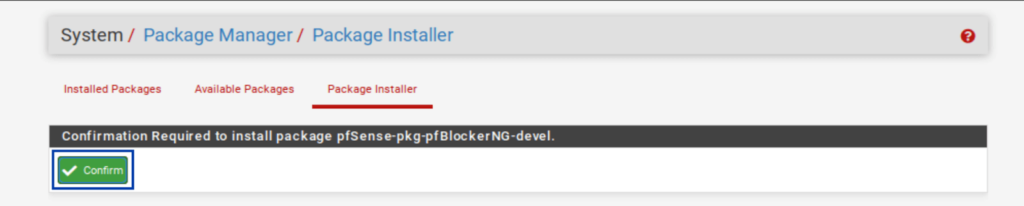
- Click Confirm. The installation begins.

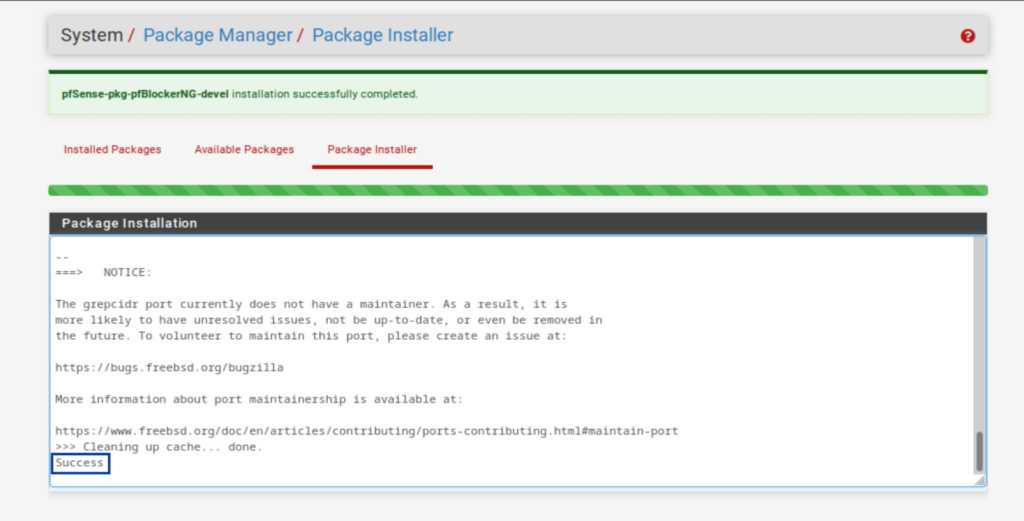
- Once the installation is complete, you should see Success at the bottom of the Package Installer window. pfBlockerNG-devel is now installed.

Basic Setup
Now that pfBlockerNG-devel is installed, we need to configure our package. And we’re going to start with IP and GeoIP filtering.
We’ll be configuring pfBlockerNG section by section. Any settings that are not mentioned should be left at their default values.
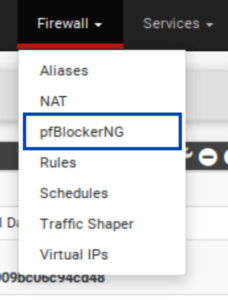
- From the top menus, select Firewall > pfBlockerNG. The pfBlocker configuration wizard is displayed.

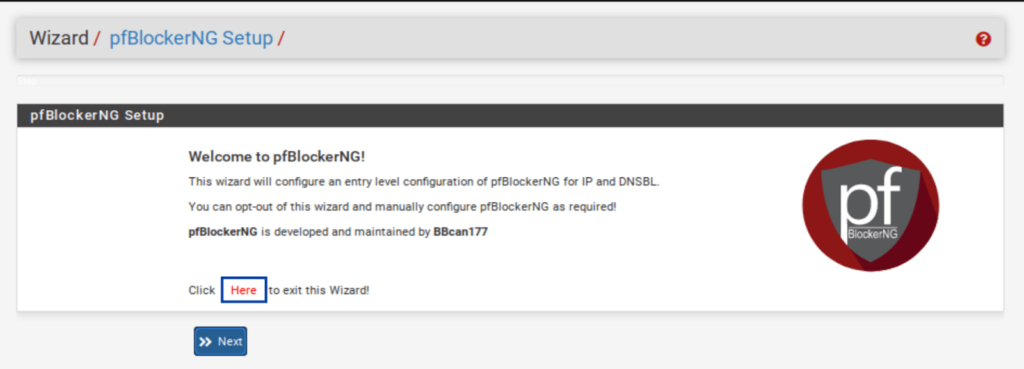
- You can either run the configuration wizard or manually configure pfBlockerNG. We’ll configure it manually, so you can click on the red HERE to dismiss the wizard. You’re then taken to the General page of the pfBlocker settings.

General / General Settings
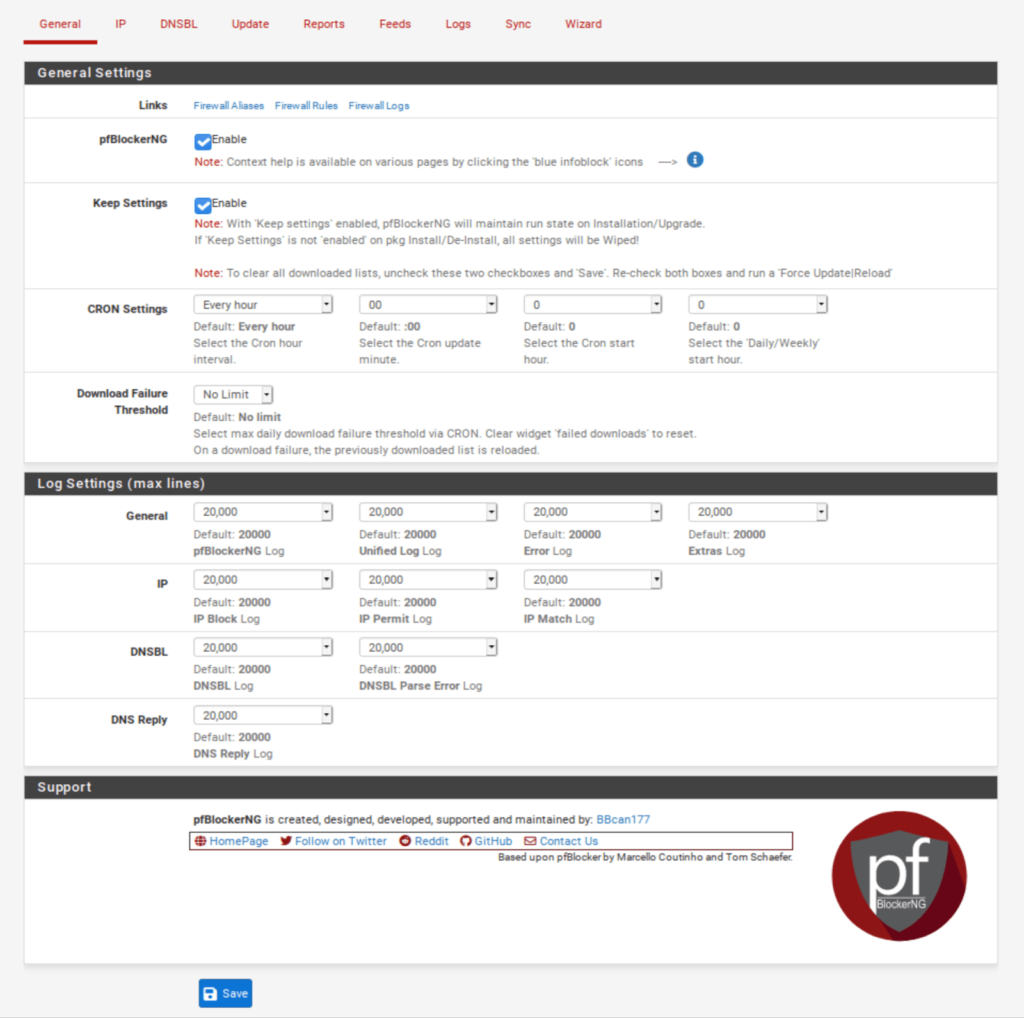
- Check the Enable box displayed to the right of pfBlockerNG. This enables the service.
- Click Save at the bottom of the page.
- We will leave the other settings on this page at their default values.
IPv4 Filtering
IP / IP Configuration
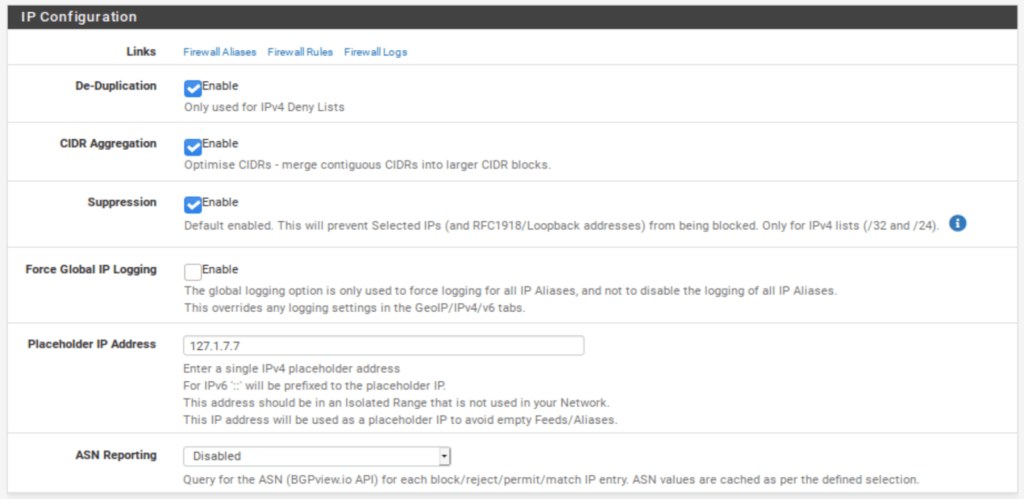
- Select the IP tab to access the IP settings page. Don’t touch the sub-menus that appear below for now.
- Enable De-Duplication. This will resorb duplicate entries if you are using multiple IP feeds.
- Enable CIDR Aggregation.
- Enable Suppression. Suppression makes sure that your local subnets are not blocked.
IP / MaxMind GeoIP configuration
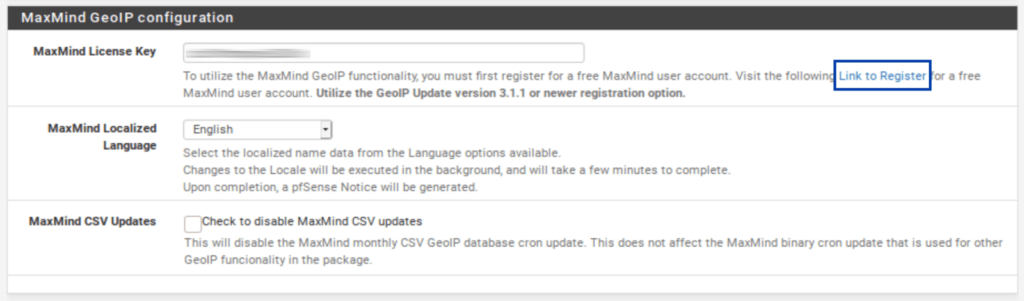
As I mentioned above, the GeoIP feature of pfBlockerNG enables you to filter traffic to and from entire countries or continents. To do this, pfBlocker uses the MaxMind GeoIP database, which requires a license key. A link in the MaxMind License Key field description takes you to the MaxMind registration page. The MaxMind license key is free.
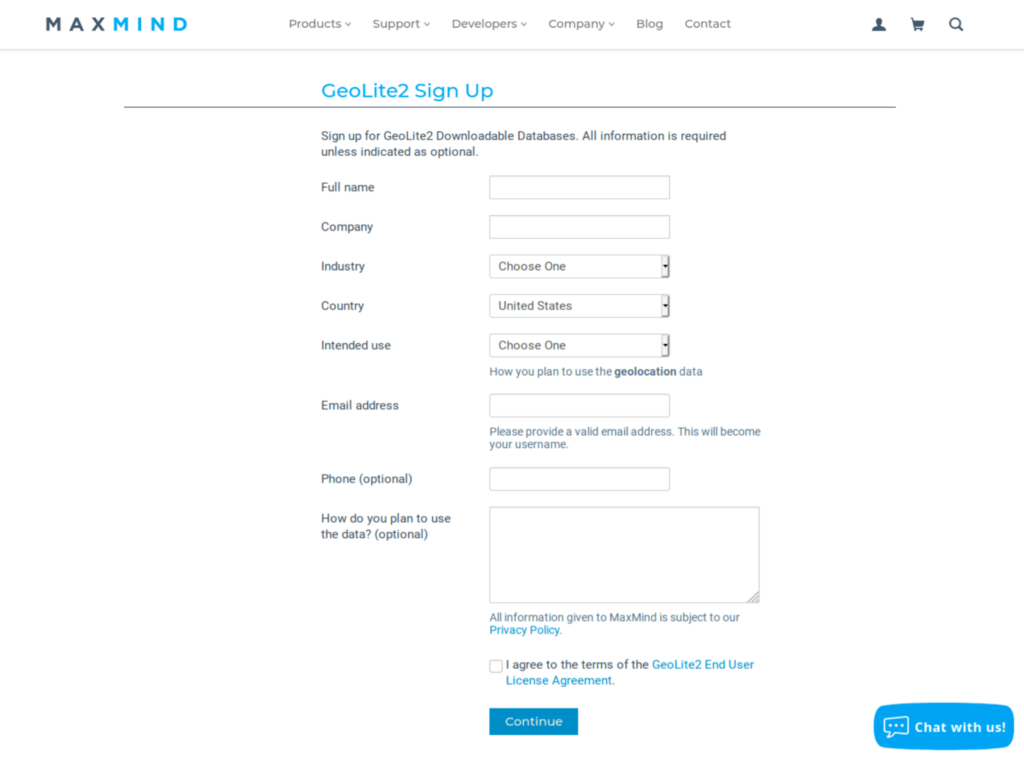
Fill out the registration form to obtain your license key. Once you have your license key, insert it in the MaxMind License Key field.
And:
IP / IP Interface/Rules Configuration
This section determines which inbound and outbound interface(s) pfBlockerNG’s IPv4, IPv6, and GeoIP filtering are applied.
- Select WAN from the Inbound Firewall Rules field (and any other WAN interfaces you may have and want to filter).
- Select LAN from the Outbound Firewall Rules field (and any other LAN-type interfaces you may have and want to filter).
- Enable Floating Rules. Floating rules are special firewall rules applied before the regular firewall rules. This ensures that pfBlockerNG’s filtering happens as soon as the traffic hits the firewall. The other benefit is that pfBlockerNG will automatically create the floating rules for you.
- Click Save at the bottom of the page.
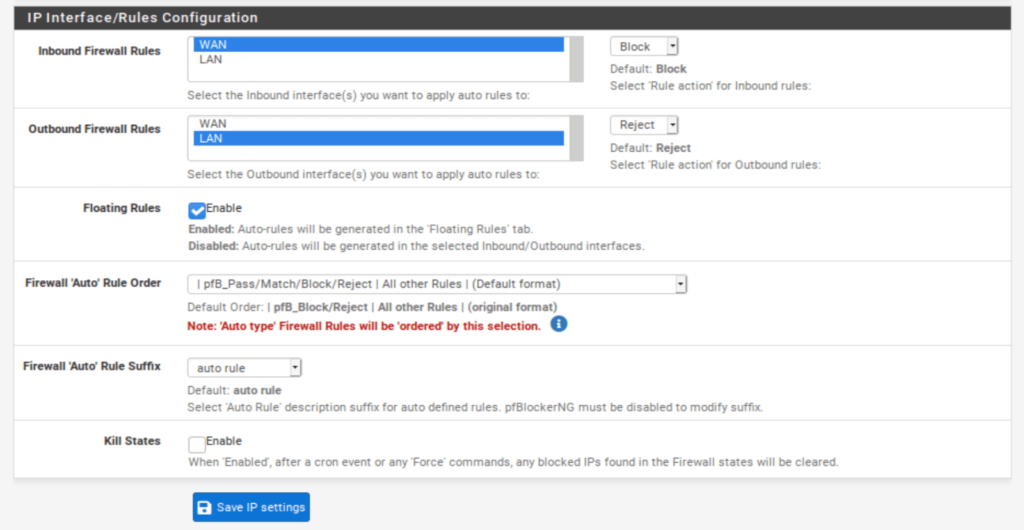
Adding IPv4 Feeds
It’s now time to add some blocklists to pfBlockerNG. While you’re free to add your custom feeds, pfBlockerNG has some built-in feeds we can enable (the terms list and feed are interchangeable in this context).
This is very practical because hunting down blocklists on the internet is time-consuming, and many do not work or are no longer maintained. The feeds within pfBlocker are live lists that are regularly updated, so we’re going to use those.
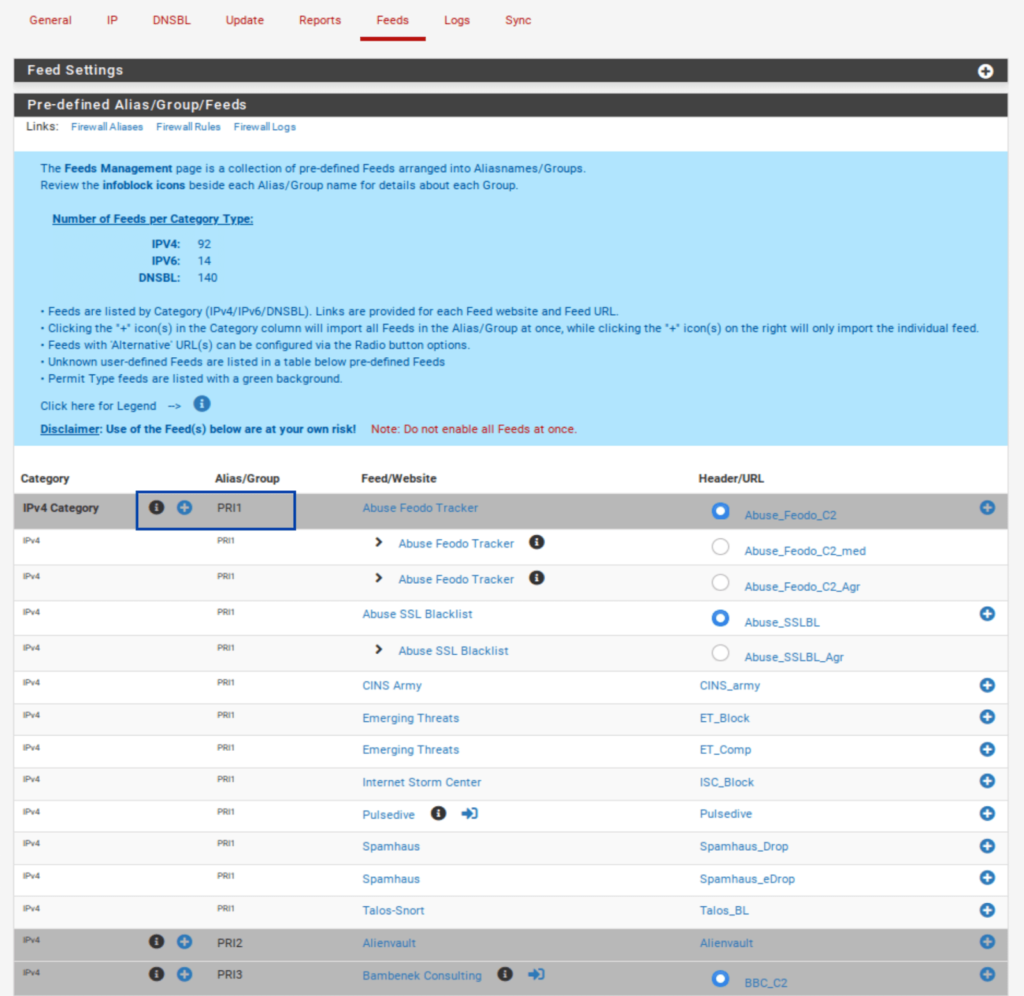
- Select the Feeds tab.
- Click the blue +, next to PRI1. It is the first listing. PRI1 is a collection of feeds, so it comprises several feeds, as we’ll see in a moment. Once you click the blue +, you’re taken to the IP / IPv4 page, where your selected feeds are listed. And almost all of the relevant fields are automatically populated.
IP / IPv4
The name of the feed collection is populated along with its description. The feed URLs included in the collection and their associated descriptions are also populated. However, our feeds are set to OFF by default. We need to enable them.
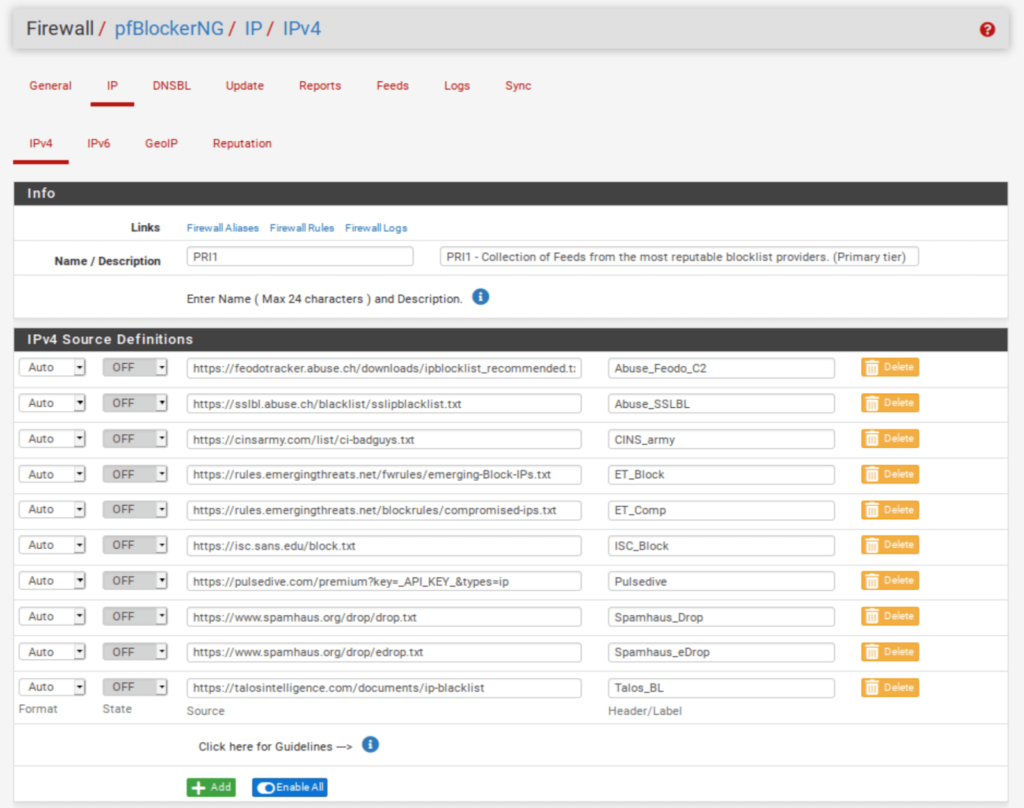
But before doing that, we need to delete one of the feeds from the PRI1 collection. Pulsedive, the 7th feed from the top, is a premium list that requires a paid API key. We’re not going to get the API key for this tutorial. Click the Delete button.

- Once you’ve deleted Pulsedive, set all of the feeds to ON.

- Scroll down to the Settings section of the page.
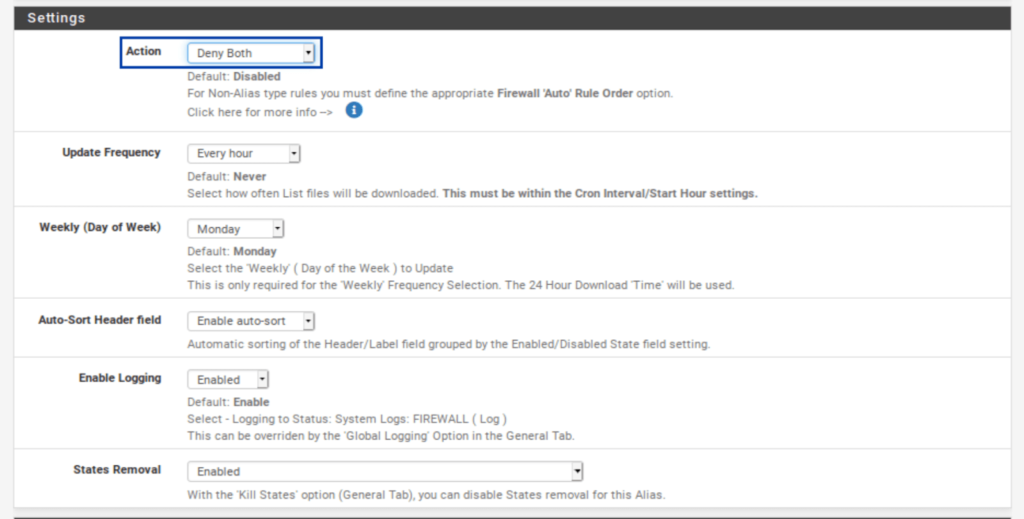
- From the Action drop-down menu, select Deny Both. This will block traffic to and from the IP addresses in the lists/feeds. You can choose only to deny inbound or outbound connections if you like. Just be warned that if you only deny inbound traffic and a host on your network initiates an outbound connection to one of those IPs, the inbound response from that IP will be allowed in. That may be fine depending on your environment – just be warned. For this example, I’m going to select Deny Both.

- Click Save IPv4 Settings at the bottom of the page.
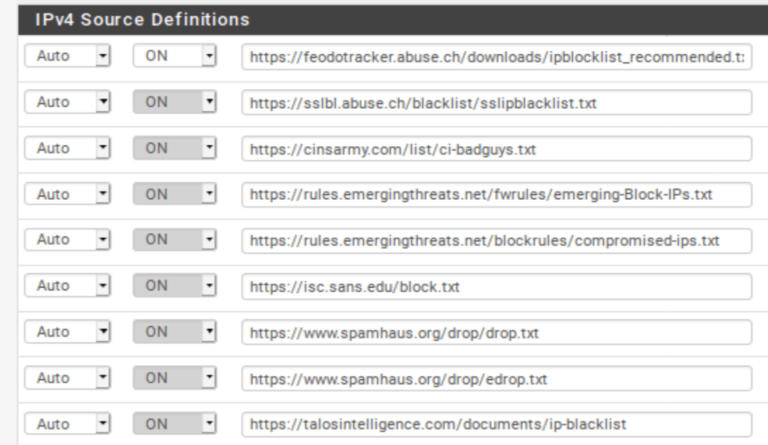
You can repeat the same steps for IPv6 if your ISP assigns an IPv4 and an IPv6 IP address to your WAN. Most of us are still on IPv4-only networks.
GeoIP Filtering
Before configuring GeoIP filtering, we first need to force an update of pfBlockerNG. pfBlocker automatically updates itself at fixed intervals. But to configure GeoIP filtering, pfBlocker first needs to pull the MaxMind database, and a forced update will do just that.
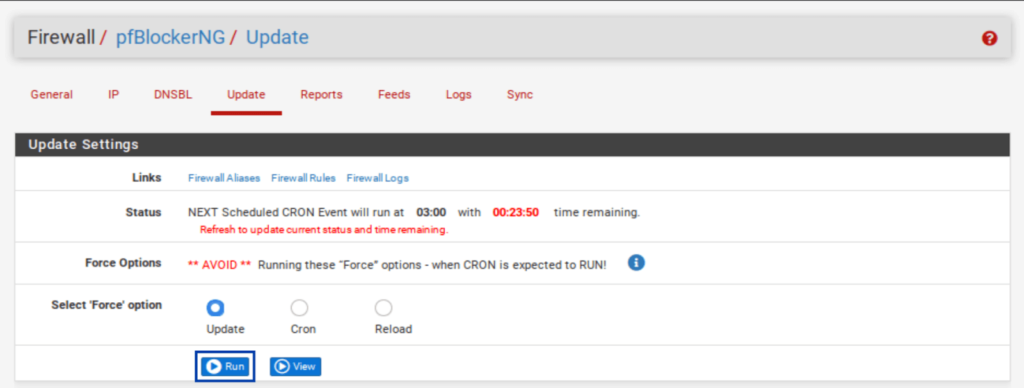
- Select the Update tab from the pfBlockerNG settings.
- Click Run. The update starts.

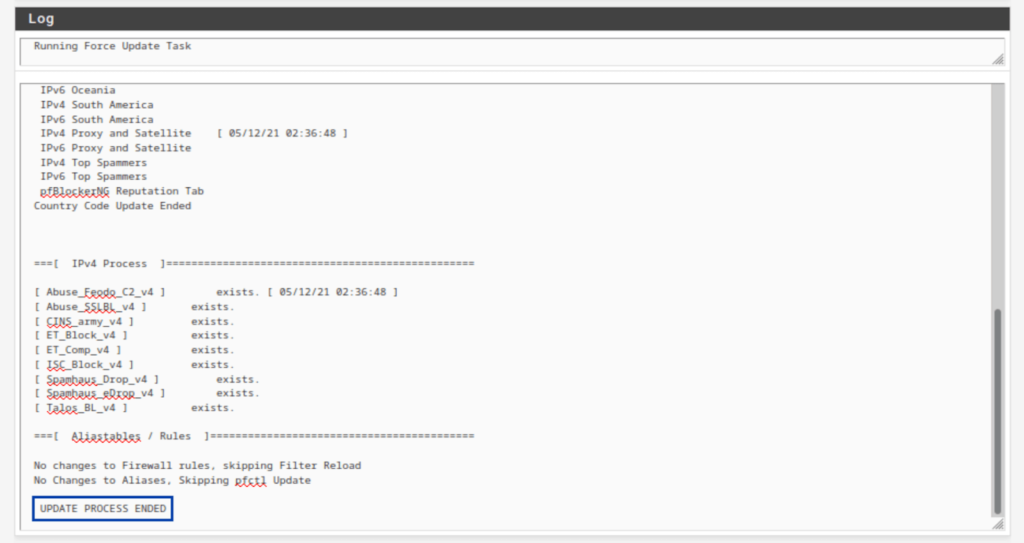
- Once the update is complete, you should see UPDATE PROCESS ENDED at the bottom of the Log window below the Update Settings.

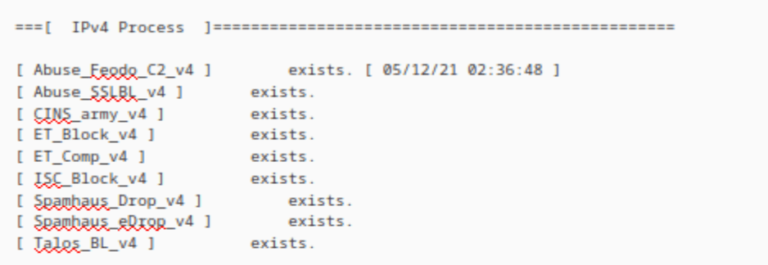
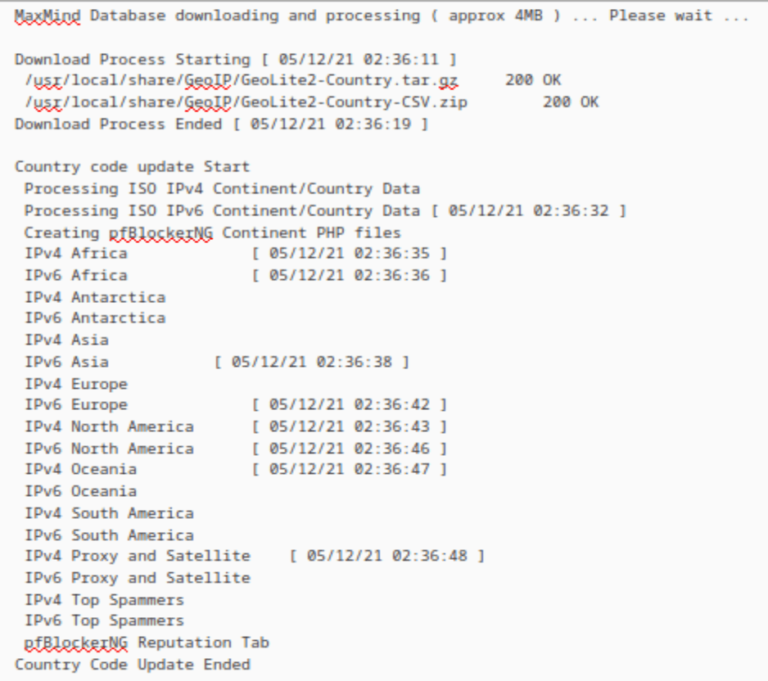
- Looking through the Log window, we can see that both my IPv4 feeds and the GeoIP database were updated.
IPv4 logs

GeoIP logs

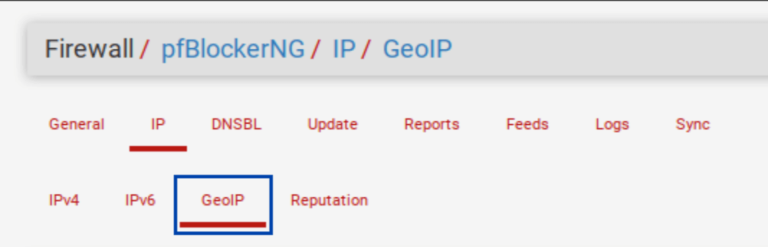
- From the IP tab in the pfBlockerNG settings, select the GeoIP sub-menu. The GeoIP Summary is displayed.

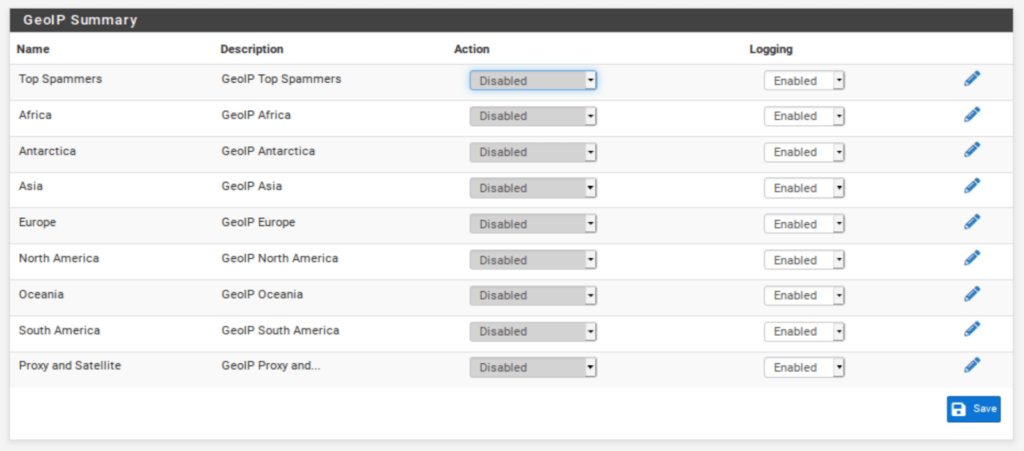
The GeoIP Summary consists of IP address feeds organized by continent, with two extra categories: Top Spammers and Proxy and Satellite. Top Spammers is a list of countries known to be a frequent source of online attacks. And Proxy and Satellite are known anonymous proxy and satellite providers.
You can filter traffic to/from an entire continent, or you can fine-tune the feed by selecting only the countries you want to filter.
Customizing country lists
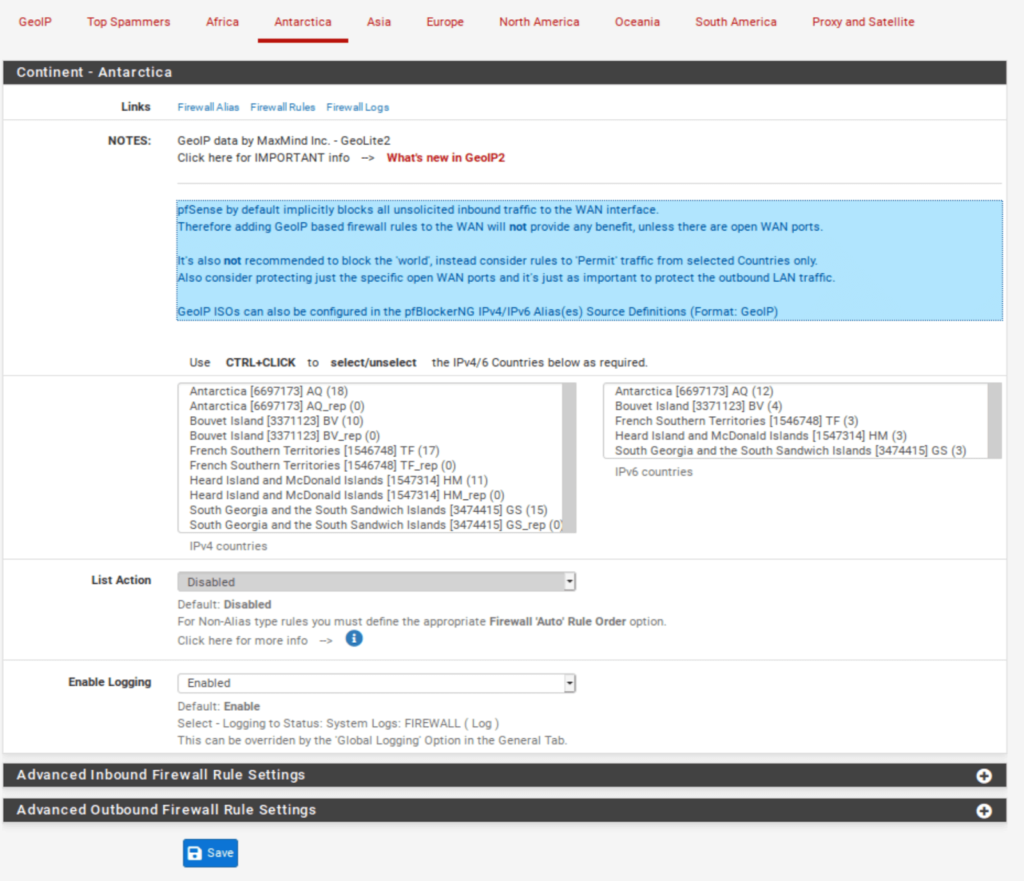
- Click the pencil icon to the right of the feed you want to edit.

- Select the countries you want pfBlockerNG to filter.
- Click Save at the bottom of the page.

Configuring country blocks
- Go back to the GeoIP menu of the pfBlocker settings.
- As we did with the IPv4 lists, from the Action drop-down menu to the right of each field, select either Block Inbound, Block Outbound, or Block Both.

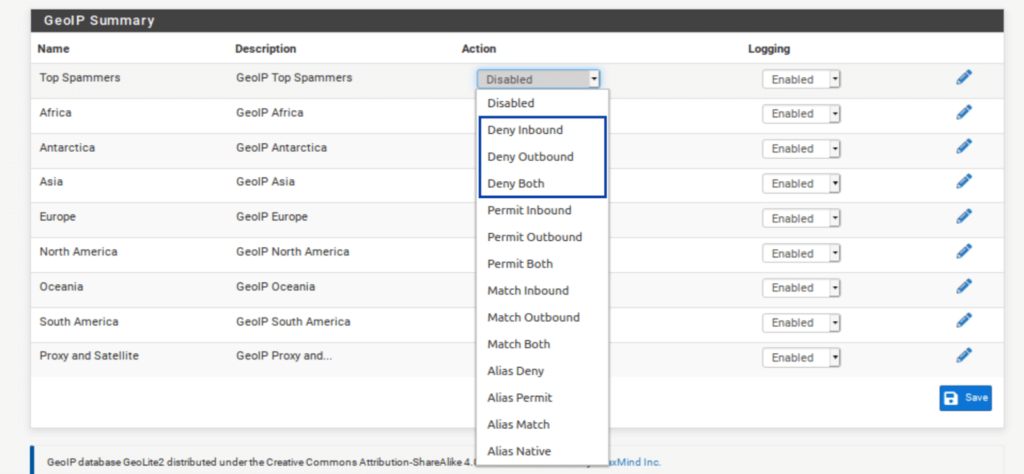
Now, there are certain things to consider here. If you want to block outbound connections to a country or continent, go right ahead. However, if you’re thinking of blocking inbound links from a government or continent, consider that pfSense blocks all unsolicited inbound traffic on the WAN by default.
That means that unless you have open ports on your WAN, blocking countries or continents is useless and will only consume memory for nothing. If you have open ports on your WAN, make sure you don’t block connections from countries you want to allow to connect to your open port(s).
Aliases are IP address lists in themselves that are native to pfSense. Using aliases, you can allow only the specific countries you selected to access your open ports. However, there is a way to create custom aliases from the MaxMind GeoIP database within pfBlockerNG that can be used directly as the source in your port forwarding firewall rules.
Creating a GeoIP alias in pfBlockerNG
Because pfSense automatically blocks any traffic that isn’t explicitly allowed in the firewall rules, we want to create an alias of the countries we will allow through the firewall. pfSense will block the rest by default.
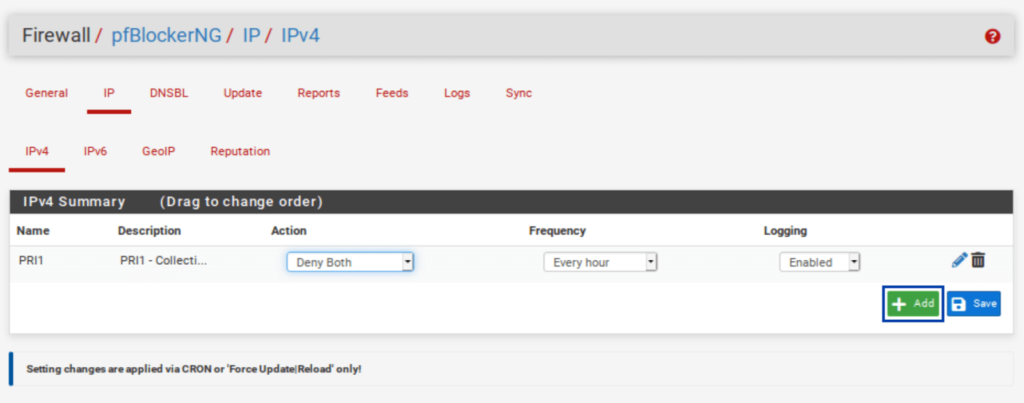
- Go to the IPv4 sub-menu and click Add.

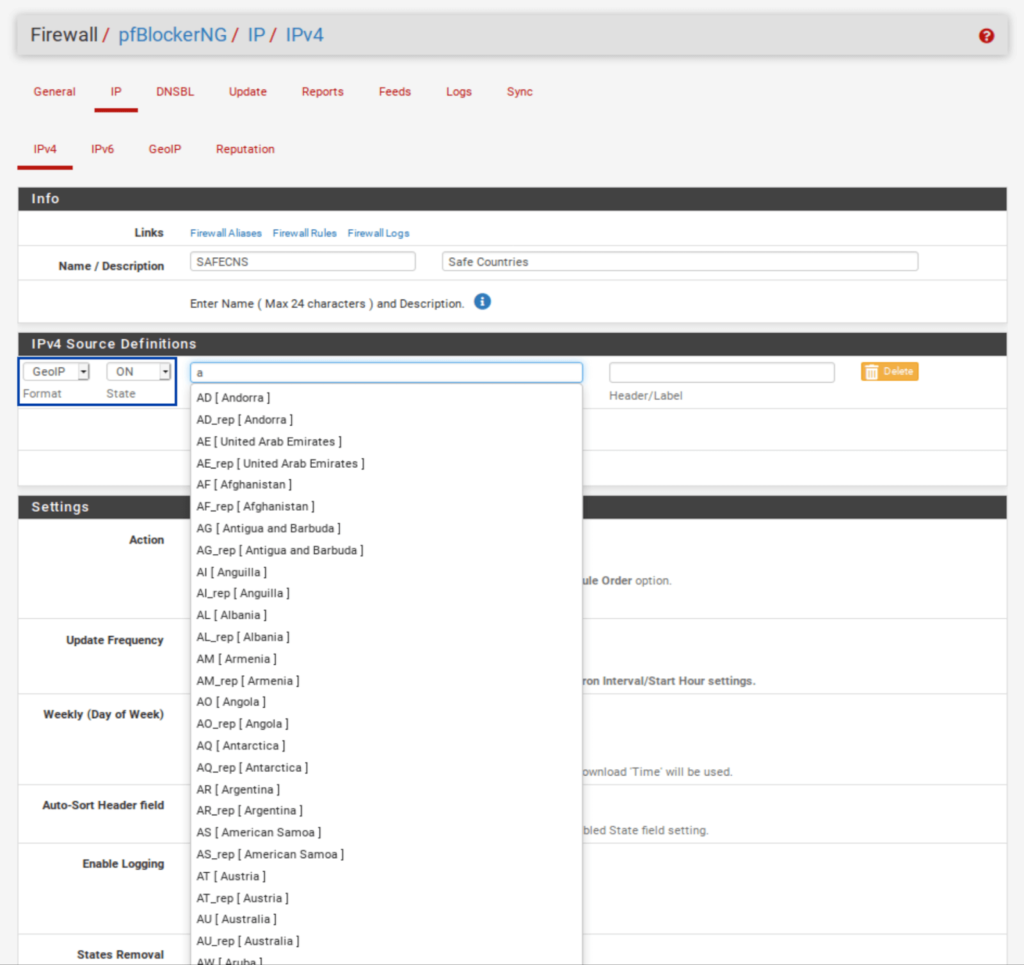
- Give your alias a name and a description.
- Set the Format field to GeoIP.
- Set the State field to ON.
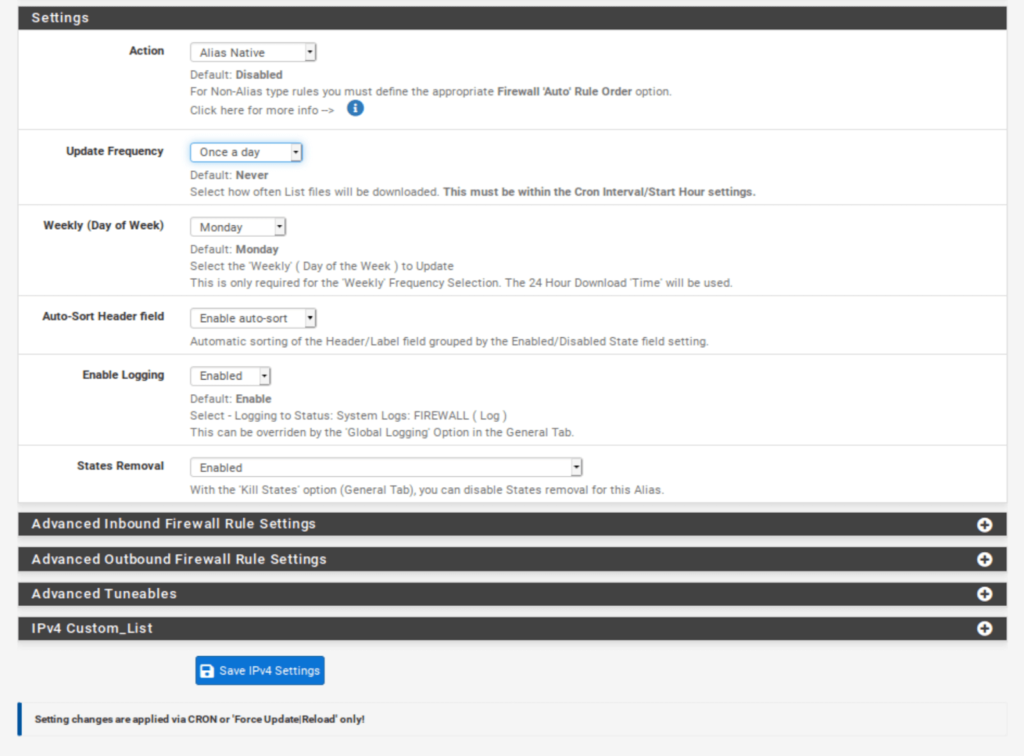
Set the Action to Alias Native.
- Type the first letters of the country you want to add to the alias. Select the countries you wish to add to the alias. The list of countries appears.

- You can add more countries to your alias by clicking the green Add button.

- Set the Update Frequency to Once a day.
- Click Save IPv4 Settings at the bottom of the page. Once you force an update of pfBlockerNG, your alias will be available for inclusion in your firewall rules.


If you do have open ports but want to keep it simple, you can block inbound connections from Top Spammers and Proxy and Satellite without creating a custom alias. Remember that this is only useful if you have open ports on your WAN.
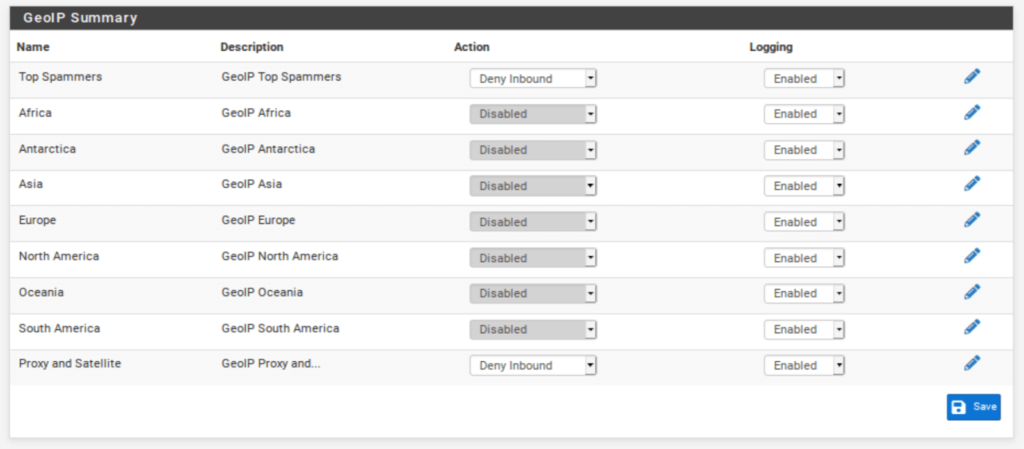
If you do not have any open ports on your WAN, only block outbound traffic or leave GeoIP filtering disabled.
Testing IPv4 filtering
To make sure that our traffic is being filtered. We can try to connect to a known IP address in the blocklist. If I try to access 1.13.9.177 (an IP contained in my pfBlockerNG IPv4 feeds) in my browser, the IP address does not get translated to a domain name, and I cannot connect. That’s what we want.
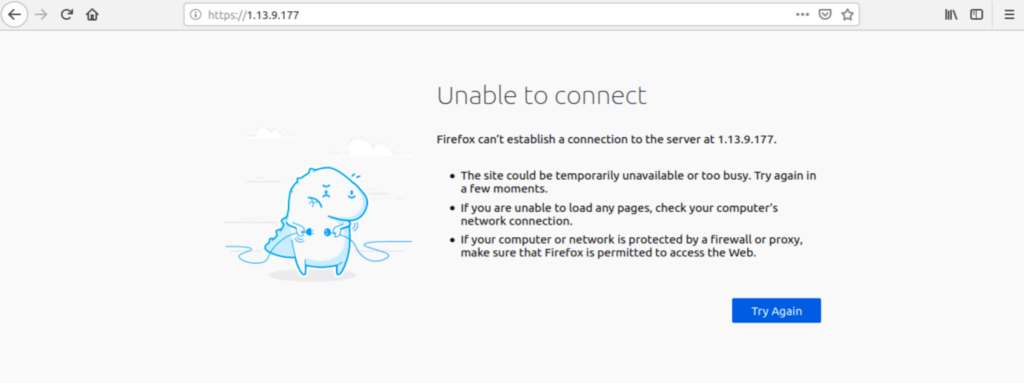
Let’s move on to configuring pfBlocker’s DNSBL.
DNSBL
Alright. We’ve configured IPv4 filtering and GeoIP filtering, and aliases. It’s now time to move on to using pfBlockerNG for ad-blocking. Ad-blocking in pfBlockerNG is achieved through DNS blackholing. This references your DNS requests against a list of known ad networks and trackers and blocks them at the DNS level whenever there’s a match, resulting in an ad-free internet. Hooray.
To use the DNSBL feature in pfBlockerNG, you must be using the DNS Resolver in pfSense for your DNS resolution. That means you can’t assign your hosts’ DNS via DHCP or use the DNS Forwarder (dnsmasq) if you want to use the DNSBL feature.
By default, pfSense uses the DNS Resolver on all interfaces. So if you didn’t make any changes to the DNS Resolver settings, you’re fine. If you made changes, configure the Resolver to bind to your LAN (outgoing) and your WAN (incoming). And select any other LAN-type (OPT interfaces) and WAN-type (multi-WAN setup, VPN gateways) interfaces you want the DNSBL to filter.
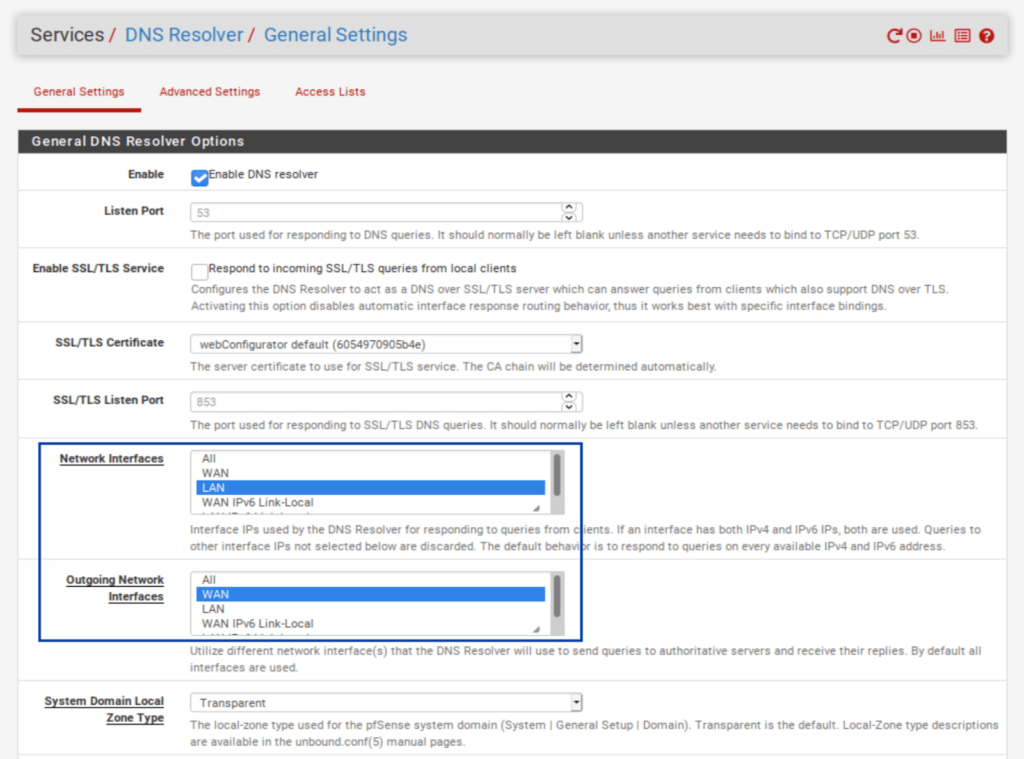
Configuring DNSBL
- Select the DNSBL tab.
- strong>Enable DNSBL.
- Next to DNSBL Mode, select Unbound Python mode.

- Scroll down to the DNSBL Configuration section.
- Enable Permit Firewall Rules and select your LAN and any other LAN-type interfaces you want to filter with DNSBL. This will automatically create floating firewall rules (as we did with IPv4 filtering) so that DNSBL filtering will happen as soon as traffic hits the firewall.
- Click Save DNSBL settings at the bottom of the page.

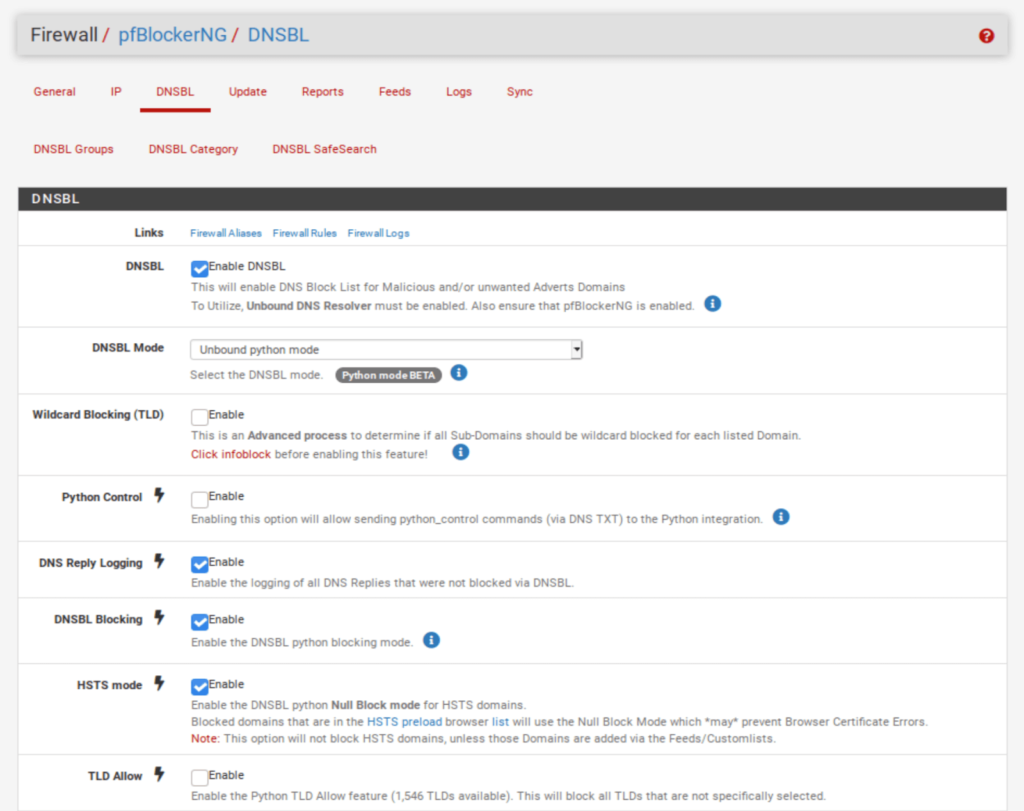
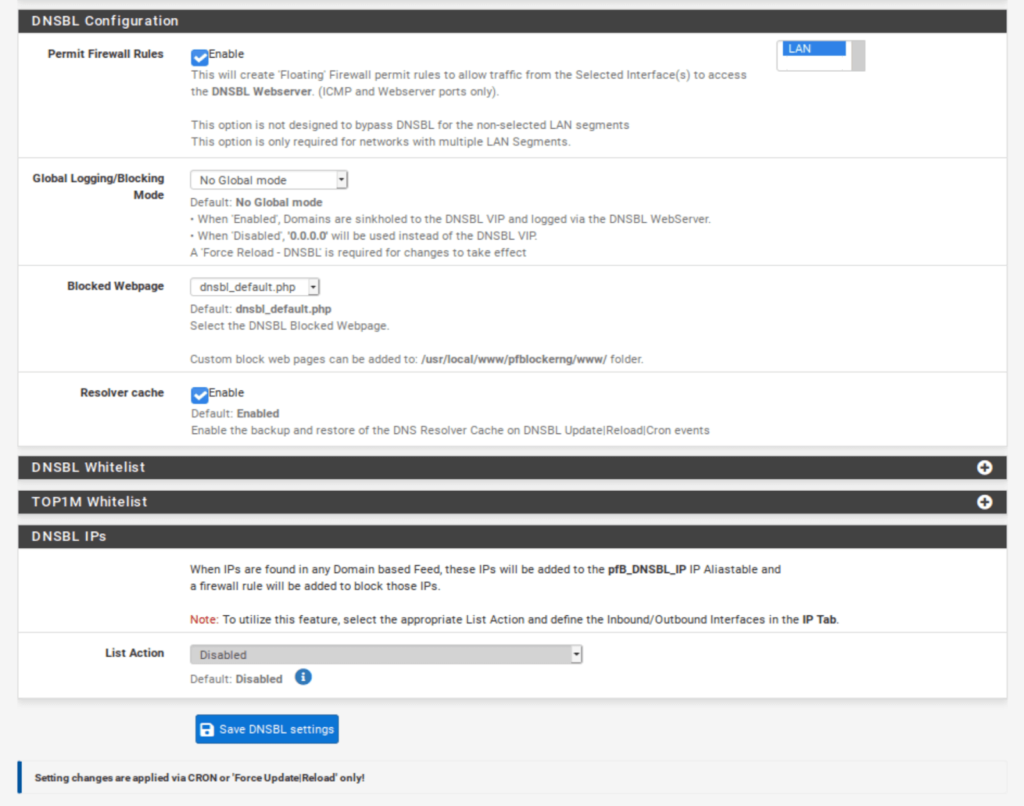
We now need to add some DNSBL feeds.
Adding DNSBL feeds
- Select the Feeds tab.
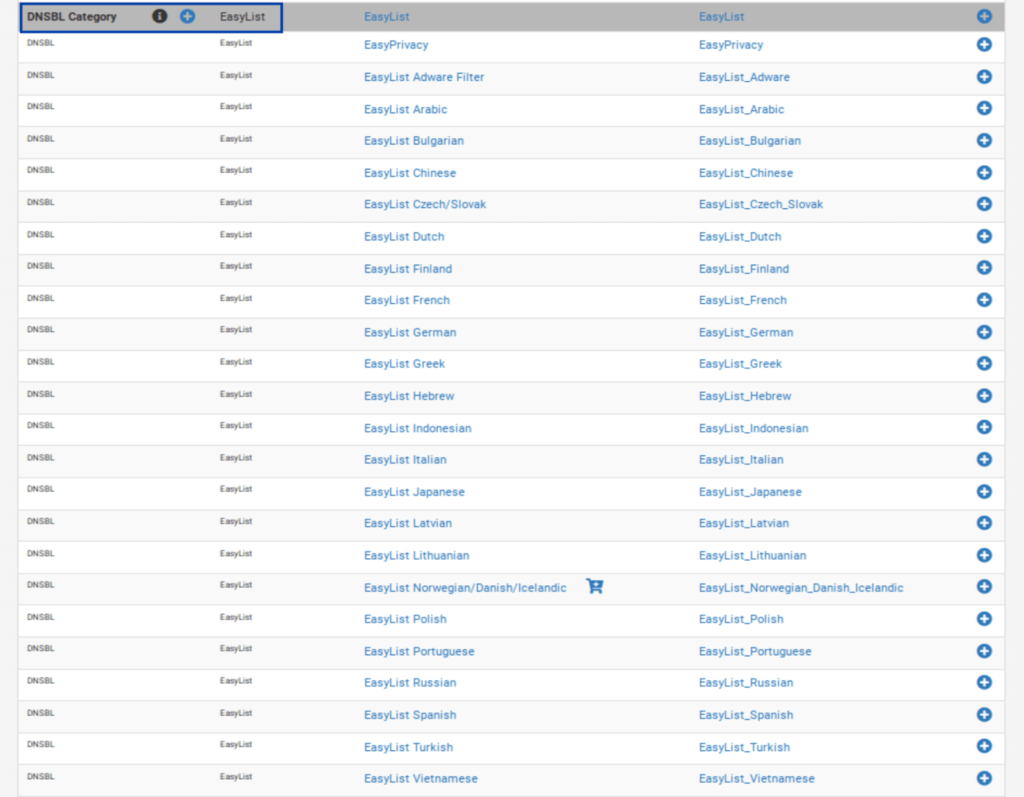
- Scroll down until you see DNSBL Category on the left. The first such entry is EasyList.
- Click the blue + to the left of EasyList. You’re taken to the DNSBL Groups page, where your selected feeds are listed, as with IPv4 filtering. And almost all of the relevant fields are automatically populated.

- Delete all of the feeds except the first and last one: EasyList and EasyList Privacy.
- Set the remaining feeds to ON.

- Scroll down to the Settings section.
- Set the Action to Unbound.
- Click the + to the right of DNSBL Custom_List. The DNSBL Custom_List window is displayed.
- Enter vungle.com in the DNSBL Custom_List window. We’re adding this domain so we can make sure DNSBL filtering is working by trying to access a known blocked domain.
- Click Save DNSBL Settings at the bottom of the page.


Forcing an update of pfBlockerNG
We now need to force an update of pfBlockerNG, as we did above.
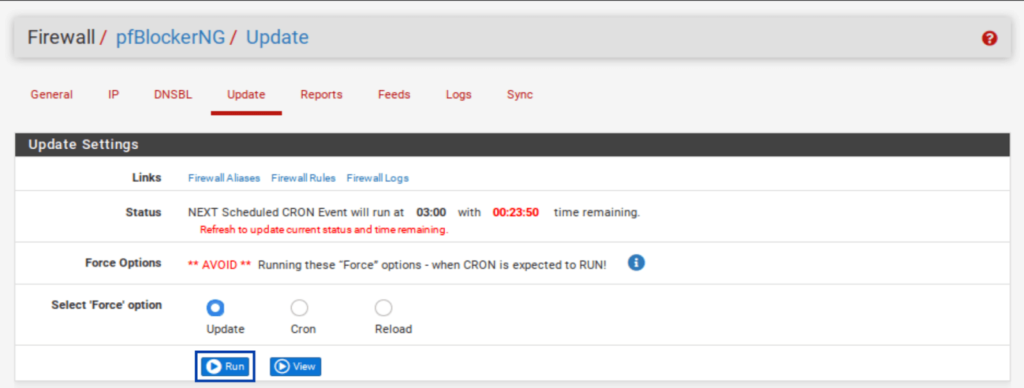
- Select the Update tab. You’re taken to the pfBlockerNG update page.
- Click Run. The update starts.
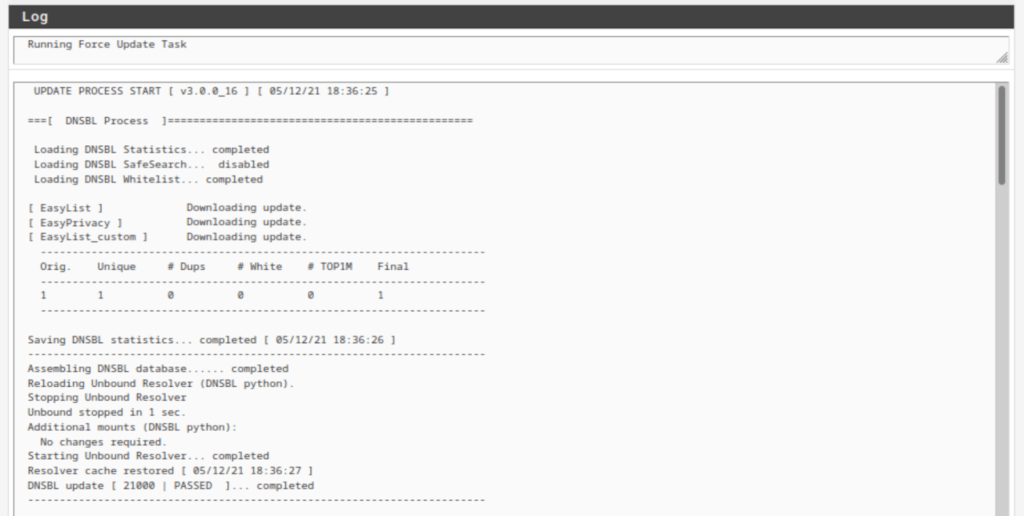
Once the update is complete, we can see that our DNSBL feeds have been updated.
Testing DNSBL
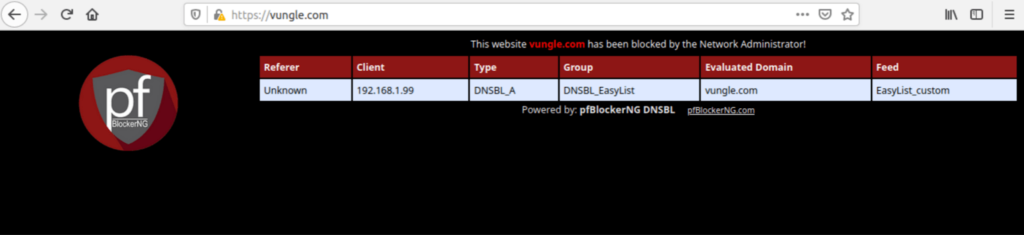
To ensure that DNSBL filtering is working, we will try to connect to the domain I added to DNSBL Custom_List: vungle.com. If I try to access vungle.com in my browser, the DNSBL block page is displayed with some bits of helpful information.
Note: pfBlocker’s DNSBL includes a mini web server that can serve this block page. IPv4, IPv6, and GeoIP filtering extend the existing functionality of the pfSense firewall and block or allow IP addresses without displaying a block page.
Wrap-up
So there you have it. You’ve successfully installed and configured pfBlockerNG-devel in pfSense. We configured IPv4 filtering, GeoIP filtering, as well as DNSBL filtering. All three of these make your network more secure and private without slowing down your connection.
As your network grows, you may need to open certain ports on your WAN if you want to run a VPN server or if you want to host a web server that’s accessible from the internet. When you do that, pfBlockerNG will be a nice tool in your security toolkit to help you lock down your network and granularly control access from the outside.
Limiters
https://docs.netgate.com/pfsense/en/latest/trafficshaper/limiters.html
Limiters are an alternate method of traffic shaping. Limiters use dummynet(4) to enact bandwidth limits and perform other prioritization tasks, and they do not rely on ALTQ. Limiters are currently the only way to achieve per-IP address or per-network bandwidth rate limiting using pfSense® software. Limiters are also used internally by Captive Portal for per-user bandwidth limits.
Limiters are managed at Firewall > Traffic Shaper on the Limiters tab.
Like HFSC and CBQ, Limiters may be nested with queues inside other queues. Root-level limiters (Also called Pipes), may have bandwidth limits and delays, while child limiters (Also called queues), may have priorities (Also called weights). Bandwidth limits can be optionally masked by either the source or destination IP address, so that the limits can be applied on a per-IP address or network basis instead of as a general group.
Limiters are nearly always used in pairs: One for incoming traffic and one for outgoing traffic.
According to its man page the dummynet(4) system was originally designed as a means to test TCP congestion control and it grew up from there. Due to this purpose, a unique feature of limiters is that they can be used to induce artificial packet loss and delay into network traffic. That is primarily used in troubleshooting and testing (or being evil and playing a prank on someone), and not often found in production.
Uses for Limiters
The primary use for limiters is to apply bandwidth limits for users or specific protocols, e.g. “Maximum of 1Mbit/s for SMTP”, or “Joe’s PC only can use 5Mbit/s”. Limiters can apply a per-IP address or per-network limit, such as “All Users in 192.168.50.0/24 can use a maximum of 3Mbit/s each” or “The guest network and public network can use 1Mbit/s for each segment”.
Limiters are the only type of shaper available in pfSense software which is capable of oversubscription in this manner. The ALTQ shaper requires all child queues to sum up to no more than the speed of the parent queue, but masked limiters allow a set limit to as many IP addresses as can be funneled through the limiter by firewall rules.
Conceptually, consider a limiter as a bucket of bandwidth. All traffic flowing through an unmasked limiter draws bandwidth from the same bucket. Masking a limiter effectively sets up multiple buckets of the same size, one per masked group. Whether that is a single host or an entire network depends on the mask value.
Limiters can also allow for reserved bandwidth by limiting everything except a specific protocol which can then consume all remaining bandwidth. In this type of setup on a 10Mbit/s link the firewall would pass traffic from, for example, a SIP server with no limiter. Then the firewall would use a pass rule for all other traffic with a limit of 8Mbit/s. This would let the SIP server use all of the bandwidth it wanted, but it would always have a minimum of 2Mbit/s to itself.
Limiters can also help with issues such as Bufferbloat by controlling the delay of certain packets, using the CoDel algorithm similar to the one available in ALTQ (CoDel Active Queue Management).
See also
How Limiters Work
Limiters, like ALTQ, hold traffic to a certain point by dropping or delaying packets to achieve a specific line rate. Usually taking advantage of built-in mechanisms from protocols that detect the loss and back off to a sustainable speed.
In situations where packets are queued under the same parent pipe, the firewall considers their weights when ordering the packets before it sends them. Unlike priorities in CBQ and PRIQ, the weight of a queue in a limiter will never starve it for bandwidth.
Limiters and IPv6
Limiters work with IPv6, though it requires separate IPv4 and IPv6 rules to apply limiters properly.
Limitations
Limiter pipes do not have a concept of borrowing bandwidth from other pipes. A limit is always a hard upper limit.
Limiters use dummynet pipes, so there will be additional (though small) overhead from the extra packet processing involved.
Limiters cannot effectively guarantee a minimum bandwidth amount for a pipe or queue, only a maximum.
Child queues cannot have bandwidth values, so a pipe cannot be split into smaller pipes by queues. Child queues can only use weights to prioritize packets inside a pipe.
The overhead from delaying and queuing packets can cause increased mbuf usage. For more information on increasing the amount of available mbufs, see Hardware Tuning and Troubleshooting.
Limiters and Multi-WAN
When using limiters with Multi-WAN, limits for non-default gateways must be applied using floating rules set for the out direction and configured with the appropriate gateway.
Creating Limiters
Limiters are managed under Firewall > Traffic Shaper on the Limiters tab.
To create a new root-level limiter (pipe), click  New Limiter.
To create a child limiter (queue), click an existing limiter under which it can be created, and click Add New Queue.
Tip
In nearly all cases, limiters exist in pairs at the same level (e.g. two pipes, or two queues): One for inbound traffic and one for outbound traffic. When creating new limiters or queues, create one for each direction.
- Enable
-
Check the box to enable this limiter. If the limiter is disabled, it will not be available for use by firewall rules.
- Name
-
This defines the name of the limiter, as it will appear for selection on firewall rules.
The name must be alphanumeric, and may also include
-and_.Tip
When choosing a name, avoid using
InandOutsince the same limiter, if used on both WAN and LAN, would be used in the In direction on one interface and the Out direction on another. The best practice is to useDownorDownloadandUporUpload. - Bandwidth (Pipes)
-
This section defines a bandwidth value for the pipe, or multiple bandwidths if schedules are involved. This option does not appear when editing a child limiter (queue).
- Bandwidth
-
The numerical part of the bandwidth for the pipe, e.g.
3or500. - Bw Type
-
The units for the Bandwidth field, such as Mbit/s, Kbit/s, or Bit/s.
- Schedule
-
If the firewall has schedules defined (Time Based Rules), the firewall offers them in this list. When schedules are in use by the firewall, the limiter can have a bandwidth value for each potential schedule. Define these by clicking
Add Schedule to add another bandwidth definition.If a limiter contains multiple bandwidth specifications, they must each use a different schedule. For example if the firewall has a “Work Day” schedule, then it must also have an “Off Hours” schedule that contains all of the time not included in “Work Day” for the second bandwidth specification.
- Mask
-
This drop-down list controls how the limiter will mask addresses in the pipe or queue.
- None
-
When set to none, the limiter does not perform any masking. The pipe bandwidth will be applied to all traffic as a whole.
- Source / Destination address
-
When a limiter is set for Source Address or Destination Address, the pipe bandwidth limit will be applied on a per-IP address basis or a subnet basis, depending on the masking bits, using the direction chosen in the masking.
In general, a limiter should mask the Source Address on Upload (In) limiters for LAN-type interfaces, and Destination Address on Download (Out) limiters on LAN-type interfaces. Similar to swapping the directionality of the limiters when applying to LAN and WAN, masking is swapped as well, so the same masked limiter set for In on LAN should be used for Out on WAN.
- Mask Bits
-
There are separate boxes to control the address masking for IPv4 and IPv6. For IPv4 a value of 32 for IPv4 mask bits sets up a per-IPv4 address limit, which is the most common usage. For a per-IPv6-address limit, use 128 as the IPv6 mask bits value.
To create per-subnet or similar masks, enter the subnet bits in the appropriate field for either IPv4 or IPv6 mask bits, such as 24 to limit IPv4 in groups of /24 subnets.
- Description
-
An optional bit of text to explain the purpose for this Limiter.
- Advanced Options
-
Additional options that vary when editing a pipe or a queue.
- Delay (Pipes)
-
The Delay option is only found on limiter pipes. It introduces an artificial delay (latency), specified in milliseconds, into the transmission of any packets in the limiter pipe. This is typically left blank so that packets are transmitted as fast as possible by the firewall. This can be used to simulate high-latency connections such as satellite uplinks for lab testing.
- Weight (Queues)
-
The Weight option is only found on child limiters (queues). This value can range from 1 to 100. Higher values give more precedence to packets in a given queue. Unlike PRIQ and CBQ priorities, a lowly-weighted queue is not in danger of being starved of bandwidth by the firewall.
- Packet loss rate
-
Another method of artificially degrading traffic. The Packet Loss Rate can be configured to drop a certain fraction of packets that enter the limiter. The value is expressed as a decimal representation of a percentage, so
0.01is 1%, or one packet out of a hundred dropped. This field is typically left empty so every packet is delivered by the firewall. - Queue Size
-
Sets the size of the queue, specified in queue slots, used for handling queuing delay. Left blank, it defaults to
50slots, which is the recommended value. Slow speed links may need a lower queue size to operate efficiently. High speed links may need more slots.Tip
In cases where there are several limiters or limiters with large Queue Size values, a System Tunable may need set to increase the value of
net.inet.ip.dummynet.pipe_slot_limitabove the total number of configured queue lots among all pipes and queues. - Bucket Size
-
The Bucket Size, also specified in slots, sets the size of the hash table used for queue storage. The default value is
64. It must be a numeric value between16and65536, inclusive. This value is typically left blank.
See also
For more information about these values, consult the ipfw(8) man page, in the section titled “Traffic Shaper (Dummynet) Configuration”. Though current versions of pfSense software utilize dummynet through pf instead of ipfw, the configuration options are the same.
Assigning and Using Limiters
Limiters are assigned using firewall rules via the In/Out Pipe selectors under Advanced Options. Any potential matching criteria that a firewall rule supports can assign traffic to a limiter.
The most important thing to remember when assigning a limiter to a rule is that the In and Out fields are designated from the perspective of the firewall itself.
For example, in a firewall configuration with a single LAN and single WAN, inbound traffic on a LAN interface is leaving toward the Internet, i.e. uploaded data. Outbound traffic on the LAN interface is going toward the client PC, i.e. downloaded data. On the WAN interface the directionality is reversed; Inbound traffic is coming from the Internet to the client (download), and outbound traffic is going from the client to the Internet (upload).
In most cases, a firewall rule will have both an In limiter and Out limiter, but only the In limiter is required by the firewall to limit traffic in a single direction.
Limiters may be applied on normal interface rules, or on floating rules. On floating in the out direction, the In/Out selections are flipped conceptually.
Checking Limiter Usage
Information about active limiters may be found under Diagnostics > Limiter Info. Here, each limiter and child queue is shown in text format.
The set bandwidth and parameters for each limiter are displayed by the page, along with the current traffic level moving inside the limiter. In the case of masked limiters, the firewall displays the bandwidth of each IP address or masked group.
Kea DHCP Server not running
https://redmine.pfsense.org/issues/14977
If for some reason the Kea control socket lock file is present while Kea is stopped, then Kea can never start until that file is removed.
Attempting to start Kea while /tmp/kea4-ctrl-socket.lock exists, even if Kea is not currently running, results in a fatal error preventing Kea from running:
Removing the socket file allows Kea to start (rm /tmp/kea4-ctrl-socket.lock).