pFsense
Aliases
Aliases
Aliases define a group ports, hosts, or networks. Aliases can be referenced by firewall rules, port forwards, outbound NAT rules, and other places in the firewall. Using aliases results in rulesets that are significantly shorter, self-documenting, and more manageable.
Note
Firewall aliases are collections of entries for use by the firewall. Despite the similar names, this is different than interface IP aliases, which are a means of adding additional IP addresses to a network interface (Virtual IP Addresses).
Aliases are located at Firewall > Aliases. The page is divided into separate tabs for each type of alias: IP, Ports, URLs, and the All tab which shows every alias in one large list. When creating an alias, add it to any tab and it will be sorted to the correct location based on the type chosen.
Nesting Aliases
Most aliases can be nested inside of other aliases to collect many entries into larger groups. For example, one alias can nest an alias containing web servers, an alias containing mail servers, and a servers alias that contains both the web and mail server aliases all together in one larger Servers alias.
To nest, aliases must be either the same or compatible types. For example, a network type alias cannot nest a port alias since they are not the same type of alias. However, host and network aliases can nest each other since they are compatible. URL table aliases can nest other URL table aliases, and URL aliases can nest other URL aliases.
Using Hostnames in Aliases
Host and network type aliases support entries consisting of fully qualified domain name (FQDN) style hostnames (e.g. host.domain.com) in regular or IDN format. The firewall must be able to resolve the hostname as-is using A or AAAA type DNS queries in order for these entries to function. This means that the firewall must have working DNS, and the FQDN must exist in the DNS servers used by the firewall.
Warning
This process only supports forward name resolution of FQDNs using A and AAAA records such as host.domain.com. Aliases do not support pattern matches, wildcard matches (e.g. *.domain.com), or any other style of record comparison.
If the DNS query for a hostname returns multiple IP addresses, all of the IP addresses returned in the result at the time the query is made are added to the alias.
Note
This feature is not useful for allowing or disallowing users to large public web sites such as those served by content delivery network (CDN) providers. Such sites tend to have constantly rotating or random responses to DNS queries so the contents of the alias on the firewall do not necessarily match up with the response a user will receive when they resolve the same site name. It can work for smaller sites that have only a few servers and do not include incomplete sets of addresses in their DNS responses.
A hostname entry in a host or network type alias is periodically resolved and updated by the firewall every few minutes. The default interval is 300 seconds (5 minutes), and can be changed by adjusting the value of Aliases Hostnames Resolve Interval on System > Advanced, Firewall & NAT tab. This is useful for tracking dynamic DNS entries to allow specific users into services from dynamic IP addresses.
Mixing IPv4 and IPv6 Addresses in Aliases
IPv4 and IPv6 addresses can be mixed inside an alias. The firewall will use the appropriate type of addresses when the alias is referenced in a specific rule.
Alias Sizing Concerns
The total size of all tables must fit in roughly half the amount of Firewall Maximum Table Entries, which defaults to 400000. If the maximum number of table entries is not large enough to contain all of the entries, the rules may fail to load. See Firewall Maximum Table Entries for information on changing that value. The aliases must fit in twice in the total area because of the way aliases are loaded and reloaded; The new list is loaded alongside the old list and then the old one is removed.
This value can be increased as much required provided that the firewall contains sufficient RAM to hold the entries. The RAM usage is similar to, but less than, the state table but it is still safe to assume approximately 1K of memory per entry to be conservative.
Alias Settings
When editing an Alias entry, the following settings are available:
- Name
-
A Name for the alias. The name may only consist of the characters
a-z,A-Z,0-9and_. - Description
-
A Description for the alias.
- Type
-
The Type for the alias, which alters the behavior of the alias and tells the firewall which types of entries can be added to the alias.
The following types are available:
- Host
-
Aliases containing single IP addresses or FQDN hostnames
- Network
-
Aliases containing CIDR-masked lists of networks, FQDN hostnames, IP address ranges, or single IP addresses
- Port
-
These aliases contain lists of port numbers or ranges of ports for TCP or UDP.
- URL (IP or Port)
-
The alias is built from the content returned by the specified URL, but is read only a single time. Once added, it becomes a normal network or port type alias.
- URL Table (IP or Port)
-
The alias is built from the content returned by the specified URL but is updated by fetching the list from the URL periodically.
- Entries
-
The lower section of the alias page contains the entries for the alias. The behavior of this section varies based on the selected alias type.
The next sections describe the behavior of each type in more detail.
Host Aliases
Host type aliases contain groups of IP addresses. For Host type aliases, entries are specified by IP address or fully qualified domain name (FQDN).
If an IP address range such as 192.168.1.1-192.168.1.10 or a small subnet such as 192.168.1.16/28 is entered in this field, the firewall will translate it into a list of individual IP addresses when saving the alias.
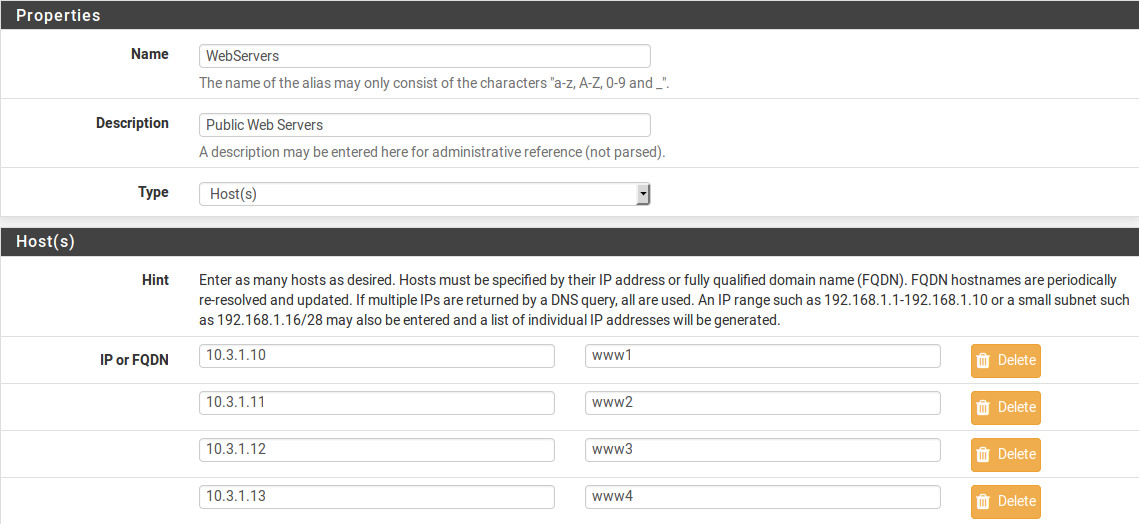
Figure Example Hosts Alias shows an example of a host type alias used to contain a list of public web servers.
Example Hosts Alias
Other host type aliases can be nested inside this entry. Hostnames may also be used as entries, as explained previously.
Network Aliases
For Network type aliases, entries are specified in CIDR format for subnets or fully qualified domain names (FQDN) for single addresses.
For subnets, select the CIDR mask that pertains to each entry. /32 specifies a single IPv4 host, /128 specifies a single IPv6 host, /24 specifies 255.255.255.0, /64 specifies a normal IPv6 network, etc.
Hostnames (FQDNs) may also be specified, using a /32 mask for IPv4 or /128 for IPv6.
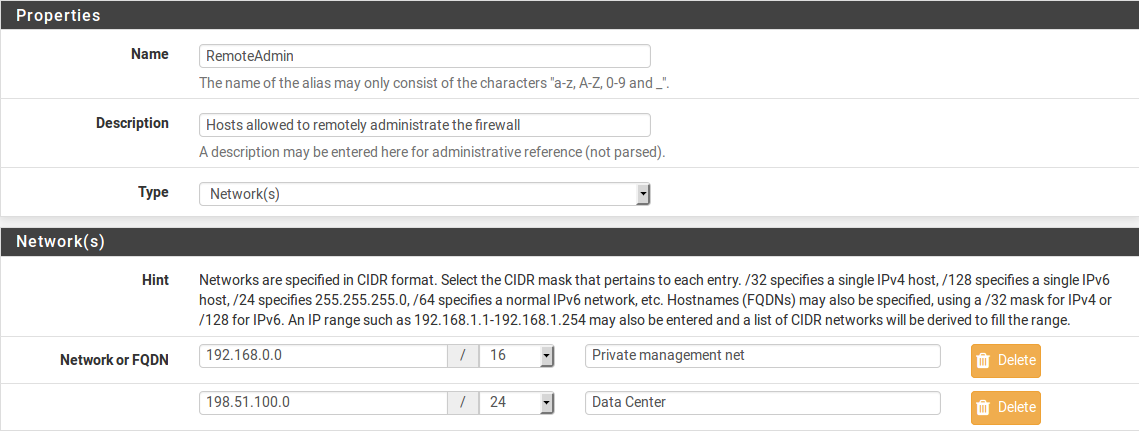
Figure Example Network Alias shows an example of a network alias that is used later in this chapter.
Example Network Alias
Other host or network aliases can be nested inside this entry. Hostnames may also be used as entries, as explained previously.
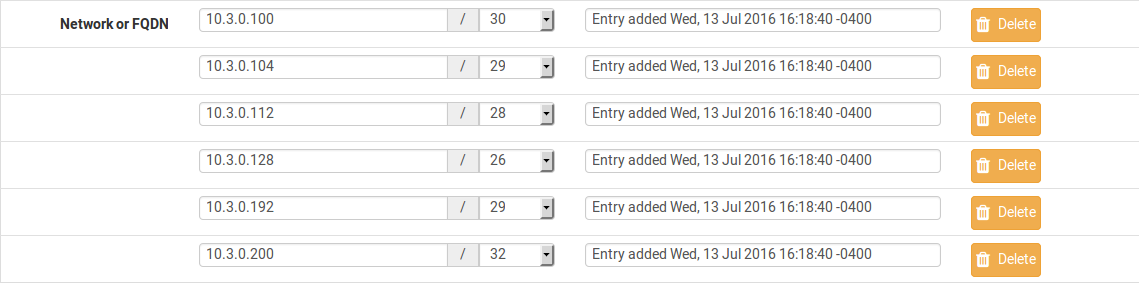
When an alias entry contains an IPv4 range it is automatically translated by the firewall to an equivalent set of IPv4 CIDR networks that will exactly contain the provided range. As shown in Figure Example IP Range After, the range is expanded when the alias is saved, and the resulting list of IPv4 CIDR networks will match exactly the requested range.

Example IP Range Before
Example IP Range After
Port Aliases
Port type aliases contain groups of ports and port ranges. A single port is an integer from 1-65535. A port range is two ports separated by a colon (:), for example, 1194:1199 and matches the specified ports and any ports in between.
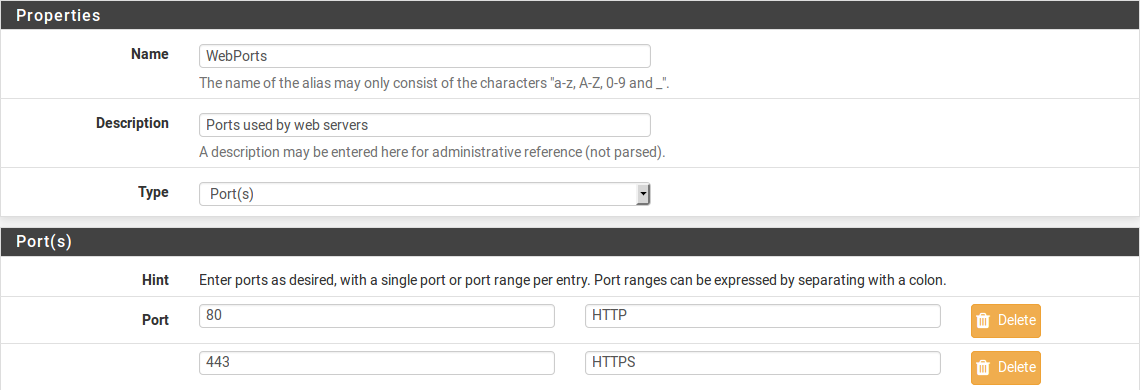
The protocol is not specified in the alias; The firewall rule where the alias is used will define the protocol as TCP, UDP, or both. Figure Example Ports Alias shows an example of a port type alias.
Example Ports Alias
Enter another port-type alias name into the Port field to nest other port-type aliases inside this alias.
URL Aliases
With a URL type alias, each entry contains a URL which returns text content containing a list of entries. Multiple URLs may be entered.
When Save is clicked, up to 3,000 entries from each URL are read from the file and imported into a network type alias.
If URL (IPs) is selected, then the URLs must contain IP address, CIDR masked network entries, or FQDNs, and the firewall creates a network type alias from the contents.
If URL (Ports) is selected, then the URL must contain only port numbers or ranges, and the firewall creates a port type alias from the contents.
For a URL type alias, the contents of the alias are re-fetched every 24 hours from the stored URL by the firewall.
URL Table Aliases
A URL Table alias behaves in a significantly different way than the URL alias. For starters, it does not import the contents of the file into a normal alias. It downloads the contents of the URL into a special location on the firewall and uses the contents for what is called a persist table, also known as a file-based alias. The full contents of the alias are not directly editable in the GUI, but can be viewed in the Tables viewer (See Firewall Table Contents).
For a URL Table alias, the drop-down list after the / controls how many days must pass before the contents of the alias are re-fetched from the stored URL by the firewall. When the time comes, the alias contents will be updated overnight by a script which re-fetches the data.
URL Table aliases can be quite large, containing many thousands of entries. Some customers use them to hold lists of all IP blocks in a given country or region, which can easily surpass 40,000 entries. The pfBlockerNG package uses this type of alias when handling country lists and other similar actions.
If URL Table (IPs) is selected, then the URLs must contain IP address, CIDR masked network entries, or FQDNs, and the firewall creates a network type alias from the contents.
If URL Table (Ports) is selected, then the URL must contain only port numbers or ranges, and the firewall creates a port type alias from the contents.
Configuring Aliases
To add an alias:
-
Navigate to Firewall > Aliases
-
Click
 Add
Add -
Enter settings as described in Alias Settings
-
Enter the type-specific information as needed. Each type has an data field and a description field for each entry.
To add new members to an alias, click Add at the bottom of the list of entries.
To remove members from an alias, click  Delete at the end of the row to remove.
When the alias is complete, click Save to store the alias contents.
Each manually entered alias is limited to 5,000 members, but some browsers have trouble displaying or using the page with more than around 3,000 entries. For large numbers of entries, use a URL Table type alias which is capable of handling larger lists.
Bulk Import Network Aliases
Another method of importing multiple entries into an alias is to use the bulk import feature.
To use the import feature:
-
Navigate to Firewall > Aliases
-
Click
 Import
 -
Fill in the Alias Name and Description
-
Enter the alias contents into the Aliases to import text area, one entry per line.
-
Click Save
Common usage examples for this page include lists of IP addresses, networks, and blacklists. The list may contain IP addresses, CIDR masked networks, IP ranges, or port numbers. The firewall will attempt to determine the target alias type automatically.
The firewall imports items into a normal alias which can be edited later.
Using Aliases
When a letter is typed into an input box which supports aliases, the GUI displays a list of matching aliases. Select the desired alias from the list, or type its name out completely.
Note
Alias autocompletion is not case sensitive but it is restricted by type. For example, a Network or Host type alias will be listed in autocomplete for a Network field, but a Port alias will not; A port alias can be used in a port field, but a Network alias will not be in the list.
Figure Autocompletion of Hosts Alias shows how the WebServers alias, configured as shown in Figure Example Hosts Alias, can be used in the Destination field when adding or editing a firewall rule.
-
Edit the firewall rule
-
Select Address or Alias
-
Then type the first letter of the desired alias: Enter
Wand the alias appears as shown.

Autocompletion of Hosts Alias
Figure Autocompletion of Ports Alias shows the autocompletion of the ports alias configured as shown in Figure Example Ports Alias. If multiple aliases match the letter entered, all matching aliases of the appropriate type are listed. Click on the desired alias to select it.

Autocompletion of Ports Alias
Figure Example Rule Using Aliases shows the rule created using the WebServers and WebPorts aliases. This rule is on WAN, and allows any source to the IP addresses defined in the WebServers alias when using the ports defined in the WebPorts alias.

Example Rule Using Aliases
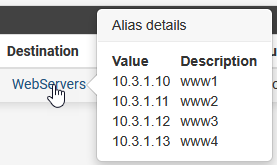
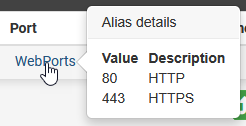
Hovering the mouse cursor over an alias on the Firewall > Rules page shows a tooltip displaying the contents of the alias with the descriptions included in the alias. Figure Hovering Shows Hosts Contents shows this for the WebServers alias and Figure Hovering Shows Ports Contents for the ports alias.
Hovering Shows Hosts Contents
Hovering Shows Ports Contents
Basic Firewall Configuration Example
Basic Firewall Configuration Example
This article is designed to describe how pfSense® software performs rule matching and a basic strict set of rules. The approach described in this document is not the most secure, but will help show how rules are setup.
Rules on the Interface tabs are matched on the incoming interface.
See also
Read the Aliases article as it will make management of rules easier.
Basic lock down of the LAN and DMZ outgoing rules
Outbound LAN
Make sure the Default LAN > any rule is either disabled or removed.
-
Allowing DNS access:
-
If pfSense is the DNS server:
-
Allow TCP/UDP 53 (DNS) from LAN subnet to LAN Address.
-
-
If using Upstream DNS Servers:
-
Allow TCP/UDP 53 (DNS) from LAN subnet to Upstream DNS Servers.
-
-
Otherwise:
-
Allow TCP/UDP 53 (DNS) from LAN subnet to anywhere.
-
-
-
Allowing all users to browse web pages anywhere:
-
Allow TCP 80 (HTTP) from LAN subnet to anywhere.
-
-
Allowing users to browse secure web pages anywhere:
-
Allow TCP 443 (HTTPS) from LAN subnet to anywhere.
-
-
Allowing users to access FTP sites anywhere:
-
Allow TCP 21 (FTP) from LAN subnet to anywhere.
-
-
Allowing users to access SMTP on a mail server somewhere:
-
Allow TCP 25 (SMTP) from LAN subnet to anywhere.
-
-
Allowing users to access POP3 on a mail server somewhere:
-
Allow TCP 110 (POP3) from LAN subnet to anywhere.
-
-
Allowing users to access IMAP on a mail server somewhere:
-
Allow TCP 143 (IMAP) from LAN subnet to anywhere.
-
-
Allowing remote connections to an outside windows server for remote administration:
-
Allow TCP/UDP 3389 (Terminal server) from LAN subnet to IP address of remote server.
-
-
Allowing LAN to access windows shares on the DMZ, via NETBIOS/Microsoft-DS:
-
Allow TCP/UDP 137 from LAN subnet (NETBIOS) to DMZ subnet.
-
Allow TCP/UDP 138 from LAN subnet (NETBIOS) to DMZ subnet.
-
Allow TCP/UDP 139 from LAN subnet (NETBIOS) to DMZ subnet.
-
Allow TCP 445 from LAN subnet (NETBIOS) to DMZ subnet.
-
Outbound DMZ
By default, there are no rules on OPT interfaces.
-
Allowing servers to use Windows update or browse the WAN:
-
Allow TCP 80 from DMZ subnet (HTTP) to anywhere.
-
Allow TCP 443 from DMZ subnet (HTTP) to anywhere.
-
-
Allow users to connect to an external DNS server:
-
Allow TCP/UDP 53 from DMZ subnet (DNS) to IP address of the upstream DNS server(s)
-
-
Allowing servers to use a remote time server:
-
If using an upstream remote time server:
-
Allow UDP 123 from DMZ subnet (NTP) to IP address of remote time server.
-
-
Otherwise:
-
Allow UDP 123 from DMZ subnet (NTP) to any.
-
-
Setup isolating LAN and DMZ, each with unrestricted Internet access
The following setup can be used instead if outbound access is more lenient, but still controlled between local interfaces. This assumes all local networks are privately numbered, and that interfaces have already been configured.
Create an alias, Firewall > Aliases from the main menu, called RFC1918 containing 192.168.0.0/16, 172.16.0.0/12, and 10.0.0.0/8.
LAN Configuration
-
For DNS from the firewall:
-
Allow TCP/UDP from LAN subnet to LAN Address port 53.
-
-
For accessing the GUI:
-
Allow TCP from LAN subnet to LAN address port 443.
-
-
To ping the firewall from the LAN:
-
Allow ICMP from LAN subnet to LAN address.
-
-
If there is any traffic required from LAN to DMZ:
-
Allow any traffic required from LAN to DMZ.
-
-
Do not allow LAN to reach DMZ or other private networks:
-
Reject Any from LAN subnet to RFC1918.
-
-
For internet access:
-
Allow Any from LAN subnet to any.
-
DMZ Configuration
-
For DNS from the firewall:
-
Allow TCP/UDP from DMZ subnet to DMZ Address port 53.
-
-
For accessing the GUI (optional):
-
Allow TCP from DMZ subnet to DMZ address port 443.
-
-
To ping the firewall from the DMZ:
-
Allow ICMP from DMZ subnet to DMZ address.
-
-
If there is any traffic required from DMZ to LAN:
-
Allow any traffic required from DMZ to LAN.
-
-
Do not allow DMZ to reach LAN or other private networks:
-
Reject Any from DMZ subnet to RFC1918.
-
-
For Internet access:
-
Allow Any from DMZ subnet to any.
-
Additional Interfaces
Repeat the above pattern as needed.
Blocking Web Sites
Blocking Web Sites
There are several options for blocking websites with pfSense® software, some of which are described on this article. This is not an exact science, but these solutions typically function well enough for a majority of use cases.
See also
The pfBlockerNG package (pfBlocker-NG Package) offers mechanisms which can be useful in this area, such as DNSBL, geographic IP address blocking, and automation of AS lookups.
Using DNS
If the built in DNS Resolver or Forwarder are active an override can be entered there to resolve the unwanted website to an invalid IP address such as 127.0.0.1.
Warning
Do not use DNS override functionality as the only means of blocking access to sites.
Blocking via DNS requires that local clients utilize the firewall as their only DNS source. See Redirecting Client DNS Requests and Blocking External Client DNS Queries for suggestions on ensuring clients get their DNS responses from the firewall. It will stop non-technical users, but it is easy to circumvent for those with more technical aptitude.
With the DNS Resolver, additional methods are possible via custom options.
This first example will prevent any host under the given zone from being resolved by clients:
server:
local-zone: "movie.edu" static
When the firewall enforces DNS resolution in this way, the firewall must also force clients to resolve DNS using the firewall. Otherwise, clients could bypass the restrictions by using alternate DNS servers. See Redirecting Client DNS Requests for details.
This can be limited in scope using custom views. This example is similar to the above, but only blocks access for 10.6.0.100:
server:
access-control-view: 10.6.0.100/32 blocksites

view:
name: "blocksites"
local-zone: "movie.edu" static
Using Firewall Rules
If a website rarely changes IP addresses, then it can be blocked by an alias. Create an alias containing its IP addresses and then use this alias in firewall rules.
Warning
This is not a feasible solution for sites that return low TTLs and spread the load across many servers and/or datacenters, such as Google and similar large sites. Most small to mid sized websites can be effectively blocked using this method as they rarely change IP addresses.
A hostname can also be inside a network alias. The firewall will resolve the hostname periodically and update the alias as needed. This is more effective than manually looking up the IP addresses, but will still fall short if the site returns DNS records in a way that changes rapidly or randomizes results from a pool of servers on each query, which is common for large sites.
Another option is finding all of the IP subnet allocations for a site. Create an alias with those networks and block traffic to those destinations. This is especially useful with sites such as Facebook that spread large amounts of IP space, but are constrained within a few net blocks. Using regional registry sites such as ARIN can help track down those networks. For example, all of the networks used by Facebook in the region covered by ARIN can be found at http://whois.arin.net/rest/org/THEFA-3.html under “Related Networks”. Companies may have other addresses in different regions, so check other regional sites as well, such as RIPE, APNIC, etc.
As an alternative to looking up the IP blocks manually, locate the BGP Autonomous System (AS) number for the target company by doing a whois lookup on one of their IP addresses. For example, the AS number for Facebook is AS32934 and the following command will locate all of their allocations:
# whois -h whois.radb.net -- '-i origin AS32934' | awk '/^route:/ {print $2;}' | sort | uniq
Copy the results of that command into a new alias and it will cover all of their currently allocated networks. Check the results periodically for updates.
Using a Proxy
In modern environments a client proxy is not effective. HTTPS can sometimes be filtered via peek/splice to inspect SNI and similar aspects of connections, but even that fails with modern security practices like encrypted SNI. Using proxies for these tasks is no longer a recommended practice.
Prevent Bypassing Restrictions
With any of the above methods, there are many ways to get around the defined blocks. The easiest and likely most prevalent is using any number of proxy websites. Finding and blocking all of these individually and keeping the list up to date is impossible. The best way to ensure these sites are not accessible is using an external proxy or content filtering capable of blocking by category.
To further maintain control, use a restrictive egress ruleset and only allow traffic out to specific services and/or hosts. For example, only allow DNS access to the firewall or the DNS servers specifically used for LAN clients (Redirecting Client DNS Requests). Also, if a proxy is in use on the network, make sure to disallow direct access to HTTP and HTTPS through the firewall and only allow traffic to and/or from the proxy server.