DNS
- Apple Private Relay on pihole
- Blocking External Client DNS Queries
- Pi-Hole
- Redirecting Client DNS Requests
- Configure Conditional Forwarder on PiHole
- Redirect to a different domain - Cloudflared
- Redirect from root to WWW - cloudflared
- Redirect Domain to New Domain
Apple Private Relay on pihole
if your Apple device has a DNS issue, but the DNS queries are not showing in the pihole logs you should see something along the lines of mask.icloud.com and mask-h2.icloud.com being blocked as Blocked (Special Domain) nxdomain. This appears to be a problem with Apple Private Relay, which can happen even when this is disabled. Below are the steps to resolve the issue.
Open the pihole server and edit /etc/pihole/pihole-FTL.conf in a text editor of your choice
add the line BLOCK_ICLOUD_PR=false
Save the file and reboot the hardware
After reboot Apple device DNS queries should begin to show properly in the pihole, and the PR mask.icloud.com and mask-h2.icloud.com domains should no longer be visible.
Blocking External Client DNS Queries
Blocking External Client DNS Queries
This procedure configures the firewall to block DNS requests from local clients to servers outside the local network. With no other accessible DNS servers, clients are forced to send DNS requests to the DNS Resolver or DNS Forwarder on pfSense® software for resolution.
Note
Blocking is effective but does not gracefully handle the situation. Clients must manually adjust their configuration to use the firewall for DNS. Redirecting DNS requests to the firewall is a more seamless solution. See Redirecting Client DNS Requests for details.
-
Navigate to Firewall > Rules, LAN tab
-
Create the block rule as the first rule in the list:
-
Click
 Add to create a new rule at the top of the list
 -
Fill in the following fields on the rule:
- Action
-
Reject
- Interface
-
LAN
- Protocol
-
TCP/UDP
- Destination
-
Any
- Destination Port Range
-
DNS (53)
- Description
-
Block DNS to Everything Else
-
-
Create the pass rule to allow DNS to the firewall, above the block rule:
-
Click
Add to create a new rule at the top of the list -
Fill in the following fields on the rule:
- Action
-
Pass
- Interface
-
LAN
- Protocol
-
TCP/UDP
- Destination
-
LAN Address
- Destination Port Range
-
DNS (53)
- Description
-
Pass DNS to the Firewall
-
-
Click
 Apply Changes to reload the ruleset
When complete, there will be two rule entries that look like the following picture:

Certain local PCs could be allowed to use other DNS servers by placing a pass rule for them above the block rule.
DNS over TLS
Another concern is that clients could use DNS over TLS to resolve hosts. DNS over TLS sends DNS requests over an encrypted channel on an alternate port, 853.
This traffic can be blocked with a firewall rule for port 853 using the same procedure used for 53. Though if the firewall will not be providing DNS over TLS service to clients, do not add the pass rule.
DNS over HTTPS
Similar to DNS over TLS, clients may also use DNS over HTTPS (DoH). This is harder to block as it uses port 443. Blocking port 443 on common public DNS servers may help (e.g. 1.1.1.1, 8.8.8.8).
Some browsers automatically attempt to use DNS over HTTPS because they believe it to be more secure and better for privacy, though that is not always the case. Each browser may have its own methods of disabling this feature. Firefox uses a “canary” domain use-application-dns.net by default. If Firefox cannot resolve this name, Firefox disables DNS over HTTPS.
To prevent Firefox from using DNS over HTTPS, add the following to the DNS Resolver custom options:
server:
local-zone: "use-application-dns.net" always_nxdomain
Pi-Hole
Pi-Hole is a DNS server that has built in ability to block queries. It does this by returning 0.0.0.0 for queries on the block list.
| List of Commands |
|
Change password: sudo pihole -a -p Pi-Hole v6 updated command to sudo pihole setpassword
Update: pihole -up |
Redirecting Client DNS Requests
Redirecting Client DNS Requests
Before you begin: Network level DNS must be set to use the pFsense firewall or DNS queries will fail. Attempting to redirect all DNS queries to your own DNS server, only to try and then send them off to Google or Cloudflared will fail.
To restrict client DNS to only the DNS Resolver or Forwarder on pfSense® software, use a port forward to capture all client DNS requests.
Note
Either The DNS Resolver or DNS Forwarder must be active and it must bind to and answer queries on Localhost, or All interfaces.
See also
The following example uses the LAN interface but the same technique will work with any local interface.
-
Navigate to Firewall > NAT, Port Forward tab
-
Click
Add to create a new rule -
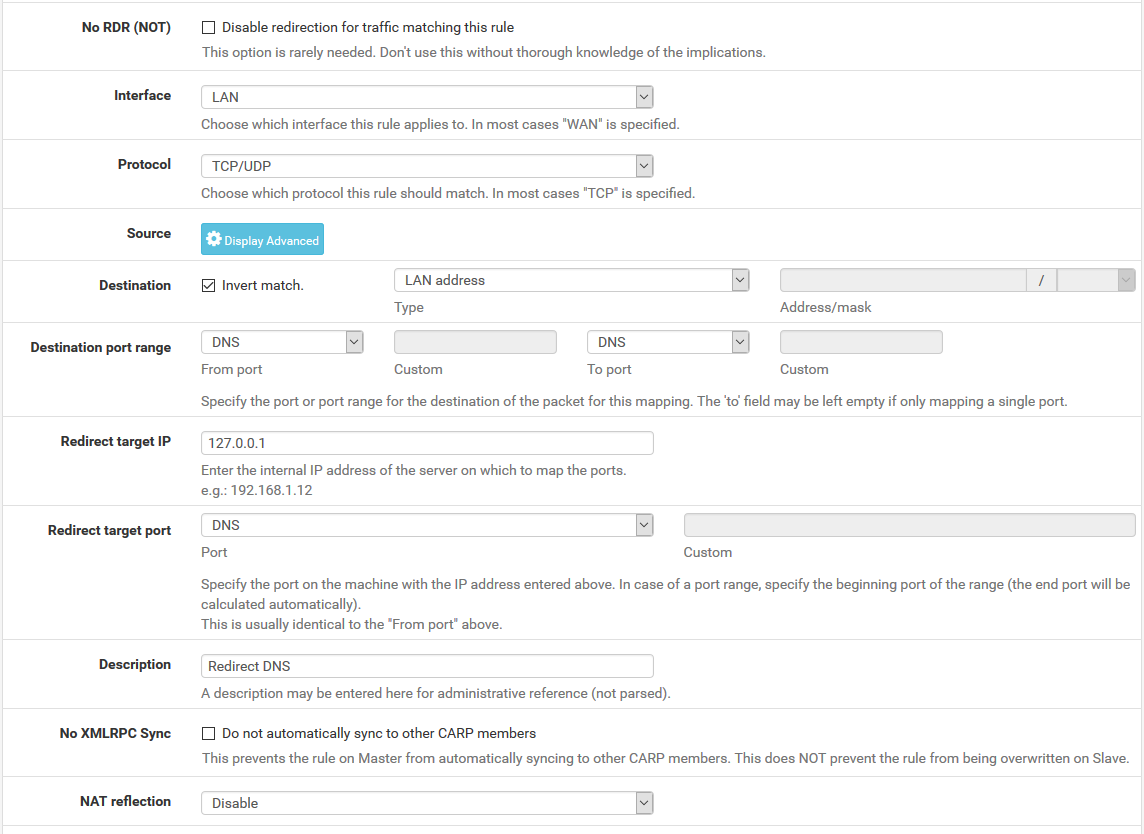
Fill in the following fields on the port forward rule:
- Interface
-
LAN
- Protocol
-
TCP/UDP
- Destination
-
Invert Match checked, LAN Address
- Destination Port Range
-
DNS (53)
- Redirect Target IP
-
127.0.0.1 - Redirect Target Port
-
DNS (53)
- Description
-
Redirect DNS - NAT Reflection
-
Disable
When complete, the port forward must appear as follows:
Note
If DNS requests to other DNS servers are blocked, such as by following Blocking External Client DNS Queries, ensure the rule to pass DNS to 127.0.0.1 is above any rule that blocks DNS.
With this port forward in place, DNS requests from local clients to any external IP address will result in the query being answered by the firewall itself. Access to other DNS servers on port 53 is impossible.
Tip
This can be adapted to allow access to only a specific set of DNS servers by changing the Destination network from “LAN Address” to an alias containing the allowed DNS servers. The Invert match box should remain checked.
Warning
Clients using DNS over TLS or DNS over HTTPS could circumvent this protection. Redirecting or blocking port 853 may help with DNS over TLS, depending on the clients.
See Blocking External Client DNS Queries for additional advice.
Configure Conditional Forwarder on PiHole
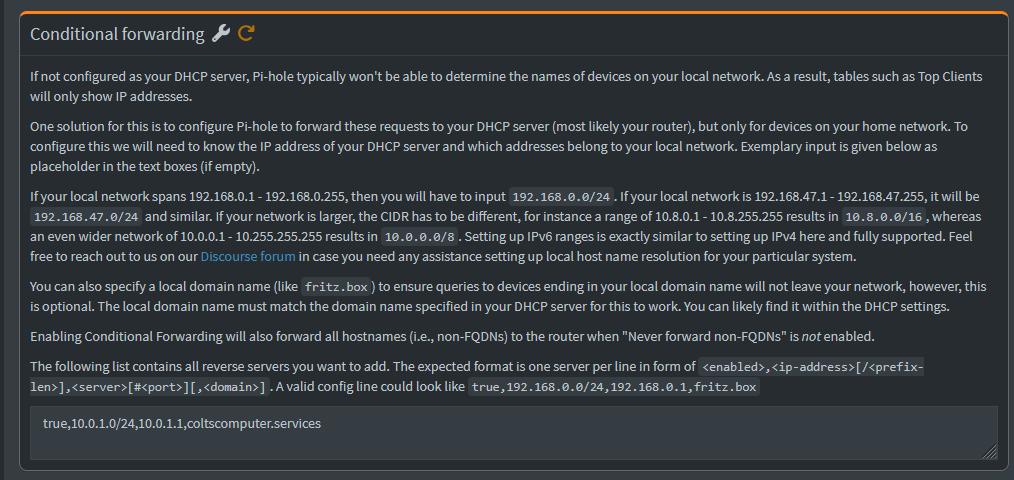
Enter one entry per line like the above
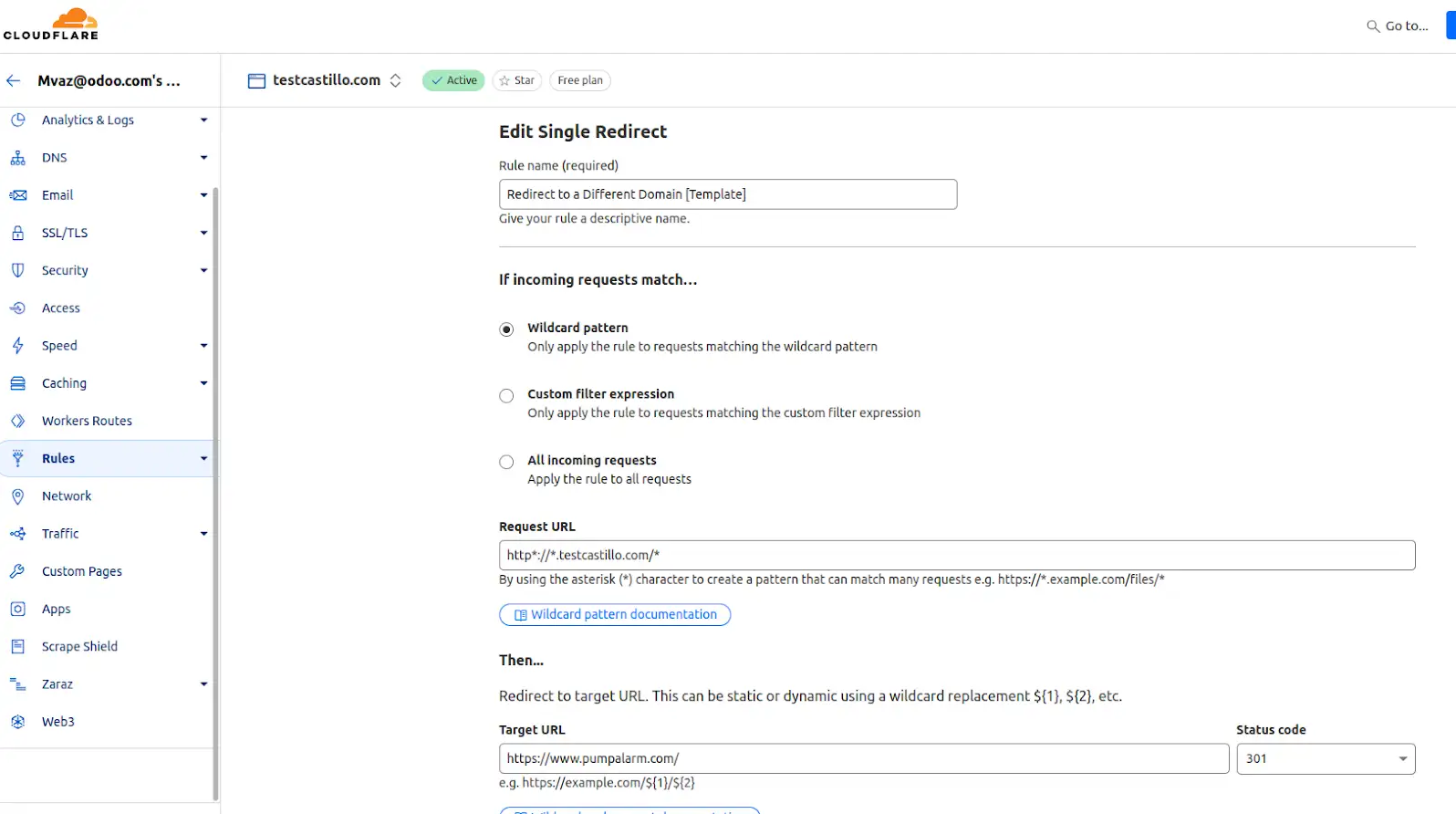
Redirect to a different domain - Cloudflared
https://drive.google.com/file/d/1-uxqWlPEd4vYTOfqIfMYyf_fkyS-vM8D/view?usp=drive_link
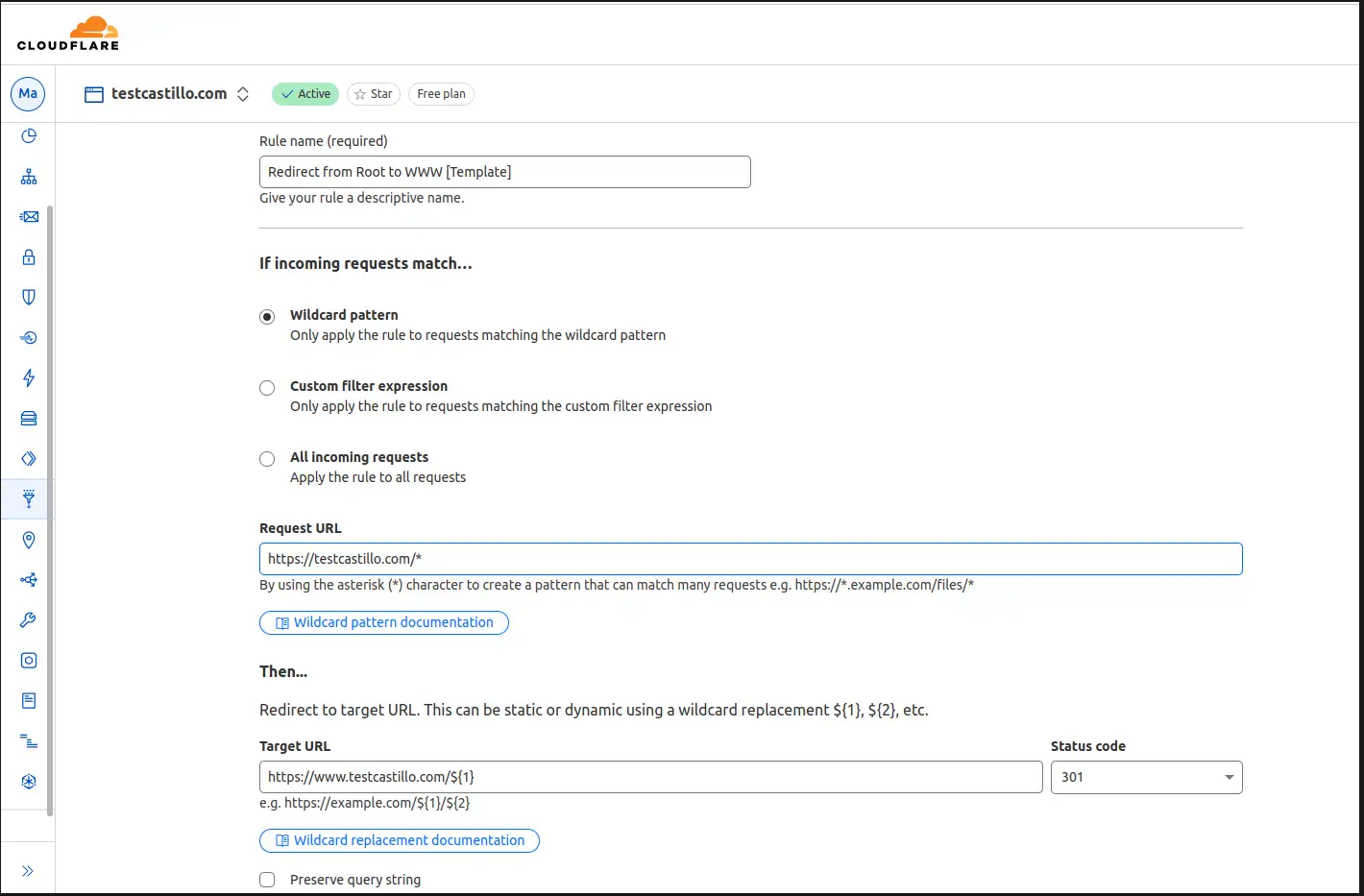
Redirect from root to WWW - cloudflared
https://drive.google.com/file/d/1igk01QjlggVZXxe2pbHMNy_MtNCZoxkC/view?usp=drive_link
Redirect Domain to New Domain
This config should allow you to redirect source.example.com to destination.example.com using cloudflared and Odoo as examples
First setup HTTP 301 redirect rules from the source to the destination domain.
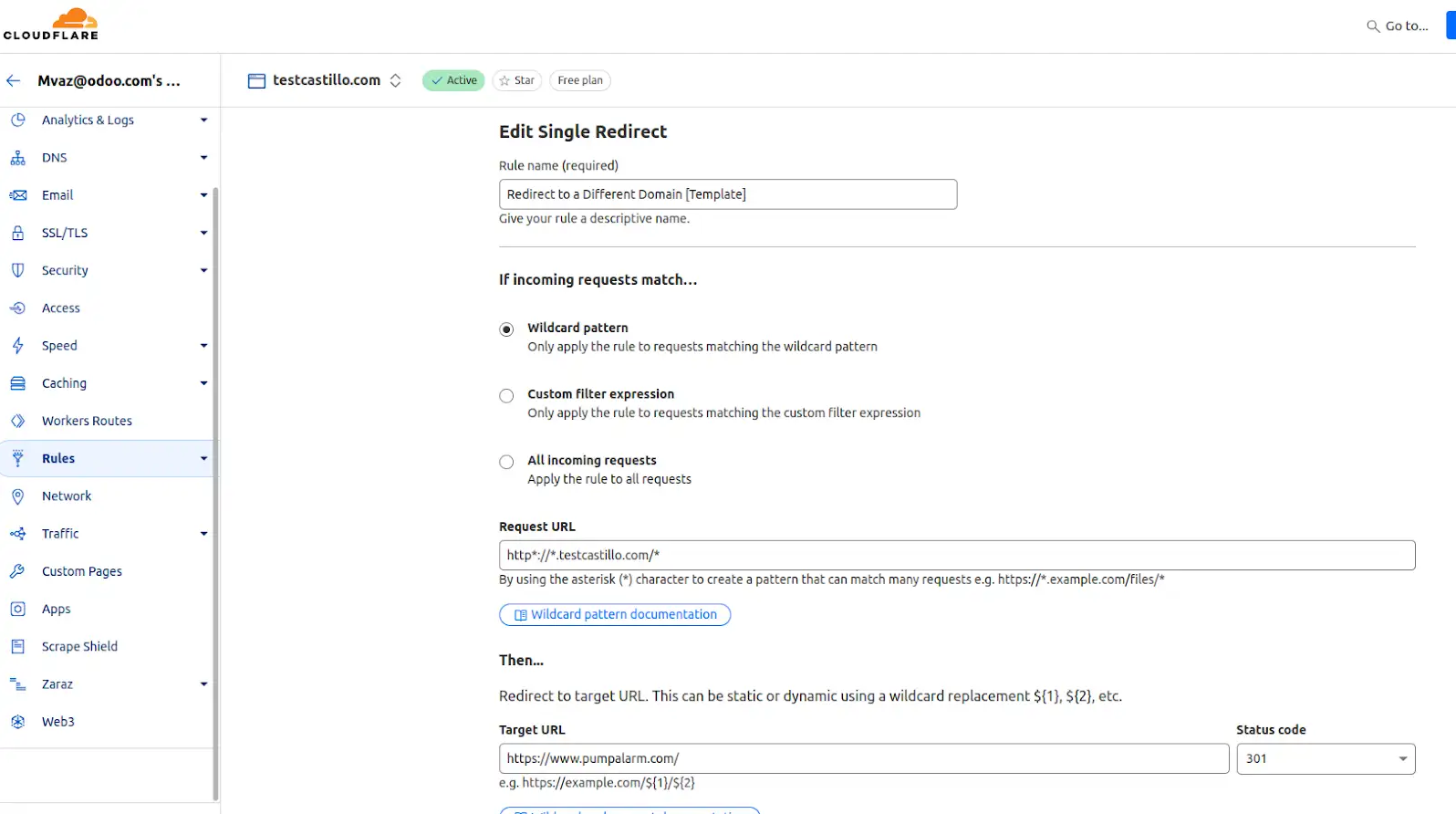
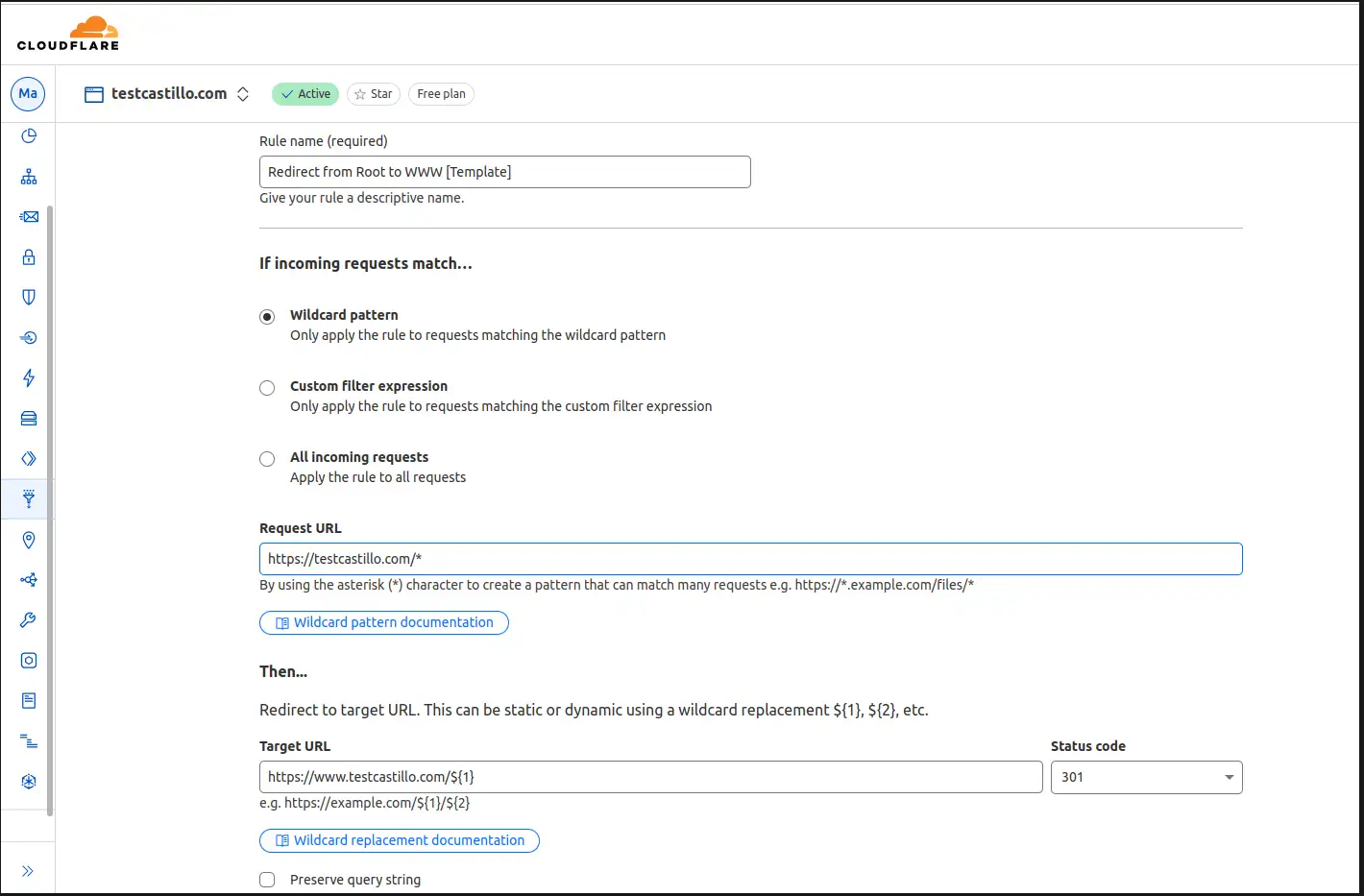
Next configure the DNS records
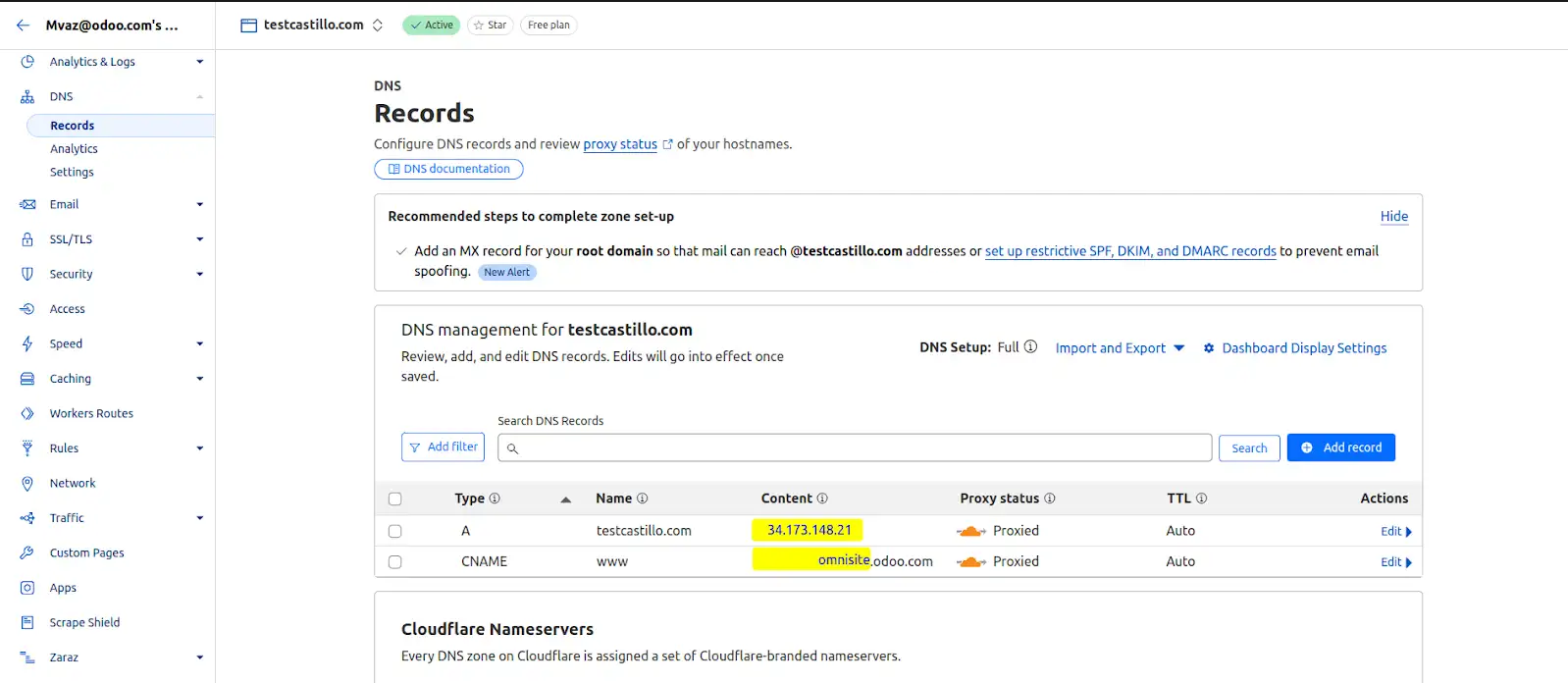
This should redirect www.source.example.com and source.example.com to www.destination.example.com.
#Cloudflared #Odoo #DNS #Redirect