# Use Active Directory objects directly in policies

# Use Active Directory objects directly in policies

Active Directory (AD) groups can be used directly in identity-based firewall policies. You do not need to add remote AD groups to local FSSO groups before using them in policies.

FortiGate administrators can define how often group information is updated from AD LDAP servers.

###### To retrieve and use AD user groups in policies:

<div class="document-content src-mc " id="bkmrk-set-the-fsso-collect"><div><div role="main">1. [Set the FSSO Collector Agent AD access mode](https://docs.fortinet.com/document/fortigate/7.2.9/administration-guide/795593#FSSO)
2. [Add an LDAP server](https://docs.fortinet.com/document/fortigate/7.2.9/administration-guide/795593#Add)
3. [Create the FSSO collector that updates the AD user groups list](https://docs.fortinet.com/document/fortigate/7.2.9/administration-guide/795593#Create)
4. [Use the AD user groups in a policy](https://docs.fortinet.com/document/fortigate/7.2.9/administration-guide/795593#Use)

</div></div></div>## <a name="FSSO"></a>Set the FSSO Collector Agent AD access mode<a name="Set_the_FSSO_Collector_Agent_AD_access_mode"></a>

To use this feature, you must set FSSO Collector Agent to *Advanced* AD access mode. If the FSSO Collector Agent is running in the default mode, FortiGate cannot correctly match user group memberships.

![](https://fortinetweb.s3.amazonaws.com/docs.fortinet.com/v2/resources/065ab6b9-541d-11ef-bfe5-fa163e15d75b/images/ba445c1c8b771c264f65b8ec32acd4fa_FSSO-collector-agent.jpg)

## <a name="Add"></a>Add an LDAP server<a name="Add_an_LDAP_server"></a>

<div class="document-content src-mc " id="bkmrk-when-configuring-an-"><div><div role="main"><table cellspacing="0" class="TableStyle-NotesTable"><colgroup><col class="TableStyle-NotesTable-Column-Column1"></col><col class="TableStyle-NotesTable-Column-Column2"></col></colgroup><tbody><tr class="TableStyle-NotesTable-Body-Body1"><td class="TableStyle-NotesTable-BodyB-Column1-Body1">![Caution](https://fortinetweb.s3.amazonaws.com/docs.fortinet.com/v2/resources/065ab6b9-541d-11ef-bfe5-fa163e15d75b/images/9bc45bdabdd446778efe86914d38f173_Icon-Caution.png "Caution")</td><td class="TableStyle-NotesTable-BodyA-Column2-Body1">When configuring an LDAP connection to an Active Directory server, an administrator must provide Active Directory user credentials.

- To secure this connection, use LDAPS on both the Active Directory server and FortiGate. See [Configuring an LDAP server](https://docs.fortinet.com/document/fortigate/7.2.9/administration-guide/102264/configuring-an-ldap-server) and [Configuring client certificate authentication on the LDAP server](https://docs.fortinet.com/document/fortigate/7.2.9/administration-guide/033548/configuring-client-certificate-authentication-on-the-ldap-server).
- Apply the principle of least privilege. For the LDAP regular bind operation, do not use credentials that provide full administrative access to the Windows server when using credentials. See [Configuring least privileges for LDAP admin account authentication in Active Directory](https://docs.fortinet.com/document/fortigate/7.2.9/administration-guide/631824/configuring-least-privileges-for-ldap-admin-account-authentication-in-active-directory).

</td></tr></tbody></table>

</div></div></div>###### To add an LDAP server in the GUI:

<div class="document-content src-mc " id="bkmrk-go-to%C2%A0user-%26-authent"><div><div role="main">1. Go to *User &amp; Authentication &gt; LDAP Servers*.
2. Click *Create New*.
3. Configure the settings as needed.
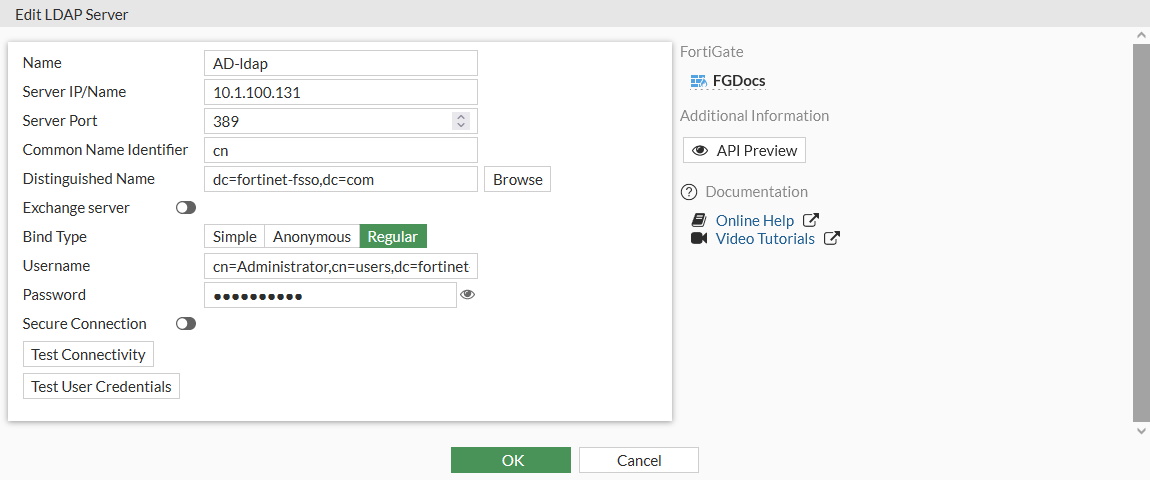
    
    ![](https://fortinetweb.s3.amazonaws.com/docs.fortinet.com/v2/resources/065ab6b9-541d-11ef-bfe5-fa163e15d75b/images/b044ef6adce0df1a1de4a899efbd4303_AD-groups-prerequisites%20.jpg)
4. If secure communication over TLS is supported by the remote AD LDAP server:
    
    
    1. Enable *Secure Connection* .
    2. Select the protocol.
    3. Select the certificate from the CA that issued the AD LDAP server certificate.
        
        If the protocol is LDAPS, the port will automatically change to 636.
5. Click *OK*.

</div></div></div>###### To add an LDAP server in the CLI:

```
config user ldap
    edit "AD-ldap"
        set server "10.1.100.131"
        set cnid "cn"
        set dn "dc=fortinet-fsso,dc=com"
        set type regular
        set username "cn=Administrator,cn=users,dc=fortinet-fsso,dc=com"
        set password XXXXXXXXXXXXXXXXXXXXXXXX               
    next
end
```

## <a name="Create"></a>Create the FSSO collector that updates the AD user groups list<a name="Create_the_FSSO_collector_that_updates_the_AD_user_groups_list"></a>

###### To create an FSSO agent connector in the GUI:

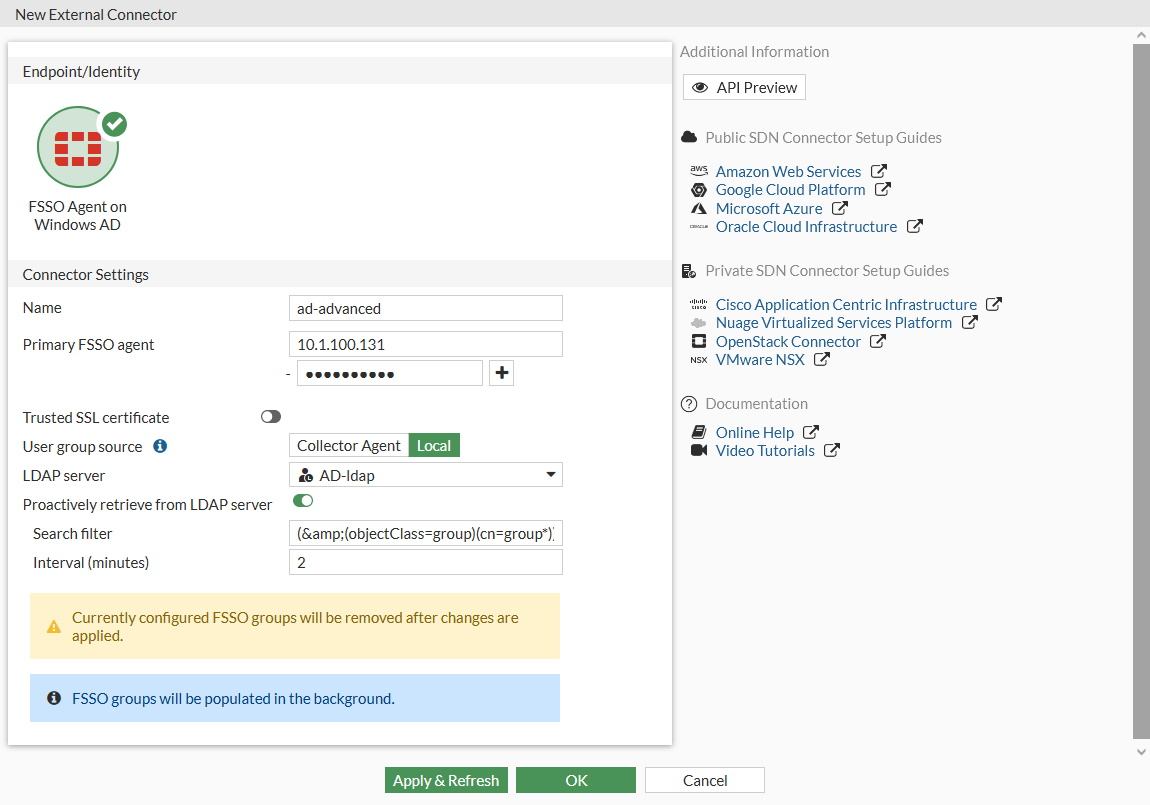
<div class="document-content src-mc " id="bkmrk-go-to%C2%A0security-fabri"><div><div role="main">1. Go to *Security Fabric &gt; External Connectors*.
2. Click *Create New*.
3. In the *Endpoint/Identity* section, click *FSSO Agent on Windows AD*.
4. Fill in the *Name*
5. Set the *Primary FSSO Agent* to the IP address of the FSSO Collector Agent, and enter its password.
6. Set the *User Group Source* to *Local*.
7. Set the *LDAP Server* to the just created *AD-ldap* server.
8. Enable *Proactively Retrieve from LDAP Server*.
9. Set the *Search Filter* to *(&amp;(objectClass=group)(cn=group\*))*.
    
    The default search filter retrieves all groups, including Microsoft system groups. In this example, the filter is configured to retrieve *group1*, *group2*, etc, and not groups like *grp199*.
    
    The filter syntax is not automatically checked; if it is incorrect, the FortiGate might not retrieve any groups.
10. Set the *Interval (minutes)* to configure how often the FortiGate contacts the remote AD LDAP server to update the group information.
    
    ![](https://fortinetweb.s3.amazonaws.com/docs.fortinet.com/v2/resources/065ab6b9-541d-11ef-bfe5-fa163e15d75b/images/6ac052622f7cb4ef2732bb7e37ebdddf_AD-groups-create-connector%20FSSO%20local-customized%20.jpg)
11. Click *OK*.
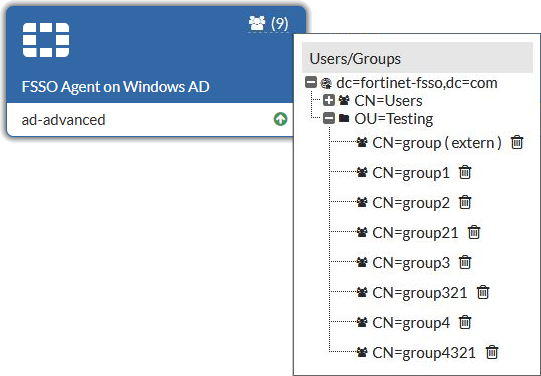
12. To view the AD user groups that are retrieved by the FSSO agent, hover the cursor over the group icon on the fabric connector listing.
    
    ![](https://fortinetweb.s3.amazonaws.com/docs.fortinet.com/v2/resources/065ab6b9-541d-11ef-bfe5-fa163e15d75b/images/80a83151f7a694d0dc184febfd73550e_Retrieved%20groups.png)

</div></div></div>###### To create an FSSO agent connector in the CLI:

```
config user fsso
    edit "ad-advanced"
        set server "10.1.100.131"
        set password XXXXXXXXXXXXXX
        set ldap-server "AD-ldap"
        set ldap-poll enable
        set ldap-poll-interval 2
        set ldap-poll-filter "(&amp;(objectClass=group)(cn=group*))"
    next
end
```

You can view the retrieved AD user groups with the `show user adgrp` command.

## <a name="Use"></a>Use the AD user groups in a policy<a name="Use_the_AD_user_groups_in_a_policy"></a>

The AD user groups retrieved by the FortiGate can be used directly in firewall policies.

![](https://fortinetweb.s3.amazonaws.com/docs.fortinet.com/v2/resources/065ab6b9-541d-11ef-bfe5-fa163e15d75b/images/fa76a12c58c63b393e23472c9f767d87_AD-groups-direct-in-firewall-policy%20.jpg)

<div class="document-content src-mc " id="bkmrk--2"><div id="bkmrk--3"><div id="bkmrk--4" role="main"></div></div></div>