# Duo Mobile
# General Duo Troubleshooting
1. user cannot get in with wrong security groups
1. wrong username alias
2. possibly not in the right group at all
3. azure might remove underscores and periods on azure joined machines
1. might have to create an alias with the dash in the name but not the period
# Duo Hybrid Environment reporting wrong Address to Duo
Just as an FYI, for Azure-only environments in Duo, for some reason the Windows Login app reports almost the "wrong" address to Duo.
This is why historically we've had to create an alias without the period in the middle, in Duo
There *is* a fix for it that does not involve aliases, but it involves a registry key and restarting the computer.
[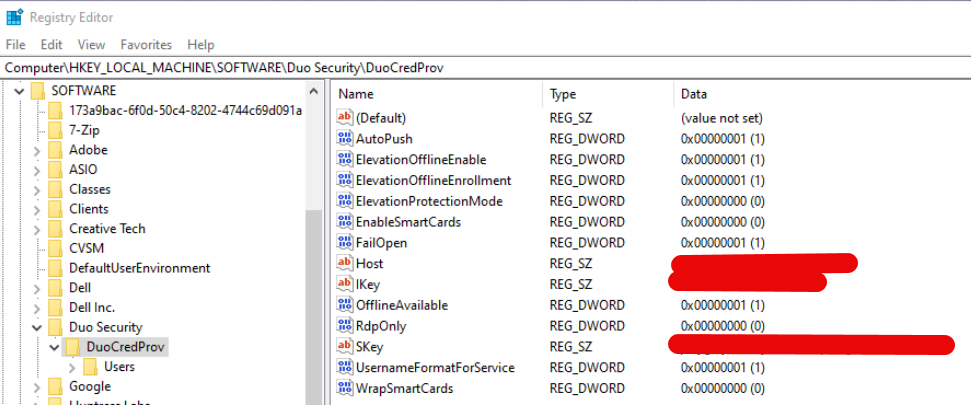](https://docs.coltscomputer.services/uploads/images/gallery/2025-05/bavxX7FTvRj2TRKk-image.png)
HKLM\\SOFTWARE\\Duo Security\\DuoCredProv
UsernameFormatForService should instead be a "0" so it actually reports "firstname.lastname@domain.com" to Duo, in Azure-only environments. For some reason, Hybrid environments don't have this limitation and I don't know why.
# Adding DUO to ScreenConnect
[https://docs.connectwise.com/ConnectWise\_ScreenConnect\_Documentation/Get\_started/Administration\_page/Security\_page/Enable\_two-factor\_authentication\_for\_host\_accounts/Configure\_two-factor\_authentication\_with\_Duo](https://docs.connectwise.com/ConnectWise_ScreenConnect_Documentation/Get_started/Administration_page/Security_page/Enable_two-factor_authentication_for_host_accounts/Configure_two-factor_authentication_with_Duo)
1. Go to the [duo admin center](http://admin.duosecurity.com/) and log in
2. switch to the CTS Computers - Internal tenant
3. Navigate to Applications along the side and then select the Auth API Option
4. Create a new Auth API policy or use the existing one
5. Note down the api hostname, secret key, and integration key
6. Navigate to the ScreenConnect Admin portal, and then web configuration settings
7. 
8. scroll to the bottom of the page and input your duo information from earlier
9. Edit any existing users you wish to use with duo and change the OTP option like so
10. 
11. Under the OTP option enable "duo: username"
12. This will be the username that is sent to duo. This must match the usernames in Duo.
# Add virtual hardware token to Duo
Use the following website to create a secret key for TOTP 6 digit
[TOTP Generator (xanxys.net)](https://www.xanxys.net/totp/)
DUO, requires the secret to be in HEX
ITG, requires in Base32
[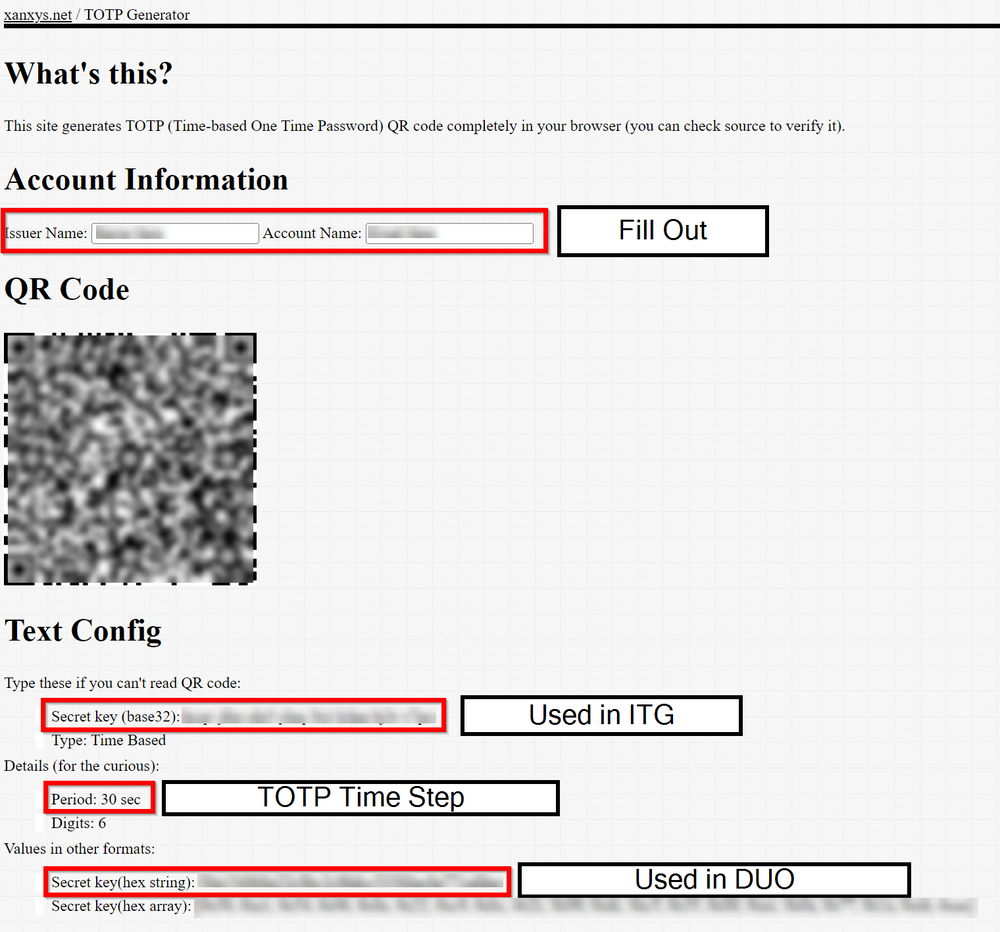](https://docs.coltscomputer.services/uploads/images/gallery/2024-08/U9Q7QGaa4Mie2NXj-20553828.png)
[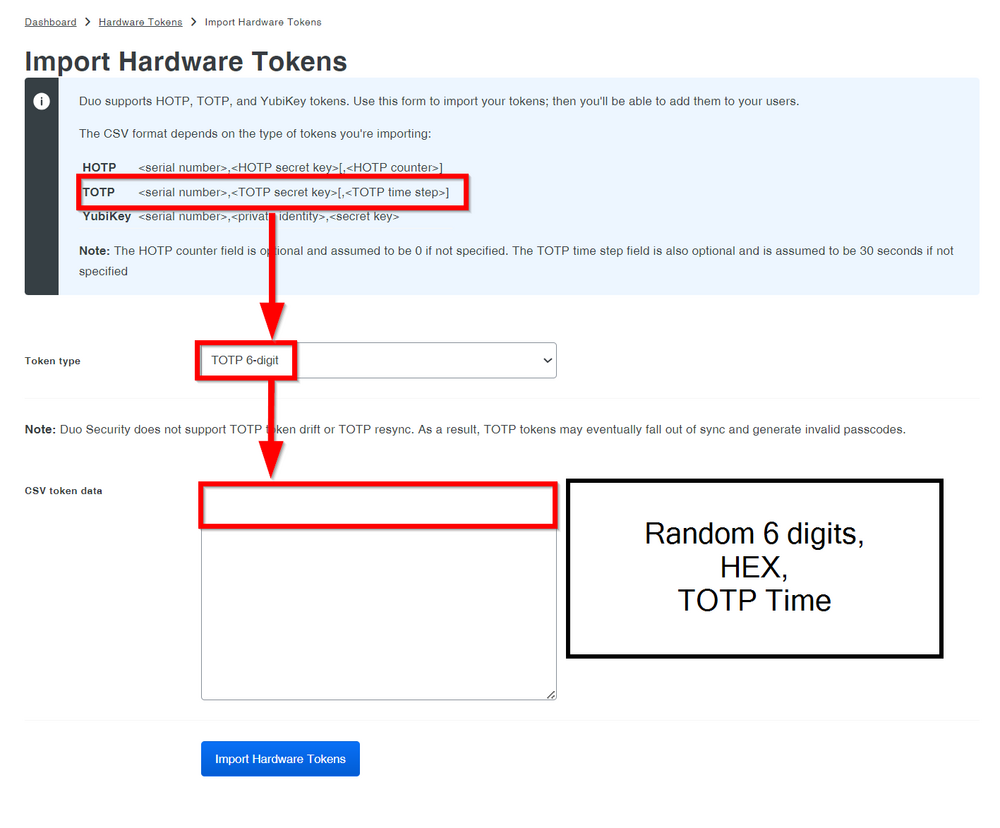](https://docs.coltscomputer.services/uploads/images/gallery/2024-08/qykEi5iJ011odnTO-20553883.png)
Should look like this
123456,cd074dac8ad1fb6fb3d513a713e160cd6a10c6f3,30