1. First, navigate to [**Account > MDM Settings**](https://app.addigy.com/account-mdm-settings?is_global=true), find the certificate you'd like to renew, and make a note of the APN Topic.
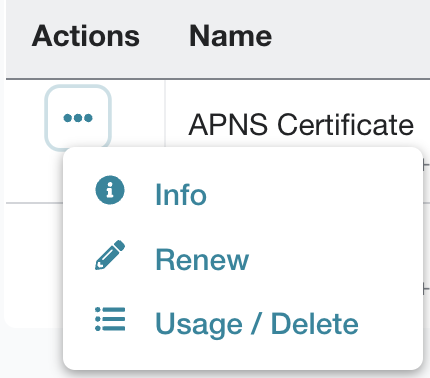
2. Open the actions dropdown for the certificate and select **Renew** to open the Renew Certificate window.
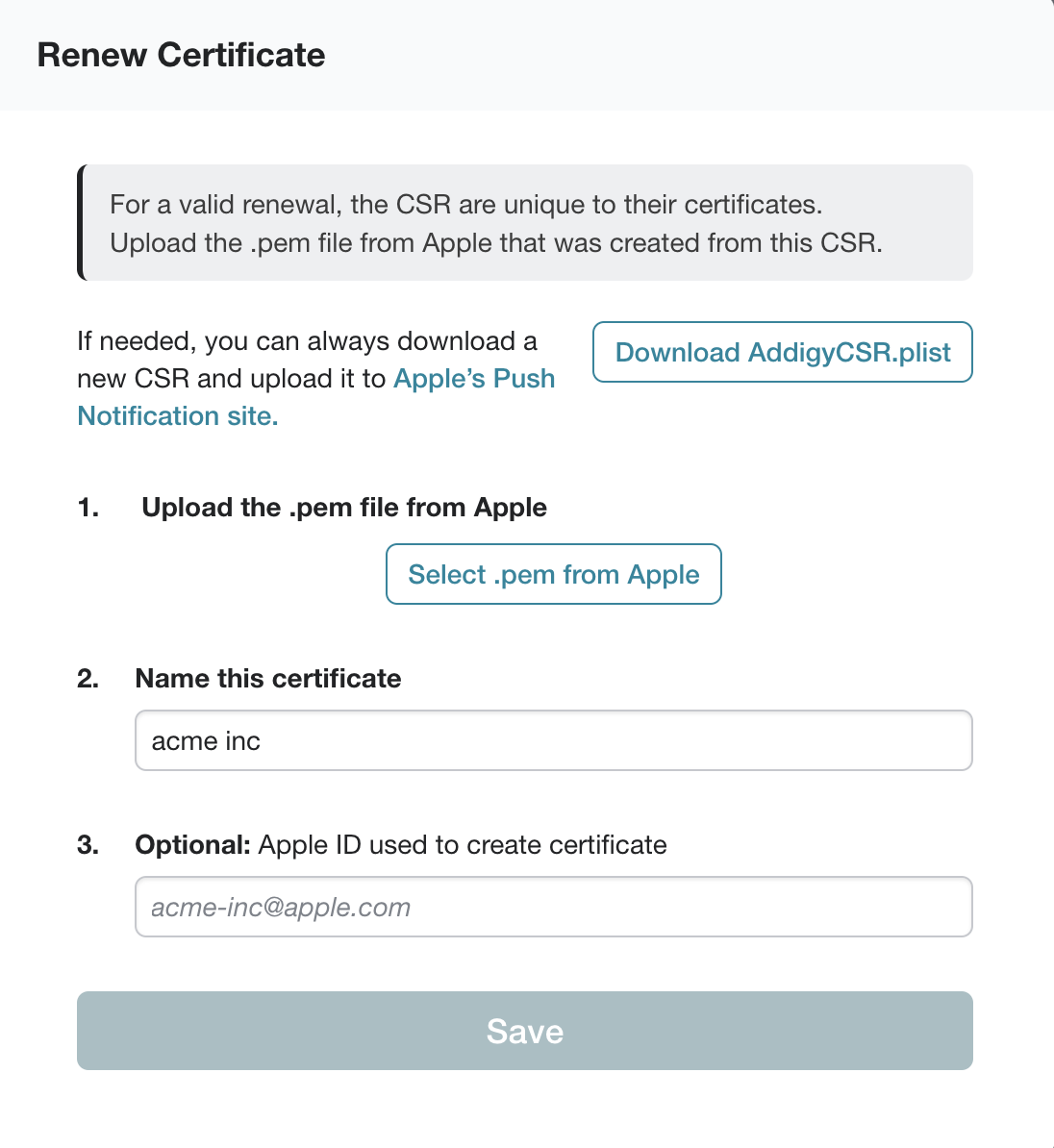
3. The pop-up provides the CSR you'll need to renew the certificate (the same CSR that was used to create it). Download the **AddigyCSR.plist** and go to the [Apple Push Certificate website](https://identity.apple.com/pushcert/) (*you'll have to log in with the same Apple ID that was used to create the cert originally*)
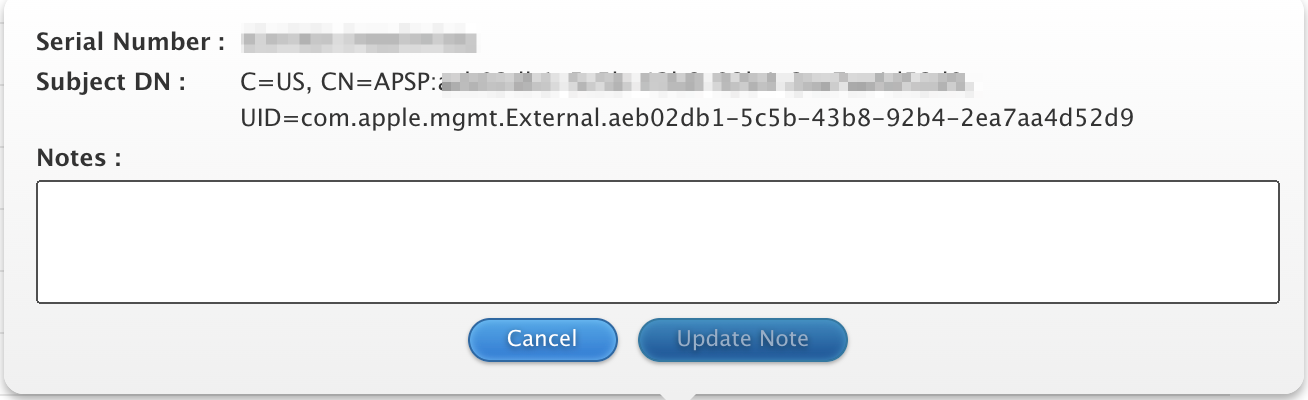
4. After logging in with the Apple ID, find which certificate you are renewing. To ensure the push certificates match, you can click on the blue  button and reference the **Subject DN** (specifically, the string after "**CN=APSP:**"). This Subject DN should match the **APN Topic** shown in the **Account > MDM Settings** page. Follow this check for each certificate until you find a match. If there is no match, the Apple Push Certificate in Addigy was created under another Apple ID. If you cannot access the Apple ID that managed the push certificate OR you do not know which Apple ID managed the cert, you can reach out to Apple for further assistance. For steps on what is needed for this process, please reference [this great article](https://derflounder.wordpress.com/2023/04/11/migrating-an-apns-certificate-from-one-apple-id-to-another-apple-id/#:~:text=For%20example%2C%20if%20you%20have%20an%20APNS%20certificate%20with%20the%20following%20information%3A) from Rich Trouton @ DerFlounder.
5. After finding a match, click the **Renew** button. From here, click **Choose File** and select the plist file downloaded from Step 3.

6. You will now be able to download the renewed certificate .pem file and upload it into Addigy via the Renew Certificate Window in Step 2.
If you see the error: "Error: There is a problem with the certificate’s topic (400)" returned when uploading, please review [this article](https://support.addigy.com/hc/en-us/articles/4657449639315-Error-There-is-a-problem-with-the-certificate-s-topic-400) to see why.
### 
7. Finally, **Save** and then verify that the **Updated** date column of the certificate has changed.